

Yes, You Can Use Headphones on Nintendo Switch: The Quick Answer
Yes, you can use headphones on Nintendo Switch through three primary methods: the 3.5mm audio jack, native Bluetooth support, or a USB-C/USB-A adapter. Whether you own the Nintendo Switch OLED, the Standard V2, or the Switch Lite, you have multiple ways to enjoy immersive audio while gaming.
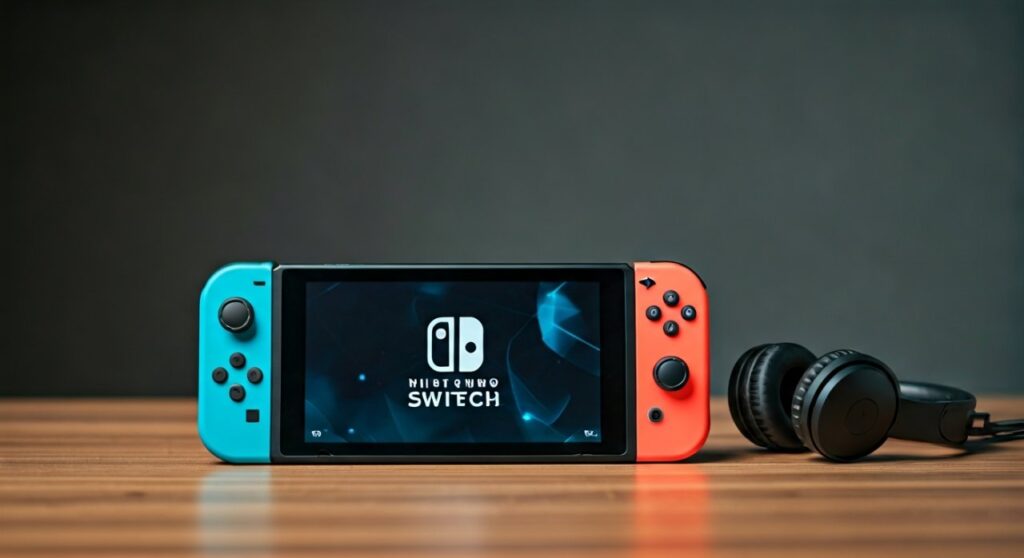
Previously, users required third-party dongles for wireless audio, but since the System Update 13.0.0, Nintendo has enabled direct Bluetooth pairing. However, there are specific limitations regarding microphone support and the number of connected controllers that every player should know before diving in.
Key Takeaways: Connecting Headphones to Your Switch
If you are in a hurry, here is the essential breakdown of how to connect headphones to Nintendo Switch effectively:
- Wired Connection: Plug any standard 3.5mm headset into the top of the console.
- Bluetooth Native: Go to System Settings > Bluetooth® Audio to pair wireless earbuds like AirPods or Sony WH-1000XM5.
- USB Audio: Use the USB-C port (Handheld) or USB-A ports (Docked) for high-fidelity wireless gaming headsets with dongles.
- The Catch: Native Bluetooth does not support microphones for in-game chat; you often need the Nintendo Switch Online app or a wired connection for that.
- Controller Limit: When using Bluetooth audio, you are limited to only two wireless controllers connected to the system.
How to Connect Headphones to Nintendo Switch via Bluetooth
For years, the community asked, “Can you connect headphones to Nintendo Switch wirelessly?” without an adapter. In late 2021, Nintendo finally unlocked this feature via firmware.
Step-by-Step Bluetooth Pairing
- Ensure your Nintendo Switch is updated to at least version 13.0.0.
- Put your Bluetooth headphones or earbuds into “Pairing Mode.”
- On the Switch Home screen, select System Settings (the gear icon).
- Scroll down the left sidebar to Bluetooth® Audio.
- Select Pair Device. The console will begin searching for nearby signals.
- Select your headset’s name from the list once it appears.
Expert Pro Tip: If your headphones don’t appear, ensure they aren’t currently connected to your phone or laptop. The Switch’s Bluetooth antenna is notoriously weak, so stay within 3-5 feet during the initial pairing process.
Using Wired Headphones: The Most Reliable Method
Despite the convenience of wireless, many pro gamers prefer the 3.5mm audio jack located at the top of the console. This method offers zero latency (audio lag) and is the only way to get consistent microphone support for games like Fortnite or Apex Legends.
Why Choose Wired?
Zero Latency: Essential for rhythm games like Cadence of Hyrule*.
- Battery Life: Your headphones won’t die mid-boss fight, and they don’t drain the Switch’s battery as fast as Bluetooth.
- Plug-and-Play: No menus to navigate; just plug in and the Nintendo Switch automatically routes audio.
Using USB Wireless Headsets (Dongle Method)
If you own a premium gaming headset from brands like SteelSeries, Razer, or Logitech, you likely have a USB dongle. This is often the superior way to use headphones with Nintendo Switch because it uses a 2.4GHz wireless connection instead of Bluetooth.
In Docked Mode
Simply plug the USB-A dongle into one of the three ports on the Switch Dock. The console will instantly recognize it as “USB Audio.”
In Handheld Mode
You will need a USB-C to USB-A adapter (OTG adapter) or a headset that comes with a native USB-C dongle (like the SteelSeries Arctis 7P). Plug the dongle directly into the charging port at the bottom of the screen.
Comparison: Bluetooth vs. Wired vs. USB Dongle
| Feature | Bluetooth Audio | Wired (3.5mm) | USB Dongle (2.4GHz) |
|---|---|---|---|
| Audio Lag | Noticeable (SBC Codec) | None | Minimal |
| Mic Support | No (Output only) | Yes (Most models) | Yes (Supported models) |
| Setup Ease | Medium (Pairing) | Easiest | Easy (Plug & Play) |
| Range | ~10-15 feet | Limited by wire | ~30 feet |
| Compatibility | AirPods, Sony, Bose | Any standard jack | Gaming-specific sets |
The Hidden Limitations of Switch Bluetooth Audio
While it is great that you can use headphones on Nintendo Switch wirelessly, Nintendo implemented several technical “trade-offs” to preserve CPU performance for gaming.
The Two-Controller Limit
The Switch uses its Bluetooth bandwidth primarily for Joy-Cons and Pro Controllers. When you activate Bluetooth Audio, the system can only maintain connections with two wireless controllers. If you are playing Mario Kart with four players, you cannot use Bluetooth headphones simultaneously.
Disconnecting During Local Wireless
If you initiate a “Local Wireless” session to play with a friend who is in the same room (Switch-to-Switch), the console will automatically disconnect your Bluetooth headphones. This is because Local Wireless utilizes the same frequency band as Bluetooth audio.
Lack of High-End Codecs
The Switch only supports the SBC codec. This means you won’t get aptX or LDAC high-fidelity audio. If you are an audiophile, you will notice a slight compression in sound quality compared to using a PC or high-end smartphone.
Troubleshooting Common Audio Issues
Even if you know how to connect headphones to nintendo switch, things can occasionally go wrong. Here are the fixes for the most common bugs.
No Sound After Pairing
- Check if “Mute when Headphones are Disconnected” is toggled in System Settings.
- Ensure the volume buttons on the top of the Switch are actually turned up (Bluetooth volume is handled independently).
- Restart the console by holding the Power button for 3 seconds and selecting Restart.
Audio Lag or Stuttering
- Move closer to the console. The Switch’s dock can sometimes block the signal.
- Turn off Bluetooth on your nearby smartphone to reduce signal interference.
- Update your headset’s firmware via a PC.
Expert Recommendations: Best Headsets for Switch
Based on extensive testing, here are the top picks for different playstyles:
- For Portability: Apple AirPods Pro or Samsung Galaxy Buds. Their compact size matches the Switch’s mobile nature perfectly.
- For Competitive Play: SteelSeries Arctis Nova 7. It comes with a USB-C dongle that provides lag-free audio in both handheld and docked modes.
- For Comfort/Budget: HyperX Cloud Alpha. This wired headset plugs directly into the 3.5mm jack and provides some of the best comfort for long Zelda marathons.
Frequently Asked Questions (FAQs)
Can you use AirPods on Nintendo Switch?
Yes, AirPods work perfectly with the Nintendo Switch via the Bluetooth® Audio menu. Just place your AirPods in their case, hold the pairing button until the light flashes white, and select them in the Switch settings.
Why doesn’t my microphone work on my Bluetooth headset?
The Nintendo Switch Bluetooth Audio profile only supports A2DP (Advanced Audio Distribution Profile), which is for audio output only. It does not support HFP (Hands-Free Profile). To use a mic, you must use a wired headset or a specific USB dongle that supports a mic channel.
Can I use Bluetooth headphones while the Switch is docked?
Yes. The Bluetooth audio feature works in both Handheld and Docked modes. You do not need to stay near the dock, though staying within 10-15 feet is recommended to avoid audio drops.
How many Bluetooth devices can the Switch remember?
The Nintendo Switch can save up to 10 paired Bluetooth audio devices, but you can only use one at a time. If you want to switch from earbuds to a speaker, you must manually disconnect one and connect the other.
Can you use headphones with Nintendo Switch Lite?
Absolutely. The Switch Lite has the exact same 3.5mm jack and Bluetooth capabilities as the standard and OLED models. All the steps mentioned in this guide apply to the Lite as well.









