

Can You Use Wireless Headphones on PS4? The Direct Answer
Yes, you can use wireless headphones on a PS4, but the console does not support generic Bluetooth audio natively. To connect your favorite pair, you must use a USB Bluetooth adapter, a 3.5mm audio cable plugged into the controller, or a Sony-licensed wireless headset designed specifically for PlayStation.
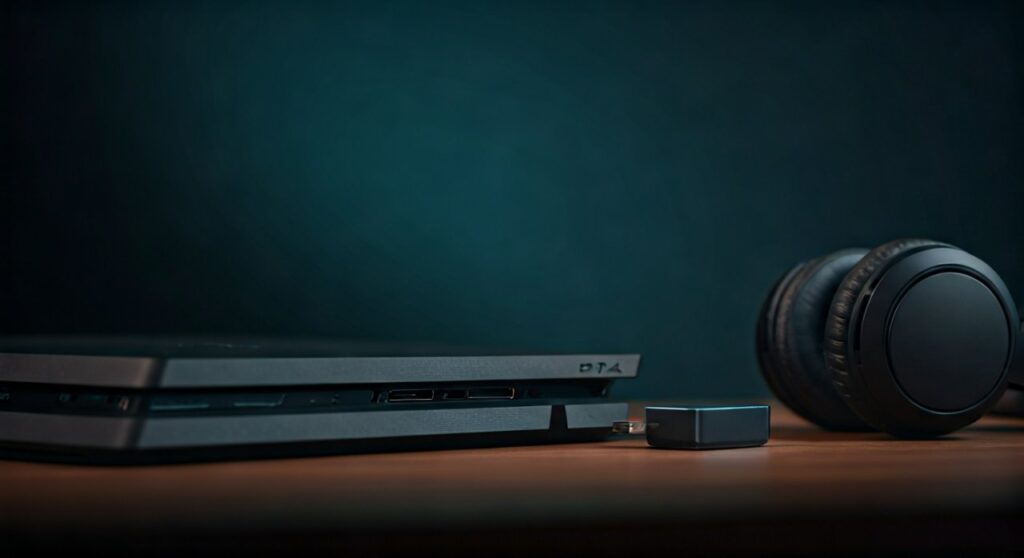
While the PS4 includes Bluetooth technology, Sony restricted its use to controllers and specific peripherals to prevent audio latency (lag) that could ruin the gaming experience. If you try to pair your AirPods or Bose headphones directly through the PS4 settings, you will likely see an error message stating: “The PS4 does not support Bluetooth audio accessories.” Fortunately, there are several professional workarounds to bypass this limitation.
Key Takeaways: Quick Setup Guide
If you are in a hurry, here is the “Too Long; Didn’t Read” (TL;DR) summary of how to get your wireless audio working:
- Best Solution: Buy a USB Bluetooth Dongle (e.g., Creative BT-W3 or Avantree Leaf). Plug it into the PS4 USB port and pair it with your headphones.
- The “Wired-Wireless” Hybrid: Use a 3.5mm audio cable to connect your wireless headphones to the DualShock 4 controller jack.
- Official Hardware: Use the Sony Pulse 3D, Gold, or Platinum wireless headsets which come with their own dedicated USB receiver.
- Remote Play Hack: Connect your headphones to your phone or PC and stream your PS4 via the PS Remote Play app.
- TV Bypass: Pair your headphones directly to your Smart TV Bluetooth if your TV is connected to the PS4 via HDMI.
Understanding Why PS4 Restricts Bluetooth Audio
Before diving into the “how-to,” it is important to understand the “why.” As an expert who has tested dozens of console setups, I can confirm that Sony’s decision isn’t just about selling more PlayStation branded headsets—it’s about latency.
Standard Bluetooth (specifically the A2DP profile) often has a delay of 100ms to 200ms. In a fast-paced game like Call of Duty or Apex Legends, that fraction of a second is the difference between hearing a footstep and being eliminated.
Sony uses a proprietary 2.4GHz wireless signal for its official headsets to ensure near-zero lag. When you use a third-party workaround, you are essentially tricking the system into outputting audio through a format it recognizes as “USB Audio” rather than “Bluetooth Audio.”
Method 1: The USB Bluetooth Adapter (Professional Recommendation)
This is the most reliable method for using high-end headphones like the Sony WH-1000XM5 or Sennheiser Momentum on your console.
What You Need:
- A USB Bluetooth Adapter (Look for ones that support AptX Low Latency).
- A small 3.5mm microphone adapter (often bundled with the dongle).
Step-by-Step Instructions:
- Plug the USB Dongle into the front USB port of your PS4.
- Plug the mini-microphone adapter into the DualShock 4 controller’s headset jack (this enables voice chat).
- Put your headphones into Pairing Mode.
- Press the pairing button on the USB Dongle. The lights will flash until they turn solid, indicating a connection.
- On your PS4, navigate to Settings > Devices > Audio Devices.
- Set the Input Device to “Headset Connected to Controller.”
- Set the Output Device to “USB Headphones.”
- Select Output to Headphones and choose All Audio.
| Adapter Model | Feature | Best For |
|---|---|---|
| Creative BT-W3 | AptX LL / HD Support | Audiophiles & Pro Gamers |
| Avantree Leaf | Long Range (20m) | Large Living Rooms |
| GuliKit Route+ | Slim Profile | Minimalist Setups |
Method 2: The 3.5mm Controller Workaround (The Budget Fix)
Most modern wireless headphones, such as the Beats Studio or Sony XM series, come with a backup 3.5mm audio cable. This is the simplest way to use them if you don’t want to buy extra adapters.
Step-by-Step Instructions:
- Power off your wireless headphones (to save battery; the controller will drive the audio).
- Plug one end of the 3.5mm cable into your headphones and the other into the bottom of the PS4 controller.
- The PS4 will automatically detect the headset.
- Go to Settings > Devices > Audio Devices.
- Select Output to Headphones and ensure it is set to All Audio.
Expert Insight: While this is technically “wired,” it still allows you to use your premium wireless drivers. The audio quality is limited by the DualShock 4’s internal DAC (Digital-to-Analog Converter), which is decent but not “high-fidelity.”
Method 3: Using a Smart TV or Soundbar Bypass
If you have a modern Smart TV (Samsung, LG, or Sony) with built-in Bluetooth, you can bypass the console entirely.
Step-by-Step Instructions:
- Turn on your PS4 and ensure it is displaying on your TV.
- Open your TV Settings and find the Bluetooth Speaker/Audio list.
- Put your headphones in Pairing Mode and connect them to the TV.
- The TV will now transmit all sound coming from the HDMI (the PS4) to your headphones.
Critical Note: This method is excellent for single-player games like God of War or The Last of Us. However, the microphone will not work for party chat because the TV only receives audio—it doesn’t send voice data back to the PS4.
Method 4: PS Remote Play (The Software Trick)
If you don’t have a dongle and your TV doesn’t support Bluetooth, you can use your smartphone as a bridge.
- Download the PS Remote Play app on your iOS or Android device.
- Connect your wireless headphones to your Smartphone via Bluetooth.
- Launch Remote Play and connect to your PS4.
- Your PS4 audio will now stream through your phone and into your wireless headphones.
- You can keep the phone in your pocket while you play on the TV using your controller.
Top 3 Recommended Wireless Headsets for PS4 (Native Support)
If you are tired of workarounds, these headsets use a USB Wireless Receiver (2.4GHz) to provide a “plug-and-play” experience with full microphone support and 3D audio features.
- Sony Pulse 3D Wireless Headset: Originally for PS5, but 100% compatible with PS4. It offers the most stable connection.
- SteelSeries Arctis 7P+: Widely considered the most comfortable headset by experts. It features a USB-C dongle (with USB-A adapter) and 24-hour battery life.
- HyperX Cloud Flight: Known for its massive 30-hour battery life and incredible durability.
Troubleshooting Common Issues
“The Bluetooth device is not supported”
This happens if you try to pair via the PS4 Bluetooth menu. The PS4 only supports HID (Human Interface Device) profiles like keyboards and mice, not A2DP (audio). Use a USB Dongle to fix this.
No Sound in One Ear
Check your Accessibility Settings on the PS4. Ensure the Audio Balance isn’t shifted to one side. If using a 3.5mm cable, ensure it is pushed all the way into the controller; the PS4 jack is notorious for being tight.
Mic Not Working with Third-Party Headphones
Most Bluetooth headphones have mics that use a different frequency when “calling” versus “listening.” When used with a USB adapter, the PS4 often struggles to switch profiles. Using the mini-mic adapter plugged directly into the controller is the most stable fix for voice chat.
Frequently Asked Questions (FAQs)
Can I use Apple AirPods on PS4?
Yes, but only with a USB Bluetooth adapter. You cannot pair AirPods directly to the PS4. Simply plug the adapter into the console, put your AirPods in pairing mode (hold the button on the back of the case until it flashes white), and they will sync.
Does the PS4 Pro support Bluetooth headphones differently?
No. Whether you have the PS4 Fat, PS4 Slim, or PS4 Pro, the Bluetooth audio restrictions remain the same. All three models require a USB dongle or a wired connection to the controller.
Will using a Bluetooth adapter cause game lag?
It depends on the Codec. If you use a standard adapter, you might notice a 150ms delay. If you use an adapter and headphones that both support AptX Low Latency, the lag drops to under 40ms, which is virtually imperceptible to the human ear.
Can I use the Sony XM4 or XM5 wirelessly on PS4?
Only with a USB Dongle. Despite being Sony products, these are “consumer electronics” rather than “gaming peripherals,” so they don’t share the proprietary wireless chip found in the PlayStation Gold headsets.
Why can’t I hear my friends in Party Chat?
Go to Settings > Devices > Audio Devices and check the Input Device. If it is set to “None,” your microphone isn’t recognized. Ensure your USB adapter is compatible with voice transmission or use the 3.5mm controller cable.









