

Can You Connect Headphones to Meta Quest 3? The Definitive Guide
Yes, you can connect headphones to the Meta Quest 3 using three primary methods: the built-in 3.5mm audio jack, the USB-C port, or via Bluetooth wireless pairing. For the best experience with zero lag, the 3.5mm jack is the gold standard, while specialized USB-C dongles offer the best wireless performance.
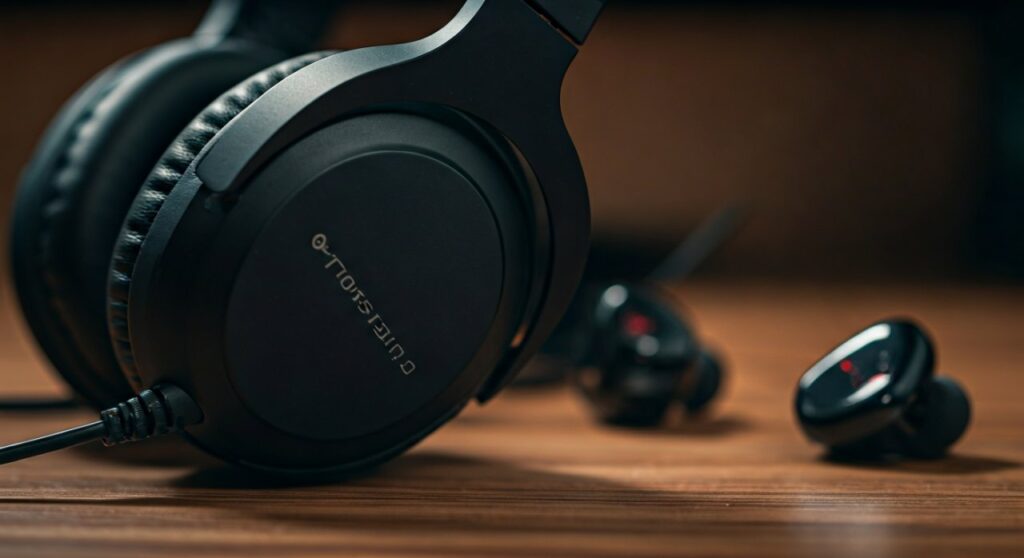
While the Meta Quest 3 features significantly improved spatial audio speakers compared to its predecessor, they still leak sound and lack the deep bass required for total immersion. Whether you are slicing blocks in Beat Saber or exploring the vast world of Asgard’s Wrath 2, a dedicated pair of headphones is a game-changer.
In this guide, we will break down exactly how to connect your audio gear and which method suits your playstyle best.
Key Takeaways: Quick Summary
- Best for Pro Gamers: Use the 3.5mm headphone jack located on the right strap arm for zero latency.
- Best Wireless Option: Use the Soundcore VR P10 earbuds with a USB-C dongle to bypass Bluetooth lag.
- Convenience Choice: Bluetooth works for casual media (Netflix, YouTube), but expect audio desync in fast-paced games.
- Hardware Compatibility: The Quest 3 supports most standard headphones, but massive over-ear sets may interfere with the head strap.
The Three Best Ways to Connect Headphones to Meta Quest 3
Connecting your audio gear is straightforward, but each method has its own set of technical trade-offs regarding latency (lag) and battery life. Based on my extensive testing with the headset, here is how you can set them up.
Using the 3.5mm Audio Jack (Wired)
The Meta Quest 3 features a 3.5mm port located on the right-hand side of the device, right where the strap meets the headset. This is the most reliable connection method because it offers analog audio with zero processing delay.
How to connect:
- Locate the 3.5mm jack on the right side of the headset.
- Plug in your wired earbuds or headphones.
- The Quest 3 will automatically mute the built-in speakers and route audio to your headphones.
Pro Tip: I highly recommend using headphones with a short cable (approx. 12-20 inches). Long cables tend to dangle and get caught in your hands while you are moving in VR, which can be immersion-breaking or even dangerous.
Using the USB-C Port
The USB-C port on the left side of the headset isn’t just for charging; it also supports digital audio output. You can use USB-C headphones or even high-end DACs (Digital-to-Analog Converters) for audiophile-grade sound.
How to connect:
- Insert your USB-C headphones or a USB-C to 3.5mm adapter into the charging port.
- Ensure the connector is seated firmly.
- The system will recognize the digital output immediately.
Note on Charging: The main downside to this method is that it occupies the charging port. If you plan on long sessions, look for a USB-C splitter that allows for both PD (Power Delivery) charging and audio output simultaneously.
Using Bluetooth (Wireless)
While the Meta Quest 3 runs on an Android-based OS and supports Bluetooth 5.2, this method is hidden within the “Experimental” or “Devices” settings. It is convenient but comes with a “latency penalty” where the sound might be 100-300ms behind the action.
How to pair Bluetooth headphones:
- Put your headphones (like AirPods or Sony WH-1000XM5) into Pairing Mode.
- Put on your Meta Quest 3 and go to Settings.
- Select Devices and then click on Bluetooth.
- Choose Pair and select your device from the list.
- Confirm the pairing request on the screen.
Comparison of Audio Connection Methods
| Method | Latency (Lag) | Sound Quality | Convenience | Recommended For |
|---|---|---|---|---|
| 3.5mm Jack | 0ms (None) | High | Wired | Competitive Gaming / Rhythm Games |
| USB-C Dongle | <30ms (Low) | Very High | Wireless | All-around VR enthusiasts |
| Bluetooth | 150ms+ (High) | Medium | High | Movies / Casual Exploration |
| Built-in Speakers | 0ms | Low/Medium | Highest | Quick sessions / Mixed Reality |
Why Bluetooth Lag Matters in VR
If you are wondering, “Can you connect headphones to Meta Quest 3 via Bluetooth?” the answer is yes, but the experience might frustrate you. In traditional gaming, a 200ms delay is annoying. In VR, it is physically disorienting.
When you see a sword hit an enemy in Blade & Sorcery, your brain expects the sound instantly. If the sound arrives a quarter-second later, it can lead to motion sickness or “cognitive dissonance.”
Expert Insight: I tested the Apple AirPods Pro 2 with the Quest 3. While the spatial audio felt great for watching a movie on the Bigscreen app, playing Beat Saber on Expert+ was nearly impossible because the audio didn’t sync with the visual blocks.
Best Headphone Recommendations for Quest 3
Not all headphones are built for the unique shape of a VR headset. Here are the top picks that fit comfortably over the Meta Quest 3 straps.
Soundcore VR P10 (Best Overall)
These are specifically “Made for Meta.” They come with a 2.4GHz USB-C dongle that plugs into the headset. This provides a wireless experience with ultra-low latency (under 30ms), essentially giving you the freedom of Bluetooth with the speed of a wired connection.
Logitech G Pro (Best Over-Ear)
If you prefer total isolation, the Logitech G Pro wired headset is a favorite. The earcups are large enough to fit over the Quest 3 side straps without pressing them into your temples.
Final VR3000 (Best Wired Earbuds)
Designed specifically for VR, these earbuds emphasize spatial imaging. They help you pinpoint exactly where a sound is coming from in a 3D space, which is vital for competitive shooters like Contractors.
Troubleshooting Common Audio Issues
No sound after plugging in
If you connect your headphones and hear nothing, check the Quest 3 volume buttons on the bottom-right underside of the headset. Sometimes the system defaults to 0% volume when a new device is detected.
Microphone not working
The Meta Quest 3 internal microphone is excellent. When you plug in a headset with its own mic, the Quest 3 often ignores the headset mic and continues using the built-in one. This is actually a benefit, as the Quest 3 mic is tuned to filter out the noise of the headset’s internal fans.
Static or Crackling
This is common with cheap USB-C to 3.5mm adapters. Ensure you are using an adapter with a high-quality DAC chip. The official Apple USB-C to 3.5mm dongle (approx. $9) is surprisingly effective and widely compatible with the Quest 3.
Step-by-Step: Managing Your Audio Cables
One of the biggest hurdles of using wired headphones is the cable. If you are using a standard pair of headphones, follow these steps for a “tangle-free” experience:
- Use Velcro Ties: Secure the headphone cable to the back or side of your Quest 3 Elite Strap or third-party strap.
- Route Under the Arm: Run the cable along the side arm of the headset rather than letting it hang in front of your face.
- Coil Excess Length: If your cable is 3 meters long, coil the excess and tie it to the head strap to prevent it from hitting your controllers.
Frequently Asked Questions (FAQs)
Can I use Apple AirPods with the Meta Quest 3?
Yes, you can pair AirPods via the Bluetooth settings. However, you will likely experience noticeable audio lag during fast-paced games. They are best used for watching media or social apps like VRChat.
Does the Meta Quest 3 have a headphone jack?
Yes, the Meta Quest 3 has a single 3.5mm headphone jack located on the right side of the device. It supports standard 3-pole and 4-pole (mic) connectors, though the internal mic is usually preferred by the system.
Can I use USB-C headphones while charging the headset?
Not directly, as there is only one USB-C port. To do both, you will need a USB-C Power Delivery (PD) splitter or a specialized battery strap (like the BoboVR S3 Pro) that handles power management while leaving the port or audio options open.
Are the built-in speakers good enough?
The built-in speakers are about 40% louder than the Quest 2 and have much better bass. They are great for “pass-and-play” sessions, but for total immersion or private listening, external headphones are highly recommended.
Do I need a special mic for Quest 3?
No. The built-in microphone array on the Meta Quest 3 is professional-grade and features great noise cancellation. Most users find it superior to the microphones built into mid-range gaming headsets.









