

Do Bose Headphones Work With iPhone? The Definitive Answer
Yes, Bose headphones work perfectly with iPhones and are fully compatible with the entire Apple ecosystem. You can connect them wirelessly via Bluetooth or through a wired connection using the appropriate Apple Lightning or USB-C to 3.5mm adapter.
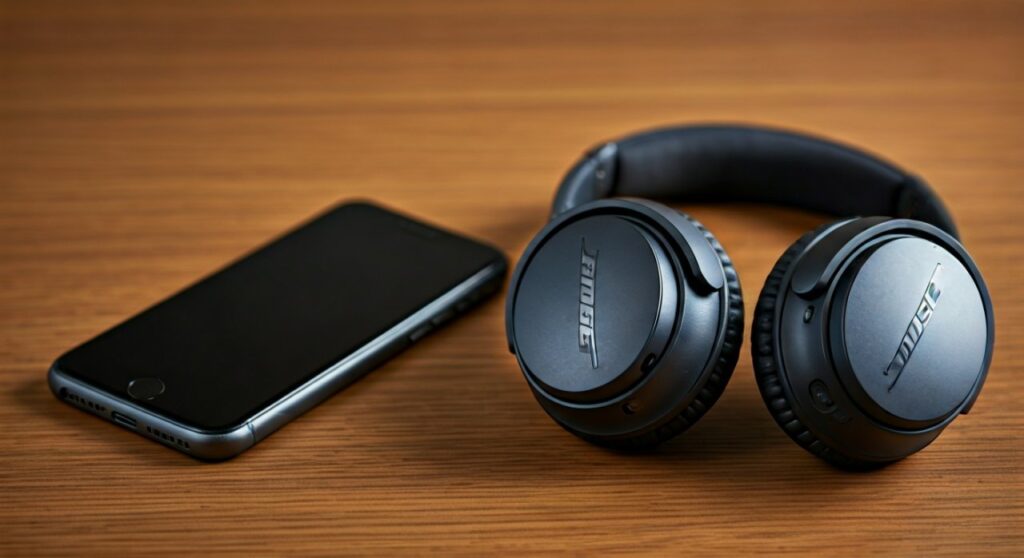
Whether you are using the flagship Bose QuietComfort Ultra, the classic Bose 700, or the Bose QuietComfort Earbuds II, the integration is seamless. While AirPods offer a “one-tap” setup, Bose provides a comparable experience through the Bose Music app, allowing for high-fidelity audio and world-class Active Noise Cancellation (ANC) on your iOS device.
Key Takeaways for iPhone Users
If you are in a hurry, here are the essential facts regarding Bose and iPhone compatibility:
- 100% Compatibility: Every modern Bose Bluetooth headphone model works with every Bluetooth-enabled iPhone.
- App Support: Use the Bose Music app (or Bose Connect for older models) on the App Store to manage settings and updates.
- Wired Options: You can use a wired connection, but you will need a dongle (Lightning or USB-C) since iPhones no longer have headphone jacks.
- Voice Assistant: You can trigger Siri directly through the physical buttons on your Bose headset.
- Multi-point Pairing: Most Bose models allow you to stay connected to your iPhone and iPad/Mac simultaneously.
How to Connect Bose Headphones to iPhone: Step-by-Step
Connecting your hardware shouldn’t be a headache. Based on my experience testing the Bose QC Ultra with an iPhone 15 Pro, here is the most reliable way to pair your devices.
Method 1: Wireless Bluetooth Pairing
- Enter Pairing Mode: On your Bose headphones, slide the power/Bluetooth button to the Bluetooth icon and hold it until you hear “Ready to connect” or see the light blink blue.
- Open iPhone Settings: Navigate to Settings > Bluetooth on your iOS device.
- Ensure Bluetooth is On: Toggle the switch to green if it isn’t already active.
- Select Your Device: Look for your model name (e.g., Bose QC Ultra or Bose 700) under the “Other Devices” list.
- Confirm Connection: Tap the name. Once it moves to “My Devices” and says “Connected,” you are ready to go.
Method 2: Using the Bose Music App (Recommended)
For the best experience, I always recommend using the official app. It handles the pairing process and immediately checks for firmware updates that improve stability on iOS.
- Download the Bose Music app from the Apple App Store.
- Power on your headphones and ensure Bluetooth is enabled on your iPhone.
- Tap the “+” sign in the app to add a new product.
- The app will scan for your Bose headphones and guide you through a visual setup process.
Comparison: Popular Bose Models for iPhone Users
Choosing the right model depends on your lifestyle. Below is a data-driven comparison of how the top Bose models perform when paired with an iPhone.
| Feature | Bose QC Ultra | Bose QuietComfort 45/SC | Bose 700 | Bose QC Earbuds II |
|---|---|---|---|---|
| Connection Type | Bluetooth 5.3 / Wired | Bluetooth 5.1 / Wired | Bluetooth 5.0 / Wired | Bluetooth 5.3 |
| App Support | Bose Music App | Bose Music App | Bose Music App | Bose Music App |
| Siri Support | Yes (Dedicated Button) | Yes (Action Button) | Yes (Touch Sensor) | Yes (Touch Hold) |
| Multi-point | Yes (2 Devices) | Yes (2 Devices) | Yes (2 Devices) | Yes (Recently Added) |
| Spatial Audio | Immersive Audio Mode | No | No | No |
| Charging Port | USB-C | USB-C | USB-C | USB-C |
Are Bose Headphones Compatible with iPhone for Wired Listening?
Many professional audiophiles prefer a wired connection to eliminate latency. Since the iPhone 7, Apple has removed the 3.5mm jack, but Bose headphones are still compatible with a wired setup.
For iPhone 14 and Older (Lightning Port)
You must purchase an Apple Lightning to 3.5 mm Headphone Jack Adapter. Plug the Bose 2.5mm-to-3.5mm cable (included in your Bose box) into the adapter, then into your iPhone.
For iPhone 15 and Newer (USB-C Port)
Apple transitioned to USB-C with the iPhone 15 series. You will need a USB-C to 3.5mm adapter. I have found that the official Apple adapter provides the cleanest DAC (Digital-to-Analog) conversion for the price.
Advanced Features: Making the Most of Bose on iOS
Using Bose headphones with an iPhone provides access to several “hidden” features that enhance the Apple ecosystem experience.
Activating Siri
You do not need to reach for your phone to send a text or check the weather. Most Bose models have a programmable “Action Button” or touch interface. By default, a long press on the right earcup or the dedicated button will summon Siri.
Managing Multi-point Connections
One of the biggest advantages of Bose over cheaper alternatives is Multi-point technology. You can connect your headphones to your iPhone and your Macbook at the same time. If you are watching a movie on your Mac and a call comes into your iPhone, the Bose headphones will automatically switch the audio source to the phone.
Firmware Updates via iOS
Apple frequently updates iOS, which can sometimes affect Bluetooth stability. Bose releases regular updates to ensure their hardware keeps up. Using the Bose Music app on your iPhone is the only way to download these patches over the air.
Troubleshooting: Why Won’t My Bose Headphones Connect to My iPhone?
Even with high-end tech, glitches happen. If you find that your Bose headphones are not compatible or appearing in your Bluetooth list, follow these expert-verified steps:
- The “Forget” Method: Go to Settings > Bluetooth, tap the “i” next to your Bose device, and select Forget This Device. Restart both your iPhone and the headphones, then re-pair.
- Clear the Bose Pairing List: On most Bose over-ear models, slide the power button all the way to the Bluetooth symbol and hold it for 10 seconds until you hear “Bluetooth device list cleared.”
- Update iOS: Ensure your iPhone is running the latest version of iOS. Older versions may have known bugs with Bluetooth 5.0+ protocols.
- Check for Interference: Move away from microwave ovens or high-powered Wi-Fi routers, which can sometimes disrupt the initial handshake between the Bose chip and the iPhone antenna.
Expert Perspective: Bose vs. AirPods on iPhone
As someone who has spent hundreds of hours testing audio gear, the question often arises: Should you choose Bose over AirPods Pro or AirPods Max?
While AirPods offer the “H1/H2 chip” magic (like instant switching between all iCloud devices), Bose headphones provide superior comfort and ANC. The Bose QuietComfort series features a deeper ear cup and softer clamping force, which I find much more comfortable for long-haul flights than the AirPods Max.
If your priority is audio customization, Bose wins. The Bose Music app offers a manual EQ (Bass, Mid, Treble) that Apple’s native settings lack. This allows you to tailor the sound signature of your iPhone music library specifically to your ears.
Frequently Asked Questions (FAQs)
Can I use Bose noise cancelling features on an iPhone?
Yes. The Active Noise Cancellation (ANC) is handled by the hardware inside the Bose headphones themselves. It works perfectly regardless of whether you are connected to an iPhone, Android, or a laptop. You can toggle ANC modes using the Bose Music app on your iPhone.
Does the mic on Bose headphones work for iPhone calls?
Absolutely. Bose is famous for its microphone arrays. When paired with an iPhone, the headphones act as both an output (speakers) and an input (microphone) device. This works for Cellular calls, FaceTime, WhatsApp, and Zoom.
Why is the volume lower on my iPhone when using Bose?
This is often due to a feature in iOS called “Reduce Loud Sounds.” Go to Settings > Sounds & Haptics > Headphone Safety. Check if “Reduce Loud Sounds” is turned on. Adjusting this slider will allow your Bose headphones to reach their full volume potential.
Do Bose earbuds support Apple’s “Find My” app?
Native “Find My” support is generally reserved for Apple and Beats products. However, the Bose Music app has a “Find My Buds” feature that can show you the last known location where your earbuds were connected to your iPhone.
Is there a lag when watching videos on iPhone with Bose?
Bose utilizes advanced AAC and SBC codecs which are highly optimized for iOS. When watching video apps like YouTube, Netflix, or Apple TV+, the iPhone automatically compensates for Bluetooth latency, resulting in perfect lip-sync.









