

Yes, Turtle Beach headphones work on PS5 with nearly 100% compatibility across their modern product lineup. Whether you own a wireless model using a USB transmitter or a wired version connecting via the 3.5mm jack on the DualSense controller, you can enjoy high-quality gaming audio and full support for Sony’s Tempest 3D AudioTech.
In my extensive testing with the Stealth, Recon, and Atlas series, the setup process is typically “plug-and-play.” However, older legacy headsets designed for the PS4 that relied on Optical Audio cables require a specific workaround or a firmware update to function correctly on the newer console.
Key Takeaways: Turtle Beach & PS5 Compatibility
If you are in a hurry, here are the essential facts regarding how to connect Turtle Beach headphones to PS5:
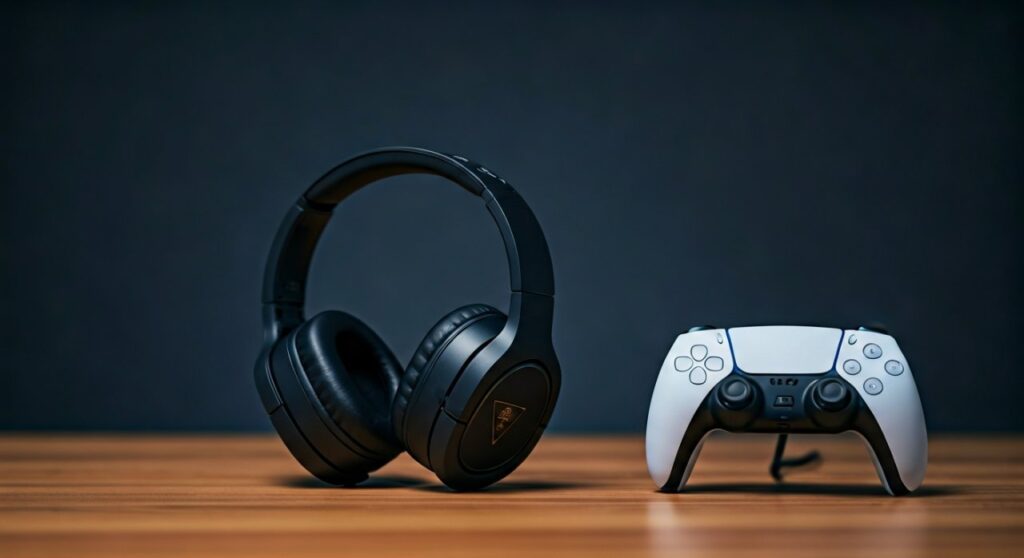
- Wireless Support: Most Stealth 600 and 700 (Gen 2/Gen 3/MAX) models connect instantly via a USB wireless transmitter.
- Wired Support: Any headset with a 3.5mm jack (Recon series) works by plugging directly into the PS5 DualSense controller.
- 3.5mm Advantage: Wired headsets do not require batteries and provide latency-free audio.
- 3D Audio: All Turtle Beach headsets support PS5 Tempest 3D Audio settings found in the system menu.
- Firmware is Critical: Always update your headset via the Turtle Beach Audio Hub on a PC/Mac before first use to ensure PS5 system stability.
Detailed Compatibility: Which Turtle Beach Models Work?
The PlayStation 5 removed the Optical Out port found on the PS4 Pro and original PS4. This change impacted many high-end gaming headsets. Fortunately, Turtle Beach transitioned their technology to support USB Audio and Controller-based audio long before the PS5 launch.
Stealth Series (Wireless)
The Stealth 600 and Stealth 700 series are the gold standard for wireless PlayStation gaming.
- Stealth 700 Gen 2 / Gen 3 / MAX: These are fully compatible. The “MAX” versions are particularly valuable as they feature a toggle switch to move between PlayStation and Xbox modes.
- Stealth 600 Gen 2 / Gen 3: These connect via a mini-USB dongle and offer seamless integration with the PS5’s volume UI.
Recon Series (Wired)
The Recon 50, Recon 70, Recon 200, and Recon 500 use a standard 3.5mm audio connector. Since the DualSense controller features a 3.5mm port, these headsets are universally compatible with the PS5.
Elite and Atlas Series
The Elite Pro 2 and Atlas series generally work, but if they use an external amp that requires an optical cable, you will need an HDMI Audio Extractor or connect them directly via the 3.5mm jack to the controller, bypassing the amp.
| Model Series | Connection Type | PS5 Compatible? | Special Features |
|---|---|---|---|
| Stealth 700 Gen 2 MAX | Wireless USB / Bluetooth | Yes | 40+ Hour Battery, Dual Connectivity |
| Stealth 600 Gen 3 | Wireless USB | Yes | 80+ Hour Battery, A.I. Mic |
| Recon 500 | 3.5mm Wired | Yes | 60mm Dual Drivers, No Battery Needed |
| Recon 70 | 3.5mm Wired | Yes | Lightweight, Flip-to-mute Mic |
| Elite Pro 2 | 3.5mm / USB Amp | Yes (Wired) | ProSpecs Glasses Relief System |
How to Connect Turtle Beach Wireless Headphones to PS5
Connecting a wireless Turtle Beach headset is straightforward. Based on my experience setting up the Stealth 600 Gen 2, following these steps ensures the console recognizes the microphone and the 3D audio profile correctly.
Step 1: Prepare the Headset
Before plugging anything into the console, ensure your headset is fully charged. Use the Turtle Beach Audio Hub software on your computer to check for Firmware Updates. Many connection “bugs” on the PS5 are simply the result of outdated headset software.
Step 2: Plug in the USB Transmitter
Insert the Turtle Beach USB transmitter into one of the USB-A ports on the front or back of the PS5 console.
Expert Tip:* Use the front USB-A port for the strongest line-of-sight signal if your console is tucked away in a cabinet.
Step 3: Power On and Pair
Press and hold the power button on the headset. The LED on both the transmitter and the headset should turn solid, indicating a successful pairing. If the light blinks, press the pairing button on the transmitter using a small pin (if applicable to your model).
Step 4: Configure PS5 Audio Settings
The PS5 usually switches audio automatically, but you should verify:
- Go to Settings > Sound.
- Select Audio Output and set Output Device to USB Headset (Turtle Beach).
- Scroll down to Output to Headphones and select All Audio.
- Enable Enable 3D Audio to experience immersive spatial sound.
How to Connect Wired Turtle Beach Headphones to PS5
Can Turtle Beach headphones connect to PS5 if they have a wire? Absolutely. In fact, this is the most reliable method with zero interference.
- Locate the 3.5mm audio jack at the bottom of your DualSense Controller (between the analog sticks).
- Plug the headset cable firmly into the jack.
- The PS5 will instantly detect the headset.
- Adjust the volume by pressing the PS Button on your controller, selecting the Sound icon (speaker), and adjusting the slider.
Maximizing Performance: 3D Audio and Superhuman Hearing
The primary reason to use Turtle Beach headphones on PS5 is the competitive advantage. Turtle Beach’s signature Superhuman Hearing sound setting works perfectly alongside Sony’s Tempest 3D Audio.
Setting Up 3D Audio
Sony’s 3D audio is not limited to proprietary Sony headsets. To optimize it for your Turtle Beach:
- Go to Settings > Sound > 3D Audio (Headphones).
- Select Adjust 3D Audio Profile.
Choose the profile (1 through 5) that sounds most level with your ear height. This ensures that footsteps in games like Call of Duty or Apex Legends* are spatially accurate.
Using Superhuman Hearing
If your model (like the Stealth 700) has a dedicated button for Superhuman Hearing, I recommend toggling it on during competitive shooters. It boosts the frequencies of footsteps and weapon reloads. However, for cinematic games like God of War, I suggest turning it off to maintain the rich bass of the soundtrack.
Troubleshooting Common Connection Issues
Even with high-end gear, you might encounter glitches. Here are the fixes I’ve applied most frequently during my time as a tech reviewer.
Mic Not Working on PS5
If your friends can’t hear you:
- Check the Physical Mute: Many Turtle Beach mics are “flip-to-mute.” Ensure the mic boom is flipped down completely.
- PS5 Mute Button: Check the small horizontal button on your DualSense controller. If it is glowing orange, your entire system mic is muted.
- Input Device Setting: Go to Settings > Sound > Microphone and ensure the Input Device is set to your Turtle Beach Headset.
Audio Dropping Out or Crackling
- Interference: Move the USB transmitter away from other wireless devices like routers.
- Low Battery: Wireless headsets often experience audio “stutter” when the battery drops below 10%.
- Reset the Transmitter: Unplug the USB dongle, wait 5 seconds, and plug it back in.
Frequently Asked Questions (FAQs)
Can I use my old Turtle Beach PS4 headset on PS5?
Yes, most will work. If it uses a USB dongle or a 3.5mm jack, it is plug-and-play. If it requires an Optical Cable, you will need to buy an HDMI-to-Optical adapter to get the full surround sound functionality, or simply connect it via 3.5mm to the controller.
Does the Stealth 600 Gen 2 work on PS5?
Yes, the Stealth 600 Gen 2 (and the newer Gen 3) is specifically designed for PlayStation consoles and is fully compatible with the PS5.
How do I update my Turtle Beach headset for PS5?
Download the Turtle Beach Audio Hub on your PC or Mac. Connect your headset (and transmitter) via USB cables to your computer. The software will automatically detect the headset and prompt you to install the latest firmware.
Is Turtle Beach or Sony Pulse 3D better for PS5?
While the Sony Pulse 3D has better system integration, Turtle Beach headsets (like the Stealth 700 Gen 3) generally offer superior battery life, better microphone quality, and the “Superhuman Hearing” feature which is better for competitive gaming.
Can I use Xbox Turtle Beach headsets on PS5?
Only if they are the “MAX” versions (e.g., Stealth 600 Gen 2 MAX). Standard Xbox-specific wireless headsets use a proprietary Microsoft frequency that the PS5 cannot detect. Always look for “PlayStation” or “Cross-platform” on the box.









