

Do You Need the Bose App for Headphones? The Definitive Answer
You do not strictly need the Bose app for headphones to listen to music or pair your device via Bluetooth. Most models, including the Bose QuietComfort Ultra, QC45, and Bose 700, function as standard Bluetooth peripherals that can be controlled manually. However, while the app isn’t required for basic audio, it is essential for firmware updates, custom EQ tuning, and managing multipoint connections.
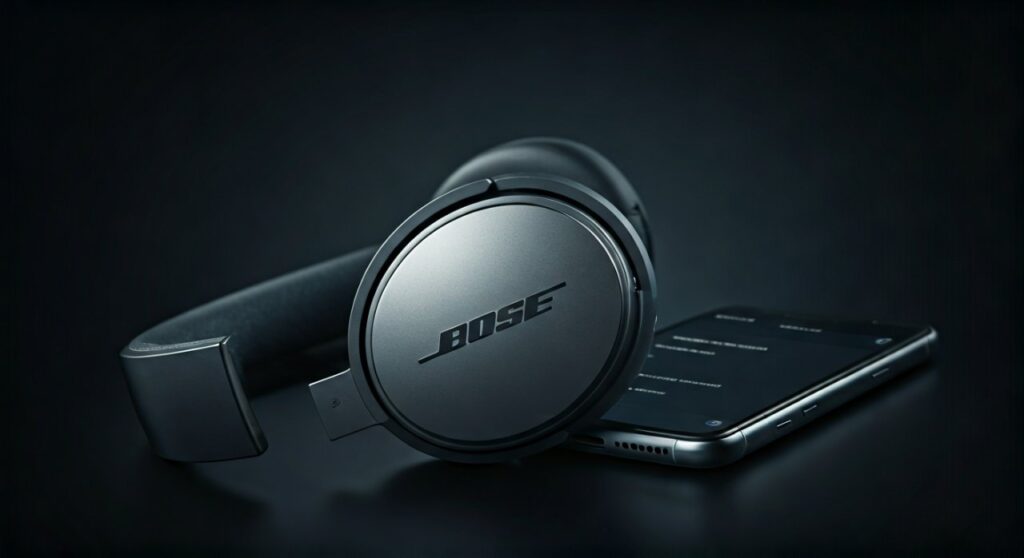
If you choose to skip the app, you essentially trade advanced customization for a faster, more private setup process. Most users find that while they can live without the app daily, they still need it occasionally to ensure their hardware remains updated and bug-free.
Key Takeaways: Bose App vs. Manual Use
| Feature | Using the Bose App | Manual (No App) |
|---|---|---|
| Initial Pairing | Guided & Automatic | Manual via Bluetooth Settings |
| Audio Playback | Full Support | Full Support |
| Firmware Updates | Mandatory for Updates | Not Possible |
| Custom EQ | Adjustable (Bass/Mid/Treble) | Factory Default Only |
| ANC Levels | Full Step-by-Step Control | Cycle through Presets Only |
| Multipoint Management | Easy Device Switching | Manual Disconnect/Reconnect |
| Privacy | Requires Account/Data | High Privacy (Offline) |
When You Can Skip the Bose App
Many audiophiles and privacy-conscious users prefer to avoid installing extra software on their smartphones. If you fall into this category, you’ll be pleased to know that Bose headphones are remarkably capable “out of the box.”
Standard Bluetooth Pairing
You can pair your Bose QuietComfort or Bose 700 headphones simply by putting them into pairing mode (usually by sliding the power button or holding the Bluetooth button) and selecting them in your phone’s Bluetooth menu. This works for iOS, Android, Windows, and macOS.
Physical Controls for ANC
Most Bose hardware includes physical buttons to toggle between Quiet Mode (Noise Cancelling) and Aware Mode (Transparency). You don’t need a touch screen to stay aware of your surroundings or block out engine drone during a flight.
Battery Longevity
Apps running in the background can occasionally drain your smartphone’s battery. By relying solely on the hardware connection, you reduce the background processes running on your mobile device.
Why You Might Actually Need the Bose App for Headphones
While the headphones work without software, skipping the Bose Music App or Bose Connect App (for older models) means missing out on the “smart” half of your purchase. As a long-term user of the Bose QC Ultra, I have found several features that are impossible to access otherwise.
Critical Firmware Updates
Bose frequently releases software patches to improve Active Noise Cancellation (ANC) algorithms, fix connectivity bugs, and improve battery efficiency. Without the app, your headphones will stay on the factory-installed version forever. If a bug is discovered in the Bluetooth stack, you won’t be able to fix it manually.
Customizing the Sound Profile (EQ)
Bose headphones are known for a “balanced” sound signature, but many users find the bass a bit light or the treble too sharp. The Bose App provides a 3-band equalizer. In my experience, adding a +2 boost to the Bass completely transforms the experience for hip-hop or action movies.
Managing Multipoint Connections
One of the best features of high-end Bose headphones is the ability to connect to two devices simultaneously (e.g., your laptop and your phone). The app provides a “Source” menu where you can see exactly which devices are connected and toggle them on or off with a single tap. Without the app, managing these connections often results in a frustrating “tug-of-war” between devices.
Comparing the Bose Music App vs. Bose Connect
Depending on which model you own, the answer to “do you need the bose app for headphones” depends on which app you are supposed to use. Bose transitioned its ecosystem a few years ago.
The Bose Music App
This is the modern standard. You will need this for:
- Bose QuietComfort Ultra (Headphones and Earbuds)
- Bose QuietComfort 45 / QC Headphones
- Bose Noise Cancelling Headphones 700
- Bose QuietComfort Earbuds I & II
The Bose Connect App
This is for legacy products. It is much simpler but still useful for:
- Bose QC35 II
- Bose SoundSport Wireless
- Bose SoundLink series
Privacy Concerns: The “Account” Hurdle
One of the biggest complaints from users is that the Bose Music App requires you to create an account and share location data. If you are someone who values digital privacy, this is a significant “Pain Point.”
Expert Tip: If you want the benefits of the app without the tracking, you can install the app once, update your firmware, set your preferred EQ levels, and then uninstall the app. The headphones will “remember” your EQ settings even after the app is gone.
Step-by-Step: How to Pair Bose Headphones Without the App
If you’ve decided you don’t want the app, here is the professional way to pair your hardware directly:
- Power On: Slide the power button to the middle position.
- Pairing Mode: Slide and hold the power button toward the Bluetooth icon until you hear “Ready to pair” or the light blinks blue.
- Device Settings: Open the Bluetooth settings on your iPhone, Android, or PC.
- Select Device: Look for your model name (e.g., “Bose QC Ultra”) and tap to connect.
- Confirm: You will hear “Connected to [Device Name]” through the speakers.
Troubleshooting: When the App Won’t Connect
Sometimes, you might want the app, but it refuses to find your headphones. This is a common issue with the Bose Music App. Follow these steps to resolve it:
- Toggle Bluetooth: Turn your phone’s Bluetooth off and back on.
- Clear Pairing List: Hold the power button on the headphones for 10 seconds until you hear “Bluetooth device list cleared.”
- Location Services: Ensure Location Services are ON for the Bose app (Android and iOS require this to scan for Bluetooth Low Energy devices).
- Reinstall: Delete and reinstall the app to clear cached errors.
Frequently Asked Questions
Can I change noise cancellation levels without the app?
On the Bose 700 and QC Ultra, you can use the physical “Custom” button to cycle through three presets (usually Quiet, Aware, and Immersion). However, to fine-tune the specific 0-10 scale of noise cancellation, you must use the Bose Music App.
Does the Bose app cost money?
No, the Bose Music and Bose Connect apps are completely free to download on the Google Play Store and Apple App Store. You only pay for the hardware.
Can I use the headphones with a cable if I don’t use the app?
Yes. Using the included 2.5mm to 3.5mm audio cable allows you to use the headphones in “Passive Mode.” In this mode, no app or Bluetooth is required, and the headphones don’t even need to be powered on (though the sound quality is significantly better when powered on).
Will my EQ settings stay the same if I delete the app?
Yes. Once you save an EQ profile via the app, that profile is stored on the internal memory of the Bose headphones. You can delete the app or connect to a different device, and the sound profile will remain active.
Do I need the app for Bose earbuds?
While you don’t need it for music, the app is much more important for Bose QuietComfort Earbuds. It allows you to customize the touch controls (long press functions) and perform an “Ear Tip Fit Test” to ensure you have the best acoustic seal.









