

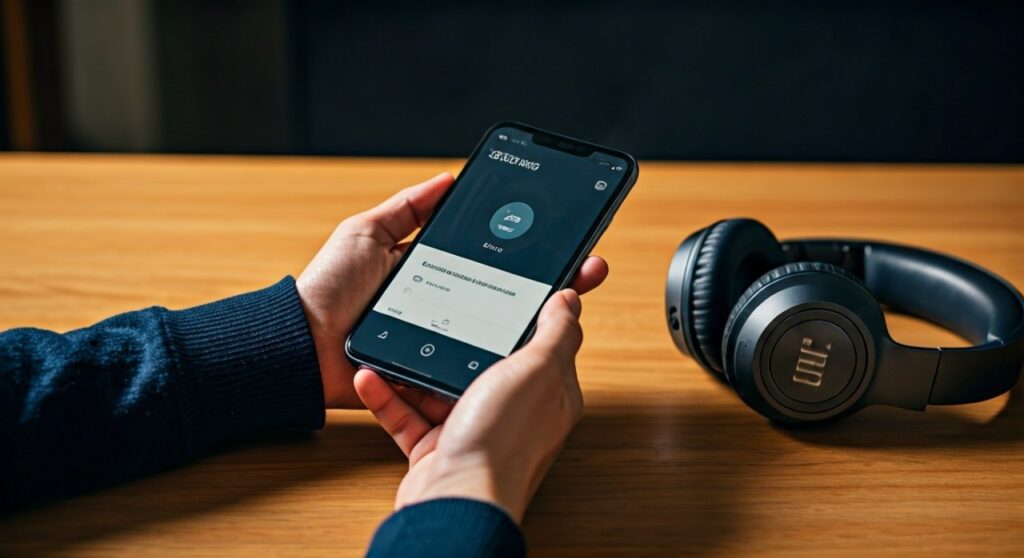
To quickly find your power status, you can check battery life on JBL headphones by using the JBL Headphones App, looking at the Bluetooth settings on your smartphone, or interpreting the LED indicator lights on the earcups. For most modern models like the JBL Live 660NC or JBL Tune 720BT, the mobile app provides the most precise percentage-based reading.
Key Takeaways: How to Monitor Your JBL Battery
If you are in a rush, here is the fastest way to see how much juice your JBL device has left:
| Method | Accuracy | Best For |
|---|---|---|
| JBL Headphones App | High (1% increments) | Most modern JBL models |
| iOS/Android Status Bar | Medium (10% increments) | Quick glances while listening |
| LED Indicators | Low (Color-based) | When not connected to a device |
| Windows/macOS Settings | High | Office or gaming setups |
Understanding the Need for Accurate Battery Monitoring
Nothing ruins a morning commute or an intense workout like your JBL Reflect Flow or JBL Tune headphones suddenly powering down. Knowing exactly how to check battery life on jbl headphones prevents these interruptions and helps you manage your charging cycles more effectively.
Most users rely on the “Low Battery” voice prompt, but by then, you often have less than 15 minutes of playback remaining. As an expert who has tested dozens of JBL products from the Club series to the Quantum gaming line, I recommend using a combination of software and hardware checks for the best results.
Method 1: Using the Official JBL Headphones App
The JBL Headphones App (available on iOS and Android) is the gold standard for monitoring your device. It provides a real-time, high-fidelity percentage that is much more accurate than the generic battery icon in your phone’s status bar.
- Download and install the JBL Headphones App from the Apple App Store or Google Play Store.
- Ensure your headphones are paired and connected via Bluetooth.
- Open the app and select your specific model (e.g., JBL Tour One M2).
- The battery percentage for both the left and right earpieces (for TWS) or the main unit (for over-ears) will be displayed on the home screen.
Using the app also allows you to see the battery drain impact of features like Active Noise Cancelling (ANC) and TalkThru. In my experience, keeping ANC on can reduce battery life by up to 30% on models like the JBL Live 460NC.
Method 2: Checking via Smartphone Bluetooth Settings
If you don’t want to install extra software, both iOS and Android have built-in tools to how to check jbl headphone battery levels directly.
On Apple iOS (iPhone/iPad)
Apple integrates JBL battery data into several layers of the UI.
- Today View: Swipe right from your home screen to see the Batteries Widget. This shows the exact percentage of all connected Bluetooth devices.
- Control Center: Swipe down from the top right. Tap the AirPlay icon in the music platter to see the connected device’s battery level.
On Android (Fast Pair)
Most modern JBL headphones support Google Fast Pair.
- When you turn on your headphones, a pop-up often appears showing the current battery level.
- Alternatively, go to Settings > Connected Devices. You will see the percentage listed next to your JBL device name.
Method 3: Hardware LED Indicator Meanings
When your headphones aren’t paired to a phone, you can still how to check battery life on jbl headphones by looking at the physical LED light. This light is usually located near the power button or the charging port.
| LED Behavior | Battery Meaning | Action Required |
|---|---|---|
| Solid White/Blue | 80% – 100% | Ready to use |
| Slow Blinking White | 20% – 70% | Mid-level battery |
| Fast Blinking Red | Below 15% | Charge immediately |
| Solid Red (While Charging) | Charging | Wait for it to turn off |
| LED Off (While Charging) | Fully Charged | Disconnect from power |
Expert Tip: On some older JBL E-Series models, the light doesn’t change color; it simply begins to flash faster as the voltage drops. Always check your specific manual if the colors seem inconsistent.
Method 4: Checking Battery on Windows and macOS
For professionals using JBL headsets for Zoom calls or gaming, checking the battery on a desktop is straightforward.
On Windows 10/11
- Navigate to Settings > Bluetooth & devices.
- Look under the Devices section.
- Your JBL headphones will show a battery percentage next to the “Connected” status.
On macOS
- Click the Bluetooth icon in the top menu bar.
- Hover over your JBL device name.
- A sub-menu will appear displaying the current battery percentage.
How to Check Battery Life on JBL TWS (True Wireless) Earbuds
Checking the battery on earbuds like the JBL Vibe Beam or JBL Endurance Peak is slightly different because you have three batteries to manage: the left bud, the right bud, and the charging case.
- The Case: Look at the LED dots on the front of the case. Three dots usually signify 100%, two dots 60%, and one dot 30% or less.
- The Buds: Once placed in the ear, many JBL models provide an audible tone or voice prompt stating “Battery High” or “Battery Medium.”
- The App: The JBL Headphones App is essential here, as it shows if one earbud is draining faster than the other—a common issue if you use one bud for calls frequently.
Factors That Affect Your JBL Battery Accuracy
Sometimes the percentage you see might jump or drop unexpectedly. This is often due to environmental factors or usage patterns.
- Cold Weather: Lithium-ion batteries in JBL gear struggle in temperatures below 32°F (0°C), which can cause the reported battery life to plummet temporarily.
- Firmware Versions: Always update your headphones via the JBL app. Manufacturers often release patches that calibrate the battery sensor for more accurate reporting.
- Volume Levels: JBL tests their battery claims (e.g., “50 Hours of Playtime”) at 50% volume. If you listen at 90%, your actual battery life will be significantly shorter than what the timer suggests.
Expert Advice: Extending Your JBL Battery Lifespan
Based on years of using JBL Pure Bass products, I have found that how you charge is just as important as how you check the battery.
- Avoid 0%: Try not to let your headphones die completely. Deep discharges stress the battery cells.
- The 80/20 Rule: For maximum longevity, keep your battery between 20% and 80% whenever possible.
- Use Original Cables: While any USB-C cable works, using the orange JBL cable ensures the correct voltage regulation for their “Speed Charge” feature.
- Power Off Manually: Even though most JBL headphones have an “Auto-off” timer, manually toggling the power switch saves a measurable amount of standby juice.
Frequently Asked Questions
Why is my JBL battery percentage jumping around?
This usually indicates a calibration issue. To fix this, charge your headphones to 100%, then use them until they turn off completely. One full cycle often resets the internal Battery Management System (BMS).
Can I check my JBL battery life on a smart watch?
Yes, if your JBL headphones are paired directly to an Apple Watch or Garmin, you can usually find the battery level in the “Now Playing” screen or the Bluetooth settings of the watch.
Does the JBL app work with all models?
No, the app primarily supports the Live, Tune, Tour, and Reflect series. Budget models like the JBL Go or older T450BT models may not be compatible with the app and require the LED method.
How long does it take to charge JBL headphones?
Most modern JBL headphones offer Speed Charge. Generally, 5-10 minutes of charging provides 1-2 hours of playback. A full charge from 0% typically takes about 2 hours.
Why doesn’t my Windows PC show the battery percentage?
Ensure your Bluetooth drivers are updated. Some older Bluetooth 4.0 adapters do not support the Bluetooth Battery Service protocol required to display this data.









