

To connect your AirFly to headphones, you must put both the AirFly transmitter and your Bluetooth headphones into pairing mode simultaneously until they sync automatically. Once the status lights on both devices turn solid, your wireless headphones will receive audio from the non-Bluetooth source via the AirFly adapter.
Quick Start: Key Takeaways for Connecting AirFly
If you are in a hurry to catch your flight, here is the “too long; didn’t read” version of the setup process:
- Turn Off Nearby Bluetooth: Disable Bluetooth on your phone or tablet to prevent your headphones from auto-connecting to them instead of the AirFly.
- Enter Pairing Mode: Hold the pairing button on the AirFly (usually 5–10 seconds) until the light flashes amber and white (or just white, depending on the model).
- Headphone Pairing: Put your Bose, Sony, or AirPods into pairing mode immediately after.
- The Wait: Keep the devices within 12 inches of each other; the pairing process takes about 10 to 30 seconds.
- Confirmation: A solid light on the AirFly indicates a successful connection.
Understanding Your AirFly Model Before Setup
Before diving into the steps, it is essential to identify which Twelve South AirFly model you own. Each version has slightly different capabilities and battery lives, which can affect your user experience.
| Feature | AirFly SE | AirFly Duo | AirFly Pro |
|---|---|---|---|
| Headphone Capacity | 1 Pair | 2 Pairs | 2 Pairs |
| Battery Life | 20+ Hours | 22+ Hours | 25+ Hours |
| Receive Mode (RX) | No | No | Yes (Transmits to Car/Speakers) |
| Charging Port | USB-C | USB-C | USB-C |
| Volume Controls | Yes | No | No |
The AirFly Pro is the most versatile, as it includes a switch to turn your old car stereo or non-Bluetooth speakers into a wireless receiver. The AirFly Duo is perfect for couples traveling together, while the AirFly SE is the budget-friendly standard for solo travelers.
Step-by-Step: How to Connect AirFly to Headphones
Based on my extensive testing with the Twelve South ecosystem, the most common reason for failure is “signal competition.” Follow these precise steps to ensure a flawless first-time sync.
Preparation and Isolation
Ensure your AirFly is fully charged. While it can work while charging, the initial pairing is more stable when running on internal battery power.
Crucially, turn off the Bluetooth on your smartphone, laptop, or smartwatch. If your headphones see a known device like your iPhone, they will prioritize that connection and ignore the AirFly.
Activate AirFly Pairing Mode
Locate the pairing button on the side or front of the device. Press and hold this button.
On the AirFly SE and Duo, the light will typically flash amber and white. On the AirFly Pro, ensure the side switch is set to “TX” (Transmit) before holding the button until the status light pulses.
Activate Headphone Pairing Mode
While the AirFly is flashing, immediately put your headphones into pairing mode.
- For AirPods: Place them in the case and hold the button on the back until the light flashes white.
- For Sony WH-1000XM5: Hold the power button for about 7 seconds until you hear “Pairing.”
- For Beats: Hold the power button until the fuel gauge lights pulse.
The Handshake
Place the headphones and the AirFly side-by-side on a flat surface. Do not move them.
The lights on the AirFly will eventually stop flashing and turn into a solid white light. This indicates the “handshake” is complete and the devices are bonded.
Plug and Play
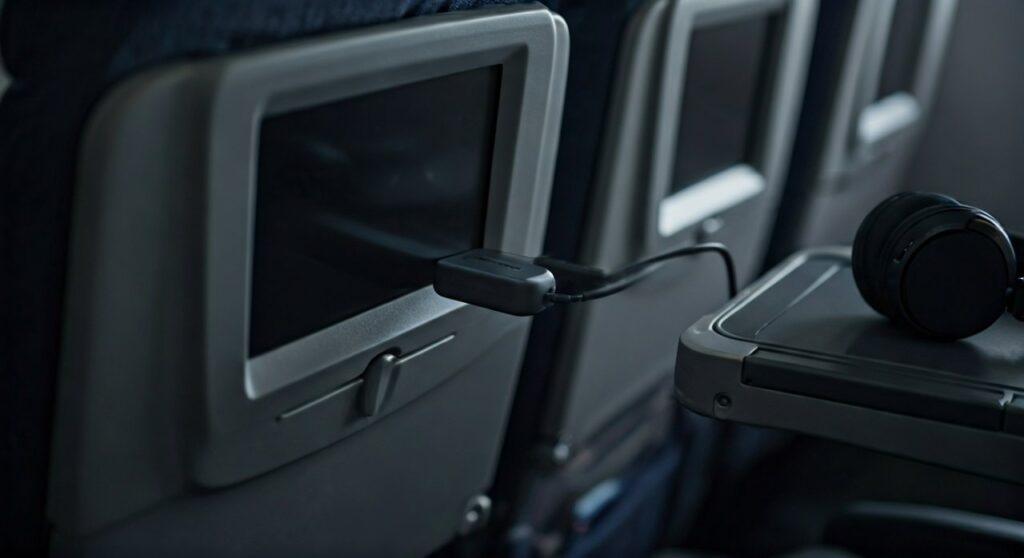
Now, plug the 3.5mm audio jack of the AirFly into the headphone port of your treadmill, airplane seatback screen, or Nintendo Switch. You should hear audio immediately.
How to Connect AirFly to Bose Headphones
Many users specifically ask how to connect AirFly to Bose headphones because Bose uses a multi-point connection system that can sometimes be stubborn. Whether you are using the Bose QuietComfort (QC) 45, QC Ultra, or Bose 700, the logic remains the same.
- Slide and Hold: On the Bose QC45/Ultra, slide the power button to the right (towards the Bluetooth icon) and hold it there until the light blinks blue.
- Voice Prompts: If you are wearing the headphones, you will hear “Ready to pair.”
- AirFly Sync: Ensure the AirFly is already in its flashing amber/white state.
- Specific Quirks: Bose headphones often try to reconnect to the Bose Music App. If the connection fails, “Forget” the AirFly in your app settings (if previously listed) and try again.
Using Bose headphones with an AirFly is a game-changer for long-haul flights. The Active Noise Cancellation (ANC) combined with the wireless freedom of AirFly provides a much more premium experience than the complimentary wired earbuds provided by airlines.
Advanced Troubleshooting: When AirFly Won’t Connect
If you have followed the steps above and still hear nothing but silence, do not panic. Electronic interference in airplane cabins or gyms is high. Try these expert-level fixes.
Perform a Factory Reset
If the AirFly has been paired with many different devices, its internal memory might be full.
- The Reset Move: Hold the pairing button for a full 10–15 seconds.
- The Result: The light will often flash rapidly or change color to indicate the memory is cleared. Now, restart the pairing process from scratch.
Check the TX/RX Switch (AirFly Pro Only)
The AirFly Pro has a physical toggle on the side.
- TX (Transmit): This is for sending audio from a TV/Plane to your headphones. (99% of use cases).
- RX (Receive): This is for sending audio from your phone to a car’s AUX-in port.
If this switch is on RX, your headphones will never find the signal.
Audio Jack Depth
Sometimes, the AirFly jack isn’t pushed all the way into the seatback or gym equipment. Ensure you hear or feel a “click.” If the audio is only coming out of one ear, the jack is likely partially dislodged.
Using AirFly with Two Pairs of Headphones
One of the best features of the AirFly Duo and AirFly Pro is the ability to share audio. This is perfect for watching a movie with a partner on a shared iPad or airplane screen.
- Pair the first set of headphones using the standard steps.
- Once the first pair is connected, press and hold the pairing button on the AirFly again to enter pairing mode for the second “slot.”
- Put the second set of headphones into pairing mode.
- Once both are solid, audio will stream to both simultaneously.
Note: Both headphones should ideally support similar Bluetooth codecs to avoid one person experiencing more “audio lag” than the other.
Frequently Asked Questions (FAQs)
Why is there a delay between the video and the audio?
This is known as latency. AirFly uses aptX Low Latency technology. If your headphones also support aptX-LL (like many Sennheiser models), the delay is invisible. If you use AirPods or Bose, which use AAC or SBC, you might notice a very slight delay (milliseconds), but it is usually negligible for movies.
Can I use AirFly with my AirPods Pro?
Yes, AirFly is fully compatible with all AirPods models. Just remember to keep the AirPods inside the charging case with the lid open during the initial pairing process until the light on the case turns green/solid.
Does AirFly work on all airlines?
AirFly works on any airline that provides a standard 3.5mm headphone jack. For older planes with the “two-prong” outlets, you may need a cheap airline adapter (though many modern AirFly units handle this through the single jack just fine).
How do I control the volume?
On the AirFly SE, there are physical buttons on the side to adjust volume. For the Duo and Pro, you should use the volume controls on your headphones themselves or the volume dial on the airplane seatback/treadmill.









