

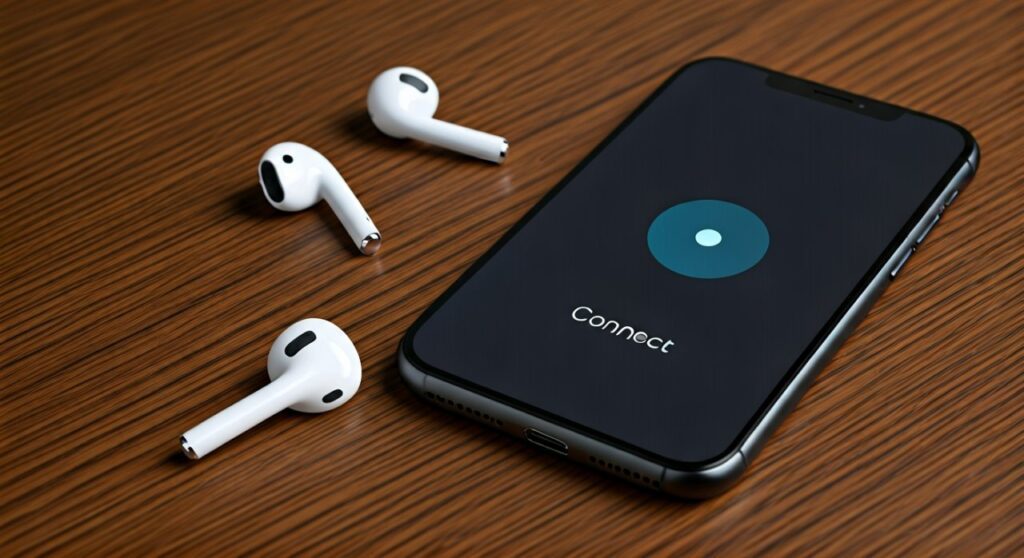
To connect Apple headphones such as AirPods, AirPods Pro, or AirPods Max to your device, unlock your iPhone, open the charging case with the headphones inside, and wait for the setup animation to appear on your screen. Tap Connect, then follow the on-screen prompts to finish the process for a seamless, high-quality audio experience.
If you are using a non-Apple device or the animation doesn’t appear, you must manually put Apple headphones in pairing mode by holding the setup button on the back of the case until the status light flashes white. For AirPods Max, hold the noise control button until the light on the bottom of the right ear cup pulses white.
Key Takeaways for Connecting Apple Headphones
| Feature | Action Required |
|---|---|
| First-Time Setup | Open case near iPhone/iPad and tap “Connect.” |
| Pairing Mode | Hold the Setup Button (back of case) until the light flashes white. |
| AirPods Max Pairing | Hold the Noise Control button for 5 seconds. |
| Apple Watch | Usually pairs automatically via iCloud once connected to iPhone. |
| Apple TV | Go to Settings > Remotes and Devices > Bluetooth. |
| Restarting | Hold the setup button for 15 seconds until the light flashes amber then white. |
How to Connect Apple Headphones to iPhone and iPad
The magic of the Apple ecosystem lies in the H1, H2, or W1 chips found inside your AirPods. These chips allow for a “one-tap” setup that links your headphones to your Apple ID across all your devices.
- Prepare your device: Ensure your iPhone or iPad is running the latest version of iOS or iPadOS. Turn on Bluetooth via the Control Center.
- Trigger the animation: Hold the AirPods case (with the buds inside) next to your phone and open the lid.
- Initiate connection: A setup animation will slide up from the bottom. Tap Connect.
- Customization: If you have AirPods Pro or AirPods Max, the device will guide you through Siri setup and Spatial Audio calibration.
- Finalize: Tap Done. Your headphones are now saved to your iCloud account for automatic switching.
If the animation doesn’t show up, simply close the lid, wait 15 seconds, and try again. Always ensure the headphones are sufficiently charged before attempting how to pair apple headphones.
How to Put Apple Headphones in Pairing Mode
Sometimes you need to connect to a device that isn’t yours, or perhaps the automatic “handshake” fails. In these cases, you must know how to put apple headphones into pairing mode manually to make them “visible” to other Bluetooth scanners.
For AirPods and AirPods Pro
First, place both earbuds in the charging case and keep the lid open. Locate the small, circular setup button on the back of the charging case.
Press and hold this button for about 5 to 10 seconds. Watch the status light (which is either inside the case or on the front); once it starts flashing white, your headphones are in pairing mode.
For AirPods Max
Unlike the earbuds, the AirPods Max do not have a case with a button. To put apple headphones in pairing mode for the Max model, take them out of the Smart Case.
Press and hold the noise control button (the long pill-shaped button on the right ear cup) for five seconds. The status light on the bottom of the right ear cup will flash white, indicating they are ready to pair.
How to Connect Apple Headphones Max
Learning how to connect apple headphones max is slightly different because they lack a traditional charging case. These premium over-ear headphones rely on proximity and a specific button sequence.
To connect apple max headphones to your iPhone for the first time, simply remove them from their Smart Case and hold them near your phone. The familiar setup animation will appear.
If you need to pair apple max headphones to a second device, use the noise control button method mentioned above. Expert tip: Ensure your AirPods Max are not in “Low Power Mode” by ensuring they have been out of the case for a few seconds before holding the button.
To turn on apple headphones max, you don’t actually need to press a power button. They are designed to stay “on” or in a sleep state. They wake up the moment you put them on your head using Optical Sensors.
How to Connect Headphones to Apple Watch
One of the best features for runners is the ability to listen to music directly from your wrist. Here is how to connect headphones to apple watch without needing your phone nearby.
- On your Apple Watch, tap the Settings app (the gear icon).
- Scroll down and tap on Bluetooth.
- Ensure your AirPods are out of the case and in your ears.
- The watch will search for nearby devices; tap on your Apple Headphones when they appear in the list.
If you have already paired your headphones to your iPhone, they should automatically appear on your Apple Watch. You can quickly switch to them by tapping the AirPlay icon in the Control Center or the Music app on the watch.
How to Connect Headphones to Apple TV
Watching movies with AirPods Max or AirPods Pro is a game-changer due to Spatial Audio. Here is how to connect headphones to apple tv for a private cinema experience.
- Put your headphones in your ears or on your head.
- On the Apple TV home screen, press and hold the TV/Control Center button (the one that looks like a monitor) on your Siri Remote.
- Select the Audio icon (it looks like a set of concentric circles).
- Select your headphones from the list.
If they don’t appear, you may need to go to Settings > Remotes and Devices > Bluetooth and manually pair apple headphones by putting them into pairing mode.
How to Connect Apple Headphones to Phone (Android)
Yes, you can use Apple gear with non-Apple devices! While you lose features like Automatic Switching and Siri, the core audio functionality remains excellent.
- Open the Bluetooth settings on your Android or Windows device.
- Put your AirPods or AirPods Max into pairing mode (hold the setup button until the light flashes white).
- On your phone, tap “Scan” or “Pair new device.”
- Select your Apple Headphones from the list of available Bluetooth devices.
Many users find that downloading third-party apps like AndroPods helps bring back some features, like battery level indicators, to the Android experience.
Managing Power: How to Turn On/Off Apple Headphones
A common point of confusion for new users is how to turn off apple headphones. Unlike traditional Bluetooth headsets, Apple’s lineup does not have a dedicated “Power” button.
How to Turn Off Apple Headphones (AirPods & Pro)
To turn off apple headphones like the AirPods Pro, you simply place them back into their charging case and close the lid. This disconnects them from your device and begins the charging process.
How to Turn Off Apple Headphones Max
To turn off apple headphones max, place them into the Smart Case. This immediately puts them into an ultra-low-power state to preserve battery.
If you leave your AirPods Max on a desk outside of the case, they will enter a “sleep mode” after 5 minutes of inactivity, but they will still consume more battery than if they were in the case.
How to Turn On Apple Headphones Max
To turn on apple max headphones, simply take them out of the Smart Case and put them on. The H1 chips detect movement and head placement to “wake” the device instantly.
Troubleshooting: How to Restart Apple Headphones
If you encounter audio cutouts or find that you cannot connect to apple headphones, a quick restart or reset usually fixes the issue.
How to restart apple headphones:
- Place your AirPods in the case and close the lid for 30 seconds.
- Open the lid and put the headphones in your ears.
- If they still don’t work, go to Settings > Bluetooth on your phone, tap the “i” icon next to your headphones, and select Forget This Device.
- Perform a full reset: With the lid open, hold the setup button on the back of the case for 15 seconds. The light will flash amber, then white.
- Reconnect them as if they were brand new.
Comparison: Apple Headphones Connectivity Features
| Model | Chipset | Automatic Switching | Spatial Audio Support | Pairing Method |
|---|---|---|---|---|
| AirPods (Gen 2/3) | H1 | Yes | Gen 3 Only | Case Button |
| AirPods Pro (Gen 2) | H2 | Yes | Yes | Case Button |
| AirPods Max | H1 (x2) | Yes | Yes | Noise Control Button |
| Beats Studio Pro | Custom | No (Google Fast Pair) | Yes | Power Button |
Expert Tips for a Better Connection
Based on my years of testing Apple ecosystem products, here are a few advanced tips to ensure your connection remains stable:
- Update Firmware: Apple headphones update their software automatically while charging near your iPhone. There is no “Update” button, so leave them plugged in overnight occasionally.
- Clean the Pins: If one earbud isn’t connecting, use a dry cotton swab to clean the gold charging contacts at the bottom of the stem and inside the case.
- Disable Automatic Switching: If your AirPods keep jumping from your Mac to your iPhone at the wrong time, go to Bluetooth Settings > Connect to this iPhone and change it to “When Last Connected to This iPhone.”
Câu hỏi thường gặp (FAQs)
How do you connect apple headphones if the case is broken?
If the charging case button is broken, you cannot manually trigger pairing mode. However, if they were previously paired to your iCloud account, they should still appear on your other Apple devices. If not, you will likely need a replacement case to initiate a new connection.
How to pair apple watch with headphones for the first time?
To pair apple watch with headphones, open the Settings app on the watch, tap Bluetooth, and put your headphones into pairing mode. If the headphones are already paired with your iPhone, they should show up automatically under “Devices.”
Why won’t my apple headphones pair?
The most common reason is that the headphones are connected to another nearby device. Turn off Bluetooth on your laptop or tablet temporarily. Also, ensure the headphones have at least a 20% charge, as low battery can interfere with the pairing mode signal.
How to use apple headphones with a Windows PC?
To use apple headphones with Windows, open Settings > Bluetooth & devices > Add device. Hold the button on your AirPods case until the light flashes white, then select “AirPods” from the Windows search list.
Can I pair headphones to apple watch without an iPhone?
Yes, you can pair headphones with apple watch independently. As long as the headphones are in pairing mode, the Apple Watch Bluetooth settings will be able to discover and connect to them even if you don’t own an iPhone.









