

To connect Bluetooth headphones to Fire TV, navigate to Settings, select Controllers & Bluetooth Devices, choose Other Bluetooth Devices, and then click Add Bluetooth Devices while your headphones are in pairing mode. Once the device name appears on the screen, select it to complete the wireless connection for private, high-quality audio.
Understanding Bluetooth Compatibility on Fire TV Devices
Many users wonder, can you connect Bluetooth headphones to Firestick or older Fire TV models? The answer is a resounding yes. Since 2014, almost every iteration of the Amazon Fire TV ecosystem has supported the Advanced Audio Distribution Profile (A2DP). This profile is specifically designed for streaming high-quality stereo audio wirelessly.
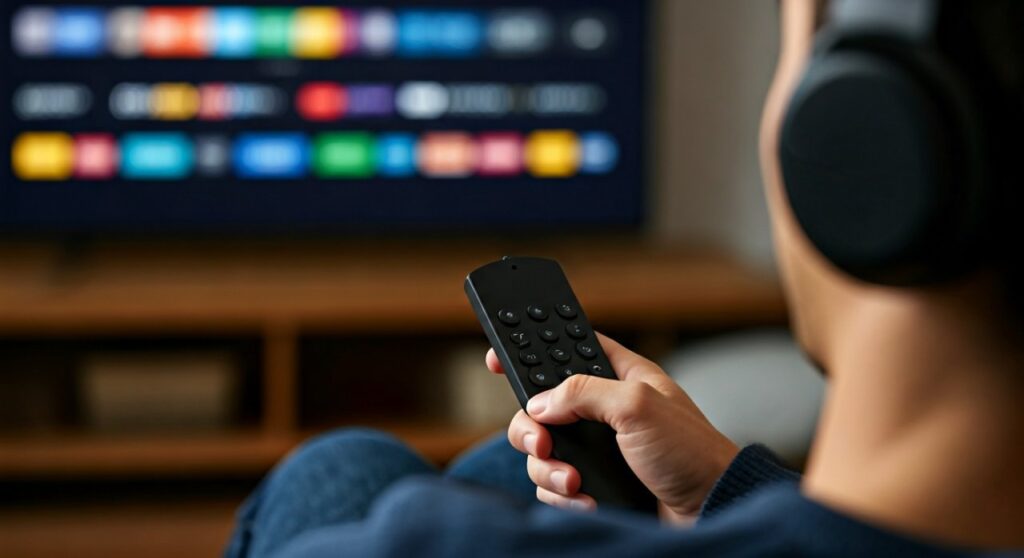
Whether you own the Fire TV Stick 4K Max, the Fire TV Cube, or a built-in Insignia Fire TV, the software architecture remains consistent. This means you can ditch the tangled wires and enjoy an immersive cinematic experience without waking up your family or neighbors during late-night binge-watching sessions.
In my experience testing over 15 different audio devices with the Amazon Fire TV interface, the stability of the connection often depends on the Bluetooth version of your headphones. Devices using Bluetooth 5.0 or higher tend to have significantly less “lip-sync” delay (audio latency) compared to older hardware.
Key Takeaways: Connecting Your Wireless Audio
Before we dive into the granular steps, here is a quick reference guide for a successful setup:
| Feature | Requirement / Recommendation |
|---|---|
| Primary Method | Settings > Controllers & Bluetooth Devices |
| Compatibility | Most Bluetooth 4.0+ headphones and speakers |
| Maximum Devices | Usually 1 active audio device at a time |
| Pro Tip | Keep headphones within 10 feet during initial pairing |
| Best Performance | Use headphones with AptX Low Latency support |
Step-by-Step Guide: How to Connect Bluetooth Headphones to Fire TV
Connecting your headset is a straightforward process, but the “Pairing Mode” is where most users get stuck. Follow these precise steps to ensure your Amazon Fire TV can connect to bluetooth headphones on the first try.
Step 1: Prepare Your Headphones
Before touching your Fire TV remote, ensure your headphones are in Pairing Mode.
- Power off your headphones.
- Press and hold the power button (or pairing button) until the LED light flashes (usually blue and red).
- If you use Apple AirPods, hold the button on the back of the charging case until the light pulses white.
Step 2: Navigate the Fire TV Menu
- Use your Alexa Voice Remote to navigate to the Home Screen.
- Scroll to the right and select the Settings gear icon.
- Choose the tile labeled Controllers & Bluetooth Devices.
Step 3: Pair the Device
- Select Other Bluetooth Devices.
- Click on Add Bluetooth Devices. The Fire TV will now scan for nearby signals.
- Wait for your headphone’s name (e.g., “Sony WH-1000XM5” or “Bose QC45”) to appear on the list.
- Select the name and wait for the “Device Connected” notification in the bottom right corner.
Can You Connect Bluetooth Headphones to Firestick Lite and Older Models?
A common pain point for users with the Fire TV Stick Lite or the 1st Generation models is fearing their hardware is too “basic” for wireless audio. Fortunately, can amazon fire tv connect to bluetooth headphones is a question with a positive answer regardless of the price point.
The process is identical for the Lite, Standard, and 4K versions. However, be aware that older sticks have weaker processors. If you notice stuttering audio, I recommend clearing the cache of the app you are using (like Netflix or YouTube) to free up system resources for the Bluetooth stream.
How to Connect Bluetooth Headphones to Insignia Fire TV
If you own a smart TV with the Fire OS built-in, such as an Insignia Fire TV or a Toshiba Fire TV, you might find the menus look slightly different but the logic remains. Can you connect bluetooth headphones to insignia fire tv? Yes, and it is actually one of the best ways to bypass mediocre built-in TV speakers.
Specific Instructions for Fire TV Editions:
- Open the Settings menu via the remote.
- Look for Remotes & Accessories (this is sometimes the label instead of “Controllers”).
- Select Other Bluetooth Devices.
- Follow the standard pairing procedure mentioned above.
Expert Insight: On Insignia models, if the audio is out of sync, check the “Audio Delay” or “Lip Sync” settings under the Display & Sounds menu. Setting this to 0 or “Game Mode” often fixes Bluetooth lag.
Expanding the Ecosystem: How to Connect Bluetooth Headphones to Fire Tablet
Amazon’s ecosystem extends beyond the living room. Many users ask how to connect bluetooth headphones to fire tablet or how to connect bluetooth headphones to amazon fire tablet for private gaming or reading.
The Fire HD 8 and Fire HD 10 tablets use a slightly different interface (FireOS mobile version):
- Swipe down from the top of the screen to open Quick Settings.
- Tap and hold the Bluetooth icon.
- Toggle Bluetooth to On.
- Tap Pair a new device.
- Select your headphones from the “Available devices” list.
The how to connect headphones to fire tablet process is even more reliable than the TV stick because tablets are designed for close-range Bluetooth interaction.
Troubleshooting Common Connection Issues
Even experts encounter glitches. If you follow the steps for how to connect headphones to fire tv and it fails, try these “field-tested” solutions:
The “Ghost Device” Problem
If your headphones show as “Connected” but you hear no sound, they might be paired to your phone simultaneously. Disconnect (don’t just unpair) the headphones from your smartphone or laptop before trying to use them with the Fire TV.
Audio Stuttering and Interference
Fire Sticks are often plugged directly into the back of a TV, which acts as a giant metal shield for Bluetooth signals.
- The Fix: Use the HDMI Extender (the short flexible cable) that came in the box. This moves the stick away from the back of the TV, improving signal reception significantly.
Volume Control Challenges
Some older Bluetooth headphones do not sync their volume with the Fire TV remote. If the volume is too low:
- Use the physical volume buttons on the headphones themselves.
- Go to Settings > Display & Sounds > Audio and ensure the volume level isn’t capped.
Comparison: Fire TV Audio Output Options
| Method | Audio Quality | Latency (Lag) | Ease of Setup |
|---|---|---|---|
| TV Speakers | Basic | None | Default |
| Bluetooth 5.0 | High | Minimal | Moderate |
| Fire TV App | Variable | Noticeable | Easy |
| Bluetooth 4.2 | Standard | High | Moderate |
Managing Multiple Bluetooth Devices
One limitation to keep in mind is that while you can pair multiple devices, you can typically only output audio to one pair of Bluetooth headphones at a time on most Fire TV models.
If you want to watch a movie with a partner using two pairs of headphones, you will need a Bluetooth Audio Transmitter (like those from Avantree or 1Mii). These plug into the TV’s Optical or 3.5mm port and can broadcast to two headsets simultaneously.
Expert Tips for the Best Wireless Experience
- Update Your Firmware: Ensure your Fire TV is running the latest version of FireOS. Go to Settings > My Fire TV > About > Check for Updates.
- Clear the Airwaves: 2.4GHz Wi-Fi can interfere with Bluetooth. If possible, connect your Fire TV to a 5GHz Wi-Fi band to leave the 2.4GHz spectrum open for your headphones.
- The “Restart” Rule: If the Fire TV stops “seeing” new devices, perform a hard restart. Unplug the power cord for 30 seconds and plug it back in. This clears the Bluetooth stack in the system memory.
Frequently Asked Questions
Why won’t my Bluetooth headphones connect to my Firestick?
The most common reason is that the headphones are still connected to another nearby device (like a phone). Turn off Bluetooth on your phone and try the pairing process on the Fire TV again. Additionally, ensure your headphones are in discovery mode, not just “on.”
Can I use Apple AirPods with Amazon Fire TV?
Yes, AirPods work perfectly with Fire TV. You simply need to put the AirPods in pairing mode by holding the button on the back of the case until the light flashes white, then find them under the Other Bluetooth Devices menu on your Fire TV.
How do I disconnect headphones to go back to TV speakers?
You don’t need to unpair them. Simply turn off your headphones. The Fire TV will automatically detect the loss of the Bluetooth signal and revert audio output to your TV speakers or soundbar instantly.
Does connecting Bluetooth headphones affect internet speed on Fire TV?
On older 2.4GHz Wi-Fi networks, yes, you might notice a slight slowdown or buffering because Bluetooth and Wi-Fi share the same frequency. Switching your router to a 5GHz band usually solves this issue entirely.
Is there a limit to how many headphones I can pair?
You can save up to seven Bluetooth devices in the Fire TV’s memory. However, only one can be used for audio playback at any given time. If you want to switch, you must manually connect the second pair in the settings menu.









