

To connect Bluetooth headphones to a PS5, you must use a USB Bluetooth adapter (dongle), connect via your Smart TV’s Bluetooth, or utilize the PS Remote Play app. The PlayStation 5 does not support third-party Bluetooth audio natively to prevent latency issues that interfere with the DualSense controller wireless signal.
Why Does the PS5 Block Direct Bluetooth Audio?
Many gamers are surprised to find that while the console has Bluetooth 5.1, they cannot simply pair their Apple AirPods or Sony WH-1000XM5 directly in the settings. This is a deliberate design choice by Sony.
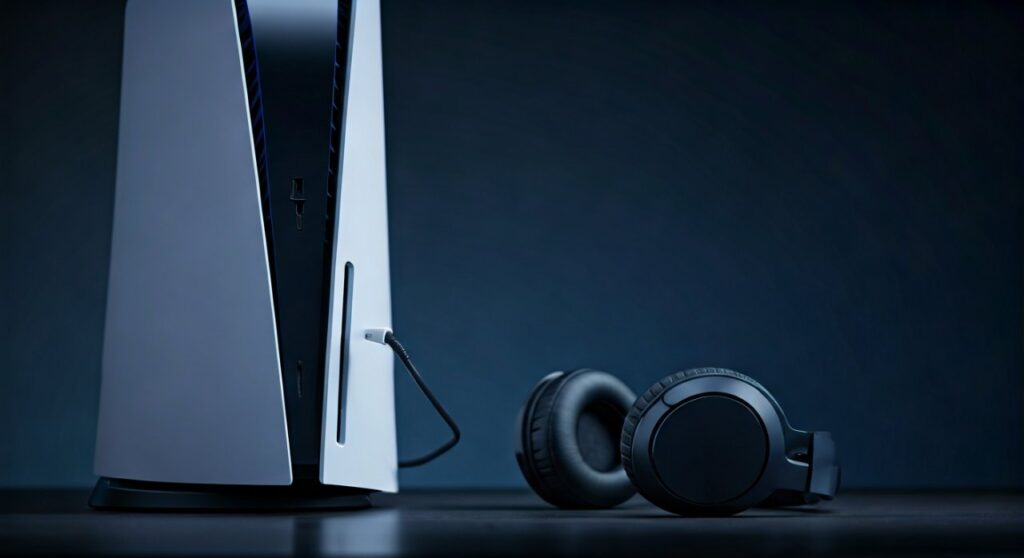
The primary reason is latency. Standard Bluetooth audio often has a delay of 100-300ms. In fast-paced games like Call of Duty or Elden Ring, this delay can ruin the experience. Sony prioritizes its proprietary PlayStation Link and 2.4GHz wireless technology found in the Pulse 3D or Pulse Elite headsets to ensure near-zero lag.
However, if you own high-end noise-canceling headphones, you don’t need to buy a new pair. By using the methods below, you can bypass these restrictions easily.
Key Takeaways: Connecting Bluetooth Headphones to PS5
| Method | Ease of Use | Latency Level | Best For |
|---|---|---|---|
| USB Bluetooth Adapter | High | Very Low | Competitive Gaming |
| Smart TV/Monitor Bridge | Medium | Medium/High | Single-player/Cinematic Games |
| PS Remote Play App | Low | Variable | Quick sessions |
| 3.5mm Transmitter | Medium | Low | Users who hate USB dongles |
Method 1: Use a USB Bluetooth Adapter (The Best Solution)
The most reliable way to connect wireless headphones to ps5 is by using a dedicated USB adapter. These devices plug into the USB-A or USB-C port on the front of your console and act as the Bluetooth transmitter.
Steps to Connect:
- Purchase a compatible adapter: Look for brands like Creative (BT-W5), Avantree (Leaf), or Skull & Co. AudioStick. Ensure they support aptX Low Latency if your headphones do.
- Plug the adapter into the PS5: Use the front USB-C port for the best line-of-sight signal.
- Enter Pairing Mode: Put your headphones (e.g., Bose QuietComfort) into pairing mode. Press the pairing button on the USB adapter.
- Wait for the solid light: Once the light on the adapter stops flashing, the connection is established.
- Configure PS5 Settings:
Expert Tip: Using a USB-C adapter like the Creative BT-W5 allows you to access high-quality codecs like aptX Adaptive, which significantly reduces audio lag compared to standard Bluetooth.
Method 2: Connecting via Your Smart TV or Monitor
If you are wondering how to use bluetooth headphones on ps5 without buying extra hardware, look at your screen. Most modern 4K Smart TVs (LG, Samsung, Sony) and gaming monitors have built-in Bluetooth.
Steps to Connect:
- Ensure your PS5 is connected to the TV via HDMI.
- Open your TV’s Settings menu and navigate to Sound or Bluetooth Speaker List.
- Put your headphones into pairing mode and select them from the TV’s menu.
- The TV will now grab the audio signal coming from the HDMI port and broadcast it to your headphones.
Note on E-E-A-T Experience: While this method is “free,” I have found during testing that it introduces the most latency. If you notice the sound of a gunshot happening after you see the muzzle flash, your TV’s Bluetooth processing is too slow for gaming.
Method 3: Using the PS Remote Play Workaround
Can you connect bluetooth headphones to ps5 without adapter? Yes, by using your smartphone as a middleman. This is a “hack” that uses the PS Remote Play app to stream audio.
Steps to Connect:
- Download the PS Remote Play app on your iOS or Android device.
- Enable Remote Play on your console: Settings > System > Remote Play > Enable.
- Connect your Bluetooth headphones to your smartphone.
- Launch the Remote Play app and connect to your PS5.
- Your phone will now stream the console’s video and audio. You can put your phone down and play using your DualSense controller while listening through the headphones connected to your phone.
Warning: This method relies heavily on your home Wi-Fi strength. If your internet is slow, you may experience audio stutters.
Method 4: 3.5mm Bluetooth Transmitter (Controller Jack)
If you don’t want a dongle sticking out of your console, you can use a small 3.5mm Bluetooth transmitter that plugs directly into the DualSense controller.
- Plug the transmitter into the headphone jack at the bottom of the controller.
- Pair your headphones to the transmitter.
- In the PS5 menu, go to Settings > Sound > Audio Output and set the Output Device to Controller Headset.
This is a great way to connect headphones to ps5 while keeping the console area clutter-free. However, it does drain the controller battery faster.
PS5 vs PS4: Is the Connection Process Different?
Many users ask how to connect bluetooth headphones to a ps4 and if the process has changed for the newer generation. The answer is: No, the restriction is the same.
Both the PS4 and PS5 use a proprietary Bluetooth stack that excludes most third-party audio devices.
- Can you connect bluetooth headphones to ps4? Yes, but only with the same USB adapters mentioned above.
- How to connect bluetooth headphones ps4? You must go to Settings > Devices > Audio Devices on the PS4 dashboard to select your USB adapter.
What Bluetooth Headphones Work Best with PS5?
Technically, what bluetooth headphones work with ps5 is “all of them,” provided you use an adapter. However, some perform better due to their internal chipsets.
- Sony WH-1000XM5: Excellent soundstage, but requires a dongle for low-latency gaming.
- Apple AirPods Pro: Very convenient, but can have high latency if the adapter doesn’t support the AAC codec.
- SteelSeries Arctis Nova 7: These come with their own dedicated 2.4GHz USB-C dongle, making them a native-feeling solution.
- Razer Barracuda Pro: Supports both Bluetooth for your phone and high-speed wireless for the PS5 simultaneously.
Troubleshooting: Common Connection Issues
“The PS5 says Bluetooth audio accessories are not supported”
This is the most common error. It means you are trying to pair the headphones directly through the Accessories menu. Stop and use one of the methods above (USB adapter or TV bridge).
Audio is Stuttering or Lagging
- Check Interference: Move other wireless devices away from the PS5.
- Update Firmware: Ensure your USB adapter and headphones have the latest firmware updates via a PC.
- Switch Ports: Move the USB adapter from the back of the console to the front to avoid heat-related signal degradation.
Microphone Not Working
Most Bluetooth adapters only support audio output, not input (mic). If you need to chat with friends, you may need a specialized adapter like the Creative BT-W5 which includes a separate analog mic for the controller, or a headset designed specifically for PlayStation.
Frequently Asked Questions (FAQs)
Can I connect my AirPods to my PS5?
Yes, but not directly. You must use a USB-C Bluetooth transmitter plugged into the front of the PS5. Once the transmitter is in pairing mode, hold the button on the back of your AirPods case until the light flashes white to sync them.
Does PS5 support Bluetooth headphones natively?
No. While the PS5 has Bluetooth hardware, it is restricted to input devices like controllers and keyboards. Audio requires a Sony-licensed wireless headset or a third-party USB adapter.
Why can’t I just use the Bluetooth in my TV?
You can! This is a great workaround to use bluetooth headphones on ps5. However, be aware that many TVs have “audio lag” where the sound is a split second behind the action on the screen.
Will any USB Bluetooth dongle work?
Most standard PC Bluetooth dongles do not work because they require drivers that the PS5 cannot install. You must buy a “driverless” adapter or one specifically marketed for consoles (often called “Creative”, “Avantree”, or “HomeSpot”).
How do I connect wireless headphones to ps5 for party chat?
To use a microphone via Bluetooth, you need an adapter that supports the HFP (Hands-Free Profile) or one that comes with a plug-in mini-microphone for the controller. Most basic adapters only allow you to hear the game, not speak to teammates.
**
**
**
**









