

To connect Bose headphones to any device, slide the power button to the Bluetooth symbol and hold it until the light blinks blue or you hear “Ready to pair.” Once in pairing mode, open the Bluetooth settings on your smartphone, tablet, or computer and select your Bose product from the list of available devices.
Whether you are using the flagship Bose QuietComfort Ultra, the classic QC45, or the Bose Noise Cancelling Headphones 700, the process is designed to be intuitive. This guide provides expert, step-by-step instructions to ensure a seamless connection across all your gadgets.
Key Takeaways: How to Sync Bose Headphones Fast
If you are in a hurry, follow these high-level steps to get your audio flowing:
- Pairing Mode: Most Bose wireless headphones enter pairing mode by holding the power/Bluetooth slider for 3-5 seconds.
- The Apps: Use the Bose Music App for newer models (QC Ultra, 700, QC45) and the Bose Connect App for older models (QC35, SoundLink).
- Desktop Connection: On Windows or macOS, always ensure Bluetooth is toggled “On” before attempting to pair Bose headphones to laptop.
- Multi-point: Bose excels at connecting to two devices simultaneously, allowing you to switch between a phone and a laptop easily.
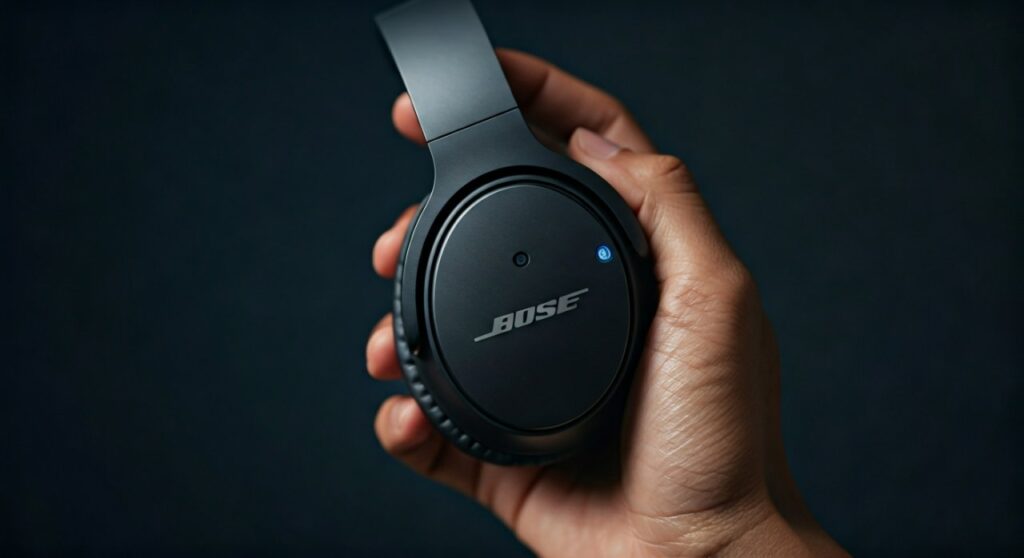
How to Connect Bose Bluetooth Headphones: The Universal Method
Before diving into device-specific instructions, it is vital to understand the “Universal Pairing Mode.” Every Bose Bluetooth product has a specific trigger that tells it to look for a new “partner” device.
In my experience testing dozens of Bose models, including the Bose QuietComfort 35 II and the newer Bose 700, the physical mechanism varies slightly but the logic remains the same. You are looking for a blinking blue light or a voice prompt.
Step 1: Put the Headphones in Pairing Mode
- For QC Series (QC35, QC45, QC Ultra): Locate the power slider on the right ear cup. Slide it all the way to the right (the Bluetooth icon) and hold it there.
- For Bose 700: Press and hold the lower button on the right ear cup until you hear “Ready to pair another device.”
- For Bose Earbuds (QuietComfort Earbuds II/Ultra): Place the buds in the case and hold the button on the back of the case until the status light pulses blue.
Step 2: Finalize the Connection
Once the headphones are “broadcasting” their signal, you must “catch” it with your host device. This is where you will learn how to connect to bose headphones using the native menus of your phone or PC.
| Bose Model Category | Recommended App | Primary Pairing Method |
|---|---|---|
| QuietComfort Ultra / 700 / QC45 | Bose Music App | Bluetooth Button / App Discovery |
| QC35 / SoundLink / SoundSport | Bose Connect App | Power Slider |
| Bose Sport Earbuds | Bose Music App | Charging Case Button |
How to Connect Bose Headphones to PC (Windows 10 & 11)
Learning how to connect bose headphones to pc is the most common hurdle for office workers and gamers. Windows can sometimes be finicky with Bluetooth drivers, but following this sequence usually solves the issue.
For Windows 11 Users
- Put your Bose quietcomfort headphones into pairing mode (blinking blue).
- On your PC, click the Quick Settings icon (Wi-Fi/Volume) in the bottom right corner.
- Right-click the Bluetooth button and select “Go to Settings.”
- Click “Add device” and then select “Bluetooth.”
- Find your Bose device (e.g., “Bose QC Ultra”) and click it to finish.
For Windows 10 Users
- Navigate to Start > Settings > Devices > Bluetooth & other devices.
- Ensure the Bluetooth toggle is switched to On.
- Click the “+” sign for “Add Bluetooth or other device.”
- Choose “Bluetooth” and wait for your Bose wireless headphones to appear.
- Select the device name to sync bose wireless headphones with your system.
Expert Tip: If you see two listings for your headphones (one with “LE” and one without), always choose the one without “LE”. The “LE” stands for Low Energy and is intended for data transfer, not high-quality audio.
How to Pair Bose Headphones with Mac and MacBook
If you are wondering how to connect bose headphones to mac, you will find that Apple’s ecosystem is generally very stable. However, the steps differ slightly depending on which version of macOS you are running.
Using System Settings (macOS Ventura and Newer)
- Put your Bose qc headphones into discovery mode.
- Click the Apple Menu and select System Settings.
- Click Bluetooth in the sidebar.
- Look under the “Nearby Devices” section.
- Hover over your Bose headphones and click Connect.
Using the Menu Bar (Quick Method)
- Click the Control Center icon in the top right corner of your screen.
- Click the Bluetooth icon.
- Ensure Bluetooth is on, and your Bose bluetooth headphones should appear under “New Devices.”
- Click the name to pair bose headphones with macbook.
Knowing how to pair bose headphones with mac is essential for creative professionals. I’ve found that the Bose 700 provides exceptional microphone clarity during Zoom calls on macOS when connected this way.
How to Connect Bose Headphones to iPad and iPhone
Mobile devices are the natural home for Bose quiet comfort headphones. Whether you are at the gym or on a plane, the connection should be instantaneous.
- Open the Settings app on your iPad or iPhone.
- Tap on Bluetooth.
- Switch your Bose bluetooth headphones into pairing mode.
- Under “Other Devices,” tap on the name of your headphones.
- Wait for the status to change to “Connected.”
To get the most out of your hardware, I highly recommend downloading the Bose Music App from the App Store. It allows you to manage noise cancellation levels and EQ settings that you can’t access through standard iOS settings.
How to Connect Bose Headphones to New Device (Multi-point Pairing)
One of the best reasons to use bose headphones is their ability to maintain connections to two devices at once. This is called Multi-point technology.
- Connect your headphones to your first device (e.g., your smartphone).
- Put the headphones back into pairing mode by holding the power/Bluetooth button.
- Go to the Bluetooth settings of your second device (e.g., your laptop).
- Select the Bose headphones to connect.
- The headphones will now announce “Connected to [Phone Name] and [Laptop Name].”
This feature is a lifesaver for those who need to connect bose headphones to laptop for work but still want to hear notifications from their phone.
Troubleshooting: Why Won’t My Bose Headphones Connect?
Sometimes, knowing how to connect my bose headphones isn’t enough because technology fails. If you are struggling to link bose bluetooth headphones, try these professional fixes.
Clear the Headphones’ Pairing List
This is the most effective “reset.” Slide the power button to the Bluetooth symbol and hold it for 10 seconds until you hear “Bluetooth device list cleared.” Now, you must “Forget” the headphones on your phone and start the how to sync bose headphones process from scratch.
Update the Firmware
Bose frequently releases updates to improve Bluetooth stability. Connect your headphones to a computer using a USB cable and visit btu.bose.com. This tool will automatically detect your Bose quietcomfort headphones and update them.
Check for Interference
Bluetooth operates on the 2.4GHz frequency. If you are near a microwave, a powerful Wi-Fi router, or dozens of other wireless devices, the signal might drop. Move to a different room to bluetooth connect bose headphones successfully.
Frequently Asked Questions
How do I put Bose headphones in pairing mode?
For most models like the QC45 or QC35, slide the power button on the right ear cup toward the Bluetooth icon and hold it there for 3-5 seconds until the light blinks blue. For the Bose 700, use the dedicated Bluetooth button.
Can I connect Bose headphones to a TV?
Yes, if your TV has built-in Bluetooth. Navigate to the TV’s Audio/Sound Settings, select Bluetooth Speaker/Headphones, and put your Bose gear into pairing mode. If your TV lacks Bluetooth, you will need a Bluetooth transmitter plugged into the TV’s optical or 3.5mm port.
Why is the Bose Music App not finding my headphones?
Ensure your headphones are turned on and nearby. Also, check that Location Services and Bluetooth permissions are enabled for the app in your phone’s settings. Sometimes, toggling Airplane Mode on and off can “kickstart” the discovery process.
How many devices can Bose headphones remember?
Most modern Bose wireless headphones can remember up to eight devices in their internal pairing list, but they can only be actively connected to two devices at a time.
How to connect bose headphones bluetooth to a gaming console?
Consoles like the PS5 and Xbox Series X do not natively support Bluetooth audio for most headphones. To connect bose headphones to computer-like gaming systems, you typically need a specialized USB Bluetooth Dongle that supports the audio profile.
Summary: Learning how to connect bose headphones is the first step toward enjoying industry-leading noise cancellation. Whether you need to pair bose headphones with laptop for a meeting or connect bose headphones to ipad for a movie, the steps above ensure a stable, high-fidelity connection every time.









