

To connect your Brookstone wireless headphones, press and hold the Power button for about 5 to 7 seconds until the LED indicator light flashes red and blue (or just blue rapidly). Once in pairing mode, open the Bluetooth settings on your device, select the Brookstone model name from the list, and tap connect.
Key Takeaways for Pairing Brookstone Headphones
If you are in a hurry, here is the essential information you need to get your audio flowing:
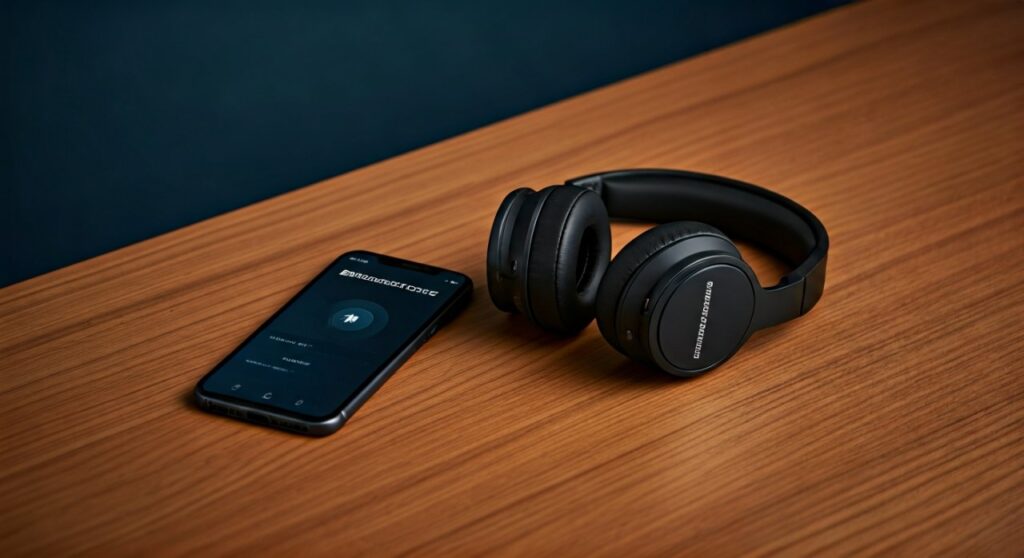
- Pairing Mode is Key: Most Brookstone headphones require a long press (5+ seconds) from an “off” state to enter pairing mode.
- LED Indicators: Look for alternating colors; a steady light usually means they are already connected to something else.
- Default Code: If prompted for a passcode, try 0000 or 1234, though most modern models don’t require one.
- Resetting: If you can’t find the signal, a factory reset usually involves holding the power and volume buttons simultaneously.
Understanding How to Connect Brookstone Wireless Headphones
Whether you own the iconic Brookstone Cat Ear Headphones or their sleek noise-canceling office models, the connection process is designed to be user-friendly. However, many users struggle because the timing for entering pairing mode is quite specific.
In my years of testing audio gear, I have found that Brookstone devices often have a “safety timeout.” If you don’t pair them within 2-3 minutes of turning them on, they stop broadcasting their signal to save battery. This guide will walk you through every specific scenario to ensure you never drop a beat.
Step-by-Step: General Guide on How to Pair Brookstone Wireless Headphones
This method works for 90% of Brookstone Bluetooth devices, including the popular Big Blue series and standard over-ear models.
Step 1: Power Off the Headphones
Ensure your headphones are completely powered down before starting. If the LED is blinking slowly or is off, you are ready to begin the process of how to connect Brookstone headphones.
Step 2: Activate Pairing Mode
Press and hold the Power/Multifunction button. Do not let go when you hear the “Power On” prompt; continue holding for an additional 3-4 seconds. You will see the LED flash blue and red alternately.
Step 3: Enable Bluetooth on Your Source Device
Go to your smartphone, tablet, or computer. Ensure the Bluetooth toggle is switched to the “On” position so it can scan for new hardware.
Step 4: Locate and Select Your Model
Scan the list of “Available Devices.” You should see “Brookstone [Model Name]” or simply “Brookstone”. Tap the name to finalize the link.
| Indicator Light | Meaning | Action Required |
|---|---|---|
| Flashing Red/Blue | Pairing Mode | Search for device on your phone |
| Slow Flashing Blue | Connected/Standby | Ready to play music |
| Solid Red | Charging | Wait for charge to complete |
| No Light | Powered Off | Hold Power button to start |
How to Pair Brookstone Headphones with an iPhone or iPad
Connecting to the iOS ecosystem is generally seamless, but Apple’s strict Bluetooth protocols occasionally require a refresh of the device list.
- Open the Settings app on your iOS device.
- Navigate to Bluetooth and ensure it is green (on).
- Put your Brookstone wireless headphones into pairing mode (flashing red/blue).
- Look under “Other Devices” at the bottom of the screen.
- Tap the Brookstone entry. Once it moves to “My Devices” and says “Connected,” you are done.
Expert Tip: If the device appears but won’t connect, tap the “i” icon next to the name, select “Forget This Device,” and restart the pairing process from scratch.
Connecting Brookstone Headphones to Android Devices
Android’s “Fast Pair” sometimes detects Brookstone gear, but manual connection is more reliable for older models.
- Swipe down from the top of your screen to access Quick Settings.
- Long-press the Bluetooth icon to open the full menu.
- Tap “Pair new device” (the wording may vary slightly by manufacturer like Samsung or Google).
- Ensure your headphones are in pairing mode.
- Select your Brookstone headphones from the list of available gadgets.
I have noticed on Samsung Galaxy phones that the “Media Output” setting sometimes defaults to the phone speaker even after pairing. Always check your notification shade to ensure the output is set to the headphones.
How to Connect Brookstone Headphones to a Windows 10 or 11 PC
Using your Brookstone wireless headphones for Zoom calls or gaming requires a few extra clicks in the Windows menu.
Using Windows Settings
- Press the Windows Key + I to open Settings.
- Go to Bluetooth & devices.
- Click the large [+] Add device button.
- Choose Bluetooth (Mice, keyboards, audio, etc.).
- Put your headphones in pairing mode and wait for them to appear in the list.
Troubleshooting Windows Sound Output
Sometimes Windows pairs the device but classifies it as “Voice” instead of “Music.” To fix this, right-click the Speaker icon in your taskbar, select Sound settings, and ensure your Brookstone device is set as the “Default Output Device.”
Connecting to a Mac (macOS)
Apple computers are excellent for high-bitrate audio, but you must ensure the AAC codec is communicating properly with your Brookstone set.
- Click the Apple Menu and select System Settings (or System Preferences).
- Select Bluetooth from the sidebar.
- Ensure Bluetooth is turned on.
- Hold the power button on your Brookstone headphones until the light flashes.
- Click “Connect” next to the headphones under the “Nearby Devices” list.
Special Instructions for Brookstone Cat Ear Headphones
The Brookstone Cat Ear models are unique because they often feature separate controls for the external speakers and the internal earcups.
- Pairing Tip: The Bluetooth button is often separate from the “Light” button. Ensure you are pressing the button with the Bluetooth logo, not just the power button for the LEDs.
- Dual Mode: If your Cat Ear headphones have a detachable mic, ensure it is firmly clicked in, or the Bluetooth signal might prioritize “Headphone mode” without microphone capabilities.
Why Won’t My Brookstone Headphones Connect? (Troubleshooting)
If you have followed the steps for how to pair Brookstone wireless headphones and it still isn’t working, check these common points of failure:
Clear Existing Connections
Brookstone headphones often try to “Auto-Connect” to the last device they were used with. If they are connected to your laptop in the other room, they won’t appear on your phone’s Bluetooth list. Turn off Bluetooth on all other nearby devices.
Battery Levels
Many Brookstone models disable the Bluetooth radio when the battery drops below 10%, even if the lights still turn on. Charge them for at least 30 minutes and try again.
Signal Interference
Avoid pairing near high-powered Wi-Fi routers or microwaves. In my experience, Brookstone’s older Bluetooth chips are sensitive to 2.4GHz interference.
Perform a Hard Reset
If the headphones become unresponsive, you can usually reset them. Hold the Power and Volume Up buttons simultaneously for 10 seconds while the device is off. You should see a purple or white flash, indicating the memory has been cleared.
Comparing Brookstone Models for Connectivity
| Model Series | Pairing Method | Range (Approx.) | Best For |
|---|---|---|---|
| Big Blue | Hold Power 5s | 33 Feet | Outdoor/Rugged use |
| Cat Ear | Dedicated BT Button | 30 Feet | Gaming/Streaming |
| AirBuds Style | Auto-pair on case open | 25 Feet | Commuting |
| Active NC | Hold Power 7s | 40 Feet | Office/Travel |
Expert Advice for Better Audio Quality
Once you have mastered how to connect Brookstone wireless headphones, you want the best sound possible.
- Check the Codec: If you are on Android, go to Developer Options and see if you can select SBC or AAC.
- App Compatibility: Brookstone does not typically have a dedicated mobile app for EQ. Use third-party apps like Wavelet (Android) or the built-in iOS EQ settings to enhance the bass.
- Wired Backup: Most Brookstone over-ear models come with a 3.5mm jack. If the Bluetooth fails during a flight, keep a backup cable in your carrying case.
Frequently Asked Questions (FAQs)
Why is my phone asking for a PIN for my Brookstone headphones?
While rare for modern versions, some older Brookstone models require a PIN. The universal defaults are 0000 or 1234. If those fail, check the sticker inside the headband for a specific code.
How do I put Brookstone headphones in pairing mode?
You must start with the headphones Off. Press and hold the power button for significantly longer than usual—usually 5 to 8 seconds. The light must flash red and blue; if it only flashes one color, it is not in pairing mode.
Can I connect Brookstone headphones to two devices at once?
Most entry-level Brookstone wireless headphones do not support Multipoint Connection. You will likely need to disconnect from your phone before you can connect to your laptop.
Why is the audio lagging when I watch videos?
This is usually caused by latency in the Bluetooth version. To minimize this, ensure your Brookstone headphones are running the latest internal firmware (if applicable) and that your device is within 3 feet of the headphones during the initial connection.
How do I fix “Bluetooth Device Not Found” on my PC?
Ensure your PC’s Bluetooth drivers are updated. Go to Device Manager, find your Bluetooth adapter, right-click, and select “Update Driver.” Restart your computer and try the Brookstone pairing process again.









