

Understanding Your Connection Options
To learn how to connect a Chromebook to a projector, you must first identify the physical ports available on your device and the input types supported by your display hardware. Most modern Chromebooks use USB-C ports for video output, while older models may require a HDMI cable or a specific adapter.
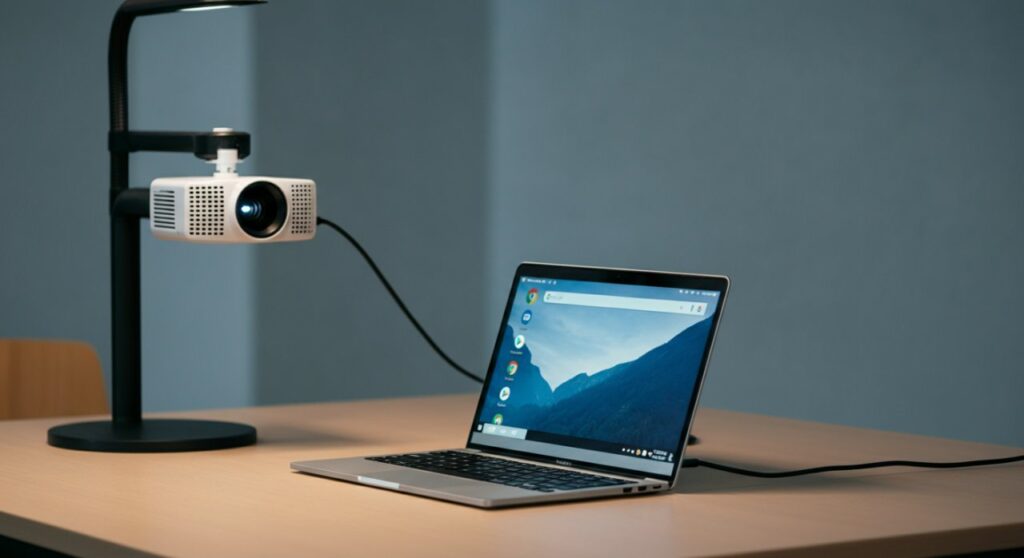
TL;DR: Quick Connection Summary
If you are in a rush, follow these three simple steps:
- Identify Ports: Check if your Chromebook has a USB-C or HDMI port.
- Use the Right Cable/Adapter: Connect a compatible HDMI cable or a USB-C to HDMI adapter between the two devices.
- Select Input: Turn on the projector, press the Source button, and select the corresponding HDMI input channel.
Hardware Requirements and Compatibility
The most common reason users fail to connect their Chromebook is using an incompatible cable or failing to recognize the need for a dongle. Modern ChromeOS devices rarely have a native HDMI port, making adapters essential tools for presenters.
Common Port Types Explained
| Port Type | Purpose | Adapter Needed? |
|---|---|---|
| USB-C | Video & Data | Often requires USB-C to HDMI adapter |
| HDMI | Direct Video/Audio | Rarely needed if port is present |
| DisplayPort | High-res Video | Requires DisplayPort to HDMI |
Step-by-Step Guide: How to Connect a Chromebook to a Projector
Follow this structured process to ensure a stable, high-quality projection every time you present.
Prepare Your Hardware
Ensure both your Chromebook and your projector are powered on. If you are using a wired adapter, connect the adapter to your Chromebook first, then attach the HDMI cable to the adapter and the projector’s input port.
Configure Display Settings on ChromeOS
Once connected, your Chromebook should automatically detect the external display. If the screen does not appear immediately:
- Click on the Time area at the bottom right corner of your screen.
- Select the Settings (gear icon).
- Navigate to Device > Displays.
- Choose between Mirroring (showing exactly what is on your laptop) or Extended Desktop (using the projector as a second screen).
Troubleshooting Connection Issues
If you are still struggling with how to connect a chromebook to a projector, check these common pitfalls:
- Input Channel: Ensure the projector is set to the correct HDMI 1, HDMI 2, or VGA source.
- Cable Integrity: Try a different HDMI cable to rule out faulty wiring.
- Adapter Compatibility: Ensure your USB-C hub supports “DisplayPort Alt Mode,” as not all USB-C ports carry video signals.
Professional Tips for Seamless Presentations
As someone who frequently presents using ChromeOS, I recommend keeping a high-quality USB-C Multiport Adapter in your bag at all times. This simple addition acts as a “universal key,” allowing you to connect to older VGA projectors or standard HDMI units without hesitation.
Best Practices for Stability
- Update ChromeOS: Always ensure your system is running the latest software version to prevent driver compatibility issues.
- Audio Output: If the audio plays from the Chromebook instead of the projector, go to Settings > Audio and select the HDMI device as your output source.
- Screen Resolution: Manually adjust the resolution in the Display settings if the projected image looks stretched or pixelated.
Frequently Asked Questions
Can I connect a Chromebook to a projector wirelessly?
Yes, if your projector supports Chromecast or if you are using a Chromecast dongle plugged into the projector’s HDMI port. You can use the “Cast” feature in the Chrome browser menu to mirror your tab or desktop wirelessly.
Why is my Chromebook not detecting the projector?
This is usually caused by a loose connection or an incompatible USB-C adapter. Verify that your adapter is specifically designed for video output and ensure the projector is powered on and set to the correct input before connecting the cable.
Do I need to install drivers for the projector?
No, ChromeOS is designed to be plug-and-play. You do not need to install specific drivers for standard projectors; the system automatically handles the handshake between devices.









