

To connect Edifier headphones to your device, press and hold the power button for approximately 3 to 5 seconds while the device is off until the indicator light flashes red and blue alternately. Once in pairing mode, open the Bluetooth settings on your smartphone, tablet, or PC and select the Edifier model name (e.g., Edifier W820NB) to complete the link.
Quick Guide: Key Takeaways for Edifier Connectivity
If you are in a hurry, this table summarizes the exact pairing triggers for the most popular Edifier product categories.
| Headphone Type | How to Enter Pairing Mode | LED Indicator Signal |
|---|---|---|
| Over-Ear (W Series) | Hold Power button for 5s from OFF state | Flashing Red & Blue |
| TWS Earbuds (X/TWS Series) | Take out of case or hold touch zone for 3s | Rapidly flashing Blue/White |
| NeoBuds / NB Series | Press button on charging case for 3s (lid open) | Moving light pattern on case |
| Gaming (G Series) | Hold the Multi-function button for 3s | Flashing Cyan/Blue |
Mastering the Basics: How to Pair Edifier Headphones Successfully
Connecting your Edifier audio gear shouldn’t be a source of frustration. Whether you just unboxed a premium pair of STAX SPIRIT S3 or the budget-friendly W800BT Plus, the logic remains consistent across the brand’s ecosystem.
Most connection failures happen because the user assumes the device is in pairing mode just because it is turned on. To pair Edifier headphones, you must bypass the “Power On” state and reach the “Pairing State.” This is usually indicated by a specific voice prompt inside the earcups saying “Pairing.”
Step-by-Step Connection for Android and iOS
- Ensure your Bluetooth is enabled in the mobile settings menu.
- Turn off your Edifier headphones completely.
- Long-press the Power/Multi-function button for 5 seconds. Do not let go when you see the first light; wait for the alternating flash.
- On your phone, tap “Scan” or “Add New Device.”
- Select your specific model (e.g., Edifier WH950NB) from the list.
- Confirm any pairing requests or “Allow Access to Contacts” prompts.
Connecting Edifier Headphones to Windows 10 and 11
Many users struggle when they connect Edifier headphones to a PC due to driver conflicts or the “LE” (Low Energy) Bluetooth protocol. Windows often shows two versions of the device; always pick the one with the headset icon, not the phone icon.
Troubleshooting PC Connections
- Update Drivers: Ensure your PC’s Intel or Realtek Bluetooth drivers are updated to the latest version.
- Remove Old Profiles: If you previously paired the device and it won’t reconnect, “Forget Device” in Windows Settings and restart the pairing process.
- Default Device: After pairing, go to Sound Settings and set your Edifier headphones as the “Default Output” and “Default Communication Device.”
Using the Edifier Connect App for Enhanced Control
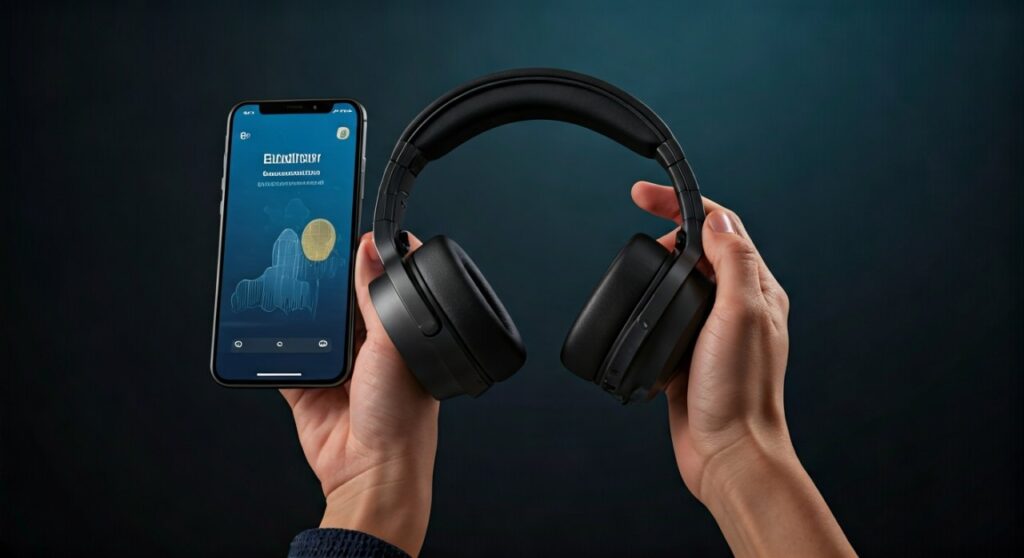
For a truly expert experience, you should not stop at the basic Bluetooth connection. The Edifier Connect App (available on iOS and Android) is essential for modern models like the NeoBuds Pro 2 or W820NB Plus.
Why Use the App?
- Firmware Updates: Fixes bugs and improves connection stability.
- EQ Customization: Switch between “Classic,” “Dynamic,” or “Customized” sound signatures.
- Noise Cancellation: Toggle between High ANC, Low ANC, and Ambient Sound modes.
- Dual-Device Connection: Manage which two devices your headphones are connected to simultaneously (Multipoint).
To use the app, pair Edifier headphones to your phone via standard Bluetooth settings first. Once connected, open the app, and it will automatically detect your hardware.
How to Reset Edifier Headphones (When Pairing Fails)
If your device refuses to show up in the Bluetooth list, a hardware reset is the most effective solution. This clears the pairing history and restores factory settings.
Reset Procedures by Model Type
- Over-Ear Models: While the device is powered on, press and hold the Volume Up (+) and Volume Down (-) buttons simultaneously for about 5 seconds. The LED will usually flash Blue rapidly to confirm the reset.
- TWS Earbuds: Place both buds in the charging case. Keep the lid open and press the physical button on the case for 10 seconds until the internal LEDs flash a specific pattern (usually Red).
- STAX SPIRIT Series: These audiophile sets may require holding the multi-function button for 10 seconds while plugged into a power source.
Advanced Connectivity: Multipoint Pairing
One of the best features of modern Edifier gear is Multipoint Connection, allowing you to stay connected to a laptop for meetings and a phone for calls.
- Pair the headphones to Device A (Phone) and then turn off Bluetooth on Device A.
- Put the headphones back into pairing mode.
- Pair them to Device B (Laptop).
- Turn Bluetooth back on for Device A.
- The headphones should now automatically connect to Edifier profiles on both devices.
Optimizing Audio Quality After Connection
Once you connect Edifier headphones, you want the best sound. If you are on Android, check your Developer Options to see if your headphones support LDAC or aptX Adaptive.
Edifier is known for using high-quality Qualcomm chipsets. If you see the “LDAC” toggle in your Bluetooth settings, turn it on to enjoy hi-res audio at up to 990kbps. Note that this may slightly reduce the connection range compared to the standard SBC codec.
Common Connection Challenges and Solutions
Signal Dropping in Crowded Areas
This often happens due to 2.4GHz interference from Wi-Fi routers or other Bluetooth devices. To minimize this, keep your phone on the same side of your body as the headphone’s antenna (usually the right earcup).
Audio Lag While Gaming
Bluetooth latency is a known issue. If you pair Edifier headphones for gaming, check if your model has a “Game Mode.” This can be activated via the Edifier Connect App or by triple-tapping the multi-function button. It reduces latency to as low as 80ms.
One Earbud Not Connecting
This is common with TWS (True Wireless Stereo). Ensure both buds are synced to each other before pairing with the phone. Putting them back in the case and taking them out at the exact same time usually triggers the auto-sync.
Frequently Asked Questions (FAQs)
Why are my Edifier headphones not appearing in the Bluetooth list?
Your headphones are likely not in “Pairing Mode.” Ensure the LED is flashing Red and Blue. If it is only flashing Blue, it is searching for a previously paired device, not a new one.
Can I connect Edifier headphones to a PS5 or Xbox?
No, most gaming consoles do not support standard Bluetooth audio directly. You will need a Bluetooth USB Dongle (like those from Creative or Avantree) plugged into the console to bridge the connection.
How many devices can Edifier headphones remember?
Most models can store up to 8 devices in their pairing memory. However, only models with Multipoint can stay active on two devices at once.
Does the Edifier Connect App work with all models?
The app supports most newer models released after 2020. Legacy models like the original W800BT do not have app support and rely solely on system Bluetooth settings.
What should I do if my Edifier headphones keep disconnecting?
Check your battery level first. Low battery often causes the Bluetooth radio to struggle. If the battery is full, perform a factory reset and “Forget” the device on your phone to start fresh.









