

To connect headphones to an iPad, you simply need to access the Bluetooth settings for wireless models or use a USB-C/Lightning adapter for wired versions. For wireless sets, put your headphones into pairing mode, open Settings > Bluetooth on your iPad, and tap the device name to sync them instantly.
Connecting your favorite audio gear to an iPad might seem straightforward, but with the removal of the 3.5mm headphone jack on modern iPad Pro, iPad Air, and iPad Mini models, the process has changed. Whether you are a student trying to focus or a traveler wanting to watch Netflix, understanding the nuances of Bluetooth protocols and dongle compatibility is essential for a seamless experience.
Key Takeaways: Connecting Headphones to iPad
If you are in a hurry, here is the essential guide to getting your audio working:
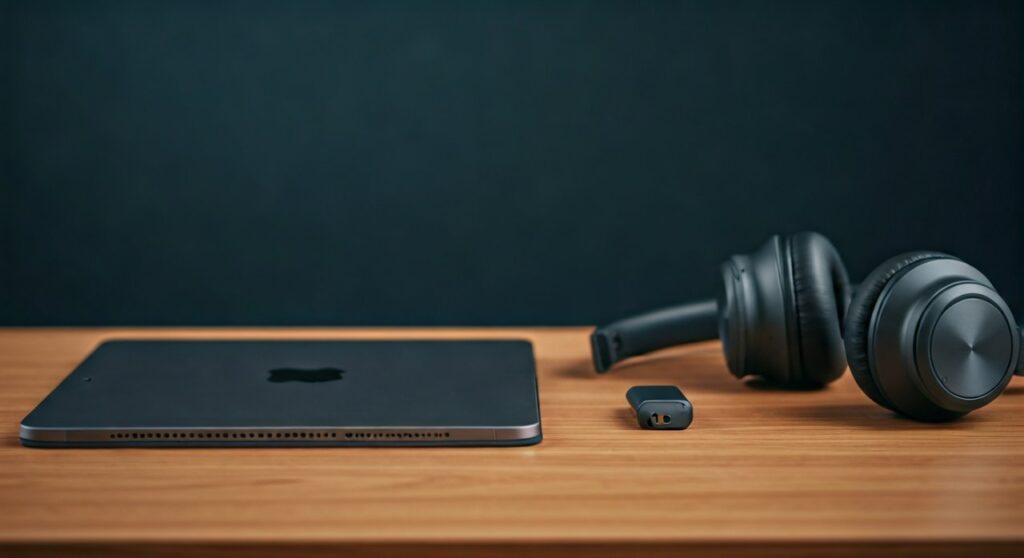
- Wireless Method: Toggle Bluetooth “On” in Settings and select your device from the “Other Devices” list.
- Wired Method: Use a USB-C to 3.5 mm Headphone Jack Adapter for newer iPads or a Lightning adapter for older models.
- Dual Listening: Use the Share Audio feature to connect two headphones to one iPad (compatible with AirPods and Beats).
- Troubleshooting: If they won’t connect, restart your iPad, toggle Bluetooth off/on, or “Forget” the device and re-pair.
- Brand Specifics: Brands like Sony, JBL, and Beats often require specific button-hold patterns to enter pairing mode.
How to Connect Bluetooth Headphones to iPad
Learning how to connect bluetooth headphones to ipad is the most common requirement for modern users. Since Apple transitioned away from physical jacks, wireless audio has become the industry standard for portability and ease of use.
Step 1: Put Your Headphones in Pairing Mode
Before your iPad can “see” your headphones, they must be discoverable. For most wireless headphones, this involves holding the power button or a dedicated Bluetooth button for 3-5 seconds until a light flashes (usually blue and red).
Step 2: Enable Bluetooth on iPadOS
Navigate to the Settings app on your iPad. Tap on the Bluetooth section and ensure the toggle is green (On). Your iPad will immediately begin scanning for nearby active signals.
Step 3: Select Your Device
Look under the heading “Other Devices.” Once your brand (e.g., JBL Tune, Sony WH-1000XM5, or Beats Solo) appears, tap it. A “Connected” status will appear next to the name once the sync bluetooth headphones to ipad process is complete.
How to Pair Specific Brands: Sony, JBL, and Beats
Every manufacturer has a slightly different handshake protocol. If you are wondering how to pair bluetooth headphones with ipad for a specific brand, follow these expert-verified steps.
How to Connect JBL Headphones to iPad
JBL headphones are popular for their “Pure Bass” sound. To pair JBL headphones to ipad:
- Power on the headphones.
- If it’s your first time, they often enter pairing mode automatically.
- If not, press and hold the Bluetooth button on the right ear cup.
- Select the JBL model from your iPad’s Bluetooth list.
How to Connect My Sony Headphones to My iPad
To pair Sony headphones to ipad, particularly the popular XM4 or XM5 series:
- Turn off the headphones.
- Press and hold the Power button for about 7 seconds.
- You will hear a voice prompt saying “Pairing.”
- On your iPad, tap the device name to finish the sync.
How to Connect Beats Headphones to iPad
Since Apple owns Beats, the integration is deeper. To connect beats headphones to ipad:
- Hold the power button for 1 second.
- Bring the headphones near your unlocked iPad.
- A setup animation will pop up on the iPad screen.
- Tap Connect.
How to Connect Two Headphones to iPad Simultaneously
A frequent question from parents and travelers is how to connect 2 headphones to ipad so two people can watch the same movie. Apple provides a built-in feature called Audio Sharing.
Using Apple’s Share Audio Feature
This is the best way to connect two bluetooth headphones to ipad netflix marathons. It works with AirPods and modern Beats.
- Connect the first pair of headphones as usual.
- Open the Control Center (swipe down from the top-right corner).
- Tap the AirPlay icon (the circles with a triangle).
- Tap Share Audio.
- Hold the second pair of headphones near the iPad and follow the on-screen prompts.
How to Connect Multiple Headphones to iPad (Non-Apple)
If you are trying to connect two bluetooth headphones to ipad that are not Apple-branded, the process is more difficult. iPadOS typically only supports one active A2DP Bluetooth audio stream at a time for third-party devices.
- Solution: Use a Bluetooth Splitter/Transmitter that plugs into the charging port.
- Alternative: Use a physical 3.5mm Y-splitter with a wired adapter.
How to Connect Wired Headphones to iPad
Despite the wireless revolution, many audiophiles prefer wired headphones for zero latency and higher fidelity. Here is how to connect wired headphones to ipad depending on your model.
For iPads with USB-C (Pro, Air, Mini 6)
You will need a USB-C to 3.5 mm Headphone Jack Adapter.
- Plug the adapter into the iPad’s USB-C port.
- Plug your headphones into the adapter.
- The iPad will automatically route audio to the external jack.
For iPads with Lightning Ports
If you have an older base-model iPad, you need the Lightning to 3.5 mm Headphone Jack Adapter. The process remains “plug-and-play.”
| iPad Model Type | Port Type | Connection Required |
|---|---|---|
| iPad Pro (2018 & later) | USB-C | USB-C Adapter or USB-C Headphones |
| iPad Air (Gen 4 & later) | USB-C | USB-C Adapter |
| iPad Mini (Gen 6) | USB-C | USB-C Adapter |
| Standard iPad (Pre-Gen 10) | Lightning | Lightning Adapter |
| Older iPads | 3.5mm Jack | Direct Plug-in |
Why Won’t My Headphones Connect to My iPad?
If you find yourself asking “why won’t my headphones connect to my ipad?” don’t panic. Based on my experience testing dozens of audio devices, the issue is usually software-related.
- Check Battery Levels: Many headphones disable Bluetooth searching when the battery is below 10%.
- Toggle Airplane Mode: This resets all radio frequencies on your iPad.
- Forget the Device: Go to Settings > Bluetooth, tap the “i” next to your headphones, and select Forget This Device. Then, restart the pairing process.
- Update iPadOS: Apple frequently releases patches for Bluetooth connectivity bugs. Ensure you are on the latest version.
- Distance and Interference: Ensure you are within 30 feet of the iPad and away from microwave ovens or heavy Wi-Fi routers.
Expert Tips for the Best Audio Experience
To maximize your listening sessions, consider these professional insights:
- Check Codec Support: iPads primarily use the AAC (Advanced Audio Coding) codec. When buying headphones, ensure they support AAC for the best sound quality.
- Custom Transparency: If using AirPods or Beats, go to Settings > Accessibility > Audio/Visual > Headphone Accommodations to tune the sound to your specific hearing profile.
- Battery Widget: Add the Batteries Widget to your iPad Home Screen to keep an eye on your headphone levels so they don’t die mid-meeting.
FAQs: Connecting Headphones to iPad
How many Bluetooth headphones can I connect to an iPad at once?
While you can pair dozens of headphones, you can typically only output audio to one pair at a time. The exception is Apple’s Share Audio feature, which allows two pairs of compatible AirPods/Beats to listen simultaneously.
Can I connect wired and Bluetooth headphones at the same time?
No. iPadOS will prioritize the last connected device. If you plug in a wired adapter while listening to Bluetooth, the iPad will usually switch the audio output to the wired connection.
How do I connect headphones to an iPad that doesn’t have a jack?
You must use a dongle (adapter) or switch to wireless headphones. For the best quality, use the official Apple USB-C to 3.5mm adapter, as it contains a high-quality DAC (Digital-to-Analog Converter).
Why is there no sound even though my headphones say “Connected”?
Check the Control Center to ensure the volume is turned up and the output destination is set to your headphones rather than the “iPad Speakers.”
How to pair wireless headphones with ipad if they aren’t showing up?
Ensure the headphones are not currently connected to another device (like your phone). Most headphones cannot enter pairing mode if they are actively linked to another Bluetooth source.









