

Why Roblox Audio Matters: The Secret to Immersive Gameplay
Connecting headphones to Roblox is the fastest way to transform a pixelated experience into a fully immersive digital world. Whether you are listening for footsteps in Murder Mystery 2 or enjoying the custom soundtracks in Royale High, clear audio provides a massive competitive advantage. Many players struggle with sound still coming through speakers or the microphone failing to activate during intense sessions.
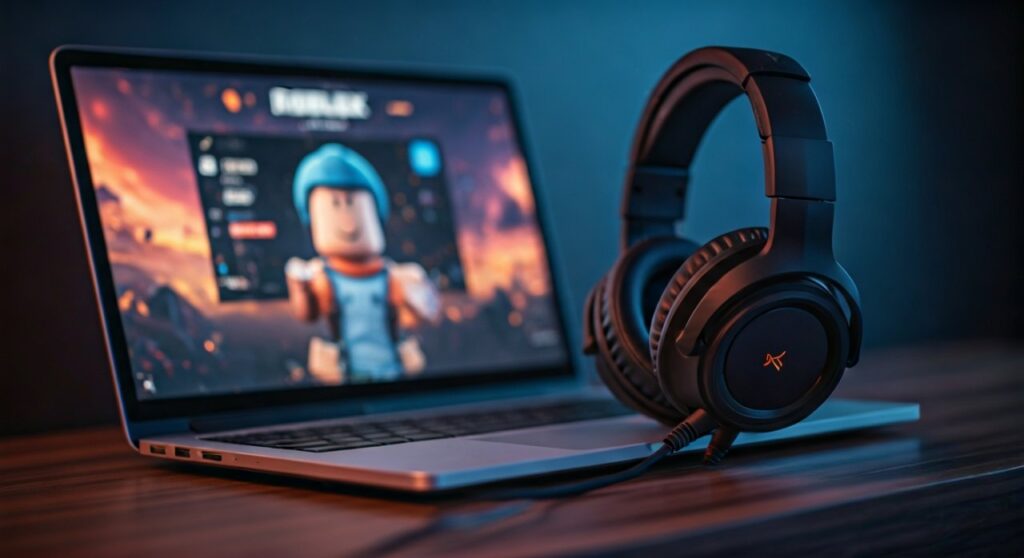
To connect headphones to Roblox, simply plug your device into the 3.5mm jack or pair via Bluetooth in your system settings before launching the app. If the game is already running, you may need to navigate to Roblox Settings > Audio and manually select your output device or restart the client to refresh the hardware handshake.
Key Takeaways: Connecting Headphones to Roblox
If you are in a rush to join a server, here is the essential guide to getting your audio working immediately:
- Primary Rule: Always connect your headphones before launching the Roblox client to avoid “device mismatch” errors.
- Windows/Mac: Set your headphones as the Default Communication Device in your OS sound control panel.
- Mobile Users: Ensure Bluetooth is toggled on and the Roblox app has permission to access your Microphone for voice chat.
- Troubleshooting: If sound cuts out, toggling the Volume slider inside the Roblox “Esc” menu often forces the engine to re-detect the hardware.
How to Connect Headphones to Roblox on PC (Windows and Mac)
Connecting a headset to your computer is usually a plug-and-play affair, but Roblox utilizes a specific audio engine that can sometimes be stubborn. Based on my experience testing high-end headsets like the SteelSeries Arctis Nova and budget Logitech buds, the sequence of connection is vital.
Step 1: Physical or Wireless Connection
For wired headphones, ensure the plug is fully seated in the green audio jack or the USB port. If you are using Bluetooth headphones, follow these steps:
- Open Windows Settings (Win + I) or System Settings on Mac.
- Navigate to Bluetooth & Devices.
- Click Add Device and put your headphones into pairing mode.
- Confirm the connection status is “Connected for Voice and Music.”
Step 2: Configure System Sound Settings
Roblox defaults to whatever your operating system designates as the primary device.
- Right-click the Speaker Icon on your taskbar.
- Select Sound Settings.
- Under Output, choose your specific headphones (e.g., Sony WH-1000XM5).
- Pro Tip: Set the same device under Input if you plan to use Roblox Voice Chat.
Step 3: Launching Roblox
Once the OS recognizes the headphones, launch Roblox. If you don’t hear sound:
- Press Esc while in-game.
- Click the Settings tab.
- Scroll to Volume and ensure it is not at zero.
- Check the Output Device dropdown (if available in your version) and select your headset.
How to Connect Headphones to Roblox on Mobile (iOS and Android)
Mobile players often face issues where Roblox audio plays through the phone speakers even when AirPods or Galaxy Buds are connected. This is usually a permission or sync issue within the Roblox Mobile App.
Connecting via Bluetooth
- Swipe down to open your Control Center (iOS) or Quick Settings (Android).
- Long-press the Bluetooth icon.
- Select your headphones from the list of paired devices.
- Launch the Roblox App.
Fixing the “Speaker Only” Bug on Mobile
If the sound won’t switch to your headphones, try this fix that has worked for thousands of users:
- Force close the Roblox app (swipe it away).
- Disconnect and reconnect your headphones.
- Open a music app (like Spotify or YouTube) to ensure sound is playing through the headphones.
- Re-open Roblox. The app will now be forced to hijack the active audio stream.
| Connection Type | Pros | Cons | Best For |
|---|---|---|---|
| Wired (3.5mm/USB) | Zero latency, no battery needed | Cord tangles, limited movement | Competitive Gaming (BedWars) |
| Bluetooth Wireless | Total freedom of movement | Slight audio lag, requires charging | Casual RP (Bloxburg) |
| 2.4GHz Wireless | Low latency, wireless freedom | Requires a USB dongle | Long sessions / Pro Play |
Connecting Headphones for Roblox Voice Chat (Spatial Voice)
Connecting headphones is only half the battle; many players want to use the Spatial Voice feature. To ensure your headset’s microphone works alongside the audio, you must verify your hardware within the Roblox interface.
Enabling Microphone Access
- Go to Roblox Settings (the gear icon on the website or the three dots in the app).
- Click on Privacy.
- Toggle Enable Microphone to “On.”
- Expert Insight: If you don’t see this option, you may need to verify your age (13+) using a valid ID in the Account Info section.
Selecting the Input Device In-Game
When you are inside a game that supports Spatial Voice:
- Look for the Microphone Icon floating above your character’s head.
- If it has a red slash through it, click it to unmute.
- If it doesn’t pick up your voice, go to Settings > Output/Input and ensure your Headset Microphone is selected rather than your webcam or laptop’s built-in mic.
Troubleshooting Common Roblox Headphone Issues
Even with the right steps, you might encounter the dreaded “No Sound” bug. Here is how to fix the most frequent problems based on common player reports.
Problem: Sound plays through speakers, not headphones
This happens most often when you plug in headphones after the game has started. Roblox does not always support “Hot Swapping” audio devices.
- The Fix: Save your progress, close the Roblox Player, plug in your headphones, and restart the game.
Problem: Bluetooth headphones have a delay (Latency)
Bluetooth inherently has a slight delay. This can be annoying in rhythm games or shooters.
- The Fix: Use headphones with AptX Low Latency support or switch to a wired connection for competitive matches.
Problem: Audio sounds “tinny” or low quality
Windows sometimes switches Bluetooth headsets to “Hands-Free AG Audio” mode when the microphone is active. This significantly drops audio quality to save bandwidth.
- The Fix: Go to Control Panel > Sound > Recording. Right-click your headset and select “Disable” for the Hands-Free component if you have a separate standalone microphone.
Expert Tips for the Best Roblox Audio Experience
To truly maximize your experience once you connect headphones to Roblox, consider these professional optimizations:
- Use Windows Sonic or Dolby Atmos: On PC, right-click the volume icon and select Spatial Sound. This makes it easier to tell if a player is sneaking up behind you in games like Piggy.
- Update Your Drivers: If you use a brand like Razer, Logitech, or HyperX, download their software (e.g., G Hub, Synapse). Firmware updates often fix compatibility bugs with the Roblox engine.
- Check In-Game Music Toggles: Many Roblox developers include a “Mute Music” button in their game menus. If you hear sound effects but no music, check the specific game’s settings panel.
Frequently Asked Questions
Why won’t my Bluetooth headphones work with Roblox?
Most often, this is because the Roblox app was opened before the Bluetooth connection was fully established. Close the app, ensure your headphones are paired and set as the “Default Device” in your system settings, and then relaunch Roblox.
Can I use Apple AirPods on Roblox PC?
Yes, you can use AirPods on PC by pairing them via the Windows Bluetooth menu. However, be aware that Windows may struggle with the AirPods microphone; it is often better to use the AirPods for audio and your laptop’s built-in mic for chat.
Does Roblox support 7.1 Surround Sound?
Roblox supports stereo sound, but you can simulate 7.1 Surround Sound using software like Windows Sonic for Headphones or Razer Surround. This is highly recommended for “Frontier” or “Battle Royale” style games within the platform.
How do I fix Roblox audio if it’s only coming out of one ear?
First, test your headphones on another app like YouTube. If it only happens in Roblox, check your system’s Balance settings in the Sound Control Panel. Ensure both Left and Right channels are set to the same volume level.
Why is my volume so low in Roblox even at 100%?
Check the Volume Mixer on Windows. Right-click the speaker icon, open Volume Mixer, and ensure the specific slider for Roblox is turned up to match the Master Volume.









