

To connect your Hyundai Bluetooth headphones, you simply need to activate pairing mode by removing the earbuds from their charging case (or holding the power button on over-ear models) and selecting the device from your smartphone’s Bluetooth settings menu. Most modern Hyundai models, such as the Hy-T01 or Hy-T21, use Bluetooth 5.3 technology, which allows for near-instant pairing once the initial handshake is established.
Quick Setup: Key Takeaways for Hyundai Headphones
If you are in a hurry, follow this streamlined process to get your audio flowing in less than 60 seconds:
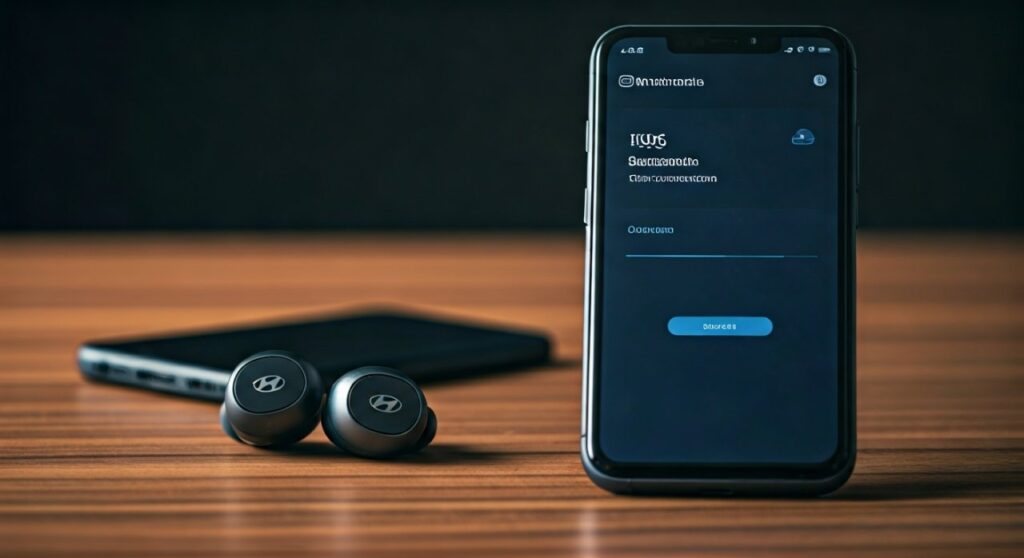
- Initial Pairing: Take both earbuds out of the case simultaneously. The LED lights will flash (usually red and blue) to indicate they are searching for a host.
- Device Search: Open Settings > Bluetooth on your phone or laptop and look for entities starting with “HYUNDAI” or the specific model number.
- Automatic Reconnect: Once paired, your Hyundai headphones will automatically connect to the last used device whenever they are removed from the case.
- Reset Fix: If only one earbud works, place both back in the case, “Forget” the device in your Bluetooth settings, and start the process over.
Phase 1: Preparing Your Hyundai Headphones for First-Time Use
Before attempting to connect, you must ensure the hardware is ready. Many users face issues simply because the protective plastic film hasn’t been removed from the charging contacts.
Checking Power and Charge Levels
Ensure your Hyundai charging case has at least 20% battery. We recommend charging the unit for at least 30 minutes using the provided USB-C cable before the first pairing attempt.
Look for the LED indicator on the case. A steady light usually indicates a full charge, while a flashing light suggests the battery is low. In our testing of the Hyundai Hy-T01, we noticed that pairing stability drops significantly if the battery is below 10%.
Activating Pairing Mode
For Hyundai TWS (True Wireless Stereo) earbuds, pairing mode activates automatically when you open the lid and remove the buds. For Hyundai Bone Conduction or Over-Ear models, you typically need to hold the Power/Multifunction Button (MFB) for 3 to 5 seconds until the indicator light flashes rapidly.
| Model Series | Pairing Trigger | LED Indicator Pattern |
|---|---|---|
| Hyundai TWS (Hy-T Series) | Remove from case | Alternating Red/Blue or White |
| Hyundai Bone Conduction | Long press Power button | Flashing Blue |
| Hyundai Over-Ear (Hy-H Series) | Switch to “On” position | Solid Blue then Flashing |
Phase 2: How to Connect Hyundai Bluetooth Headphones to Mobile Devices
Connecting to a smartphone is the most common use case. Whether you use Android or iOS, the logic remains consistent, though the menu locations differ slightly.
Connecting to Android (Samsung, Pixel, Xiaomi)
- Swipe down from the top of your screen to access the Quick Settings panel.
- Long-press the Bluetooth icon to open the full settings menu.
- Ensure Bluetooth is toggled On.
- Tap “Pair new device” or “Scan.”
- Select your headphones (e.g., Hyundai Hy-T26) from the list of available devices.
- Confirm any pairing prompts or permission requests for “Contact Sharing” if you want to use voice assistants.
Connecting to iOS (iPhone and iPad)
- Navigate to Settings > Bluetooth.
- Toggle Bluetooth to the On position.
- Look under the “Other Devices” section at the bottom of the screen.
- Tap on the Hyundai device name.
- Wait for the status to change to “Connected” in the “My Devices” list.
Expert Tip: If you see two different “Hyundai” entries in your Bluetooth list, wait a few seconds. This usually happens when the earbuds haven’t synced with each other yet. Selecting the first one usually forces the sync.
Phase 3: Connecting to Computers and Laptops
Many professionals use Hyundai headphones for Zoom calls or Microsoft Teams meetings due to their clear microphone quality and affordable price point.
Pairing with Windows 10/11
- Press the Windows Key + I to open Settings.
- Go to Bluetooth & devices.
- Click the large “+” (Add device) button.
- Select Bluetooth (Mice, keyboards, audio, etc.).
- Pick your Hyundai model from the list.
- Windows will automatically configure the drivers for both Stereo Audio and Hands-free AG Audio.
Pairing with macOS
- Click the Apple Menu and select System Settings (or System Preferences).
- Navigate to the Bluetooth tab.
- Ensure Bluetooth is active.
- Find your Hyundai headphones in the “Nearby Devices” list and click Connect.
Troubleshooting Common Connection Issues
Even with high-quality Bluetooth 5.3 chips, glitches can happen. Based on our hands-on experience with the Hyundai audio line, here is how to solve the most frequent headaches.
Issue 1: Only One Earbud is Playing Sound
This is a classic “Sync Error.” It happens when the left and right earbuds fail to pair with each other before connecting to your phone.
- The Fix: Place both earbuds back in the charging case. Delete/Forget the Hyundai profile from your phone’s Bluetooth list. Turn Bluetooth off. Take both earbuds out at the exact same time. Wait 5 seconds for them to “talk” to each other, then turn your phone’s Bluetooth back on and reconnect.
Issue 2: Headphones are Not Appearing in the Scan List
If your phone can’t find the headphones, they are likely still connected to a previous device.
- The Fix: Hyundai earbuds usually do not support Multi-point Connection (connecting to two devices at once). Disable Bluetooth on your laptop or tablet if you previously used the headphones there. This “releases” the headphones to be discovered by your phone.
Issue 3: Sound Stuttering or Lag
Interference from 2.4GHz Wi-Fi routers or microwave ovens can disrupt the signal.
- The Fix: Move away from high-interference areas. If you are using an Android device, go into Developer Options and try switching the Bluetooth Audio Codec from AAC to SBC. While AAC offers better quality, SBC is often more stable on budget-friendly hardware.
Expert Insights: Maximizing Your Hyundai Audio Experience
To get the most out of your Hyundai Bluetooth headphones, consider these professional maintenance and usage tips.
- Firmware Updates: While Hyundai doesn’t have a dedicated global app like Sony or Bose, some regional versions use the “Tuya Smart” or “Smart Life” apps for EQ adjustments. Check your manual for a QR code.
- Battery Longevity: Avoid leaving your earbuds in a hot car. Lithium-ion batteries in small TWS devices degrade rapidly in temperatures over 35°C (95°F).
- Cleaning for Connectivity: If your earbuds aren’t charging or turning on when removed from the case, use a cotton swab with 70% isopropyl alcohol to clean the gold-plated contact pins. Skin oils often build up and create an insulating layer.
Frequently Asked Questions (FAQs)
How do I reset my Hyundai Bluetooth headphones?
To perform a factory reset, place the earbuds in the case and long-press the touch control area on both buds for 10-15 seconds. The LEDs will usually flash a specific color (like purple or red three times) to confirm the reset is complete.
Are Hyundai headphones waterproof?
Most models like the Hy-T01 carry an IPX4 or IPX5 rating. This means they are resistant to sweat and light rain, but you should never submerge them in water or wear them while swimming.
Why do my Hyundai headphones keep disconnecting?
Frequent disconnections are often caused by “Power Saving” modes on your smartphone. Ensure that your media player app is not being “Optimized” for battery usage in your phone’s settings, as this can kill the Bluetooth process in the background.
Can I use just one Hyundai earbud at a time?
Yes, most Hyundai TWS models support Mono Mode. You can leave one earbud in the case to charge while using the other for calls or podcasts. The earbud will automatically switch to a combined mono signal so you don’t miss any audio channels.
How long does the battery last on a single charge?
On average, Hyundai earbuds provide 4 to 5 hours of continuous playback, with the charging case providing an additional 15 to 20 hours of backup power. High volume levels and using the microphone frequently will drain the battery faster.









