

Understanding Your iPad Projector Connection Options
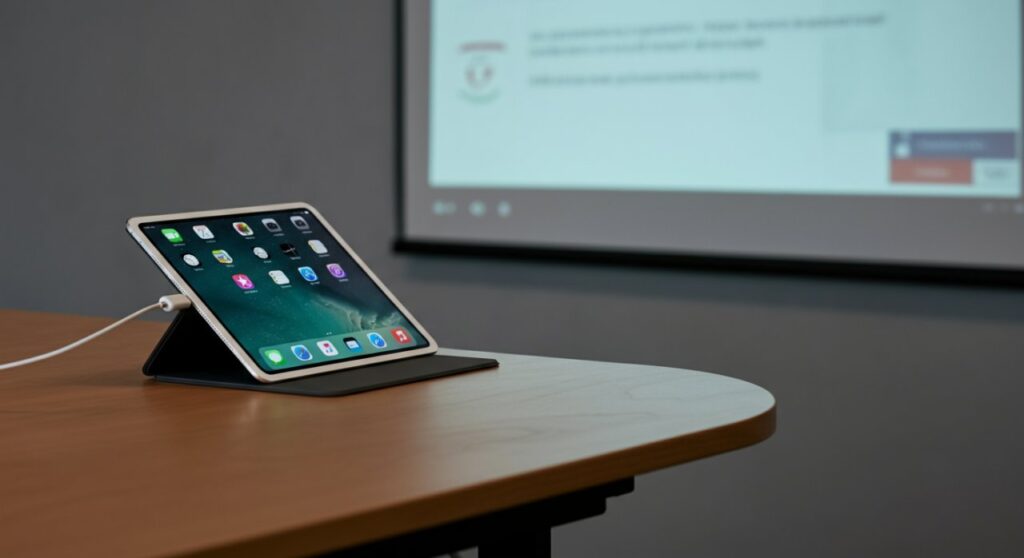
You can easily connect an iPad to a projector by using either a physical adapter cable for a stable, wired connection or wireless streaming technology like AirPlay. If you are wondering how to connect iPad to projector, the most reliable method is using a USB-C to HDMI or Lightning to Digital AV Adapter, while wireless options provide more flexibility for presentations. Regardless of your technical skill, choosing the right method depends on your specific iPad model and the available input ports on your projection device.
TL;DR: Quick Connection Summary
| Connection Type | Reliability | Ease of Use | Best For |
|---|---|---|---|
| Wired (HDMI) | Excellent | High | Stable, high-quality presentations |
| Wireless (AirPlay) | Moderate | Very High | Casual viewing, quick sharing |
| Bluetooth/Wi-Fi | Variable | Moderate | Specialized smart projectors |
How to Connect iPad to Projector Using HDMI (Wired)
For professional settings or classrooms where stability is non-negotiable, a wired connection is the gold standard. Learning how to connect iPad to projector with HDMI ensures you avoid lag and connectivity drops during critical moments.
Identify Your iPad Port
Check the bottom of your device. Modern iPad Pro, iPad Air (4th gen and later), and iPad mini (6th gen) feature a USB-C port. Older models typically use the proprietary Lightning port.
Choose the Right Adapter
You will need an appropriate Apple-certified adapter to ensure compatibility.
- USB-C Digital AV Multiport Adapter: Best for newer iPads; allows simultaneous charging.
- Lightning to Digital AV Adapter: The standard for older devices.
Establish the Physical Link
Plug your HDMI cable into the projector’s “HDMI IN” port. Connect the other end to your adapter, then plug the adapter directly into your iPad. The projector should automatically detect the signal; if it doesn’t, manually cycle through the Source or Input menu on the projector using its remote control.
How to Connect iPad to Projector Wirelessly
If you are wondering how to connect iPad to projector wirelessly, the process is seamless if your projector supports AirPlay or Apple TV. This method is perfect for dynamic presentations where you need to move around the room.
Using AirPlay-Compatible Projectors
Many modern smart projectors have AirPlay 2 built directly into their software.
- Ensure both your iPad and the projector are on the same Wi-Fi network.
- Open the Control Center on your iPad by swiping down from the top-right corner.
- Tap the Screen Mirroring icon (two overlapping rectangles).
- Select your projector from the list of available devices to begin casting.
Using an Apple TV or Streaming Dongle
If your projector lacks native wireless support, you can bridge the gap.
- Plug an Apple TV, Roku, or Chromecast (with Google TV) into the projector’s HDMI port.
- Connect the streaming device to your network.
- Use the Screen Mirroring feature on your iPad to send the display to that specific device.
Troubleshooting Common Connection Issues
Sometimes, the connection isn’t as plug-and-play as expected. If you are struggling with how to hook up iPad to projector, follow these steps to isolate the problem.
- Check Cable Integrity: HDMI cables can fail internally. Try swapping your cable with a known working one.
- Resolution Mismatches: Older projectors may struggle with the high resolution of newer iPads. Adjust your iPad’s display settings if possible.
- Source Selection: This is the most common error. Double-check that your projector is set to the specific HDMI input (e.g., HDMI 1 vs. HDMI 2) you have physically connected to.
- Firmware Updates: Ensure your iPad is running the latest iPadOS version to avoid driver compatibility glitches with adapters.
Frequently Asked Questions
Can you connect an iPad to a projector if it doesn’t have an HDMI port?
Yes, you can use specialized USB-C hubs that offer VGA or DisplayPort outputs, though HDMI is highly recommended for the best balance of video and audio quality.
How do I fix a black screen when I connect my iPad?
First, disconnect and reconnect the cable. If the issue persists, try restarting the iPad while it is plugged into the adapter to force a new “handshake” between the devices.
Do I need a specific app to project my screen?
Generally, no. Screen Mirroring is built into the iOS/iPadOS system. However, if you are using a proprietary brand projector (like Epson or BenQ), they may offer companion apps for advanced features like split-screen or file management.
Is wireless connection laggy?
Wireless connections are susceptible to network interference. For high-stakes presentations or video playback, a wired HDMI connection is always superior because it provides a dedicated, constant data stream.









