

How to Connect JBL Headphones to LG Monitor: The Quick Solution
To connect JBL headphones to an LG monitor, the most direct method is using a 3.5mm audio cable or pairing them via Bluetooth if your LG monitor supports wireless audio output. For monitors without built-in Bluetooth, a USB Bluetooth transmitter or a 3.5mm-to-Bluetooth adapter is required to bridge the gap.
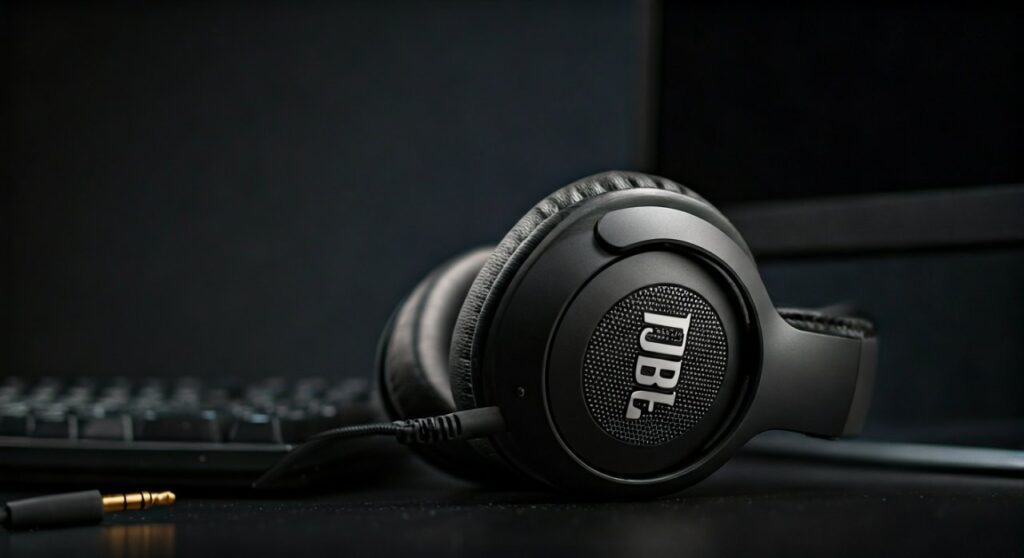
Most modern LG UltraGear and Smart Monitors allow you to access the “Sound Out” menu to select your JBL headphones as the primary audio source. Whether you are using the JBL Tune 710BT, Live 660NC, or a gaming-centric JBL Quantum headset, this guide covers every possible connection scenario to ensure zero-latency audio.
Key Takeaways: Connecting JBL Headphones to LG Monitors
If you are in a hurry, here is the essential information for the most common connection methods.
| Connection Method | Equipment Needed | Best For | Audio Quality |
|---|---|---|---|
| Bluetooth (Built-in) | None | LG Smart Monitors / WebOS | High (Convenience) |
| 3.5mm AUX Cable | Male-to-Male Audio Cable | Competitive Gaming | Ultra-High (Zero Lag) |
| Bluetooth Transmitter | 3.5mm/Optical Adapter | Older LG Monitors | Medium |
| USB Wireless Dongle | Included with JBL Quantum | PC/Console Gaming | High (Low Latency) |
Method 1: Connecting via Bluetooth (LG Smart Monitors & WebOS)
Many high-end LG monitors, particularly those in the Smart Monitor series (like the 32SQ780S), feature built-in Bluetooth hardware. This makes the connection process nearly identical to pairing headphones with a smartphone.
Step-by-Step Bluetooth Pairing
- Enter Pairing Mode on JBL: Turn off your JBL headphones. Press and hold the Power or Bluetooth button for 3-5 seconds until the LED flashes blue.
- Access LG Monitor Settings: Use the monitor’s remote or the joystick button at the bottom of the screen. Navigate to Settings > All Settings > Sound.
- Select Sound Out: Choose the Sound Out option and then select Bluetooth Device List or Wireless Speaker.
- Search and Pair: Your monitor will scan for nearby signals. Select your JBL model name (e.g., JBL Live 460NC) from the list.
- Confirm Connection: Once the status changes to “Connected,” your audio will immediately route to your ears.
Expert Insight: If your JBL headphones support Multipoint Connection, ensure they aren’t currently hogging a connection to your phone, as this can sometimes prevent the LG monitor from “seeing” the device during a scan.
Method 2: The Wired 3.5mm Connection (The Pro Gamer’s Choice)
For gamers using an LG UltraGear monitor, a wired connection is often superior. Even the best Bluetooth codecs introduce a slight delay (latency) that can be the difference between winning and losing in fast-paced titles like Call of Duty or Valorant.
Why Choose Wired?
- Zero Latency: No audio lag between the action on screen and the sound.
- No Battery Drain: Your JBL headphones (if they have a 3.5mm port) won’t need to use their internal battery for processing.
- Simple Setup: No menus to navigate; just plug and play.
How to Set it Up
- Locate the Headphone Out port on the back of your LG monitor (usually marked with a small headset icon).
- Plug one end of a 3.5mm Male-to-Male auxiliary cable into the monitor.
- Plug the other end into your JBL headphones.
- The monitor should automatically switch audio output to the jack. If not, go to Settings > Sound > Sound Out and select Wired Headphones.
Method 3: Using a Bluetooth Transmitter (For Standard LG Monitors)
If you have a standard LG UltraWide or budget-friendly IPS monitor, it likely lacks built-in Bluetooth. You can add this functionality by using a Bluetooth Transmitter.
Choosing the Right Transmitter
I recommend using a transmitter that supports aptX Low Latency. Brands like 1Mii, Avantree, or Creative offer USB or 3.5mm dongles that work perfectly with JBL’s wireless drivers.
Installation Steps
- Plug the transmitter into the 3.5mm Audio Out jack or a USB port on your LG monitor (for power).
- Set the transmitter to Pairing Mode (usually by holding a button until it flashes).
- Put your JBL headphones into pairing mode.
- Hold them close to each other until the lights turn solid.
Troubleshooting: Common Connection Issues
Even with high-quality gear like LG and JBL, things can go wrong. Here is how to fix the most common hurdles.
Problem: No Sound After Connecting
- Check Volume: LG monitors often have a separate volume control for the headphone jack. Use the monitor’s joystick to ensure the volume is at least 50%.
- Input Source: Ensure the audio is coming from the HDMI or DisplayPort cable. If the monitor isn’t receiving audio from the PC/Console, it can’t pass it to the headphones.
- Firmware Updates: Use the JBL Headphones App on your phone to check for firmware updates. This often fixes compatibility bugs with older TV/Monitor Bluetooth stacks.
Problem: Audio Lag or Stuttering
- Interference: Move routers or other wireless devices away from the monitor.
- Switch to Wired: If you are watching high-definition movies or gaming, Bluetooth “SBC” codecs (standard on many monitors) may struggle. Use a 3.5mm cable for a better experience.
Optimizing Audio for LG UltraGear & JBL Quantum Users
If you own a JBL Quantum series headset (like the Quantum 810 or 910), you have access to specialized features that standard headphones lack.
Using the 2.4GHz Dongle
Instead of connecting directly to the LG monitor, plug the JBL USB Dongle into your PC or Console (PS5/Xbox). This provides a lossless connection that is far superior to standard Bluetooth. You can then set the LG monitor to “Mute” and handle all audio processing through the JBL QuantumEngine software.
LG Monitor Sound Modes
Check your LG monitor OSD (On-Screen Display) for “Audio Modes.” Some monitors have a Virtual Surround or Clear Voice setting. For the most natural sound on your JBL headphones, set the monitor mode to Standard or Music to avoid double-processing the EQ.
Comparing JBL Headphone Models for Monitor Use
| JBL Model Series | Best Connection Method | Key Feature for Monitors |
|---|---|---|
| JBL Tune | Bluetooth / 3.5mm | Affordable, Great Bass |
| JBL Live | Bluetooth (Multipoint) | Active Noise Cancelling (ANC) |
| JBL Quantum | 2.4GHz Wireless USB | Spatial Sound (JBL QuantumSURROUND) |
| JBL Tour | Bluetooth / 3.5mm | Professional-grade comfort for long workdays |
Frequently Asked Questions (FAQs)
Can I use the microphone on my JBL headphones when connected to an LG monitor?
Typically, no. Most LG monitors only support Audio Out through the 3.5mm jack or Bluetooth. They do not have a return channel for microphone input. If you need a mic, you must connect the headphones directly to your PC or use a Y-Splitter cable if your PC has separate mic/audio ports.
Why can’t my LG monitor find my JBL headphones?
This usually happens because the headphones are still connected to your smartphone. JBL headphones often prioritize the last connected device. Turn off Bluetooth on your phone and try the scan on the LG monitor again.
Is there a way to control the JBL volume using the LG monitor remote?
Yes, if you connect via Bluetooth or HDMI ARC (available on some Smart Monitors). If you use the 3.5mm jack, you will need to adjust the volume using the monitor’s physical buttons or the volume slider on the headphones themselves.
Does the LG UltraGear monitor have built-in speakers?
Not all of them. Some UltraGear models (like the 27GN850) do not have speakers but do have a headphone jack. This jack acts as a “passthrough” for audio coming from your HDMI/DisplayPort cable.
What is the best JBL app setting for watching movies on a monitor?
In the JBL Headphones App, look for the “Smart Audio & Video” mode. Select “Video Mode” to reduce latency, ensuring the actors’ lip movements match the sound you hear.
Conclusion: The Best Way to Connect
Successfully learning how to connect JBL headphones to LG monitor depends largely on your specific hardware. For the best balance of quality and ease, a 3.5mm wired connection remains king for gamers. However, if you value a wire-free desk and own a Smart LG Monitor, the built-in Bluetooth settings provide a seamless, integrated experience.
By following the steps above, you can enjoy the signature JBL Pro Sound while working, gaming, or streaming content on your high-performance LG display.
**
**
**
**









