

How to Connect MacBook to Projector: The Ultimate Guide
To connect MacBook to projector, the most reliable method is using a compatible HDMI cable paired with a USB-C to HDMI adapter (or a direct USB-C to HDMI cable). Simply plug the adapter into your MacBook, connect the HDMI cable to both the adapter and the projector, and select the correct Input/Source on your projector menu to start presenting.
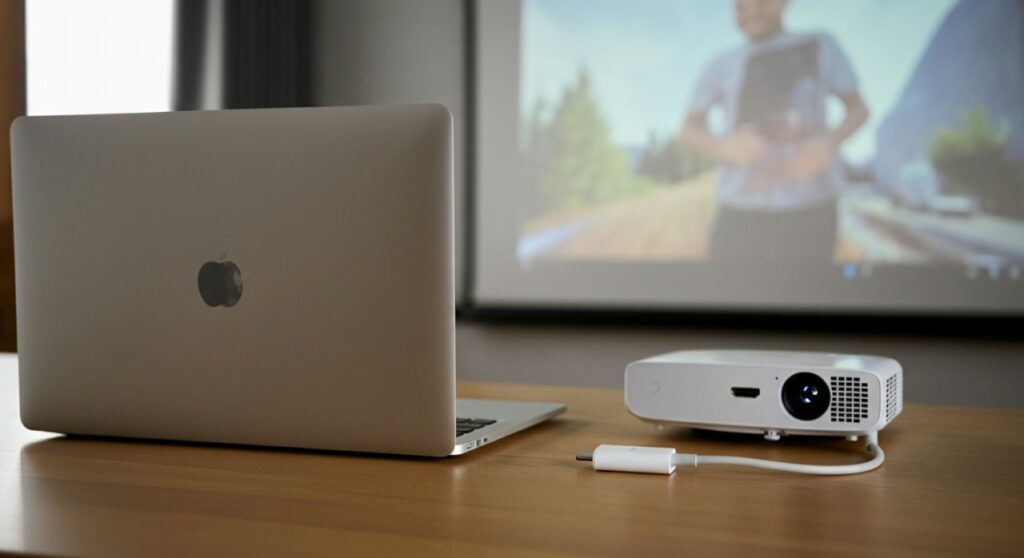
TL;DR: Quick Connection Summary
| Connection Type | Equipment Needed | Best For |
|---|---|---|
| Wired (HDMI) | USB-C to HDMI Adapter + HDMI Cable | Presentations, movies, zero latency |
| Wireless (AirPlay) | Apple TV or AirPlay-compatible projector | Meetings, classroom collaboration |
Regardless of whether you are learning how to connect mac to projector for a business pitch or a movie night, the process is straightforward once you identify your MacBook port type. Most modern MacBooks require an adapter, whereas older models may have a built-in HDMI port.
Identifying Your MacBook Ports and Cables
Before you start, you must determine which cable works for your specific device. Knowing how to connect projector to macbook starts with a quick inspection of your laptop’s side panels.
- USB-C / Thunderbolt 4 ports: Found on almost all MacBook Air and MacBook Pro models released after 2016. You will definitely need an adapter or a USB-C to HDMI cable.
- Built-in HDMI port: Available on MacBook Pro 14-inch and 16-inch models (2021 and later). You can connect a standard HDMI cable directly.
- Older Ports (Mini DisplayPort): If you have an older Mac, you might need a Mini DisplayPort to HDMI adapter.
Always check the projector’s input ports as well. While HDMI is the standard, some legacy projectors might use VGA (the 15-pin blue connector), which requires a specific USB-C to VGA adapter.
Step-by-Step: Wired Connection (HDMI)
When you need a stable, high-definition connection, a wired setup is the industry standard. This guide explains how to connect macbook to projector with hdmi successfully.
- Power on your projector and wait for it to fully boot up.
- Plug your USB-C to HDMI adapter into your MacBook’s port.
- Insert one end of the HDMI cable into the adapter and the other into the projector’s HDMI Input port.
- Use the projector’s physical remote or control panel to select the matching Source or Input (e.g., HDMI 1, HDMI 2).
- Your Mac should automatically detect the display.
If the image does not appear instantly, go to System Settings > Displays on your Mac. Here, you can configure your Arrangement settings to either Mirror your screen (showing the same content) or Extend your desktop (using the projector as a second monitor).
How to Mirror Mac to Projector Wirelessly
Wireless connectivity is perfect for clean, cable-free conference rooms. Learning how to connect macbook to projector wirelessly relies on AirPlay technology.
- Ensure both your MacBook and your AirPlay-compatible projector (or Apple TV connected to the projector) are on the same Wi-Fi network.
- Click the Control Center icon in the top-right corner of your macOS menu bar.
- Click the Screen Mirroring icon (two overlapping rectangles).
- Select your projector or Apple TV from the list of available devices.
If you don’t see your projector, ensure it is set to “Discovery Mode” or “Screen Mirroring Mode.” Note that wireless connections may experience slight latency compared to a wired HDMI setup, which is something to consider for video editing or high-motion gaming.
Connecting to an Epson Projector or Similar Brands
Many users specifically ask how to connect mac to epson projector or other popular commercial brands like BenQ or ViewSonic. The process remains fundamentally the same as any standard HDMI connection.
- Firmware: If you are using a wireless Epson projector, download the Epson iProjection app if the standard AirPlay protocol is not supported by your specific unit.
- Resolution Mismatch: If the image looks blurry, go to Display Settings on your Mac and adjust the Resolution to match the projector’s native resolution (often 1080p or WXGA).
- Aspect Ratio: Sometimes the image is cut off. Toggle the Aspect Ratio settings on the projector’s remote until the screen fills correctly.
I personally recommend keeping a high-quality, braided USB-C to HDMI adapter in your laptop bag at all times. I have found that cheap, non-branded adapters often fail during important presentations, so investing in a reliable brand like Anker or Satechi is worth the extra cost.
Troubleshooting Common Connection Issues
Even with the best hardware, you might run into hitches. Here is how to fix the most common problems:
- No Signal Detected: Check that you are on the correct HDMI input. Try unplugging and replugging the HDMI cable on both ends.
- Sound Not Coming Through: If the audio is coming from your Mac speakers instead of the projector, go to System Settings > Sound > Output and select the projector or the connected audio device.
- Flickering Screen: This is usually caused by a loose HDMI cable or a poor-quality adapter. Ensure all connections are pushed in firmly.
- Color Discoloration: This often happens with VGA adapters. Ensure the pins are not bent if you are using an older analog connection.
Câu hỏi thường gặp (FAQs)
Why is my MacBook not detecting the projector?
First, verify your adapter is functioning by testing it with another display. Ensure the HDMI cable is securely plugged in and the projector is set to the correct input source. Finally, restart your Mac while the projector is connected to force a display re-scan.
Can I connect a MacBook to an old VGA projector?
Yes, you can. You will need a USB-C to VGA adapter. Note that VGA only carries video, not audio, so you will need a separate 3.5mm audio cable from your Mac to the projector’s audio input if you want sound.
Is wireless connection better than wired?
It depends on your goal. Wired HDMI is better for reliability and video quality with zero lag. Wireless (AirPlay) is more convenient for collaborative environments where you need to move around the room without being tethered by a cable.









