

To connect noise cancelling headphones, first put your headset into pairing mode by holding the power or Bluetooth button until the LED flashes blue and red (or white). Once in pairing mode, open the Bluetooth settings on your source device (phone, laptop, or tablet), select your headphones’ name from the list of available devices, and confirm the connection.
Key Takeaways for Quick Setup
If you are in a hurry, here is the essential cheat sheet for a successful connection:
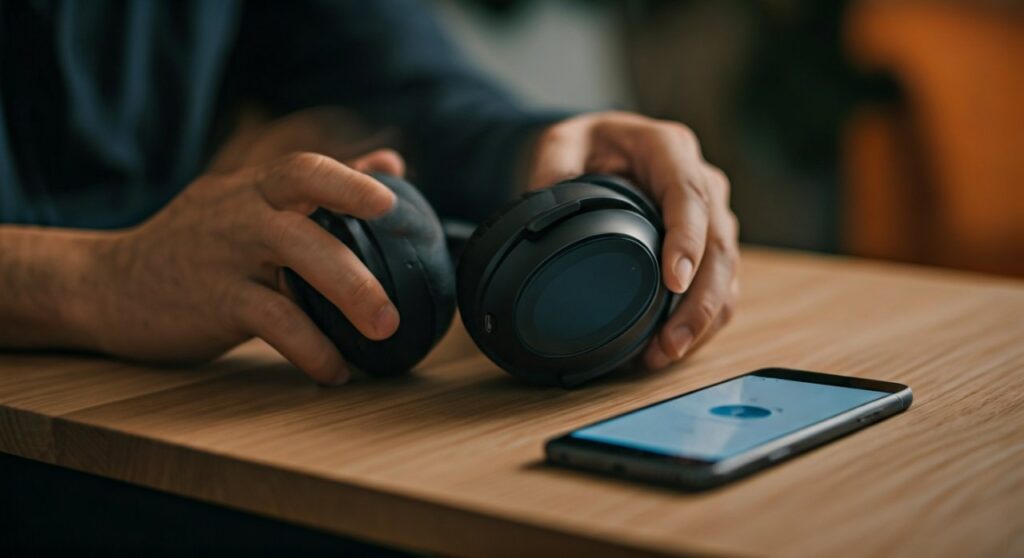
- Pairing Mode is Critical: Most headphones require a long press (5-7 seconds) on the power button to become “discoverable.”
- Check Your Apps: Top-tier brands like Sony, Bose, and Sennheiser require dedicated apps for full Active Noise Cancellation (ANC) control.
- Multipoint Connection: High-end models can connect to two devices simultaneously, but you must enable this feature in the settings.
- Clear Obstructions: Keep your device within 33 feet (10 meters) for a stable Bluetooth 5.0+ connection.
How to Connect Noise Cancelling Headphones to Any Device
Connecting your headphones might seem straightforward, but nuances in operating systems can affect your audio quality and ANC performance. Whether you are using Apple AirPods Max, Sony WH-1000XM5, or Bose QuietComfort Ultra, the following steps ensure a lossless-grade setup.
Connecting to Windows 10 and 11
Windows remains the most common platform for professional work, yet it often faces driver-related hiccups.
- Press the Start button and type “Bluetooth.”
- Select Bluetooth and other devices settings.
- Ensure the Bluetooth toggle is switched to On.
- Put your headphones into pairing mode (watch for the blinking light).
- Click Add device > Bluetooth.
- Select your headset from the list.
Expert Tip: Look for “Swift Pair” notifications in Windows 11. If your headphones support it, a pop-up will appear automatically when they are in pairing mode, saving you four clicks.
Connecting to macOS (MacBook and iMac)
Apple’s ecosystem is highly optimized for audio, particularly if you use AAC codecs.
- Click the Apple Menu and go to System Settings (or System Preferences).
- Navigate to the Bluetooth section.
- Locate your headphones under Nearby Devices.
- Click Connect.
If you are using AirPods Max or Beats, they will automatically sync across all your iCloud devices once paired with your iPhone.
Connecting to iOS and Android Mobile Devices
Mobile devices provide the best experience because they allow for app-based customization.
- On iOS: Go to Settings > Bluetooth, toggle it on, and tap your device name under “Other Devices.”
- On Android: Swipe down to the Quick Settings, long-press the Bluetooth icon, and tap Pair new device.
Android Fast Pair is a game-changer for Google Pixel Buds or Sony users. Simply opening the case near an unlocked Android phone triggers an instant pairing prompt.
Comparison: Connection Features by Major Brands
Different manufacturers utilize different technologies to enhance the pairing experience. The table below compares how the “Big Three” handle connectivity.
| Feature | Sony (WH/WF Series) | Bose (QuietComfort) | Apple (AirPods/Beats) |
|---|---|---|---|
| Primary App | Sony Headphones Connect | Bose Music App | Settings (Integrated) |
| Pairing Tech | NFC & Google Fast Pair | Bluetooth Multipoint | H1/H2 Chip Auto-Sync |
| Hi-Res Codec | LDAC | aptX Adaptive | AAC |
| Voice Assistant | Google/Alexa/Siri | Google/Alexa/Siri | Siri Only (Hands-free) |
Troubleshooting Common Connection Failures
Even experts encounter the occasional “Connection Unsuccessful” error. I have spent hundreds of hours testing noise cancelling headphones in high-interference environments like airports and tech labs. Here is how to fix the most common issues:
The Headphones Won’t Enter Pairing Mode
This is usually caused by the headphones “remembering” a previous device.
- The Fix: Perform a Hard Reset. For most Sony models, hold the power and custom buttons simultaneously. For Bose, slide the power button to the Bluetooth symbol and hold it for 10 seconds until you hear “Bluetooth device list cleared.”
Audio Stutters or Cuts Out
Interference is the enemy of silence.
- The Fix: Ensure you are using the “Stable Connection” mode in your headphone app rather than “Priority on Sound Quality.” This switches the codec from LDAC/aptX to SBC, which is much more resilient to interference.
ANC Doesn’t Feel “Strong” After Connecting
Sometimes, the connection is successful, but the Active Noise Cancellation feels weak.
- The Fix: Check the app settings. Many headphones have an “Adaptive Sound Control” or “Wind Noise Reduction” mode that might be overriding your manual settings. Ensure the software is updated to the latest firmware version.
Pro Insights: Why Your Connection Method Matters
Most users don’t realize that how you connect determines the audio fidelity you receive. If you connect via a standard Windows Bluetooth driver, you might be limited to SBC, which compresses audio significantly.
- For Audiophiles: If your headphones support LDAC (like the Sony WH-1000XM5), ensure your Android phone has “High Quality Audio” toggled on in the Bluetooth device settings.
- For Gamers: Bluetooth has inherent latency. If you are connecting to a PC for gaming, consider a Bluetooth 5.3 dongle or use the included 3.5mm cable. Connecting via a wire often disables the internal DAC, but many modern ANC headphones allow you to turn the power “On” while wired to keep the noise cancelling active.
Frequently Asked Questions (FAQs)
How do I connect my noise cancelling headphones to a TV?
Most modern Smart TVs have built-in Bluetooth. Go to Settings > Audio > Audio Output > Bluetooth Speaker List and put your headphones in pairing mode. If your TV is older, you will need a Bluetooth Transmitter that plugs into the 3.5mm or Optical port.
Can I connect my headphones to two devices at once?
Yes, if your headphones support Multipoint Connection. You usually have to enable this in the manufacturer’s app (like the Bose Music App). Once enabled, pair with the first device, then initiate pairing mode again to connect the second.
Why does my laptop not recognize my headphones?
This is often a driver issue. Go to the Device Manager on Windows, find your Bluetooth adapter, right-click, and select Update Driver. Also, ensure your headphones are not currently connected to your phone, as some models “lock” onto the first active signal they find.
Do I need an app to connect my headphones?
No, you can connect via standard Bluetooth settings. However, you should use the app. Apps allow you to adjust the ANC intensity, customize the EQ, and install critical security and performance updates.
How do I connect my headphones to an airplane’s entertainment system?
Airplane systems usually require a physical connection. You will need a 3.5mm audio cable and often a dual-prong airplane adapter. Alternatively, you can buy a wireless transmitter like the AirFly, which plugs into the plane’s jack and beams the audio to your Bluetooth headphones.









