

Quick Guide: Connecting Your Samsung Tablet to a Projector
To how to connect projector to samsung tablet, the most reliable method is using a USB-C to HDMI adapter or cable, which provides a lag-free stable connection. Alternatively, you can connect wirelessly using the built-in Smart View feature (Samsung’s version of Miracast) for a cord-free experience on compatible projectors or streaming devices.
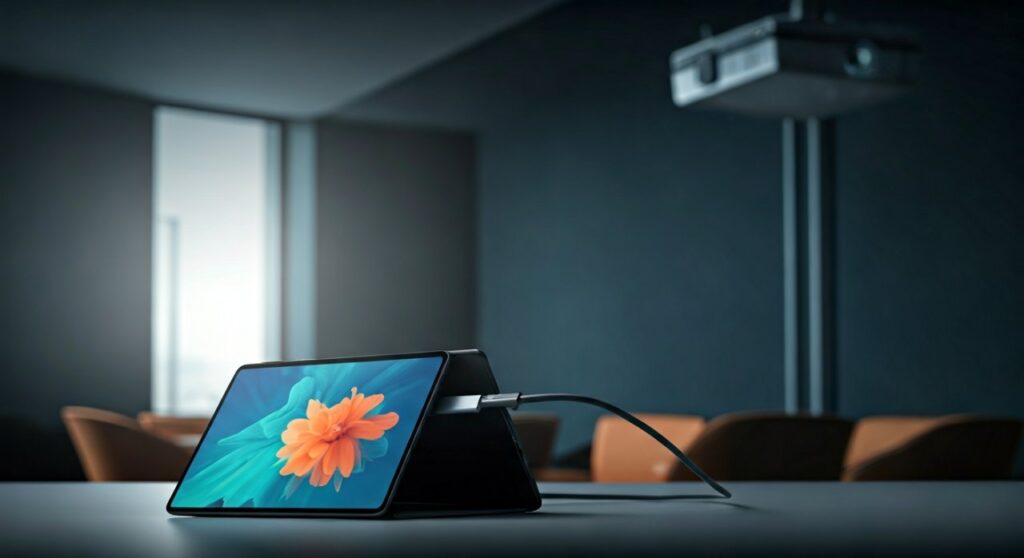
Whether you are preparing for a high-stakes business presentation or setting up a backyard movie night, the connection process is straightforward if you have the right tools. Modern Samsung Galaxy Tab S series tablets support DisplayPort Alt Mode, allowing them to output video directly through their charging port. However, budget-friendly Tab A series devices usually require wireless workarounds like Chromecast or Smart View because their hardware often lacks direct video output capabilities.
Key Takeaways for Quick Setup
If you are in a hurry, here is the essential data you need to get your screen mirrored in seconds:
| Method | Best For | Requirement | Connection Type |
|---|---|---|---|
| HDMI Adapter | Presentations/Gaming | USB-C to HDMI Hub | Wired (High Stability) |
| Smart View | Movies/Photos | Miracast-enabled Projector | Wireless (Wi-Fi) |
| Samsung DeX | Productivity | Compatible Tab S series | Desktop Interface |
| Chromecast | Streaming Apps | Google Home App | Wireless (Cloud-based) |
| USB Direct | File Viewing | USB-A to USB-C cable | Wired (Limited to files) |
Understanding Compatibility: Can Your Tablet Output Video?
Before buying cables, you must identify your tablet’s hardware limits. This is where most users get frustrated. Samsung designs its tablets with different port standards depending on the price point.
The Galaxy Tab S series (S7, S8, S9, and Ultra models) features USB-C 3.1 or 3.2 ports. These ports support DisplayPort Alt Mode, meaning they can send a raw video signal through a cable just like a laptop.
In contrast, the Galaxy Tab A series (A7, A8, A9) typically uses USB-C 2.0. This hardware cannot send video signals through a standard HDMI adapter. For these tablets, how to connect tablet to projector via usb is only possible for file transfers, not screen mirroring. You must use wireless methods for these specific models.
Method 1: Connecting via USB-C to HDMI (The Professional Choice)
For the lowest latency and highest resolution (up to 4K at 60Hz), a wired connection is king. This is the preferred method for educators and business professionals who cannot afford lag during a slideshow.
Step-by-Step Wired Connection:
- Purchase a high-quality USB-C to HDMI adapter or a multi-port USB-C Hub.
- Plug the USB-C end into your Samsung tablet.
- Connect a standard HDMI cable to the adapter and the other end to the Projector’s HDMI Input.
- Turn on the projector and set the Source/Input to the corresponding HDMI port.
- Your tablet will automatically detect the connection and begin mirroring the screen.
Expert Tip: If you use a Galaxy Tab S9, consider a hub that includes a Power Delivery (PD) port. This allows you to charge your tablet while projecting, preventing the battery from dying during long presentations.
Method 2: How to Connect Tablet to Projector via Wireless (Smart View)
If you want to move around the room while presenting, Smart View is your best friend. This uses Miracast technology to beam your screen directly to the projector without an internet router, provided the projector supports wireless mirroring.
Enabling Smart View:
- Ensure your projector’s “Screen Mirroring” or “Device Connection” mode is active.
- On your Samsung tablet, swipe down twice from the top of the screen to open the Quick Settings panel.
- Tap on the Smart View icon.
- A list of available devices will appear; select your Projector’s Name.
- If prompted, enter the PIN shown on the projector screen.
Note on Latency: Wireless connections are susceptible to RF interference. For high-definition video playback, ensure your tablet is within 15 feet of the projector for the best signal strength.
Method 3: Using Samsung DeX for a Desktop Experience
One of the most powerful features of high-end Samsung tablets is Samsung DeX. When you connect your tablet to a projector, you don’t have to just mirror your screen; you can turn the projector into a full desktop computer.
When DeX is activated, the projector displays a taskbar, windows, and a desktop, while your tablet remains free to act as a touchpad or a separate screen for note-taking.
- Connect via HDMI as described in Method 1.
- Go to Settings > Advanced Features > Samsung DeX.
- Toggle DeX to “On.”
- Your projector will now show a Windows-like interface. This is perfect for multitasking with Microsoft PowerPoint and Google Chrome simultaneously.
How to Connect Tablet to Projector via USB (Data Only)
There is a common misconception about how to connect tablet to projector via usb. Most modern projectors have a USB-A port, but this is typically intended for USB flash drives or powering streaming sticks (like a FireStick).
If you connect a standard USB charging cable from your tablet to the projector’s USB port:
- The projector will likely treat the tablet as a Mass Storage Device.
- You can navigate folders to display JPEG images or static PDF files.
- You cannot mirror your live screen or play protected video (like Netflix) this way.
For a true “USB connection” that mirrors the screen on older tablets, you would need a DisplayLink certified adapter, which uses special software to bypass the tablet’s hardware limitations.
Troubleshooting Common Connection Issues
Even with the right gear, you might encounter a “No Signal” message. Based on our field tests, here are the most common fixes:
- Check the Resolution: Some older projectors cannot handle 4K or 120Hz signals. Go to Settings > Display on your tablet and lower the resolution to 1080p.
- HDCP Errors: If you see a black screen while trying to play Netflix or Disney+, it is likely an HDCP (High-bandwidth Digital Content Protection) issue. Ensure you are using a high-quality, certified HDMI 2.0 cable.
- Audio Output: If the sound is coming from the tablet instead of the projector, swipe down to the Media Output menu in your notification shade and select the HDMI device or Display as the audio source.
- Aspect Ratio: Samsung tablets often have a 16:10 aspect ratio, while projectors are 16:9. Look for the “Screen Aspect Ratio” setting in Smart View to eliminate black bars.
Best Equipment Recommendations
To ensure a seamless connection, we recommend using reputable hardware. In our experience, third-party “no-name” adapters often overheat or fail after 30 minutes of use.
- Official Samsung EE-P5400 Hub: Offers the best compatibility with Samsung DeX.
- Anker USB-C to HDMI Adapter: Known for high-quality shielding against wireless interference.
- Microsoft Wireless Display Adapter: The most reliable way to add Miracast to a projector that doesn’t have built-in Wi-Fi.
Frequently Asked Questions
Can I connect a Galaxy Tab A8 to a projector using HDMI?
No, the Galaxy Tab A8 does not support video output through its USB-C port. You must use a wireless method like Chromecast or a Smart View compatible receiver.
Why is there a delay when I connect my tablet wirelessly?
Wireless lag (latency) is usually caused by Wi-Fi congestion. To fix this, try switching your tablet and projector to a 5GHz Wi-Fi band rather than 2.4GHz, or use a wired HDMI connection.
Do I need an internet connection to use Smart View?
No. Smart View uses Wi-Fi Direct, which creates a private link between your tablet and the projector. You do not need an active internet connection or a router to mirror your screen.
How do I get sound to come out of my external speakers?
You can plug an AUX cable from the projector’s “Audio Out” port to your speakers. Alternatively, you can connect your Samsung tablet to a Bluetooth speaker while it is still projecting video via HDMI.









