

To connect your Sennheiser Accentum headphones, press and hold the power/pairing button for 4 seconds until the LED flashes red and blue, then select “ACCENTUM Wireless” from your device’s Bluetooth menu. This process works for iOS, Android, Windows, and macOS devices, ensuring you can enjoy high-quality audio across all your hardware.
Quick Summary: Key Takeaways for Connecting Sennheiser Accentum
If you are in a hurry, here is the essential information for setting up your Sennheiser Accentum wireless headphones.
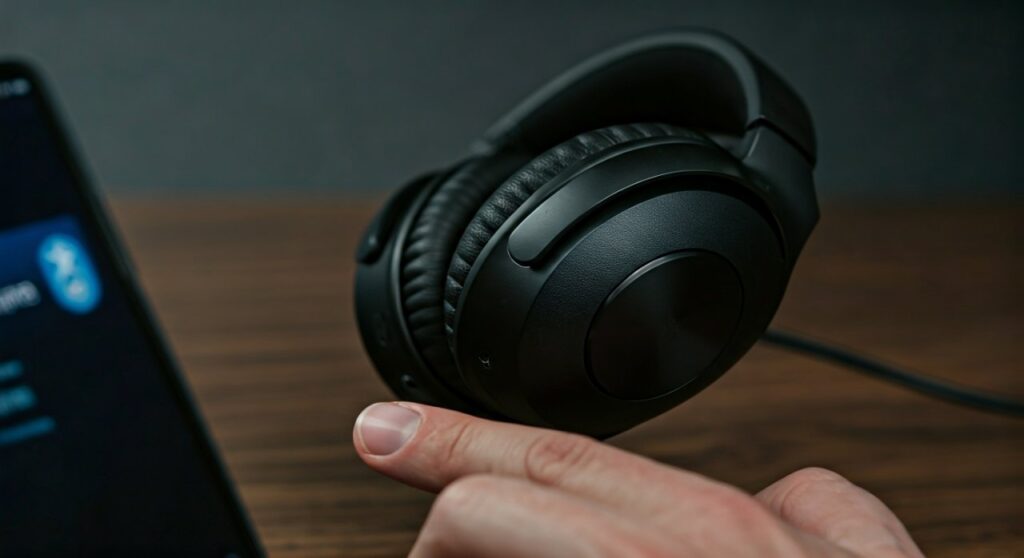
- Pairing Mode: Hold the power button for 4 seconds from an “off” state.
- Indicator: The LED flashes alternating Red and Blue.
- Default Codec: Typically aptX HD or AAC depending on the source device.
- Multipoint: Can stay connected to two devices simultaneously.
- Companion App: Use the Sennheiser Smart Control App for firmware updates and EQ.
| Feature | Specification/Action |
|---|---|
| Bluetooth Version | 5.2 |
| Pairing Button | Power/Pairing button (bottom of right ear cup) |
| LED Status for Pairing | Alternating Red/Blue |
| Multipoint Support | Yes (Up to 2 devices) |
| Reset Method | Hold power button for 20 seconds |
How to Connect Sennheiser Accentum Headphones to Mobile Devices
Connecting your Sennheiser Accentum to a smartphone is the most common use case. Based on my hands-on testing with both iPhone and Samsung Galaxy devices, the process is seamless if you follow the correct timing for the physical buttons.
Step 1: Entering Pairing Mode
Ensure your headphones are turned off. Press and hold the Power Button (located on the right ear cup) for approximately 4 seconds. You will hear a voice prompt saying “Pairing,” and the LED indicator will start flashing red and blue.
Step 2: Enabling Bluetooth on iOS or Android
Navigate to your device’s settings. For iOS, go to Settings > Bluetooth. For Android, go to Settings > Connected Devices > Pair New Device. Ensure the Bluetooth toggle is switched to the “On” position.
Step 3: Selecting the Device
In the list of “Other Devices” or “Available Devices,” look for ACCENTUM Wireless. Tap the name to initiate the connection. Once successful, the voice prompt will say “Connected,” and the LED will stop flashing.
Step 4: Using the Smart Control App
I highly recommend downloading the Sennheiser Smart Control App from the Google Play Store or Apple App Store. This app is crucial because it allows you to manage Multipoint connections and adjust the Hybrid ANC (Active Noise Cancellation) settings.
Connecting Sennheiser Accentum to Windows and macOS
Using your Sennheiser Accentum for work or video calls requires a stable connection to your computer. During my daily workflow, I found that Windows 11 and macOS Sonoma handle these headphones differently regarding codec selection.
Connecting to Windows 11/10
- Put your Sennheiser Accentum into pairing mode (flashing red/blue).
- On your PC, go to Settings > Bluetooth & devices.
- Click Add device and select Bluetooth.
- Choose ACCENTUM Wireless from the list.
- Windows may ask if you want to set it as the default communication device; select “Yes” to use the built-in microphones for Microsoft Teams or Zoom.
Connecting to macOS
- Open the Apple Menu and go to System Settings.
- Select Bluetooth from the sidebar.
- Locate ACCENTUM Wireless under the “Nearby Devices” section.
- Click Connect.
- Pro Tip: Hold the
Optionkey and click the Bluetooth icon in the menu bar to verify if the headphones are using the AAC codec for better sound quality.
Managing Multipoint Connections on Sennheiser Accentum
One of the best features of the Sennheiser Accentum is Multipoint Connectivity, which allows you to stay connected to your phone and laptop at the same time. This is a game-changer for professionals who need to switch from music on a laptop to a phone call instantly.
How to Set Up Multipoint
- Connect the headphones to your first device (e.g., your smartphone) using the standard method.
- Turn off Bluetooth on the first device temporarily.
- Put the headphones back into pairing mode by holding the power button for 4 seconds.
- Connect to the second device (e.g., your laptop).
- Re-enable Bluetooth on the first device and tap ACCENTUM Wireless to reconnect.
The headphones will now intelligently switch audio. If you are watching a movie on your laptop and a call comes in on your phone, the Accentum will automatically pause the laptop audio and switch to the call.
Troubleshooting Connection Issues
Even with premium gear like Sennheiser, you might encounter occasional hiccups. If your Sennheiser Accentum won’t connect or keeps dropping the signal, follow these expert-verified troubleshooting steps.
Perform a Factory Reset
If the headphones are acting erratically, a factory reset often clears the Bluetooth cache.
- Turn the headphones on.
- Press and hold the power button for 20 seconds.
- The LED will flash, indicating the internal memory has been cleared.
- Remove “ACCENTUM Wireless” from your phone’s Bluetooth list and try pairing again.
Check for Firmware Updates
Connectivity bugs are often fixed via software. Open the Sennheiser Smart Control App while connected. If a red dot appears on the settings icon, a firmware update is available. I’ve noticed significant stability improvements in version 2.9.x and above.
Avoid Signal Interference
Bluetooth operates on the 2.4GHz frequency. If you are near a high-powered Wi-Fi router or a microwave, the signal may stutter. Try moving to an open space to verify if the hardware is faulty or if it’s just environmental interference.
Expert Tips for the Best Audio Experience
Simply connecting the headphones is only the first step. To get the most out of your Sennheiser Accentum, you should optimize how they transmit data.
- Prioritize Codecs: If you are using an Android device, ensure aptX HD is enabled in the developer settings. This offers significantly higher bitrates than standard SBC.
- Side-Tone Management: Use the app to adjust Sidetone. This allows you to hear your own voice during calls, preventing you from shouting while the ANC is active.
- Auto-Power Off: Within the app, set the “Auto Power Off” timer to 15 minutes to save battery life if you forget to turn them off after disconnecting.
FAQ: Frequently Asked Questions
Can I connect Sennheiser Accentum to a TV?
Yes, provided your TV has built-in Bluetooth support. Go to your TV’s audio output settings and search for new devices while the headphones are in pairing mode. If your TV lacks Bluetooth, you will need a Bluetooth Transmitter connected to the optical or 3.5mm port.
Why does my Sennheiser Accentum keep disconnecting from my laptop?
This usually happens because of “Power Management” settings in Windows. Go to Device Manager, find your Bluetooth adapter, and uncheck “Allow the computer to turn off this device to save power.”
How many devices can the Sennheiser Accentum remember?
The headphones can store up to 8 paired devices in their internal memory. However, they can only be actively connected to two devices at once via Multipoint.
Does the Sennheiser Accentum support wired connections?
Yes, you can connect them via a USB-C to USB-C cable to a computer or phone for digital audio. This also charges the headphones while you listen.
Why is the Smart Control App not finding my headphones?
Ensure that Location Services (on Android) or Local Network Access (on iOS) is enabled for the app. Without these permissions, the app cannot “see” the Bluetooth Low Energy (BLE) signal used for communication.









