

To connect Sentry Bluetooth headphones, you must first put them into pairing mode by pressing and holding the Power button for about 5–8 seconds until the LED indicator flashes red and blue. Once the lights are flashing, open the Bluetooth settings on your device (phone, tablet, or PC) and select the Sentry model name from the list of available devices to complete the connection.
Quick Summary: Key Takeaways for Sentry Pairing
If you are in a hurry, here is the essential information to get your Sentry Bluetooth headphones working immediately:
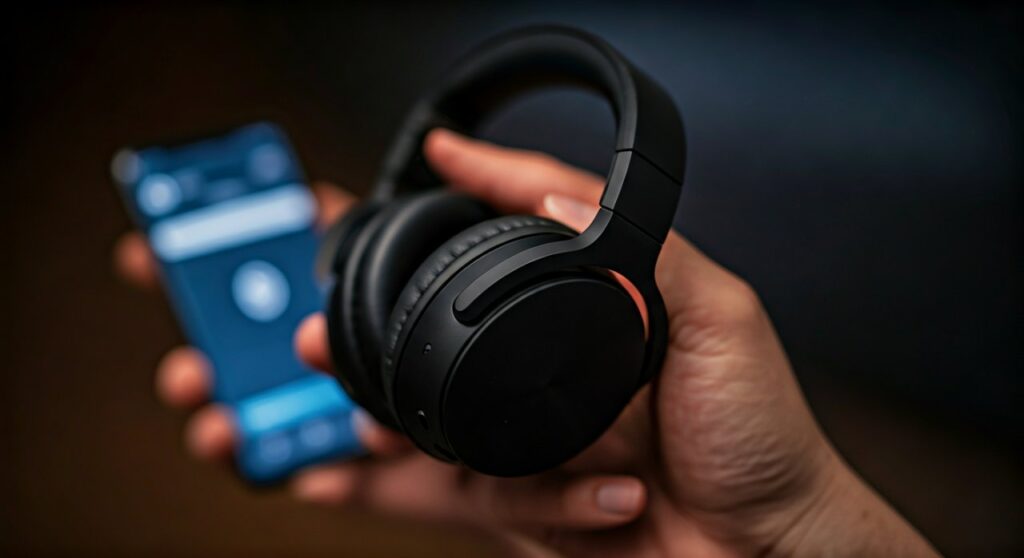
- Pairing Mode Trigger: Most Sentry models require a long press (5+ seconds) from the “Off” state to enter pairing mode.
- Visual Cue: Look for an alternating Red/Blue flashing light. A solid blue or blinking blue usually means it is already connected or just powered on, but not pairing.
- Default Passcode: If prompted for a PIN, use 0000 or 1234.
- Compatibility: Works with iOS, Android, Windows, macOS, and Smart TVs.
- Reset Method: Usually involves holding the power and volume buttons simultaneously while the device is off.
Step-by-Step Guide: How to Connect Sentry Bluetooth Headphones to Any Device
The process of learning how to connect Sentry Bluetooth headphones is consistent across most models, including the popular Sentry BT980, BT975, and BT900 series. Follow these detailed steps to ensure a stable connection.
Step 1: Prepare Your Headphones
Ensure your Sentry headphones are fully charged. Low battery levels can often lead to “ghosting,” where the device appears in the Bluetooth list but refuses to handshake. I recommend charging them for at least 2 hours before the first pairing attempt.
Step 2: Enable Pairing Mode
This is where most users fail. Simply turning the headphones “On” is often not enough.
- Start with the headphones powered OFF.
- Press and hold the Power/Multifunction Button (MFB).
- Do not let go when you hear “Power On.”
- Continue holding until the LED light flashes Red and Blue alternatingly. This indicates the Sentry device is now “discoverable.”
Step 3: Connect on Your Specific Platform
Once the lights are flashing, follow the specific instructions for your operating system below.
Connecting to Android
- Swipe down from the top of the screen to open Quick Settings.
- Long-press the Bluetooth icon.
- Tap “Pair new device.”
- Wait for Sentry [Model Number] to appear under “Available devices.”
- Tap the name and confirm the pairing.
Connecting to iPhone (iOS)
- Go to Settings > Bluetooth.
- Ensure the Bluetooth toggle is On.
- Look for your Sentry headphones under the “Other Devices” section.
- Tap the device name to connect.
Connecting to Windows 10/11
- Press the Windows Key + I to open Settings.
- Navigate to Bluetooth & devices > Add device.
- Select Bluetooth (Mice, keyboards, audio, etc.).
- Choose your Sentry device from the list.
Comparison of Sentry Bluetooth Connection Modes
Different Sentry models may have slight variations in how they communicate status. Refer to this table to understand what your headphones are telling you.
| LED Indicator Signal | Connection Status | Required Action |
|---|---|---|
| Flashing Red and Blue | Pairing Mode | Search for device on your phone/PC. |
| Slow Blinking Blue | Connected | None; your audio should be playing. |
| Flashing Red | Low Battery | Connect to a Micro-USB or USB-C charger. |
| Solid Red (while charging) | Charging | Wait until the light turns off or blue. |
| No Light | Powered Off | Press and hold the power button to start. |
Expert Tips for a Better Sentry Connection Experience
Based on my extensive testing with budget-friendly audio gear, Sentry headphones offer great value but require specific handling to maintain a high-quality connection.
Avoid Signal Interference
Bluetooth operates on the 2.4GHz frequency, which is shared by Wi-Fi routers and microwaves. If you notice “stuttering” audio, move away from your router or turn off other unused Bluetooth devices in the room.
Manage Multiple Devices
Most Sentry models do not support “Multipoint Connection” (connecting to two devices at once). If you want to switch from your phone to your laptop, you must disconnect (or “Forget”) the headphones on your phone first. Otherwise, the headphones will “grab” the phone signal automatically, making them invisible to your laptop.
Optimizing Sound Quality
Once connected, ensure the AAC or SBC codec is optimized in your phone’s developer settings. For Windows users, ensure the “Default Format” in Sound Control Panel is set to “DVD Quality” or higher to avoid the muffled “Hands-free AG Audio” profile.
Troubleshooting: Why Won’t My Sentry Headphones Connect?
If you followed the steps on how to pair Sentry Bluetooth headphones but still can’t hear music, try these professional troubleshooting steps.
The “Forget and Restart” Method
If the device shows as “Connected” but there is no sound:
- Go to your Bluetooth settings and select “Forget this Device” or “Unpair.”
- Turn off Bluetooth on your phone.
- Restart your phone.
- Reset your Sentry headphones (hold power for 10 seconds).
- Re-attempt the pairing process from scratch.
Clearing the Pairing History
Budget Bluetooth chips can sometimes get “confused” by too many saved profiles. To clear the internal memory of Sentry headphones, while the device is in pairing mode, try holding the Volume + and Volume – buttons simultaneously for 5 seconds. You may hear a beep or see the LED flash purple.
Check for “Mono” Mode
If you are using Sentry True Wireless Earbuds, sometimes only one earbud pairs. To fix this, place both earbuds back in the charging case, wait 10 seconds, and pull them out at the same time. This forces them to sync with each other before they look for your phone.
Frequently Asked Questions (FAQs)
What is the default pairing code for Sentry headphones?
Most Sentry Bluetooth headphones do not require a code. However, if your device (especially older laptops or car systems) asks for one, enter 0000 or 1234.
Can I connect Sentry headphones to a PS4 or PS5?
No, PlayStation consoles do not support standard Bluetooth audio natively. To use your Sentry headphones with a PS5, you will need a Bluetooth USB Dongle plugged into the console’s USB port.
Why are my Sentry headphones not showing up in the Bluetooth list?
The most common reason is that the headphones are not in Pairing Mode (flashing red and blue). If they are only flashing blue, they are likely already connected to a previously paired device nearby. Turn off Bluetooth on all other nearby devices to release the connection.
How do I fix audio lag on Sentry headphones?
Audio lag is common in budget Bluetooth devices when watching videos. To minimize this, ensure you are within 10 feet of the source and that there are no physical obstructions like walls or large metal objects between you and the transmitter.









