

How to Connect Srhythm Headphones: A Quick Start Guide
To connect Srhythm headphones to any device, you must first enter pairing mode by pressing and holding the Power Button for 3 to 5 seconds while the device is off. You will know it is ready when the LED indicator flashes red and blue alternatingly. Once flashing, simply open your device’s Bluetooth settings and select the model name (e.g., Srhythm NC25 or NC35) to complete the link.
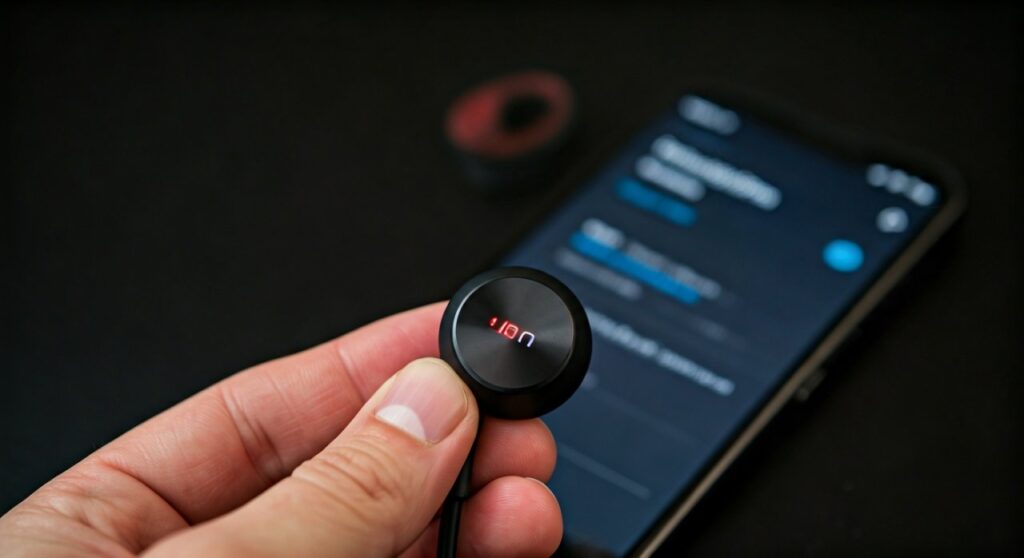
Connecting wireless headphones should be a seamless experience, but technical hiccups often get in the way. Whether you are using the popular Srhythm NC35, the ultra-portable NC25, or the premium NC95, the pairing logic remains consistent across their lineup. This guide provides expert-level troubleshooting and step-by-step instructions to ensure you get high-fidelity sound on the first try.
Key Takeaways: Connecting Your Srhythm Headphones
If you are in a hurry, here is the essential information you need to know:
- Pairing Mode: Hold the Power button for 5 seconds until the Red/Blue light flashes.
- Standard Code: If prompted for a password, use 0000.
- Multi-Point Connection: Most Srhythm models support two devices simultaneously.
- Reset Fix: If pairing fails, hold both Volume + and Volume – buttons for 5 seconds to clear the memory.
- Wired Mode: Using the 3.5mm audio cable disables Bluetooth automatically to save battery.
Step-by-Step: How to Pair Srhythm Headphones for the First Time
Before you begin, ensure your Srhythm headphones are fully charged. A low battery (below 10%) can often cause the Bluetooth signal to drop or prevent the device from entering pairing mode entirely.
Activate Pairing Mode
Ensure the headphones are currently powered OFF. Press and hold the Multi-Function Button (Power Button). Do not let go when you hear “Power On.” Continue holding until the LED light flashes Red and Blue. This indicates the “discovery” state.
Enable Bluetooth on Your Source Device
Navigate to the settings menu on your smartphone, tablet, or computer. Toggle the Bluetooth switch to the On position. Your device will now scan for nearby signals.
Select Your Srhythm Model
Look for a device name starting with “Srhythm” (e.g., Srhythm NC75 Pro). Tap the name to initiate the handshake. Within seconds, the LED on the headphones will change to a slow blue blink or turn solid, and you will hear a voice prompt saying “Connected.”
Connecting Srhythm Headphones to Specific Devices
The process varies slightly depending on the operating system you are using. Below are the specific paths for the most common platforms.
How to Connect to iOS (iPhone/iPad)
- Go to Settings > Bluetooth.
- Turn Bluetooth ON.
- Put your Srhythm headphones into pairing mode.
- Select the device from the “Other Devices” list at the bottom of the screen.
How to Connect to Android
- Swipe down from the top of the screen to open Quick Settings.
- Long-press the Bluetooth icon.
- Tap “Pair new device.”
- Select your Srhythm model from the list of available devices.
How to Connect to Windows 10/11
- Press Windows Key + I to open Settings.
- Navigate to Bluetooth & devices > Add device.
- Choose Bluetooth from the pop-up list.
- Ensure your headphones are flashing red/blue and click on them when they appear.
How to Connect to macOS
- Click the Apple Menu > System Settings (or System Preferences).
- Select Bluetooth from the sidebar.
- Find your Srhythm NC35 or NC25 in the list and click Connect.
Understanding LED Indicators and Status Symbols
Srhythm uses a standardized light system across their NiceComfort series. Understanding these lights helps diagnose connection issues immediately.
| LED Color/Pattern | Meaning | Action Required |
|---|---|---|
| Flashing Red and Blue | Pairing Mode | Search for device on your phone. |
| Slow Blinking Blue | Connected | Ready to play music. |
| Solid Red | Charging | Wait for light to turn blue/off. |
| Flashing Red | Low Battery | Plug in the USB-C cable. |
| Solid Blue (while charging) | Fully Charged | Disconnect from power. |
How to Use Multi-Point Connection (Connect to 2 Devices)
One of the best features of Srhythm headphones is the ability to connect to two devices at once—for example, your laptop for a Zoom call and your phone for notifications.
- Pair the headphones to Device A (Smartphone) normally, then turn Bluetooth off on Device A.
- Put the headphones back into Pairing Mode (Red/Blue flash).
- Pair the headphones to Device B (Laptop).
- Go back to Device A and manually select the Srhythm headphones in the Bluetooth menu.
- Now, both devices are connected. The headphones will automatically switch audio based on which device is playing sound.
Troubleshooting Common Connection Issues
If you followed the steps above and still cannot connect Srhythm headphones, try these expert fixes.
The “Forget Device” Method
Sometimes the Bluetooth cache becomes corrupted. Go to your phone’s Bluetooth settings, tap the “i” or gear icon next to the Srhythm name, and select Forget This Device. Restart both your phone and the headphones, then attempt the pairing process from scratch.
Performing a Factory Reset
If the headphones are acting “frozen” or won’t enter pairing mode:
- Ensure the headphones are powered on.
- Press and hold the Volume Up (+) and Volume Down (-) buttons simultaneously for about 5-7 seconds.
- The LED will flash a specific color (usually purple or pink) to indicate the reset is complete.
- Power off and try pairing again.
The ANC Button Confusion
Many users accidentally press the ANC (Active Noise Canceling) button instead of the Power button. The ANC button usually has its own green light indicator. Remember: ANC can be on even if the Bluetooth power is off. Always use the button with the “Power” symbol to initiate a connection.
Optimizing Your Srhythm Connection for Best Audio Quality
Once connected, you want the best possible sound. Srhythm supports high-quality codecs, but settings on your device can limit performance.
- Check for Interference: 2.4GHz Wi-Fi routers and microwave ovens can disrupt Bluetooth signals. If your audio stutters, move away from these devices.
- Enable AAC/AptX: If you are on Android, go to Developer Options to ensure your phone is using the best available codec for your Srhythm NC35 or NC75.
- Keep Firmware Updated: While Srhythm doesn’t have a dedicated app for all models, newer versions sometimes allow for firmware tweaks via USB. Check the official Srhythm website for any available drivers.
Frequently Asked Questions (FAQs)
Why won’t my Srhythm headphones show up in the Bluetooth list?
This usually happens because the headphones are not in Pairing Mode. Ensure they are flashing Red and Blue. If they are only flashing Blue, they are looking for a previously paired device and will not appear to new devices.
Can I connect Srhythm headphones to a PS4, PS5, or Xbox?
Gaming consoles do not natively support Bluetooth audio headsets. To connect Srhythm headphones to a PlayStation or Xbox, you will need a Bluetooth USB Dongle/Adapter plugged into the console, or you must use the 3.5mm audio cable plugged directly into the controller.
How do I fix audio lag when watching videos?
Bluetooth latency is common. To minimize this, ensure your device supports Bluetooth 5.0 or higher. If the lag persists, try resetting the connection or switching to the wired 3.5mm cable for a zero-latency experience.
Why is only one side of my headphones working?
First, try a factory reset by holding the Volume + and – buttons. If the issue persists, test the headphones with the 3.5mm cable. If both sides work wired but not wirelessly, the internal Bluetooth chip may be faulty.
How many devices can Srhythm headphones remember?
Most models can remember up to 8 devices in their internal memory, but they can only actively communicate with two devices at a time using the multi-point feature.
**
**
**
**









