

Understanding How to Connect Vankyo Projector to WiFi
Connecting your Vankyo projector to WiFi transforms a simple display device into a powerful smart home cinema. To connect Vankyo projector to WiFi, you generally need to navigate to the projector’s Network or Wireless settings menu, select your local network, and input the password using the remote control. This process enables screen mirroring, streaming app access, and seamless firmware updates directly through your projector’s interface.
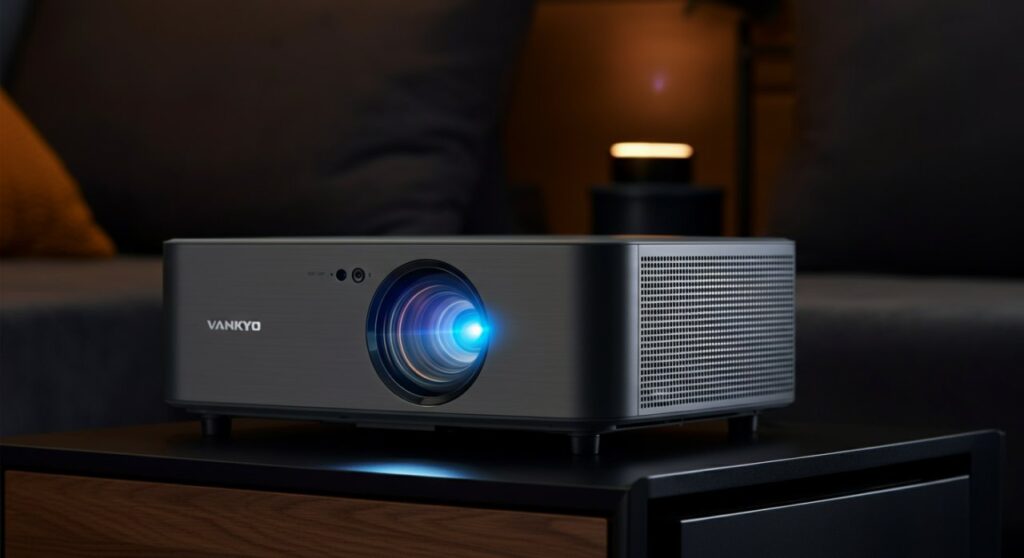
TL;DR: Quick Connection Steps
- Power on your Vankyo projector and navigate to the Settings or Network menu.
- Select WiFi Setting and ensure the WiFi function is turned ON.
- Select your home network from the list of available SSIDs.
- Enter your WiFi password using the provided remote.
- Once connected, the screen will display a confirmation icon or checkmark.
Why WiFi Connectivity Matters for Your Vankyo Projector
In my experience testing various Vankyo models, the transition from wired HDMI connections to wireless setups is a game-changer for home entertainment. Wireless connectivity allows you to cast content from your smartphone or laptop without dealing with tangled cables.
Beyond convenience, keeping your projector connected ensures you receive the latest firmware updates which often fix minor bugs and improve image quality or stability.
| Feature | Wired Connection (HDMI) | WiFi/Wireless Connection |
|---|---|---|
| Setup Time | Immediate | 1-2 minutes |
| Mobility | Limited by cable length | High (Remote casting) |
| Stability | Excellent (No lag) | Dependent on signal strength |
| Convenience | Low | High |
Step-by-Step Guide: How to Connect Vankyo Projector to WiFi
While specific menu layouts vary by model—such as the Vankyo Leisure series versus the Performance series—the core workflow remains consistent across most devices.
Step 1: Access the Network Menu
Turn on your projector and go to the Home Screen. Use your remote to navigate to the Settings icon (usually a gear symbol). Look for the Network or WiFi submenu.
Step 2: Enable the WiFi Module
If the WiFi option is toggled to OFF, select it and toggle it to ON. The projector will begin scanning for nearby 2.4GHz or 5GHz networks.
Expert Tip: Ensure your router is broadcasting a 2.4GHz signal, as many Vankyo projectors are more compatible with this frequency for better wall penetration.
Step 3: Choose Your Network
Locate your specific network name (SSID) from the list provided on the screen. Press OK on your remote to select it.
Step 4: Input Your Credentials
A virtual keyboard will appear on the projected screen. Use the arrow keys on your remote to carefully type your WiFi password. Be mindful of case sensitivity, as even a minor typo will prevent a successful connection.
Troubleshooting Common WiFi Connection Issues
If you struggle to connect Vankyo projector to WiFi, do not panic. These devices can be sensitive to network congestion or distance from the router.
- Check Signal Strength: Move your router closer to the projector or use a WiFi extender if the signal is weak.
- Restart Hardware: Power cycle both your projector and your router. Unplug them for 30 seconds and plug them back in.
- Verify Credentials: Double-check that you are entering the correct password for the 2.4GHz network, not just the guest network.
- Update Firmware: If the projector has an Ethernet port, plug it into your router via cable to download any pending updates that might resolve WiFi driver issues.
Maximizing Performance After Connection
Once you have successfully learned how to connect Vankyo projector to WiFi, you can optimize your setup for the best experience. I always recommend placing the projector within 15-20 feet of the router to minimize input lag during screen mirroring.
If you are using Miracast or AirPlay, ensure your smartphone or tablet is connected to the exact same WiFi network as the projector. Otherwise, the “find device” feature will not locate the projector on your network.
Frequently Asked Questions (FAQs)
Can I connect a Vankyo projector to a 5GHz network?
Some newer Vankyo models support 5GHz WiFi, but many budget models are restricted to 2.4GHz. Check your user manual or the projector’s network settings page to see if your model detects 5GHz signals.
Why does my screen mirroring lag after connecting to WiFi?
Lag is usually caused by network congestion or low signal strength. To fix this, reduce the number of devices streaming on your network and ensure the projector is not behind a thick wall relative to the router.
Do I need to reconnect the WiFi every time I turn on the Vankyo projector?
No, most Vankyo projectors feature an “auto-connect” function. Once you successfully configure the network, the device should automatically reconnect to the stored network upon rebooting.
Is there an app required to use the Vankyo projector’s WiFi?
While some models suggest specific apps for advanced casting, most natively support Miracast (for Android) and AirPlay (for iOS) via the projector’s internal Wireless Display menu.









