

To connect wired headphones to a Samsung phone, you either plug them directly into the 3.5mm headphone jack on older models or use a USB-C to 3.5mm adapter for newer devices without a jack. Simply insert the adapter into the USB-C charging port, connect your headphones, and the phone will automatically route audio through the wired connection.
Key Takeaways for Connecting Wired Audio
If you are in a hurry, here is the essential information you need to know about how to connect wired headphones to a Samsung phone effectively:
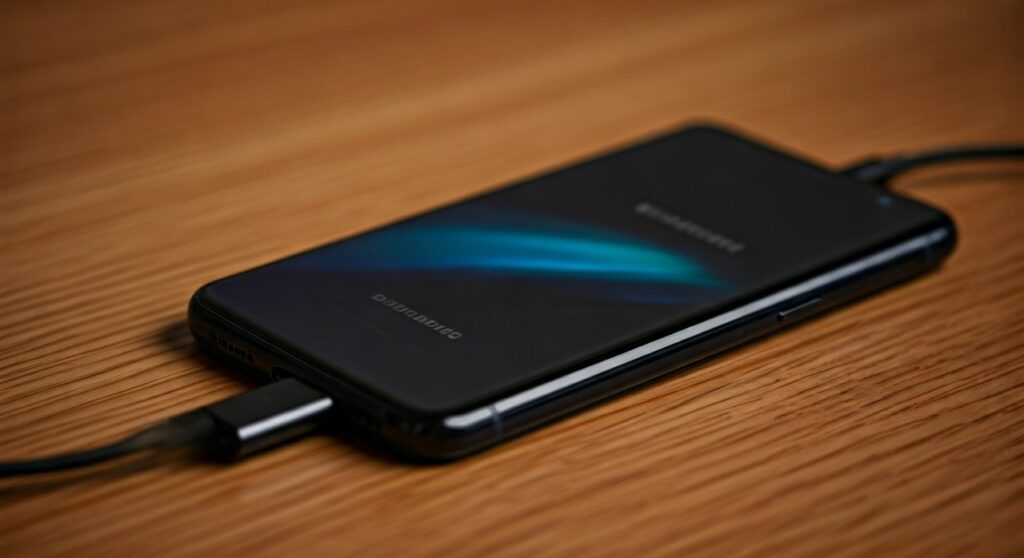
- Adapter Type: Most modern Samsung phones require an “Active” USB-C adapter with a built-in DAC (Digital-to-Analog Converter).
- Plug & Play: Once connected, Samsung devices typically switch audio output instantly without needing software configuration.
- Audio Quality: Wired connections support 24-bit/192kHz audio, providing significantly higher fidelity than standard Bluetooth codecs.
- Charging: To charge and listen simultaneously, you must use a USB-C Splitter or a Power Delivery (PD) enabled hub.
| Feature | 3.5mm Native Jack | USB-C Adapter (DAC) | External USB DAC/Amp |
|---|---|---|---|
| Compatibility | Older models (S10 and older) | Modern models (S20–S24) | All USB-C Samsung Phones |
| Audio Resolution | Standard High-Res | High (up to 24-bit) | Ultra-High (MQA/DSD) |
| Microphone Support | Yes | Yes (if adapter supports it) | Varies by model |
| Power Consumption | Low | Low | Moderate to High |
Understanding How to Connect Wired Headphones to Samsung Phones
Samsung began removing the dedicated 3.5mm headphone jack starting with the Galaxy S20 series and the Galaxy Note 10. While this change encouraged the use of Galaxy Buds, many users still prefer wired headphones for their zero-latency performance and superior sound stages.
To learn how to connect wired headphones to a phone without a headphone jack, you must understand the difference between Analog and Digital signals. Older phones sent an analog signal directly to the jack; newer phones send a digital signal through the USB-C port, which must be converted by a chip.
Step-by-Step: How to Connect Wired Headphones to Samsung via USB-C
Follow these steps to ensure a stable connection on devices like the Galaxy S21, S22, S23, and S24 Ultra.
- Procure a Compatible Adapter: Purchase an official Samsung USB-C to 3.5mm Headphone Jack Adapter. Many third-party “passive” adapters sold on platforms like Amazon will not work with Samsung hardware.
- Insert the Adapter: Plug the USB-C end of the adapter firmly into your phone’s charging port. Ensure there is no lint or debris in the port, as this can cause “ghost disconnects.”
- Connect Your Headphones: Plug your 3.5mm headphone cable into the female end of the adapter.
- Verify Detection: Look for a small headphone icon in the notification bar or play a song. The sound should immediately bypass the internal speakers.
Why Some Adapters Fail: Passive vs. Active DACs
The most common frustration when learning how to connect wired headphones to a Samsung phone is buying an adapter that doesn’t work. Samsung phones do not have an internal DAC dedicated to the USB port for analog passthrough.
- Passive Adapters: These are simple wires that rely on the phone to send an analog signal. These will not work with most Samsung Galaxy devices.
- Active Adapters (DACs): These contain a small computer chip that converts digital data from your phone into sound. Always look for “Active” or “Built-in DAC” in the product description.
How to Connect Wired Headphones to Samsung Devices with a Jack
If you own a Galaxy A-series (like the A14 or A15) or an older S-series (S10 and older), your task is much simpler.
- Locate the round 3.5mm port at the top or bottom of the device.
- Push the headphone jack in until you hear a “click.”
- If the sound still plays through the speakers, check if your phone case is preventing the jack from seating fully.
Troubleshooting: What to Do if Wired Headphones Won’t Connect
Even with the right hardware, you might encounter issues when trying to connect wired headphones to an Android phone. Here is how I personally fix common connection bugs:
“USB Device Not Supported” Error
This usually means your adapter lacks a compatible DAC chip. I recommend using the official Samsung EE-UC10JUWEGUS adapter or a high-quality third-party option like the Google USB-C Dongle.
Sound Only Comes Out of One Ear
- Check the adapter for physical damage.
- Clean the USB-C port with a wooden toothpick or compressed air.
- Go to Settings > Accessibility > Hearing Enhancements and ensure the Left/Right Sound Balance slider is centered.
The Phone Doesn’t Recognize the Headphones
- Restart your Samsung phone.
- Enable USB Debugging in Developer Options. Sometimes this forces the phone to re-scan connected USB peripherals.
- Update your software by going to Settings > Software Update.
Advanced Audio Settings for Wired Headphones on Samsung
Once you have successfully learned how to connect wired headphones to Samsung, you can optimize the experience using Samsung’s built-in software suite.
- Dolby Atmos: Navigate to Settings > Sounds and vibration > Sound quality and effects. Turn on Dolby Atmos for a wider, more immersive soundstage.
- Adapt Sound: This is a hidden gem. It runs a hearing test to create a custom sound profile tailored specifically to your ears and your specific pair of wired headphones.
- UHQ Upscaler: If you are using high-quality wired IEMs (In-Ear Monitors), enable the UHQ Upscaler to enhance the bit-depth and frequency of your music files.
Comparing Wired vs. Wireless on Samsung Devices
While Bluetooth is convenient, connecting wired headphones to a phone offers technical advantages that professional users and gamers require.
| Metric | Wired Connection (USB-C/Jack) | Wireless (Bluetooth/LDAC) |
|---|---|---|
| Latency | 0ms (Ideal for Gaming) | 100ms – 300ms (Noticeable lag) |
| Battery Impact | Negligible | Drains phone and headphone battery |
| Audio Resolution | Lossless (Up to 384kHz) | Lossy (Compressed) |
| Reliability | No interference | Possible signal drops in crowds |
Expert Tips for Audiophiles
If you are using high-impedance headphones (like the Sennheiser HD600 series) with your Samsung phone, a standard $10 dongle won’t provide enough power.
In this case, you should look into a Portable USB DAC/Amp like the AudioQuest DragonFly or the FiiO KA3. These devices connect to your Samsung phone’s USB-C port and provide the necessary voltage to drive professional-grade studio headphones.
Frequently Asked Questions (FAQs)
Can I use Apple USB-C headphones on a Samsung phone?
Yes, Apple USB-C EarPods and the Apple USB-C to 3.5mm adapter work on Samsung phones. However, the volume control buttons on the Apple-branded wired headphones may not function correctly due to different wiring standards between Apple and Android.
How do I connect wired headphones to a Samsung phone while charging?
To do this, you need a 2-in-1 USB-C Audio and Charging Adapter. Ensure the adapter supports PD (Power Delivery) charging so that your phone charges at high speeds while you listen to music.
Why is there a static noise when I plug in my wired headphones?
Static noise is often caused by Electrical Interference from the phone’s internals or a poor ground connection in a cheap adapter. Switching to a shielded, high-quality Active DAC adapter usually resolves this.
Will my microphone work with a USB-C adapter?
Most adapters that feature a 4-pole (TRRS) connection will support microphone input. If you are a gamer or take calls, verify that the adapter specifically mentions “Mic Support” or “CTIA Standard compatibility.”
Does connecting wired headphones save battery?
Yes, using wired headphones saves battery life because the phone does not need to power a Bluetooth radio or encode audio into a wireless signal. This can extend your phone’s battery life by 10-15% during long listening sessions.









