

TL;DR: How to Do Projector Mapping Successfully
Projector mapping, or spatial augmented reality, transforms irregular surfaces into dynamic displays by precisely aligning light projections. To succeed, you must use mapping software (like Resolume Arena or MadMapper), a high-lumen projector, and a powerful computer.
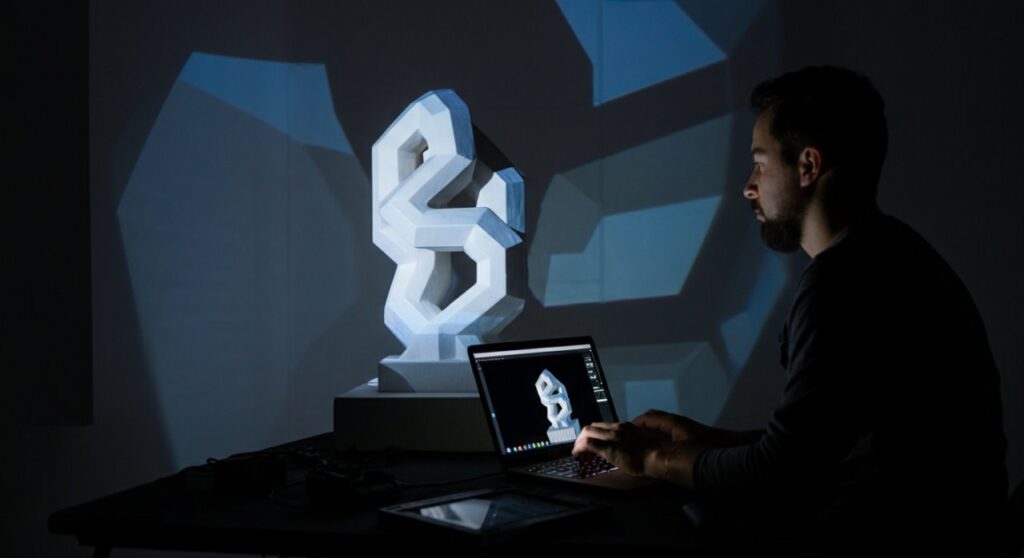
Quick Checklist for Success:
- Surface Selection: Choose high-contrast, matte, or light-colored objects.
- Software Setup: Calibrate your keystone correction and masking layers.
- Projection Precision: Ensure your projector remains stationary throughout the event.
- Content Alignment: Create content specifically designed for the geometry of your surface.
Understanding Projector Mapping Fundamentals
Learning how to do projector mapping effectively requires understanding the marriage between geometry and light. It is not merely projecting a video onto a wall; it is digitally “wrapping” visual media around a three-dimensional physical object.
In my experience running installations for art galleries, the biggest mistake beginners make is ignoring ambient light. If the room isn’t dark enough, your projection will lose its depth, regardless of how expensive your gear is.
Essential Hardware You Will Need
Before starting your first project, ensure you have the correct technical setup. Using a standard office projector will rarely yield the crisp, immersive results required for professional video mapping.
| Component | Minimum Specification | Recommended for Pro Results |
|---|---|---|
| Projector | 2,500 ANSI Lumens | 6,000+ ANSI Lumens (Laser) |
| Connection | HDMI Cable | DisplayPort to HDMI Active Adapter |
| Computer | 8GB RAM, Integrated GPU | 32GB RAM, Dedicated RTX Graphics |
| Software | Trial versions (limited) | Full License (Resolume, MadMapper) |
Step-by-Step Guide: How to Do Projector Mapping
Following a systematic workflow is the secret to professional results. I have broken down the process into five actionable steps that I use in my own creative practice.
Step 1: Surface Preparation and Analysis
Choose an object with clear edges and geometric definition. Flat surfaces are easiest for beginners, while complex, multi-faceted sculptures require advanced 3D mesh mapping.
- Clean the surface thoroughly to ensure the projection surface is free of dust.
- If possible, paint the surface matte white to maximize light reflection.
- Measure your object’s dimensions precisely to align your digital workspace.
Step 2: Positioning the Projector
The placement of your hardware is critical. You want the projector to have an unobstructed line of sight to the target object.
- Mount the projector on a heavy-duty tripod to prevent vibrations.
- Place the projector as close to the center-line of the object as possible.
- Avoid placing the projector at extreme angles, as this forces heavy use of digital keystone correction, which degrades image quality.
Step 3: Software Calibration
Once connected, open your mapping software. You will need to create a “mask” that tells the projector exactly where the light should go.
- Set your computer’s display settings to Extend Desktop mode.
- Use the Output Transformation tools in your software to align the digital canvas with the corners of your physical object.
- Refine your “masks” to ensure no light “spills” over the edges of your object.
Step 4: Content Creation and Content Mapping
The most impactful projections use content specifically created for the object’s unique shape. If you project a square video onto a triangular object, the illusion of depth will break.
- Use After Effects or Premiere Pro to create masks that match the geometry of your target.
- Incorporate depth cues like shadows or 3D wireframe animations to enhance the “illusion.”
- Export your files in high-bitrate formats like DXV for smoother playback in Resolume.
Step 5: Final Review and Execution
Conduct a “dry run” in total darkness. Check for any light bleed, sync issues with audio, or misalignment caused by accidental bumps to the projector.
Pro-Tips for Advanced Projection Mapping
When you are ready to move beyond basic setups, consider these expert strategies. These techniques separate amateur setups from professional, immersive installations.
Utilizing 3D Scanning for Perfection
If you are mapping a complex, non-geometric building or sculpture, use photogrammetry or LiDAR scanning. This allows you to build a 1:1 digital twin of your object, making the mapping process mathematically precise rather than manual guesswork.
Managing Multiple Projectors
If one projector is not bright or wide enough, you will need to perform edge blending. This involves overlapping the light from two or more projectors and using software to smooth out the brightness transition between them. It is a technical challenge but produces truly cinematic results.
Frequently Asked Questions (FAQs)
What is the difference between projector mapping and standard projection?
Standard projection simply displays an image on a flat screen. Projector mapping involves using software to warp and mask visuals so they fit the exact physical contours of an irregular 3D object, creating an illusion of depth or animation.
Do I need a professional projector to start?
While 6,000-lumen laser projectors are industry standards, you can start with a 3,000-lumen home theater projector. The key is controlling the ambient light in your environment; the darker the room, the better your projection will look.
What is the best software for beginners?
For those just learning how to do projector mapping, I recommend MadMapper or Resolume Arena. Both offer intuitive interfaces, active user communities, and robust trial versions to help you practice without an immediate financial commitment.
Why does my projection look blurry?
Blurriness is usually caused by two things: incorrect focus or excessive digital keystone correction. Always physically position your projector correctly first, and use keystone tools only for minor final adjustments to maintain image resolution.









