

Understanding Projector Screen Flip: A Quick Fix
Learning how to flip the screen on a projector is a common necessity, especially if you have mounted your device to the ceiling or shifted it to a rear-projection setup. Most modern projectors include a built-in Image Flip or Projection Mode setting that allows you to rotate or mirror the image instantly via the remote or the device’s On-Screen Display (OSD) menu. By accessing the installation settings, you can correct an inverted or reversed image without needing to physically move the hardware.
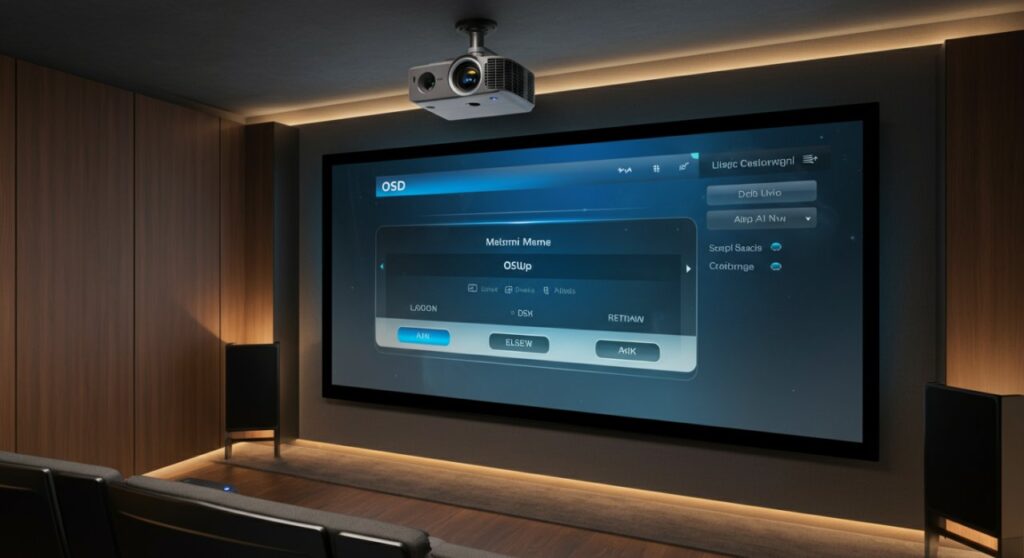
TL;DR: Quick Troubleshooting Steps
If you need an immediate solution, follow these steps to fix your orientation:
- Access the Menu: Press the Menu button on your projector remote or the projector body.
- Locate Settings: Navigate to Installation, Setup, or Projector Position.
- Select Mode: Choose the orientation that matches your setup: Front, Rear, Front Ceiling, or Rear Ceiling.
- Save Changes: Press Enter or OK to apply the settings.
Why Is Your Projector Image Inverted?
When you first mount a digital projector, the default setting is almost always “Front Desktop.” If you mount it upside down on a ceiling bracket, the image will appear inverted, making it impossible to read text or watch media properly.
Common Scenarios Requiring a Flip
- Ceiling Mounts: The projector is physically turned upside down to align with the mount.
- Rear Projection: You are projecting from behind a translucent screen, requiring a horizontal mirror (flip) to ensure text appears correctly.
- Accidental Settings Change: Sometimes, buttons are pressed unintentionally, triggering a mode change.
The Science of Projection Modes
Projectors are designed with flexible optics to accommodate diverse installation environments. The firmware inside your DLP or LCD projector handles this by digitally flipping the signal buffer before it reaches the lens. This ensures that no matter the orientation, the pixel geometry remains crisp and readable.
Step-by-Step Guide: How to Flip the Screen on a Projector
Follow these detailed steps to navigate the software settings and fix your image orientation. Note that menu labels vary by brand (e.g., Epson, BenQ, ViewSonic).
Accessing the On-Screen Display (OSD)
Use your dedicated remote to open the primary menu. If you have lost the remote, use the directional buttons located on the physical control panel of the projector unit.
Identifying the “Installation” Menu
Once the menu is open, look for sub-menus labeled with these common terms:
- Installation
- Projection Mode
- Setup / Advanced Setup
- Position
Choosing the Correct Orientation
Select the setting that reflects your physical hardware arrangement:
| Position Mode | Description |
|---|---|
| Front | Standard table placement in front of the screen. |
| Front Ceiling | Projector is inverted and mounted on the ceiling. |
| Rear | Projector is placed behind a see-through screen. |
| Rear Ceiling | Projector is inverted and placed behind the screen. |
Applying and Saving
Once you highlight the correct option, press Enter. In most models, the screen will flip instantly. If you exit the menu without pressing OK or Save, the device may revert to the previous orientation.
Troubleshooting Persistent Issues
If you have tried the steps above and the image is still not correct, consider these expert tips derived from professional AV installation experience:
- Check Input Cables: Occasionally, an HDMI signal might glitch if the cable is loose or damaged. Ensure your connections are secure.
- Firmware Updates: If you are using a Smart Projector, check the manufacturer’s website. A firmware bug can sometimes cause settings to “stick” incorrectly.
- Factory Reset: If all else fails, a full factory reset will return the device to “Front Desktop” mode, allowing you to start fresh.
- Hardware Limitations: Some ultra-portable “mini-projectors” lack advanced installation settings. In these cases, you may need to physically rotate the device.
Expert Tips for Ceiling Mount Installations
Based on my experience setting up home theater systems, the physical orientation is only half the battle. When mounting a projector:
- Use a Laser Level: Before drilling, ensure the mount is perfectly parallel to your screen. This reduces the need for heavy Keystone Correction, which can degrade image resolution.
- Calibrate After Flipping: After you flip the projector screen, the focus or lens shift may need minor adjustments. Because gravity affects the lens assembly differently when upside down, a slight focus tweak is often required.
- Ensure Proper Ventilation: When mounting upside down, verify that you are not blocking the primary exhaust vents. Overheating is the #1 cause of projector lamp failure.
Frequently Asked Questions (FAQs)
Can I flip the screen if my projector doesn’t have a menu option?
Unfortunately, if your projector lacks this software feature, it is likely a low-end or portable model. You may need to physically flip the projector or use a mounting bracket that allows for inverted positioning.
Does flipping the image affect the quality?
No, the digital flip is a lossless process done within the video processor. However, relying heavily on Keystone to square the image will cause digital degradation and reduced sharpness.
Why does my image look mirrored (left/right reversed)?
This usually happens when you are in “Rear” projection mode. Navigate back to your Projection Mode settings and select “Front” to fix horizontal reversing.
Will flipping the screen damage the lamp?
No. Projector lamps are designed to operate in any orientation, provided the cooling system remains unobstructed.









