

Understanding How to Focus a Projector Effectively
Learning how to focus a projector is the single most important step to transforming a blurry, washed-out image into a sharp, cinema-quality display. In most cases, you can achieve a crisp picture by simply adjusting the focus ring or focus knob located near the lens, or by using the digital focus settings in the projector’s menu. If your image remains soft, ensure the projector is perfectly perpendicular to the projection screen and that you are using the correct throw distance.
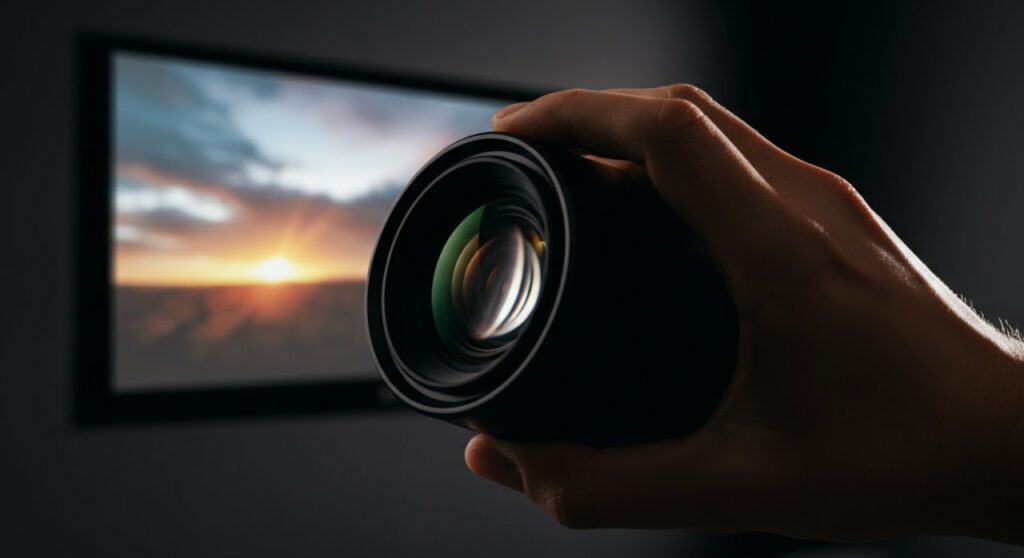
TL;DR: Quick Focus Checklist
- Manual Adjustment: Locate the focus ring around the lens and rotate it slowly until the image becomes sharp.
- Digital Focus: If your model lacks a physical ring, navigate to the Settings/Installation menu to adjust focus via the remote.
- Keystone Correction: If the image looks like a trapezoid, use Keystone correction to square it before finalizing the focus.
- Cleanliness: Always check for dust or smudges on the lens, as these often mimic focus issues.
- Vankyo Users: When learning how to focus a Vankyo projector, check for the dual-ring system (one for zoom, one for focus) typically found on the top of the chassis.
Step-by-Step Guide: How to Focus a Projector
Achieving the perfect image requires a systematic approach. Follow these steps to ensure your visuals are crystal clear every time you power up.
Positioning and Alignment
Before touching the focus controls, your projector must be positioned correctly. An angled projector creates keystone distortion, which makes one side of the image look blurry while the other is sharp.
- Place the projector on a stable, flat surface or mount it securely.
- Ensure the lens is centered with the middle of your projection screen.
- Minimize the use of aggressive digital keystone correction, as this lowers native resolution and sharpness.
Manual Lens Adjustment
Most standard projectors use a mechanical focus ring. This is the most reliable method for achieving sharp text and high-contrast images.
- Project a high-contrast image (like a menu screen or a test pattern) to make focus easier to judge.
- Slowly rotate the focus ring located on the lens barrel.
- Move past the point of clarity and then back again to find the exact “sweet spot.”
Mastering Digital Focus for Modern Models
Many high-end or compact portable projectors now feature digital focus or auto-focus capabilities. If your device lacks a physical ring, you must rely on the onboard software.
- Access the Main Menu using your remote control.
- Navigate to Installation or Picture Settings.
- Look for an option labeled Focus or Image Adjustment.
- Use the arrow keys on your remote to sharpen the image; look specifically at the edges of the screen, as this is where blurriness is most visible.
Comparing Focus Methods
| Method | Best For | Pros | Cons |
|---|---|---|---|
| Manual Ring | Home Theater | Maximum sharpness, tactile | Can be stiff, requires physical access |
| Digital Focus | Portable/Ceiling Mount | Convenient, remote-controlled | Can be less precise, relies on software |
| Auto-Focus | Quick Setup | Instant, effortless | May struggle in low light or high contrast |
Troubleshooting Common Focus Issues
Even with the right technique, you might encounter stubborn blurriness. Use these expert tips to isolate the problem.
Checking for Lens Contamination
Dust is the enemy of projection quality. Even a tiny fingerprint or a layer of dust on the lens will scatter light, making the entire image appear soft or foggy.
- Use a microfiber cloth designed for camera lenses.
- Gently wipe in a circular motion starting from the center outward.
- Never use household cleaners or paper towels, as these can scratch the delicate lens coating.
Understanding Throw Distance
Every projector has a specific throw ratio—the relationship between the distance from the screen and the width of the image. If you move your projector too far away or too close, it may fall outside of the lens’s optical focus range.
- Check your user manual for the minimum and maximum throw distance.
- If the image is still blurry, move the projector closer to the wall to see if it snaps into focus.
- If it does, your projector is simply too far from the screen for its lens capacity.
Tips on How to Focus a Vankyo Projector
When figuring out how to focus a Vankyo projector, users often confuse the zoom ring with the focus ring.
- Identify the rings: Most Vankyo models have two rings. The one closest to the lens body is usually the focus ring.
- Adjusting: If the image size is too big or small, adjust the zoom ring first. Once the size is correct, finish by fine-tuning the focus ring.
- Stability: Ensure the projector isn’t vibrating from a fan or unstable surface, as even minor movement causes perceived blur.
Frequently Asked Questions
Why is one side of my projector image blurry?
This is usually caused by keystone distortion or the projector not being centered with the screen. Ensure the lens is parallel to the wall and limit your use of digital keystone correction, which often leaves one side of the image out of focus.
Can a projector be too close to the screen?
Yes, every projector has a minimum throw distance. If you place it closer than this limit, the lens cannot physically adjust enough to bring the image into sharp focus, resulting in a permanent blur regardless of ring adjustments.
How often should I clean the projector lens?
You should inspect the lens every few weeks. If you notice a drop in sharpness or visible spots, use a lens blower to remove dust, followed by a light wipe with a clean microfiber cloth.
Does a bad HDMI cable affect image focus?
A low-quality or damaged HDMI cable can cause image flickering, digital noise, or resolution drops, but it does not cause the “softness” associated with an out-of-focus lens. If the image is blurry, it is almost certainly an optical or mechanical issue.









