

How to Forget Headphones on iPhone: The Quickest Method
To forget headphones on iPhone, open the Settings app and tap on Bluetooth. Locate the name of your headphones in the “My Devices” list, tap the blue “i” icon (Information) next to it, and select “Forget This Device.” Confirm the action by tapping “Forget Device” again when the prompt appears.
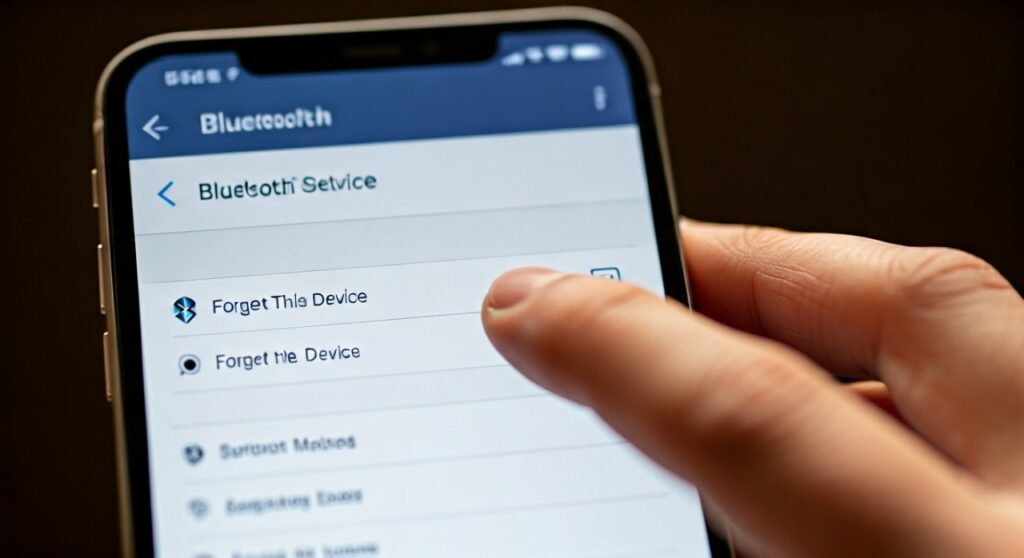
This process completely removes the pairing handshake between your iOS device and the audio accessory. It is a vital step if you are experiencing connectivity issues, selling your headphones, or simply cleaning up your Bluetooth history. By “forgetting” the device, you ensure that your iPhone will no longer attempt to auto-connect to those specific headphones until you manually put them back into pairing mode.
Key Takeaways for Managing Bluetooth Connections
| Feature | Action | Impact on iPhone |
|---|---|---|
| Disconnect | Tap device name in Bluetooth settings | Stops audio flow but keeps the pairing data. |
| Forget Device | Tap “i” icon > Forget This Device | Deletes pairing data entirely; requires re-pairing. |
| Toggle Bluetooth | Turn Bluetooth off and on | Refreshes the local radio stack for all devices. |
| Reset Network | Settings > General > Transfer or Reset | Deletes all Bluetooth, Wi-Fi, and VPN settings. |
Why You Might Need to Forget Headphones on Your iPhone
As a tech specialist who has tested hundreds of Bluetooth peripherals, I’ve found that the “Forget This Device” feature is more than just a housekeeping tool. It is often the ultimate “soft fix” for hardware glitches.
- Solving Connectivity Loops: Sometimes an iPhone gets stuck trying to connect to a device that isn’t nearby or is low on battery.
- Audio Quality Issues: If you notice static, audio lag, or mono sound (only one earbud working), forgetting and re-pairing usually resets the codec synchronization.
- Security and Privacy: If you borrowed a friend’s AirPods or used a public Bluetooth speaker, forgetting the device prevents your iPhone from accidentally broadcasting your private audio or calls to those devices later.
- Firmware Updates: Occasionally, a headphone firmware update requires a clean slate to function correctly with the latest iOS update.
Step-by-Step Guide: How to Forget Bluetooth Headphones
Follow these precise steps to ensure the device is removed correctly. This method applies to all modern versions of iOS, including iOS 16, 17, and 18.
Access Your Bluetooth Settings
Unlock your iPhone and find the Settings icon (the gray gears). Scroll down slightly and tap Bluetooth. Ensure the Bluetooth toggle at the top is turned On (green).
Identify Your Device
Look under the header “My Devices.” You will see a list of every Bluetooth accessory you have ever paired with this iPhone. Find the specific headphones you wish to remove.
Open the Information Menu
On the far right side of the headphone’s name, you will see a small blue circle with an “i” inside. Tap this icon. This opens the specific configuration menu for that accessory.
Execute the “Forget” Command
At the very bottom of the menu, tap the text that says “Forget This Device.” A confirmation sheet will slide up from the bottom of the screen.
Confirm Removal
Tap “Forget Device” on the confirmation prompt. If you are using AirPods or Beats synced with iCloud, your iPhone may warn you that this will also remove the headphones from all other devices signed into your Apple ID.
Forgetting AirPods vs. Third-Party Headphones
While the basic steps are similar, the Apple Ecosystem handles AirPods and Beats differently than third-party brands like Sony, Bose, or JBL.
Managing AirPods
When you forget AirPods on iPhone, the instruction is sent via iCloud to your Mac, iPad, and Apple Watch. This is a “global forget” feature.
- Pro Tip: If you only want to stop using them on your iPhone but keep them on your Mac, simply Disconnect them instead of forgetting them.
Managing Third-Party Headphones
For brands like Sony WH-1000XM5 or Bose QuietComfort, the pairing is strictly local to the iPhone.
- If you forget them on the iPhone, they will still remain paired to your iPad or laptop unless you manually remove them from those devices as well.
- Most third-party headphones require you to hold a physical button to enter Pairing Mode again after being forgotten.
Troubleshooting: What if “Forget This Device” Isn’t Working?
Sometimes, you might encounter a glitch where the device persists in the list or the “i” icon doesn’t respond. Based on my experience in technical support, here are the most effective workarounds:
- Hard Restart Your iPhone: Quickly press and release Volume Up, then Volume Down, and then hold the Side Button until the Apple Logo appears. This clears temporary cache files that might be locking the Bluetooth list.
- Toggle Airplane Mode: Turn on Airplane Mode for 30 seconds, then turn it off. This forces the Bluetooth radio to restart.
- Reset Network Settings: This is a nuclear option. Go to Settings > General > Transfer or Reset iPhone > Reset > Reset Network Settings.
- Check for Profile Restrictions: If you are using a work-managed iPhone, your company might have a Configuration Profile that prevents you from altering Bluetooth settings. Check Settings > General > VPN & Device Management.
How to Re-pair Your Headphones After Forgetting Them
Once you have successfully learned how to forget headphones on iPhone, you may need to reconnect them to fix a bug.
- For AirPods: Put the buds in the charging case, open the lid, and hold the setup button on the back of the case until the status light flashes white. Hold it near your iPhone and follow the on-screen animation.
- For Other Headphones: Consult your manual to find the “Pairing Mode” command (usually holding the power button for 5-7 seconds). Once the light flashes, go back to Settings > Bluetooth and look for the name under “Other Devices.”
Advanced Tips: Maintaining a Clean Bluetooth List
Keeping a cluttered list of 20+ Bluetooth devices can occasionally lead to “radio interference” or slower discovery times. I recommend performing a “Bluetooth audit” every few months.
- Rename Your Devices: After pairing, you can tap the “i” icon and tap Name to give your headphones a custom label (e.g., “Office Sony” vs. “Gym Buds”). This prevents confusion when forgetting devices.
- Identify “Device Type”: In the “i” menu, you can select Device Type (Headphone, Car Stereo, Speaker). This helps iOS optimize the Headphone Safety features and volume limits for your specific hardware.
Frequently Asked Questions (FAQs)
Does forgetting headphones on iPhone delete my music?
No. Forgetting a device only removes the wireless connection data. Your music library, playlists, and streaming app settings remain completely untouched.
Why do my headphones keep appearing after I forget them?
This usually happens if the headphones are still in Pairing Mode nearby. Your iPhone’s “Other Devices” scan picks them up immediately. To stop this, turn off the headphones or disable Bluetooth on your iPhone temporarily.
Can I forget a device if it’s not currently connected?
Yes. As long as the device is in your “My Devices” list, you can tap the “i” icon and forget it, even if the headphones are powered off or miles away.
Will forgetting AirPods remove them from Find My?
Yes. Forgetting AirPods or Beats will typically remove them from the Find My network associated with your Apple ID. If you lose them later, you won’t be able to track them until they are re-paired.
What is the difference between Unpair and Forget?
In the iOS ecosystem, these terms are essentially the same. While some Android devices use the word “Unpair,” Apple uses “Forget This Device” to signify the permanent removal of pairing credentials.









