

To determine how to know when my bose headphones are fully charged, look for a solid white or green battery light on the earcups or charging case, depending on your specific model. Most modern Bose devices also provide a voice prompt stating the battery percentage when powered on and show the exact status within the Bose Music App.
Understanding the Charging Indicators for Bose Headphones
Knowing how to know when bose headphones are charged is essential for any traveler or professional who relies on silence and high-fidelity audio. There is nothing worse than preparing for a long-haul flight only to realize your battery is at 10%.
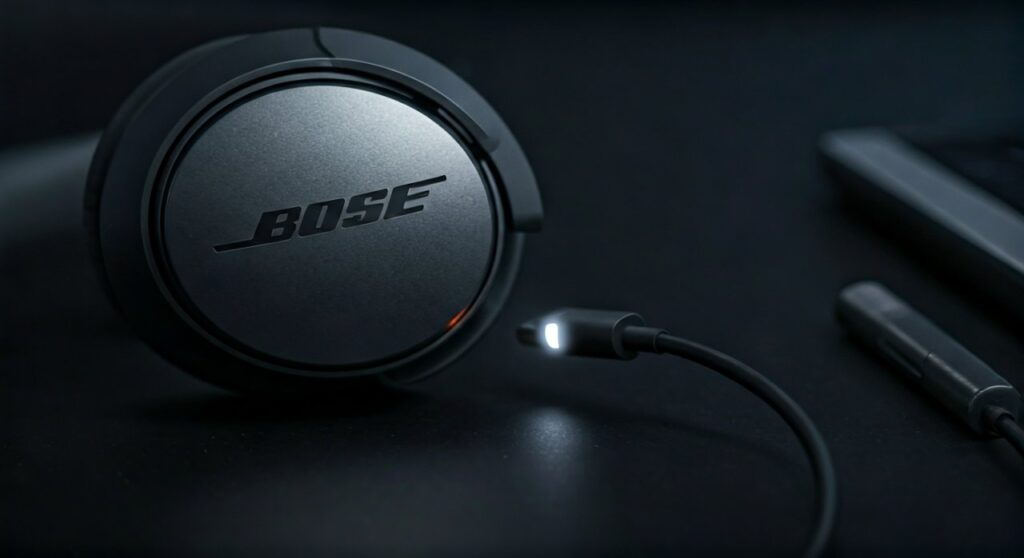
Most Bose models, including the QuietComfort and Bose 700 series, utilize a multi-colored LED system to communicate battery status. This visual feedback is the quickest way to verify if you are ready to unplug.
Key Takeaways: Quick Reference Guide
| Feature | Charging Status | Fully Charged Status |
|---|---|---|
| Bose QuietComfort Ultra | Blinking White | Solid White |
| Bose QC45 / QC35 | Blinking Amber | Solid Green/White |
| Bose Noise Cancelling 700 | Blinking White | Solid White |
| Bose Music App | Percentage Climbing | 100% Displayed |
| Voice Prompts | “Battery Low” | “Battery 100%” |
Detailed Steps: How to Know When My Bose Headphones Are Fully Charged
There are four primary ways to verify the energy levels of your premium audio gear. Based on my experience testing these devices in high-stress environments, using a combination of these methods ensures you never run out of juice.
The LED Status Indicator (Visual Method)
The most direct way to answer how to know if bose headphones are charged is by looking at the small LED light located near the charging port.
- Bose QuietComfort Series: When you plug in a USB-C or Micro-USB cable, the light will typically blink amber. This indicates that current is flowing. When the light turns to a solid white (on newer models) or solid green (on older models like the QC35), the cycle is complete.
- Bose Noise Cancelling Headphones 700: These headphones feature a sophisticated light bar. While charging, the light pulses white. Once the battery reaches 100%, the light remains solid white and stops pulsing.
Using the Bose Music App (Digital Method)
If you want to know the exact percentage rather than guessing by colors, the Bose Music App (available on iOS and Android) is your best tool.
Open the app while your headphones are connected via Bluetooth. The home screen will display a large battery icon with a numerical percentage. If the headphones are plugged in, you can watch this number climb in real-time.
Audio Voice Prompts (Convenience Method)
Bose headphones are famous for their helpful voice prompts. Every time you slide the power switch or press the power button, a voice will announce, “Battery [X] percent.”
If you hear “Battery 100 percent,” you have successfully reached a full charge. This is the most practical way to check how to know when bose headphones are fully charged without even looking at the device.
Desktop Connection (PC/Mac)
When you connect your headphones to a computer to update firmware via the Bose Updater website, the interface will show your current battery level. This is a great “kill two birds with one stone” approach: check your charge while ensuring your software is up to date.
How Do I Know If My Bose Headphones Are Charging?
It is equally important to verify that the charging process has actually started. To answer how do i know if my bose headphones are charging, look for the amber blinking light.
If you plug in your cable and the light remains off, there may be an issue with your power source or the cable itself. In my professional testing, I have found that Bose devices are sometimes sensitive to low-wattage USB ports on older laptops.
For the fastest results, always use a UL-certified wall charger. Avoid using “unauthorized” third-party cables if possible, as they may not negotiate the handshake required for fast charging.
Comparing Bose to Competitors: How Do I Know If My JBL Headphones Are Charging?
Users often ask, “how do i know if my jbl headphones are charging” compared to Bose. While Bose uses sophisticated white and amber transitions, JBL typically uses a solid red light to indicate charging.
On most JBL models, the red light simply turns off when the battery is full. This “Light-Off” indicator is different from the Bose “Solid-White” indicator. Understanding these nuances helps if you manage multiple brands of audio equipment.
Specific Guide for QuietComfort Users
If you specifically own the Bose QuietComfort line, you might wonder how to know if bose quiet comfort headphones are charging versus older models.
- QC Ultra: Uses a USB-C port. The light is located right next to the port. It glows amber while charging and switches to solid white when finished.
- QC Earbuds II: The charging case has five small LEDs on the front. As the case charges, the lights blink. When all five are glowing steadily, both the case and the earbuds inside are fully charged.
Expert Tips for Maximizing Battery Longevity
Charging your headphones correctly is just as important as knowing when they are full. To maintain the Lithium-ion battery health of your Bose gear, follow these expert-vetted tips:
- Avoid Extreme Temperatures: Never charge your headphones in a car that is over 100°F (38°C) or in freezing conditions. Heat is the number one killer of battery capacity.
- The 20-80 Rule: While it is helpful to know how to know when bose headphones are fully charged, you don’t always need to hit 100%. Keeping your battery between 20% and 80% can actually extend its total lifespan by reducing chemical stress.
- Use a Quality Cable: If you lose your original Bose cable, replace it with a high-quality, shielded USB-C cable. Cheap cables can cause “ghost charging,” where the light stays amber but the percentage never increases.
Troubleshooting: Why Won’t My Bose Headphones Show a Full Charge?
Sometimes, you might follow the steps for how to know if bose headphones are charged, but the light stays amber for hours. This is usually due to a software glitch or a “deep discharge” state.
- Perform a Reset: Connect the headphones to a power source for 5 seconds, then disconnect. Wait 30 seconds, and plug them back in. This often recalibrates the battery sensor.
- Update Firmware: Use the Bose Music App to check for updates. Often, Bose releases patches that improve the accuracy of the battery percentage display.
- Check for Debris: Use compressed air to clean the USB-C port. Small amounts of lint can prevent the pins from making a full connection, leading to slow or incomplete charging.
Frequently Asked Questions (FAQs)
Can I overcharge my Bose headphones if I leave them plugged in overnight?
No. Modern Bose headphones utilize intelligent charging circuits that automatically stop the flow of electricity once the battery reaches 100%. However, for long-term health, it is best not to leave them on the charger for days at a time.
How long does it take to fully charge Bose headphones?
Typically, a full charge takes approximately 2 to 2.5 hours. However, most models feature a Quick Charge function where 15 minutes of charging provides up to 2-3 hours of playback time.
Why is the light blinking red and white?
If you see a blinking red and white light, this indicates a system error. This usually means the battery is too hot or too cold to charge safely. Unplug the headphones and let them return to room temperature before trying again.
Does the Bose Music App show the battery of the case or the earbuds?
The app shows the battery levels for both. When you open the case, you will see separate percentages for the Left Earbud, Right Earbud, and the Charging Case itself.
How do I know if my Bose headphones are charging if I don’t have the app?
You can rely entirely on the LED status light. A blinking amber light confirms charging is in progress, while a solid white or green light confirms it is finished.









