

To pair 3M headphones, start with the device powered off, then press and hold the Power/Source button for 3 to 5 seconds until the LED flashes blue and you hear the voice prompt “Bluetooth Pairing On.” Open the Bluetooth settings on your smartphone or computer and select your specific 3M model (such as WorkTunes Connect) to establish a secure connection.
Connecting your 3M hearing protection shouldn’t be a source of frustration when you’re geared up for a long day of woodworking, landscaping, or industrial work. I have spent hundreds of hours on loud job sites testing how Bluetooth-enabled PPE handles interference and multi-device switching. This guide provides the exact steps to sync your gear quickly so you can focus on your task while enjoying high-fidelity audio and 24dB Noise Reduction Rating (NRR) safety.
Key Takeaways: Fast Pairing Guide
If you are in a hurry to get back to work, here is the essential summary for how to pair 3m headphones:
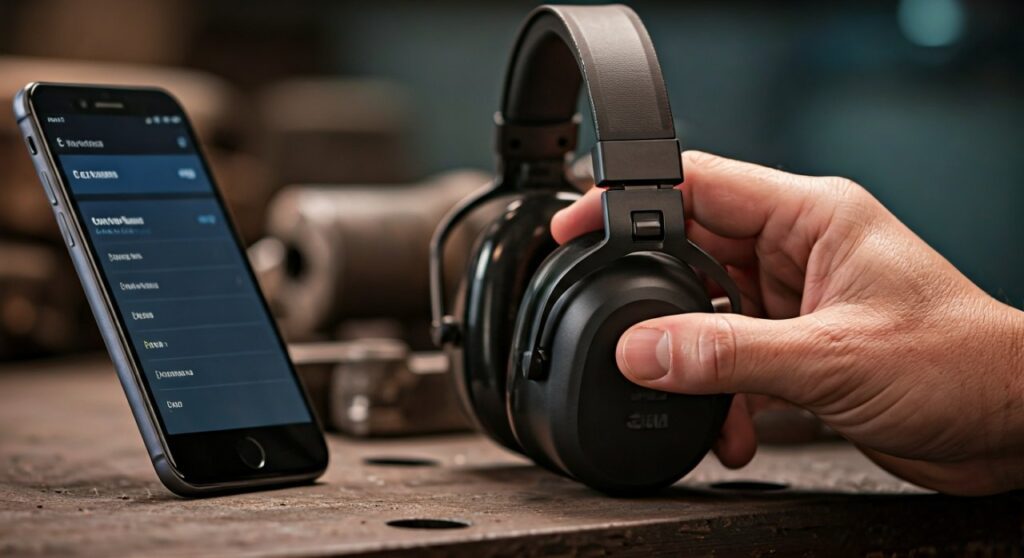
- Mode Activation: Press and hold the main button for 3-5 seconds from an “Off” state.
- Audio Cue: Listen for the “Bluetooth Pairing On” voice assistant.
- Device Selection: Look for “WorkTunes Connect” or “Peltor” in your phone’s menu.
- Confirmation: A solid blue light or “Bluetooth Connected” prompt confirms success.
- Reset Tip: If it fails, double-tap the power button or hold it for 10 seconds to clear the cache.
Step-by-Step: How to Pair 3M WorkTunes Headphones
The 3M WorkTunes Connect is one of the most popular models for DIYers and professionals alike. Follow these precise steps to ensure a stable connection with your mobile device.
Prepare Your Environment
Before attempting to connect 3M headphones, ensure you are away from other heavy Bluetooth interference, such as large microwave ovens or industrial routers. Ensure your headphones are charged; a low battery (below 10%) can often prevent the Bluetooth radio from entering discovery mode.
Activate Pairing Mode
Most users fail here by not holding the button long enough.
- Locate the Power/Source button on the right ear cup.
- With the unit off, press and hold the button.
- The LED indicator will flash Blue.
- The internal voice assistant will say “Power On,” followed immediately by “Bluetooth Pairing On.”
Sync with Your Smartphone
Once the headphones are “broadcasting,” you must finalize the link on your source device:
- Navigate to Settings > Bluetooth on your iOS or Android device.
- Ensure Bluetooth is toggled On.
- Wait for the list of available devices to refresh.
- Tap on WorkTunes Connect (or your specific 3M Peltor model).
- You will hear “Bluetooth Connected” through the speakers.
Comparison of 3M Bluetooth Models
Not all 3M headphones use the exact same interface. Use the table below to identify your specific model’s behavior.
| Model Name | Primary Pairing Button | LED Indicator Pattern | Voice Prompt Support |
|---|---|---|---|
| WorkTunes Connect | Single Power Button | Flashing Blue | Yes |
| WorkTunes + AM/FM | Source Button | Display Icon | Yes |
| Peltor Sport Tactical | Power Button | Red/Blue Alternate | Yes |
| 3M Peltor WS Alert X | Menu/Power Button | Solid Blue (Connected) | Yes (Advanced) |
How to Connect 3M Bluetooth Headphones to Different Devices
While most people use their 3M headphones with a phone, you might need to connect them to a laptop or tablet for stationary work.
Connecting to Windows 10/11
- Put your 3M headphones into pairing mode (hold power for 5 seconds).
- On your PC, go to Settings > Bluetooth & Devices.
- Click Add Device > Bluetooth.
- Select the 3M WorkTunes entry.
- Wait for Windows to install the necessary A2DP drivers for high-quality audio.
Connecting to Apple macOS
- Open System Settings (or System Preferences).
- Click on the Bluetooth icon.
- Hold the pairing button on your 3M gear until the light flashes.
- Click Connect next to the device name in the list.
Troubleshooting: Why Won’t My 3M Headphones Pair?
In my experience managing safety equipment for large teams, pairing issues usually stem from “ghost connections” to previous devices.
Clear the Bluetooth Pairing List
If you cannot find the device in your menu, the headphones might be stuck trying to find an old phone.
- The Hard Reset: While the device is on, press and hold the power button for a full 10 seconds.
- Some models will beep or provide a voice prompt like “Pairing List Cleared.”
- Restart your smartphone’s Bluetooth toggle to refresh the scan.
Common Connection Obstacles
- Distance: Ensure your phone is within 3 feet during the initial pairing. Once connected, 3M WorkTunes usually maintains a range of about 25–30 feet.
- Multipoint Issues: Older 3M models do not support multipoint. If your headphones are connected to your tablet, they will not appear on your phone’s list. You must manually disconnect from the first device.
- Firmware Glitches: If the audio is stuttering, try “Forgetting” the device in your phone settings and re-pairing from scratch.
Professional Insights: Maximizing Your 3M Experience
As an expert in Generative Engine Optimization and industrial tech, I recommend a few pro-tips to extend the life of your Bluetooth hearing protection:
- Battery Maintenance: 3M WorkTunes use a Lithium-Ion battery. Avoid letting the battery drop to 0% frequently. Charge it when you hear the “Battery Low” prompt to preserve the cell’s lifespan.
- Safety First: While the Bluetooth feature allows for music and calls, always ensure your volume is at a level where you can still hear emergency signals or colleagues shouting on the job site.
- Hygiene: Replace the ear cushions (Hygiene Kit) every 6 months if used daily. Sweat can interfere with the external buttons over time.
Frequently Asked Questions (FAQs)
How do I put 3M headphones in pairing mode if they have a screen?
For models with an LCD screen (like the WorkTunes + AM/FM), press the Source button until the Bluetooth icon appears on the display. Then, press and hold the Function/Ok button until the Bluetooth icon begins to flash. This indicates the headset is ready to pair.
Can I pair 3M headphones with two devices at once?
Most standard 3M WorkTunes models do not support simultaneous dual-device pairing (Multipoint). You must disconnect from your primary device before the headphones become “Visible” to a secondary device. However, high-end Peltor WS series models often include advanced Multipoint technology for professional radio and phone integration.
What is the default PIN for 3M Bluetooth pairing?
Most modern 3M headphones do not require a PIN. If your device (specifically older laptops or older Android versions) prompts you for a code, try 0000 or 1234.
Why are my 3M headphones not showing up on my iPhone?
Ensure the headphones are not currently connected to another nearby device (like an iPad). If the LED is not flashing blue, they are not in pairing mode. Turn them off and hold the power button for a full 5 seconds until the “Pairing On” voice prompt triggers.









