

How to Pair Aleck Headphones: The Quick Start Guide
To pair Aleck headphones, press and hold the power button for approximately 4 to 5 seconds until the LED indicator flashes alternating red and blue. Once the light is flashing, open the Bluetooth settings on your smartphone, select your Aleck device (such as Aleck Nunchucks or Aleck Punks) from the list of available devices, and tap to connect.
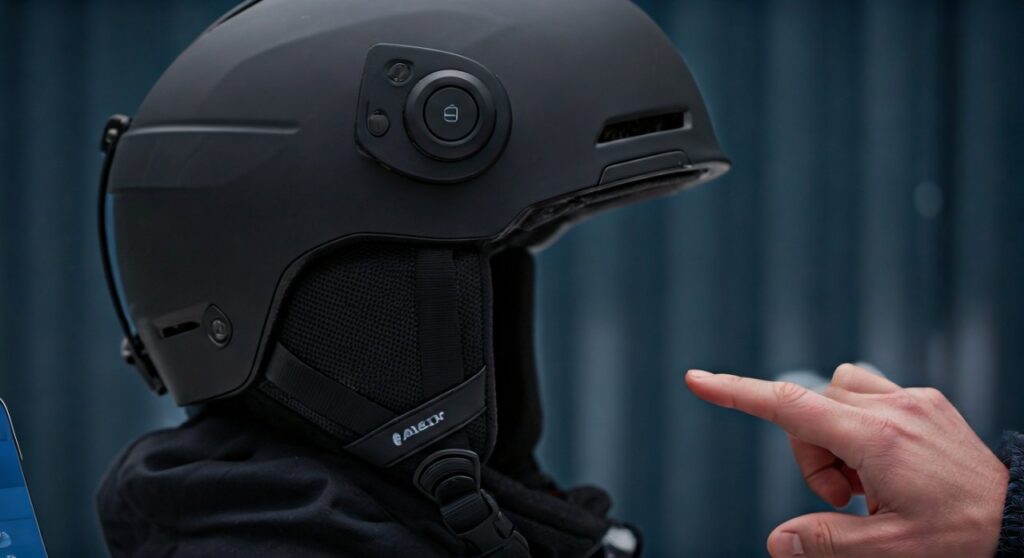
Connecting these headphones is designed to be glove-friendly and intuitive, ensuring you spend less time fiddling with tech and more time on the slopes or trails. Whether you are using the Nunchucks for your ski helmet or the Punks for your mountain bike gear, the pairing process remains the core foundation for accessing high-fidelity audio and group communication.
Key Takeaways: Quick Setup Summary
Before diving into the technical details, here is a high-level summary of the Aleck pairing process and essential tips for first-time users:
- Pairing Mode: Triggered by a long press (4-5 seconds) until the LED flashes Red/Blue.
- Primary Connection: Establish a standard Bluetooth connection through your phone’s system settings first.
- The Aleck App: Essential for Group Comm (Push-to-Talk) and Friend Finder features.
- Device Reset: If pairing fails, a long press of 10 seconds usually clears the pairing list.
- Compatibility: Works seamlessly with both iOS and Android platforms.
Step-by-Step: How to Pair Aleck Headphones to Your Smartphone
Pairing your Aleck headphones (specifically the Aleck Nunchucks or Punks) requires a specific sequence to ensure the Bluetooth handshake is successful. Follow these steps for a stable connection.
Step 1: Charge Your Device
Never attempt to pair your headphones with a low battery. Ensure your Aleck wireless audio system is charged to at least 50%. A low charge can cause the Bluetooth signal to drop or prevent the device from entering pairing mode entirely.
Step 2: Enter Pairing Mode
With the headphones powered off, locate the main button (on the right earpiece for Nunchucks). Press and hold the button. You will hear a “Power On” voice prompt, but do not let go. Continue holding until the LED light begins to flash red and blue. This signifies the device is “discoverable.”
Step 3: Enable Bluetooth on Your Phone
Navigate to your phone’s Settings > Bluetooth. Ensure the toggle is switched to On. Your phone will automatically begin scanning for nearby devices.
Step 4: Select the Aleck Device
Under the “Other Devices” or “Available Devices” list, look for the name of your specific hardware. It will usually appear as “Aleck Nunchucks” or “Aleck Punks.” Tap the name to initiate the bond.
Step 5: Confirm Connection
Once connected, the LED on the headphones will typically transition to a slow blue blink or stay solid for a moment. You will also hear a voice prompt saying “Connected.”
Optimizing Your Experience: The Aleck App Integration
Knowing how to pair Aleck headphones to your phone is only half the battle. To unlock the true power of these devices—like the unlimited range group comms—you must sync them with the Aleck App.
The “Party Mode” Connection
Unlike standard walkie-talkies that rely on line-of-sight radio waves, Aleck uses your phone’s data connection.
- Download the Aleck App from the Apple App Store or Google Play Store.
- Create an account and allow permissions for Location and Bluetooth.
- The app will automatically detect your paired Aleck headphones.
- Join or create a “Party” to start talking to your group via the Push-to-Talk (PTT) button on your earpiece.
Calibrating the Audio
Inside the app, you can adjust the Equalizer (EQ) settings. From my experience testing these in high-wind conditions on a ridge, boosting the mid-range frequencies helps significantly with voice clarity when your group members are shouting over the wind.
Comparing Aleck Models: Pairing and Specs
While the pairing logic is similar across the brand, the hardware form factors differ. Here is a breakdown of the current Aleck lineup:
| Feature | Aleck Nunchucks | Aleck Punks |
|---|---|---|
| Primary Use | Snowboarding / Skiing | Mountain Biking / Gravel |
| Fit Type | Helmet Drop-in | Near-ear (Straps) |
| Bluetooth Version | 5.2 | 5.2 |
| Pairing Trigger | 5-sec Hold (Right Ear) | 5-sec Hold (Both/Either) |
| Water Resistance | IPX4 (Sweat/Snow) | IPX4 (Dust/Rain) |
| App Support | Full Integration | Full Integration |
Expert Tips for a Reliable Connection on the Trail
As someone who has spent hundreds of hours using Aleck Nunchucks in the backcountry, I have learned that the environment can affect your connection. Here is how to maintain a rock-solid link:
- Phone Placement: Keep your phone in a chest pocket rather than a backpack. Bluetooth signals have a hard time passing through the human body. Minimizing the distance between the phone and the Aleck receiver prevents “skipping” audio.
- Firmware Updates: Periodically connect your headphones to a computer and check the Aleck website for firmware updates. These updates often fix “handshake” bugs with newer versions of iOS or Android.
- Disable Battery Optimization: On Android devices, ensure the Aleck App is not “optimized” for battery. If the system puts the app to sleep, your Push-to-Talk functionality will fail even if the headphones are paired.
Troubleshooting: What to Do if They Won’t Pair
If you are struggling with how to pair Aleck headphones, don’t panic. Electronic interference or “ghost” pairings are common.
Clear the Pairing History
If the device is acting erratically, perform a Factory Reset. Hold the power button down for 10 full seconds. You will see the LED flash rapidly, indicating the memory has been wiped. Now, try the pairing process from scratch.
“Forget” the Device on Your Phone
Sometimes the phone remembers a “bad” connection. Go to your Bluetooth settings, tap the “i” or settings icon next to the Aleck name, and select “Forget This Device.” Restart your phone and try again.
Check for Simultaneous Connections
Aleck headphones generally prefer a single primary connection for the app to function correctly. Ensure your headphones aren’t accidentally connecting to your tablet or a friend’s phone nearby.
Advanced Features: Push-to-Talk and GPS
Once how to pair Aleck headphones is no longer a question, you can explore the advanced features that justify the premium price point.
- Friend Finder: This is a game-changer for families. Because the headphones are paired with the app and your phone’s GPS, you can see the real-time location of everyone in your “Party” on a map.
- Glove-Friendly Controls: The buttons on Aleck devices are oversized. You don’t need to pair via the screen once the initial setup is done; you can trigger Siri or Google Assistant with a double tap to make calls or change music entirely by voice.
Frequently Asked Questions (FAQs)
How do I put Aleck Nunchucks in pairing mode?
To put Aleck Nunchucks in pairing mode, ensure they are off, then press and hold the main power button for 5 seconds. The LED will flash red and blue, indicating they are ready to be discovered by your smartphone.
Can I pair Aleck headphones with multiple devices?
Aleck headphones use Multipoint technology, allowing you to pair with more than one device. however, for the best stability with the Aleck App and group communication features, it is recommended to stay connected to one primary smartphone during active use.
Why is my Aleck App not seeing my paired headphones?
If your headphones are connected via Bluetooth settings but not showing in the Aleck App, ensure that Location Services are set to “Always Allow” for the app. The app requires location data to manage the Bluetooth Low Energy (BLE) handshake and the Friend Finder map.
How do I reset my Aleck headphones?
You can reset your Aleck headphones by holding the power button for 10 seconds while the device is off. The LED will flash specifically to signal the reset, clearing all previous Bluetooth pairings from the internal memory.
Do Aleck headphones work with walkie-talkies?
No, Aleck headphones are Bluetooth-based and do not pair directly with traditional analog walkie-talkies. They use the Aleck App to create a digital comms network over your cellular data, providing much clearer audio and unlimited range.









