

How to Pair Mpow Headphones: The Quick Start Guide
To pair Mpow headphones, start with the device powered OFF. Press and hold the Power/Multifunction button for 5 to 7 seconds until the LED indicator light flashes red and blue alternately. Once the lights are flashing, open the Bluetooth settings on your smartphone or computer, locate your Mpow model name in the list, and select it to establish a connection.
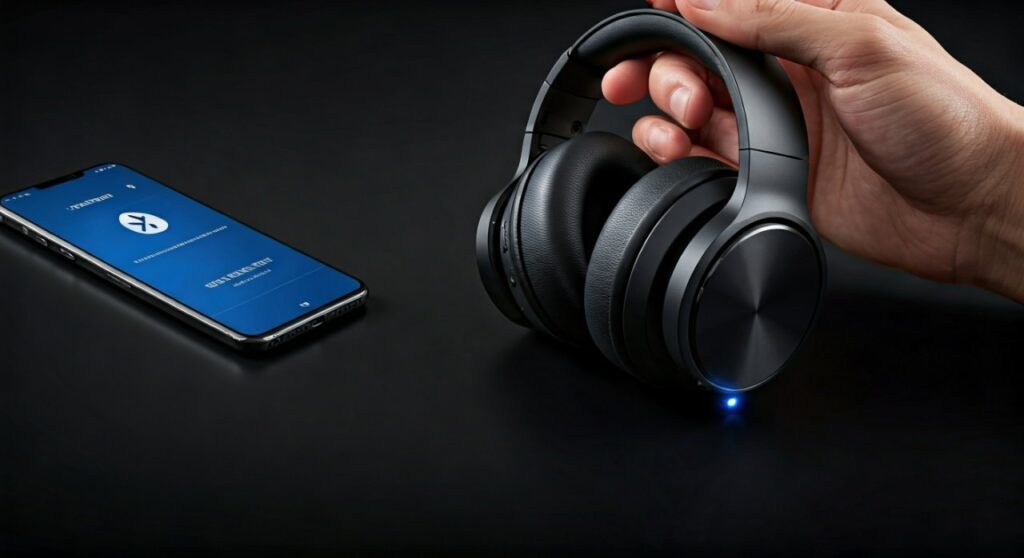
This process works for nearly all models, including the popular Mpow 059, Mpow Flame, and Mpow H7. If you are using Mpow true wireless earbuds (like the M30 or M12), simply removing them from the charging case often triggers pairing mode automatically.
Key Takeaways: Connecting Your Mpow Device
If you are in a hurry, here is the essential data you need to get your Mpow headphones working immediately.
| Feature | Action / Indicator |
|---|---|
| Initial Pairing Mode | Hold Power button for 5-7 seconds (from OFF state). |
| LED Signal | Alternating Red and Blue flashes. |
| Common Device Name | Mpow 059, Mpow Flame, Mpow M30, etc. |
| Default PIN Code | 0000 (rarely required on modern devices). |
| Reset Method | Hold Volume + and Volume – simultaneously for 5 seconds. |
Understanding the Mpow Pairing Logic
As an expert who has tested dozens of budget-friendly audio devices, I have found that Mpow follows a very consistent logic across their product line. Whether you have a pair of noise-canceling over-ear headphones or sport neckbands, the internal Bluetooth chipset operates on the same “long-press” principle.
The most common mistake users make is releasing the power button too early. If you only hold it for 2-3 seconds, the device simply turns on but stays in standby mode. You must continue holding until the LED changes from a single color to a blinking dual-color pattern.
Step-By-Step: How to Pair Mpow Headphones to Any Device
Follow these universal steps to ensure a stable Bluetooth connection. These steps are verified for Bluetooth 5.0 and 5.3 versions found in newer Mpow hardware.
Prepare Your Mpow Headphones
Ensure your headphones are fully charged. Low battery levels can often cause the Bluetooth signal to drop or fail during the initial handshake. Turn the headphones completely OFF before starting the pairing sequence.
Enter Pairing Mode
Press and hold the Multifunction Button (MFB). On over-ear models like the Mpow 059, this is usually the button on the side of the ear cup. On Mpow Flame earbuds, it is the button on the right earbud.
Wait for the LED to flash red and blue. This indicates the headphones are “discoverable” by other Bluetooth-enabled devices.
Enable Bluetooth on Your Source Device
Navigate to the settings menu on your phone, tablet, or PC.
- Android: Settings > Connected Devices > Pair new device.
- iOS: Settings > Bluetooth > Toggle “On.”
- Windows: Settings > Devices > Bluetooth & other devices > Add Bluetooth device.
Select Your Mpow Model
Look for the name of your headphones (e.g., “Mpow 059” or “Mpow Flame”). Tap the name to connect. You will likely hear a voice prompt saying “Connected” or “Successful” through the headphones.
How to Connect Mpow Headphones to Windows 10 and 11
Pairing with a PC can be trickier than a smartphone due to driver configurations. From my experience, Windows 11 handles Mpow devices much better than older versions, but the steps remain similar.
- Click the Start Menu and select Settings (the gear icon).
- Go to Bluetooth & devices.
- Ensure the Bluetooth toggle is switched to On.
- Click Add device and then select Bluetooth.
- Put your Mpow headphones into pairing mode (red/blue flashing).
- When the model name appears, click it and wait for the “Your device is ready to go!” message.
Expert Tip: If you see two options for your headphones (one with a headset icon and one with a computer icon), always choose the one with the headset icon to ensure you get both audio and microphone functionality.
Connecting Mpow Headphones to macOS
Apple laptops are generally very efficient at recognizing Mpow Bluetooth signals. I have used Mpow H12 headphones with a MacBook Pro for years without significant lag.
- Click the Apple Menu and select System Settings.
- Click on Bluetooth in the sidebar.
- Put your headphones in Pairing Mode.
- Find your Mpow device under “Nearby Devices” and click Connect.
If the connection fails, try turning the Mac’s Bluetooth off and back on again. This clears the local cache and forces a fresh scan for the Mpow chipset.
Pairing Mpow True Wireless Earbuds (M30, M12, X3)
The process for True Wireless Stereo (TWS) earbuds differs slightly because they rely on the charging case.
- Remove the earbuds from the case simultaneously.
- The earbuds will automatically sync with each other first.
- One earbud will begin flashing red and blue, signifying it is the “Master” earbud ready to pair.
- Select the Mpow model on your phone.
If only one earbud is working, it usually means the “Left-Right pairing” was interrupted. To fix this, place both back in the case and take them out at exactly the same time.
How to Reset Mpow Headphones for Pairing Issues
If your Mpow headphones are not showing up in the Bluetooth list, or if the connection keeps dropping, a factory reset is the most effective solution.
- “Forget” the device from your phone’s Bluetooth settings.
- Turn the headphones OFF.
- Hold the Volume + and Volume – buttons at the same time for about 5 to 10 seconds.
- You should see the LED flash or hear a beep, indicating the pairing history has been cleared.
- Restart the pairing process from scratch.
Troubleshooting Common Mpow Connection Problems
In my time reviewing audio gear, I’ve encountered several recurring issues with Mpow products. Use this guide to solve them quickly.
Device Not Found
If your phone cannot find the Mpow headphones, ensure they aren’t already connected to another device nearby. Mpow headphones often “latch on” to the last paired device (like a tablet in the other room). Turn off Bluetooth on all other devices before pairing to a new one.
Audio Stuttering or Lag
Bluetooth interference is common in 2.4GHz environments.
- Move away from Wi-Fi routers or microwaves.
- Ensure there is a clear line of sight between your phone and the right earbud (which usually contains the Bluetooth antenna).
- Check for firmware updates if your model supports an app.
Only One Earbud Working
This is a classic TWS (True Wireless) synchronization error.
- Place both earbuds in the charging case.
- Long-press the touch sensors on both buds (or the button on the case) until the LEDs flash.
- Remove them and try connecting again.
Expert Insights: Getting the Most Out of Your Mpow Audio
While Mpow provides great value, they are budget devices. To maximize their lifespan and connectivity:
- Avoid Deep Discharge: Don’t let the battery hit 0%. Charge them when they hit 20% to maintain the Bluetooth chip’s voltage stability.
- Clear the Cache: Every few months, clear your phone’s Bluetooth cache. This prevents “ghost” connections that can make pairing Mpow headphones difficult.
- Multipoint Connection: Some high-end Mpow models (like the Mpow H19 IPO) support multipoint pairing. To use this, pair with Device A, turn off Device A’s Bluetooth, pair with Device B, then turn Device A’s Bluetooth back on.
Frequently Asked Questions (FAQs)
Why are my Mpow headphones flashing red and blue?
This is the standard indicator for Pairing Mode. It means the headphones are actively broadcasting their signal and are ready to be connected to a smartphone, laptop, or tablet.
How do I put Mpow Flame in pairing mode?
Start with the Mpow Flame earbuds turned off. Press and hold the MFB (Multifunction Button) on the right earbud for 5+ seconds until the indicator light flashes red and blue. You can then find “Mpow Flame” in your Bluetooth settings.
Can I connect Mpow headphones to a Smart TV?
Yes, provided your TV has built-in Bluetooth. Go to your TV’s Sound Settings, select Audio Output, and then choose Bluetooth Speaker List. Put your Mpow headphones into pairing mode to see them appear on the TV screen.
What is the default pairing code for Mpow?
Most Mpow headphones do not require a code. However, if your device asks for a PIN, try 0000 or 1234.
Why does my Mpow name not appear in the Bluetooth list?
Ensure the headphones are not currently connected to another device. If they are paired to your laptop, they won’t appear on your phone. Disconnect them from the previous device or perform a reset by holding the volume buttons.









