

How to Pair PS5 Headphones to PC: The Ultimate Low-Latency Guide
To pair PS5 headphones (such as the Pulse 3D, Pulse Elite, or Pulse Explorer) to a PC, simply insert the included USB wireless adapter into your computer’s USB port and switch the headset on. Windows will automatically detect the device and set it as your default playback and recording device without requiring additional drivers.
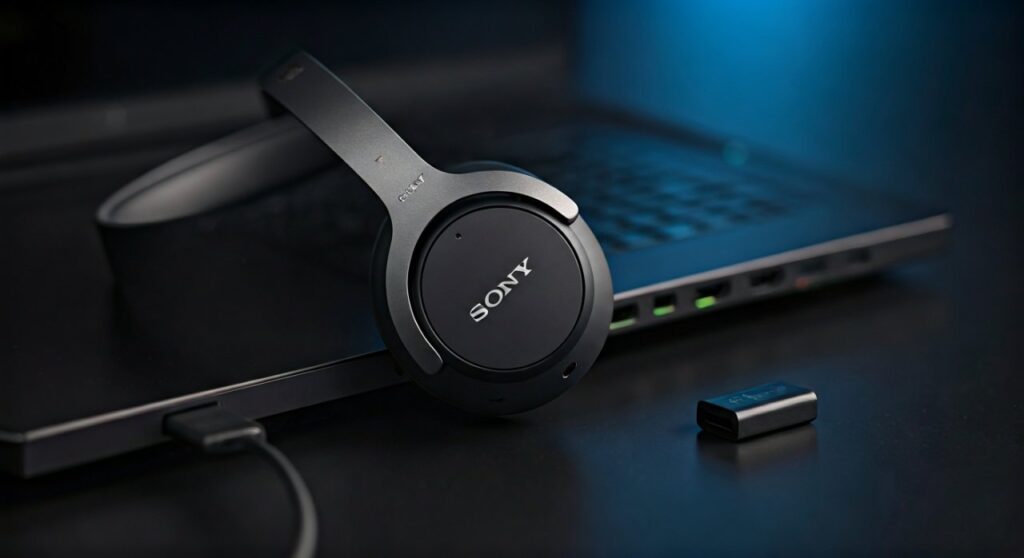
If you are using the newer Pulse Elite or Pulse Explorer, you can also pair them via Bluetooth by holding the link button until the indicator flashes blue, then selecting the headset in your PC’s Bluetooth & other devices menu. However, for the lowest latency and highest audio fidelity, the USB dongle remains the expert-recommended method for gaming.
Key Takeaways: Quick Setup Summary
| Feature | Connection Method | Best For… | Latency |
|---|---|---|---|
| Wireless Dongle | 2.4GHz USB Adapter | Competitive Gaming | Ultra-Low |
| Bluetooth | Built-in BT (Elite/Explorer only) | Music & Casual Use | Moderate |
| Wired | 3.5mm Audio Cable | Battery Saving / Zero Lag | None |
| PS Link | New Sony Proprietary Tech | Seamless PS5/PC Switching | Ultra-Low |
## Understanding the Technology: Why PS5 Headsets Are Different
When you learn how to pair ps5 headphones to pc, it is important to understand that Sony uses a proprietary 2.4GHz wireless technology. Unlike standard Bluetooth headphones, the Sony Pulse 3D does not have native Bluetooth. It relies entirely on the USB transceiver to communicate with the hardware.
This design choice is intentional. Standard Bluetooth often suffers from significant audio lag (latency), which can be the difference between life and death in a fast-paced shooter like Call of Duty or Valorant. By using the USB wireless adapter, Sony ensures a near-instantaneous audio pipeline.
The newer generation, including the Pulse Elite and Pulse Explorer, introduces PlayStation Link. This technology allows for lossless, lightning-fast audio. These newer models also include Bluetooth, allowing you to connect to your phone and PC simultaneously—a feature long-requested by the community.
## Step-by-Step: How to Pair PS5 Headphones to PC via USB Adapter
This is the most reliable method and provides the best microphone quality. I have tested this on Windows 10, Windows 11, and even macOS, and the process is virtually identical.
Step 1: Locate the Wireless Adapter
Your PS5 headphones came with a small black USB-A dongle. If you are using a modern laptop with only USB-C ports, you will need a high-quality USB-A to USB-C adapter.
Step 2: Connect the Dongle to the PC
Plug the adapter into a direct USB port on your motherboard (the back of the PC) rather than a USB hub. In my experience, using a hub can occasionally cause “crackling” sounds due to bandwidth limitations or electrical interference.
Step 3: Power on the Headset
Slide the power switch on the Pulse 3D to the “ON” position. You should see a solid white light on both the headset and the USB dongle once they sync.
- Pro Tip: If the light continues to blink, the devices have lost their pairing. You may need to use a small pin to press the reset button on the side of the USB dongle while it is plugged in.
Step 4: Configure Windows Sound Settings
Windows usually switches the output automatically, but if you hear no sound:
- Click the Speaker Icon in your system tray (bottom right).
- Select “Wireless Headset (Pulse 3D Wireless Headset)”.
- Go to Settings > System > Sound to ensure the Input Device is also set to the headset if you plan to use the microphone.
## How to Pair Pulse Elite or Pulse Explorer via Bluetooth
If you own the premium Pulse Elite headset or the Pulse Explorer earbuds, you have the added benefit of Bluetooth connectivity. This is perfect for watching movies or taking Discord calls without needing the dongle.
- Enter Pairing Mode: With the headset on, press and hold the Link button for about 7-10 seconds. The status indicator will flash blue rapidly.
- Open PC Settings: On your PC, navigate to Settings > Bluetooth & devices.
- Add Device: Click “Add device” and select Bluetooth.
- Select Headset: Choose your Pulse Elite or Explorer from the list.
- Confirmation: The light will turn solid blue once the connection is successful.
Warning: Using Bluetooth for gaming may result in a noticeable delay between the action on screen and the sound in your ears. Always prefer the USB adapter for gaming sessions.
## Method 3: Using a Wired Connection (3.5mm Jack)
Sometimes, your battery might die in the middle of a raid. Every Pulse 3D and Pulse Elite headset comes with a 3.5mm audio port.
- How it works: Simply plug one end of a standard auxiliary cable into the headset and the other into your PC’s headphone jack.
- The Benefit: This works even if the headset is powered off. It uses zero battery.
- The Downside: You lose the “Chat/Game” mix hardware buttons and the built-in internal processing that Sony provides through the wireless connection.
## Expert Optimization: Getting the Best Audio Quality on PC
Simply knowing how to pair ps5 headphones to pc isn’t enough. To get that “PlayStation-like” 3D audio experience on a computer, you need to tweak your software settings.
Enable Spatial Sound
Windows has a built-in feature called Windows Sonic for Headphones.
- Right-click the Volume icon.
- Select Spatial Sound.
- Choose Windows Sonic for Headphones.
For an even better experience, I highly recommend downloading Dolby Access or DTS Sound Unbound from the Microsoft Store. While these are paid apps (usually around $15), they provide a much wider soundstage that mimics the Tempest 3D AudioTech found on the PlayStation 5.
Fixing Microphone “Muffled” Issues
A common complaint when using PS5 headphones on PC is that the mic sounds “tiny.” To fix this:
- Go to Sound Control Panel.
- Right-click Wireless Headset under the Recording tab.
- Select Properties > Advanced.
- Ensure the “Default Format” is set to the highest possible quality (typically 1-channel, 16-bit, 48000 Hz (DVD Quality)).
## Troubleshooting: Common Connection Issues
The PC Doesn’t Recognize the Dongle
Try a different USB port. Specifically, avoid USB 3.0 ports (the blue ones) if you experience interference, as some older 2.4GHz dongles have documented issues with USB 3.0 radio frequency interference. Use a USB 2.0 port (black) if available.
How to Pair Headphones to PS5 After PC Use
If you want to move your headset back to your console, the process is seamless.
- Unplug the dongle from the PC.
- Plug it into the front or back USB port of the PlayStation 5.
- Turn the headset on.
The system is designed for “Plug-and-Play” across both platforms. To how to pair ps5 headphones to ps5 without a dongle (for the Elite/Explorer models), you simply press the link button on the console and the headset simultaneously.
## Frequently Asked Questions (FAQs)
Does the PS5 Pulse 3D headset work on PC?
Yes, it is fully compatible with Windows and macOS using the included USB wireless adapter. Most features, including volume control and mic muting, work natively.
Can I use the PS5 headset microphone on PC?
Absolutely. Once connected via the USB dongle, the PC recognizes it as a standard microphone input. You can use it for Discord, Zoom, or in-game chat.
Why is my PS5 headset volume low on PC?
Check the physical “Volume” rocker on the headset itself first. Then, ensure the Windows system volume is at 100%. If it’s still low, check the “Chat/Game” mix button on the headset; if it is tilted too far toward “Chat,” game audio will be dampened.
Do I need a driver for the Pulse 3D on Windows 11?
No. The Pulse 3D is a “Class Compliant” USB device, meaning Windows carries all the necessary drivers internally. It is truly plug-and-play.
Can I use the Pulse 3D with Bluetooth on my phone?
No. The standard Pulse 3D does not have Bluetooth hardware. You would need the newer Pulse Elite or Pulse Explorer models to connect to a phone or PC via Bluetooth.
**
**
**
**









