

To pair your Sony WH-1000XM4 headphones, press and hold the Power button for approximately 7 seconds while the power is off. You will hear a voice prompt say “Bluetooth pairing” and the blue LED indicator will flash twice in a row, signaling that the device has entered pairing mode.
Unboxing a pair of Sony WH-1000XM4 headphones is an elite experience, but the initial setup can sometimes feel a bit technical for new users. Whether you are switching from the older WH-1000XM3 or upgrading to the latest Sony WH-1000XM5, understanding the nuances of Bluetooth connectivity is essential.
This guide provides a professional, step-by-step walkthrough to ensure your premium noise-canceling headphones are perfectly synced with all your devices, from smartphones to laptops.
Key Takeaways: Quick Setup Guide
If you are in a hurry, here is the essential data you need to connect Sony Bluetooth headphones WH-1000XM4 successfully.
| Feature | Action / Requirement |
|---|---|
| Initial Pairing | Hold Power Button for 7 seconds (LED flashes blue). |
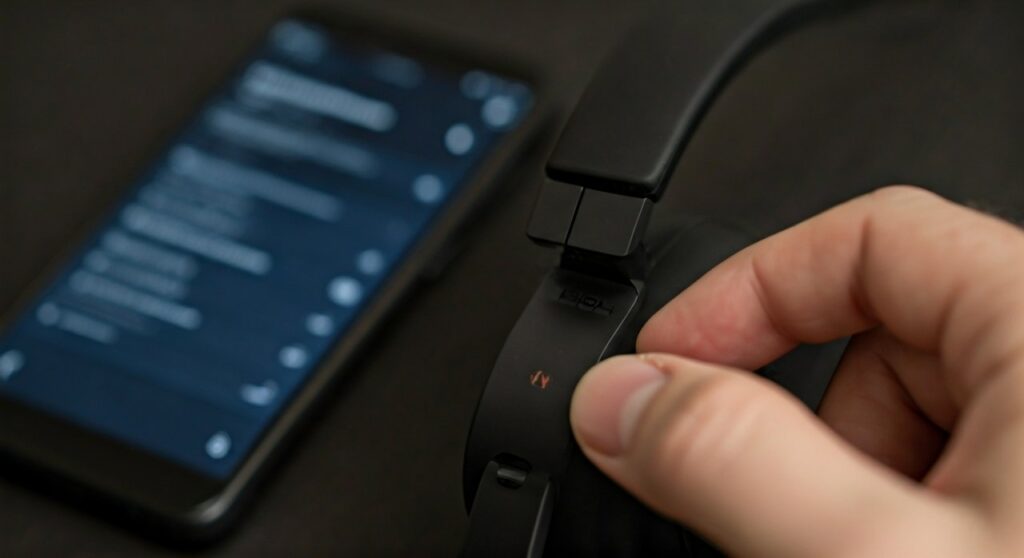
| NFC Pairing | Touch the “N” mark on the left earcup to an unlocked smartphone. |
| Multipoint Connection | Enable “Connect to 2 devices simultaneously” in the Sony Headphones Connect app. |
| Google Fast Pair | Simply turn on pairing mode near a supported Android device. |
| Reset Pairing | Hold Power and Custom buttons for 7 seconds while charging. |
How to Put Sony Headphones in Pairing Mode XM4
The most common hurdle for users is failing to trigger the pairing mode correctly. Simply turning the headphones “on” is often not enough if you are connecting to a second or third device.
- Ensure the headphones are turned off (no lights flashing).
- Press and hold the Power button on the left earcup.
- Keep holding past the “Power On” prompt.
- After about 7 seconds, the voice will say “Bluetooth pairing.”
- The blue LED indicator will flash in a distinct double-blink pattern.
Expert Tip: If this is your first time turning them on after purchase, they may enter pairing mode automatically. However, for subsequent devices, the 7-second hold is mandatory.
How to Connect Sony Headphones WH-1000XM4 to Android and iOS
Mobile devices offer the most seamless integration, especially when using the Sony Headphones Connect app.
Using the Sony Headphones Connect App
We highly recommend this method as it allows you to update Sony headphones WH-1000XM4 firmware immediately after pairing.
- Download the Sony Headphones Connect app from the Play Store or App Store.
- Put your Sony XM4 headphones into pairing mode.
- Open the app and follow the on-screen instructions.
- The app will automatically detect the Sony WH-1000XM4 and complete the handshake.
Using Standard Bluetooth Settings
- Go to Settings > Bluetooth.
- Ensure Bluetooth is toggled ON.
- Locate WH-1000XM4 in the “Available Devices” list.
- Tap the name to pair.
How to Pair Sony Headphones WH-1000XM4 with Windows 10/11
For professionals using these for Zoom or Teams calls, connecting to a PC is a top priority.
- Open Settings on your Windows PC.
- Navigate to Devices (or Bluetooth & devices in Windows 11).
- Click Add device > Bluetooth.
- Put your Sony WH-1000XM4 into pairing mode.
- Select the headphones when they appear in the list.
Swift Pair Note: Windows 10 and 11 often support Swift Pair. If your headphones are in pairing mode near your PC, a pop-up notification may appear automatically asking if you want to connect.
Connecting to macOS and MacBook
The process for Apple computers is similarly straightforward but requires a few extra clicks.
- Click the Apple Menu > System Settings (or System Preferences).
- Select Bluetooth from the sidebar.
- Put the Sony wireless headphones WH-1000XM4 into pairing mode.
- Find WH-1000XM4 in the “Nearby Devices” list and click Connect.
How to Use Sony Headphones WH-1000XM4 Multipoint Connection
One of the best features of the Sony WH-1000XM4 is the ability to connect to two devices at once—for example, your laptop for music and your phone for calls.
- Open the Sony Headphones Connect app.
- Go to the System tab.
- Toggle the switch for “Connect to 2 devices simultaneously.”
- The headphones will restart.
- Pair your second device using the standard Bluetooth settings while the first is still connected.
Note: When this feature is active, you cannot use high-quality LDAC audio on some older firmware versions, though recent updates have improved this compatibility.
Pairing Other Sony Models: XM5, XM3, and WF Series
While this guide focuses on the WH-1000XM4, the logic is very similar across the entire Sony lineup.
How to Pair Sony Headphones WH-1000XM5
The Sony WH-1000XM5 uses a dedicated pairing button or the same long-press method depending on the firmware. Usually, a 3-second press on the power button triggers the mode on the newer WH-1000XM5.
How to Pair Sony WF-1000XM4 and WF-1000XM5 Earbuds
For the earbud models like the Sony WF-1000XM4 or the newer Sony WF-1000XM5:
- Place both earbuds in the charging case.
- Leave the lid open.
- Press and hold the pairing sensors (touch pads) on both earbuds for about 5-7 seconds.
- The case LED will flash blue.
Legacy Models: WH-1000XM3 and WF-1000XM3
To connect Sony headphones WH-1000XM3, the process is identical to the XM4. For the Sony WF-1000XM3, you must remove the buds from the case and hold the touch sensors on both for 7 seconds.
Troubleshooting: Why Won’t My Sony WH-1000XM4 Connect?
If you are struggling to how to pair sony xm4 headphones, try these expert-verified fixes:
- Clear Pairing List: The XM4 can remember up to 8 devices. If the list is full, it may struggle. Reset the headphones to clear the memory.
- Distance: Ensure the device is within 3 feet (1 meter) during the initial pairing process.
- Battery Level: If the battery is below 10%, Bluetooth may become unstable. Charge for 10 minutes before trying again.
- NFC Conflict: If you are trying to pair via Bluetooth, make sure you aren’t accidentally triggering the NFC sensor with your phone.
How to Update Sony Headphones WH-1000XM4
Keeping your firmware current is vital for pairing stability.
- Connect your headphones to your phone.
- Open the Sony Headphones Connect app.
- A notification will appear if an update is available.
- Keep the headphones near your phone and do not turn them off during the transfer.
Updates often improve Bluetooth connectivity and add support for new features like improved voice pick-up for the Sony WH-1000XM4.
FAQ: Frequently Asked Questions
Why is my Sony WH-1000XM4 not showing up in Bluetooth?
This usually happens because the headphones are not in pairing mode. Ensure the LED is flashing blue twice repeatedly. If it is only flashing once slowly, they are just “on” but not “discoverable.”
Can I pair Sony WH-1000XM4 to a PS5 or Xbox?
PlayStation and Xbox consoles do not support standard Bluetooth audio natively. You will need a Bluetooth USB dongle or a 3.5mm audio cable plugged into the controller to use the Sony WH-1000XM4 with these consoles.
How do I reset my Sony XM4 to factory settings?
To factory reset, turn off the headphones. Connect them to a power source using the USB-C cable. Press and hold the Power button and the Custom button simultaneously for about 7 seconds. The indicator will flash blue four times.
Does the Sony WH-1000XM4 support Google Fast Pair?
Yes. When you put the Sony wireless headphones WH-1000XM4 into pairing mode near a modern Android device, a pop-up will appear on your phone screen allowing you to pair with a single tap.









