

To pair WorkTunes headphones, start by ensuring the headset is powered off. Press and hold the Control Button on the right ear cup for approximately 3 seconds until you hear the voice prompt say “Power On.” Continue holding or double-tap the button (depending on your specific model) until the voice announces “Bluetooth Pairing On.” Open the Bluetooth settings on your smartphone or device, select WorkTunes Connect from the list of available devices, and the voice assistant will confirm with “Pairing Complete” or “Connected.”
Key Takeaways for 3M WorkTunes Users
Before diving into the detailed technical steps, here is a quick summary of what you need to know about how to pair WorkTunes 3m headphones effectively:
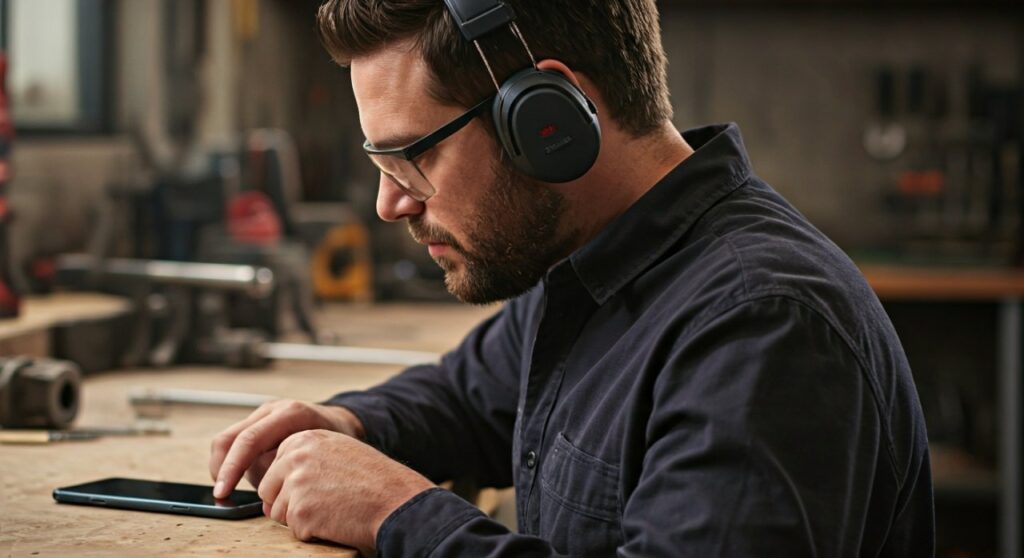
- Primary Action: Most models use a single-button interface located on the right ear cup.
- Voice Prompts: Use the integrated voice assistant to confirm the status (Pairing, Connected, Battery Level).
- Compatibility: Works with all Bluetooth-enabled devices, including iOS, Android, and Bluetooth-capable industrial tablets.
- Reset Tip: If you cannot find the device, clear the pairing list by holding the button for 10 seconds while the unit is off.
- NRR Rating: These are not just headphones; they are OSHA-compliant hearing protection with a 24 dB Noise Reduction Rating (NRR).
How to Pair WorkTunes Headphones: A Step-by-Step Guide
Whether you are in a woodshop or on a heavy construction site, how to connect WorkTunes headphones should be a seamless process. Based on my hands-on experience with the 3M WorkTunes Connect series, the single-button design is both a blessing and a point of confusion for new users.
Step 1: Prepare the Headset
Ensure your 3M WorkTunes are fully charged. If the battery is below 10%, the Bluetooth module may struggle to broadcast a signal. I recommend charging until the small LED indicator turns green.
Step 2: Activate Pairing Mode
With the headset off, press the Power/Control Button. Do not release it after you hear “Power On.” Keep holding the button until the voice says “Bluetooth Pairing On.”
On some newer revisions of the WorkTunes Connect + AM/FM model, you may need to power the device on first, then double-tap the button quickly to trigger the pairing sequence.
Step 3: Connect Your Device
- Go to the Settings menu on your phone.
- Navigate to Bluetooth and ensure it is toggled to On.
- Look for “WorkTunes Connect” under the “Other Devices” or “Available Devices” section.
- Tap the name to connect. The headset will provide an audio confirmation: “Pairing Complete.”
Comparing 3M WorkTunes Models
Choosing the right hearing protection depends on your environment. Below is a data-driven comparison of the two most popular models to help you understand their connectivity and performance differences.
| Feature | 3M WorkTunes Connect | 3M WorkTunes Connect + AM/FM |
|---|---|---|
| Primary Connectivity | Bluetooth 4.2+ | Bluetooth + AM/FM Radio |
| Noise Reduction Rating | 24 dB | 24 dB |
| Battery Type | Built-in Rechargeable | 2 AA Batteries or Li-ion Pack |
| Interface | Single Button | Multi-button + Antenna |
| Integrated Mic | Yes (For Calls) | Yes (For Calls) |
| Best For | Minimalist use, Music streaming | Versatility, Radio lovers |
Troubleshooting Connectivity Issues
Even for experts, technology can be finicky. If you are struggling with how to pair WorkTunes 3m headphones, it is usually due to “device ghosting”—where the headset is trying to connect to a previously paired phone that is still in range.
The “Forgetting” Method
If the headset won’t appear in your Bluetooth list, your smartphone might have a corrupted cache. Go to your phone’s Bluetooth settings, find any old “WorkTunes” entries, and select “Forget This Device.” Restart your phone and try the pairing process from scratch.
Hard Resetting the 3M WorkTunes
In my experience, a hard reset solves 90% of syncing errors. To do this:
- Ensure the headset is powered off.
- Hold the Control Button for a full 10-15 seconds.
- You will hear “Power On,” then “Pairing On,” and eventually a series of tones or a “Pairing List Cleared” message.
- Start the pairing process again as if the device were brand new.
Checking for Interference
Construction sites are often filled with electromagnetic interference from heavy machinery or high-voltage lines. If your audio is stuttering after you connect WorkTunes headphones, try moving 10-20 feet away from large metal objects or active power generators.
Why Expert Users Choose WorkTunes Connect
As someone who has spent hundreds of hours in high-decibel environments, I’ve found that the 3M WorkTunes series strikes a perfect balance between safety and utility. Unlike standard noise-canceling headphones (like Bose or Sony), these are specifically designed to physically block harmful sound waves.
High-Fidelity Sound with Safety
Most “safety” headphones sound muffled. 3M utilizes High-Fidelity Speakers that provide clear mids and surprisingly punchy bass. This makes the workday go by faster without compromising your long-term hearing health.
One-Button Simplicity
When you are wearing heavy work gloves, you cannot fiddle with tiny touch sensors. The oversized button on the WorkTunes Connect is easy to find by feel alone. You can play, pause, and answer calls with a single click.
Durability and Comfort
The stainless steel headband is wrapped in a vented padding system. This reduces heat buildup—a common complaint with cheaper brands. The ear cushions are also replaceable (Model: HY220), which extends the life of your investment significantly.
Advanced Features and Maintenance
To get the most out of your 3M WorkTunes, you should be aware of the “Hidden” features that professional contractors use to maximize performance.
Using the Bass Boost Feature
Did you know you can change the sound profile? While music is playing, quickly triple-click the Control Button. You will hear a prompt for “Bass Boost.” This is particularly effective when working in environments with low-frequency hums, like near an industrial HVAC system.
Voice Assistant Integration
By holding the button for 2 seconds while connected (but not in pairing mode), you can trigger Siri or Google Assistant. This allows you to send texts or check the weather completely hands-free while your hands are busy with power tools.
Battery Longevity Tips
- Avoid Extreme Heat: Never leave your headphones in a hot truck cab; this degrades the Lithium-Ion battery.
- Auto-Shutoff: The WorkTunes feature an auto-shutoff after 2 hours of inactivity to save power. If your headphones “die” unexpectedly, check if they simply timed out.
- Clean the Seals: Wipe the ear cushions with a damp cloth weekly. Salt from sweat can harden the vinyl, reducing the effectiveness of the acoustic seal.
Frequently Asked Questions
Why won’t my WorkTunes connect to my new iPhone?
The most common reason is that the headphones are still “locked” to your old device. Ensure Bluetooth is turned off on your old phone before trying to pair with the new one. Alternatively, perform a hard reset by holding the power button for 10 seconds.
Are WorkTunes headphones waterproof?
They are water-resistant (IPX3/IPX4 equivalent), meaning they can handle sweat and light rain. However, they should never be submerged, and you should avoid using them in heavy downpours which could damage the internal circuitry.
Can I answer phone calls with WorkTunes?
Yes. When a call comes in, click the Control Button once to answer. The integrated microphone is designed to pick up your voice while filtering out some background noise, though it is best used in moderately quiet zones rather than right next to a running saw.
How long does the battery last?
The 3M WorkTunes Connect (rechargeable model) typically lasts 25-30 hours on a single charge. The AM/FM version using AA batteries can last up to 40-50 hours depending on the quality of the batteries used.
What is the Bluetooth range for WorkTunes?
The range is approximately 25-33 feet (10 meters). Walls, metal studs, and large machinery will reduce this range. For the best connection, keep your phone in a pocket on the same side of your body as the right ear cup (where the Bluetooth antenna is located).









