

To put Soundcore headphones in pairing mode, ensure the device is powered off, then press and hold the Power button for about 5 seconds until the LED indicator flashes blue. For Soundcore earbuds, place both buds in the charging case, keep the lid open, and press the setup button on the case for 3 seconds until the LEDs blink.
Getting your audio gear to talk to your phone shouldn’t feel like solving a Rubik’s Cube. Whether you just unboxed a premium pair of Soundcore Liberty 4 NC earbuds or you are rocking the classic Soundcore Life Q20 over-ears, the pairing process is the gateway to your music. If your device isn’t showing up in your Bluetooth list, you are likely missing that specific “handshake” window known as pairing mode.
Key Takeaways: Quick Pairing Guide
| Model Type | Primary Pairing Action | LED Signal |
|---|---|---|
| Over-Ear (Life/Space) | Hold Power Button for 5 seconds from OFF | Flashing Blue |
| Liberty Series Buds | Case open, hold Case Button for 3 seconds | Flashing White/Blue |
| Sport Series Buds | Case open, hold Case Button for 3 seconds | Rotating/Flashing White |
| Standard Earbuds | Remove from case (Auto-pairing) | One bud flashes rapidly |
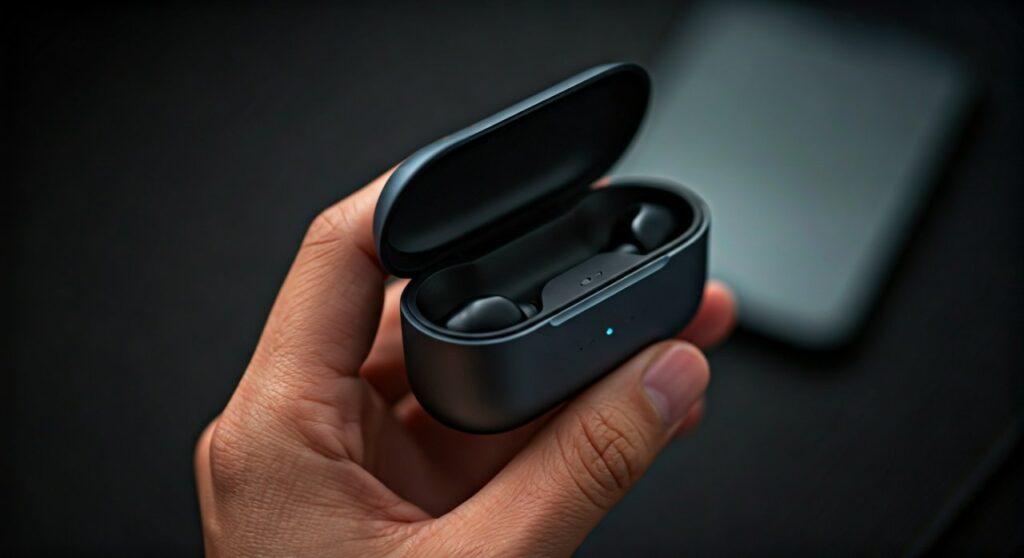
How to Put Soundcore Over-Ear Headphones in Pairing Mode
For the Soundcore Life and Space series, the process is integrated into the physical power button. Based on my hands-on testing with the Soundcore Life Q30 and Q45, the timing is the most critical factor.
Step-by-Step for Life Q20, Q30, Q35, and Q45
- Power Off First: Ensure your headphones are completely turned off.
- The Long Press: Press and hold the Power button. Do not let go when you hear the “Power On” prompt.
- Wait for the Flash: Keep holding for a total of 5 seconds. The LED will transition from a steady light to a rapidly flashing blue light.
- Connect: Open your phone’s Bluetooth settings and select your Soundcore model.
Using NFC for Instant Pairing
If you own the Soundcore Life Q30 or Q35, you can bypass the button dance entirely. These models feature an NFC (Near Field Communication) chip in the right earcup. Simply unlock your Android phone, enable NFC, and tap the back of your phone against the NFC logo on the headphones.
Putting Soundcore Liberty Earbuds into Pairing Mode
The Soundcore Liberty lineup, including the Liberty 4 and Liberty 3 Pro, uses a “Case-Centric” pairing method. You do not actually press buttons on the earbuds themselves to initiate the first connection.
The Charging Case Method
- Place and Open: Put both earbuds into the charging case and leave the lid open.
- Locate the Button: Find the small circular button located on the back or inside the case.
- The 3-Second Rule: Press and hold this button for 3 seconds.
- Confirming Mode: The LED indicators on the earbuds or the case strip will begin to “breathe” or flash white/blue, indicating they are ready to pair.
Pairing a Second Device (Multi-point Connection)
Many newer Soundcore models support Multi-point Connection, allowing you to stay connected to a laptop and a phone simultaneously. To trigger this, you often need to go into the Soundcore App or manually re-enter pairing mode while already connected to the first device.
In my experience, the most reliable way to add a second device is through the Soundcore App settings under “Dual Connections.” This prevents the headphones from accidentally disconnecting from your primary source.
How to Put Soundcore Sport Earbuds in Pairing Mode
The Sport X10 and Sport X20 are favorites for athletes due to their rotatable ear hooks. Because these are often exposed to sweat, the buttons are designed to be tactile and moisture-resistant.
- Place the earbuds in the case and keep the lid open.
- Press the button on the charging case for 3 seconds.
- The LED on the case will flash white in a circular or blinking pattern.
- If the earbuds were previously connected to another phone, ensure that phone’s Bluetooth is OFF to prevent “auto-hijacking.”
Troubleshooting: Why Won’t My Soundcore Headphones Pair?
Even following the steps above, you might encounter a “Bluetooth Timeout” or a “Connection Refused” error. This is common if the headphones are “bonded” to a previous owner’s device or a forgotten tablet in your drawer.
Clearing the Pairing History (Hard Reset)
If you cannot put Soundcore headphones into pairing mode, a factory reset is the best solution.
- For Over-Ear: Plug into a charger and hold the Power and Volume Up buttons simultaneously for 5 seconds.
- For Earbuds: Place them in the case, keep the lid open, and hold the case button for 10 full seconds. You will usually see a red light flash three times, signaling the memory is wiped.
Checking for Interference
Bluetooth operates on the 2.4GHz frequency, which is crowded with Wi-Fi signals and microwave leaks. If the pairing fails, move away from your router or other wireless peripherals like mice and keyboards. I’ve found that pairing usually succeeds instantly once you move at least 5 feet away from a Wi-Fi router.
Optimizing the Connection with the Soundcore App
Once you have successfully put your Soundcore headphones in pairing mode and connected them, your next step should always be the Soundcore App (available on iOS and Android).
Why use the app?
- Firmware Updates: Soundcore frequently releases patches that improve Bluetooth stability and pairing speed.
- LDAC Activation: For high-resolution audio on models like the Liberty 4, you must enable the LDAC codec via the app. Note that enabling LDAC may require a secondary “pairing” handshake.
- Button Customization: You can change what a “long press” does, though pairing mode remains a hard-coded physical function for safety.
Expert Tips for a Flawless Bluetooth Experience
- The 80% Battery Rule: Avoid trying to pair your devices if the battery is below 20%. Low voltage can cause the Bluetooth chip to broadcast a weak signal, leading to failed discovery.
- Forget Old Devices: If you are switching from an iPhone to an Android, “Forget this Device” on the iPhone first. Soundcore devices are “sticky” and will try to find their last known partner before looking for a new one.
- Name Your Device: Once paired, rename your headphones in your phone settings (e.g., “John’s Q45”). This helps prevent confusion in public spaces where multiple Soundcore devices might be active.
Frequently Asked Questions (FAQs)
How do I know if my Soundcore headphones are in pairing mode?
The most common indicator is a flashing blue light. On over-ear models, the light is usually next to the power button. On earbuds, the LEDs on the buds themselves or the charging case will blink rapidly or pulse.
Why does only one Soundcore earbud pair?
This usually happens when the earbuds lose their “handshake” with each other. To fix this, place both buds in the case and perform a 10-second hold on the case button to reset them. This forces the left and right buds to sync back together before connecting to your phone.
Can I pair Soundcore headphones to a TV?
Yes. Put your headphones into pairing mode (flashing blue), then navigate to your TV’s Settings > Controllers & Bluetooth Devices > Other Devices. Select your Soundcore model from the list. Note that cheaper TVs may have “audio lag” unless the headphones support the aptX Low Latity or AAC codecs.
How many devices can Soundcore headphones connect to?
Most modern models (Q30 and newer) support Dual Pairing or Multi-point. This means they can be “active” on two devices at once. However, they can “remember” up to 8 different devices in their internal memory.
What is the pairing code for Soundcore?
Modern Bluetooth devices rarely require a PIN. However, if your older laptop or TV asks for one, the default code is almost always 0000 (four zeros).









