

Understanding How to Reset Optoma Projector Without Remote
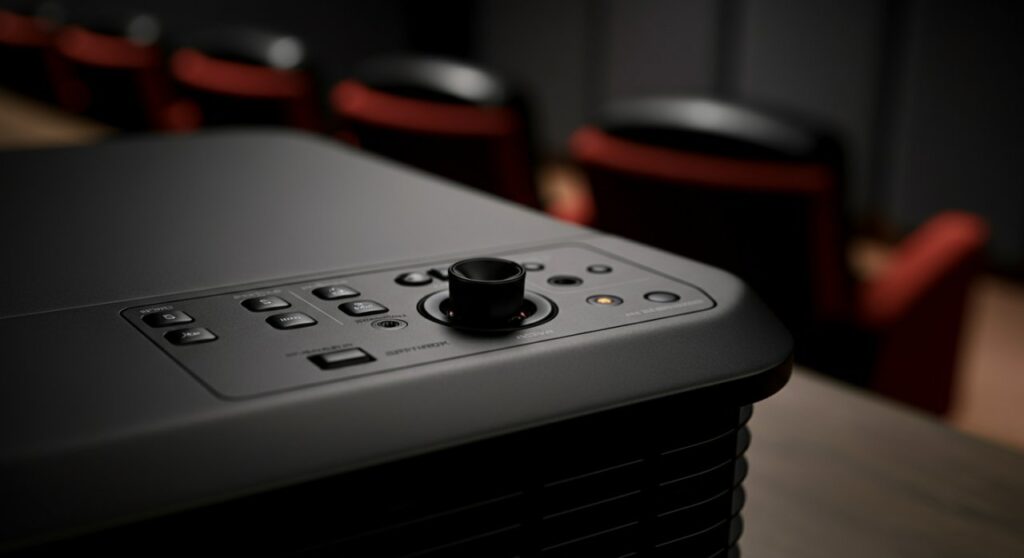
If you have lost or broken your remote, you can still perform an Optoma projector reset by using the physical control panel buttons located directly on the chassis of the device. Most models allow you to navigate the OSD (On-Screen Display) menu or trigger a factory reset sequence by pressing a combination of the Menu, Enter, and Power buttons simultaneously. This process effectively restores your device to its original out-of-the-box settings, resolving common software glitches or connectivity issues without requiring an external controller.
TL;DR: Quick Reset Summary
If you are in a hurry, follow this quick reference table to determine the best method for your situation.
| Reset Method | Best For | Requirement |
|---|---|---|
| On-board Menu | Settings adjustments | Working physical buttons |
| Button Combination | Hard factory reset | Physical buttons & Power |
| RS232/Serial | Advanced troubleshooting | PC & Cable connection |
| Control App | Daily navigation | Projector on local network |
Step-by-Step: How to Reset Optoma Projector Without Remote
Performing a hard reset on your Optoma projector is often the fastest way to fix unresponsive software or persistent input signal errors. Follow these steps carefully to ensure a successful restoration.
Method 1: Using the On-Board Control Panel
Most modern Optoma units feature a physical control panel on the top or side. This is your primary interface when the remote is missing.
- Power on the projector using the physical Power button.
- Locate the Menu button on the device chassis and press it to open the OSD menu.
- Use the directional arrows (often labeled as Volume or Source buttons) to navigate to the Settings or Options tab.
- Find the Reset or Factory Default option and press Enter.
- Confirm your selection by highlighting Yes and pressing Enter again.
Method 2: The Physical Button Combination
Some legacy models require a specific key combination during the startup sequence to trigger a factory reset.
- Ensure the projector is plugged into a power source but is currently in Standby mode.
- Press and hold the Menu and Power buttons simultaneously for approximately 5 to 10 seconds.
- Watch for the LED indicator lights to flash, signaling that the device is processing the reset.
- Once the projector restarts, it will be restored to factory default settings.
Advanced Solutions for Troubleshooting
If the standard methods fail, you may need to utilize digital interfaces. Advanced users often find these methods more reliable for persistent firmware issues.
Using the Optoma Connect App
If your projector is a “Smart” model with Wi-Fi capabilities, you may be able to control it via your smartphone.
- Download the official Optoma Connect or SmartProjection app from your app store.
- Ensure both your phone and projector are on the same local network.
- Connect the app to the projector to gain a virtual remote interface.
- Navigate to the Settings menu within the app to perform the factory reset.
Serial (RS232) Command Reset
For enterprise or home theater enthusiasts with an RS232 port, you can send reset commands via a terminal program like PuTTY on a PC.
- Connect a serial-to-USB cable from your laptop to the projector.
- Open your terminal software and set the correct Baud Rate (usually 9600 or 115200).
- Input the specific HEX code provided in your projector’s user manual to force a system reset.
Best Practices After Performing a Reset
Once you have successfully executed the Optoma projector reset, the device will act as if it is brand new. You will need to reconfigure several settings to ensure optimal performance.
- Keystone Correction: Manually adjust the vertical and horizontal alignment.
- Color Profile: Re-select your preferred mode (e.g., Cinema, Bright, or Game).
- Lamp Mode: Ensure the lamp settings match your environment (e.g., Eco mode for longer bulb life).
- Source Detection: Check if your HDMI inputs are correctly mapped to your devices.
Frequently Asked Questions
Can I reset an Optoma projector if the buttons are broken?
If the physical buttons are non-functional, you cannot perform a hardware reset directly on the unit. You must either repair the buttons, use an RS232 serial connection, or attempt to use the Optoma mobile app if the device is already networked.
Will a factory reset erase my lamp timer?
No, a factory reset typically only clears software configurations, display settings, and user preferences. The lamp usage hours are stored in a different memory partition and will remain unchanged.
What should I do if the projector doesn’t respond to the reset?
If the device remains unresponsive, perform a hard power cycle by unplugging the power cord for at least 30 minutes. This drains the internal capacitors and can often clear persistent firmware freezes that a button-based reset cannot reach.
Is there a master reset code for all Optoma models?
There is no single master code, as navigation menus vary by series (e.g., HD series vs. EH series). Always consult your specific model’s manual for the correct sequence of buttons to trigger the Factory Reset function.









