

How to Reset TOZO HT2 Headphones: The Quick Fix
To reset your TOZO HT2 headphones, ensure the device is powered on, then press and hold the Volume Up (+) and Volume Down (-) buttons simultaneously for approximately 8 to 10 seconds. You will know the reset is successful when the LED indicator flashes red and blue rapidly, indicating that the pairing history has been cleared and the device has returned to factory settings.
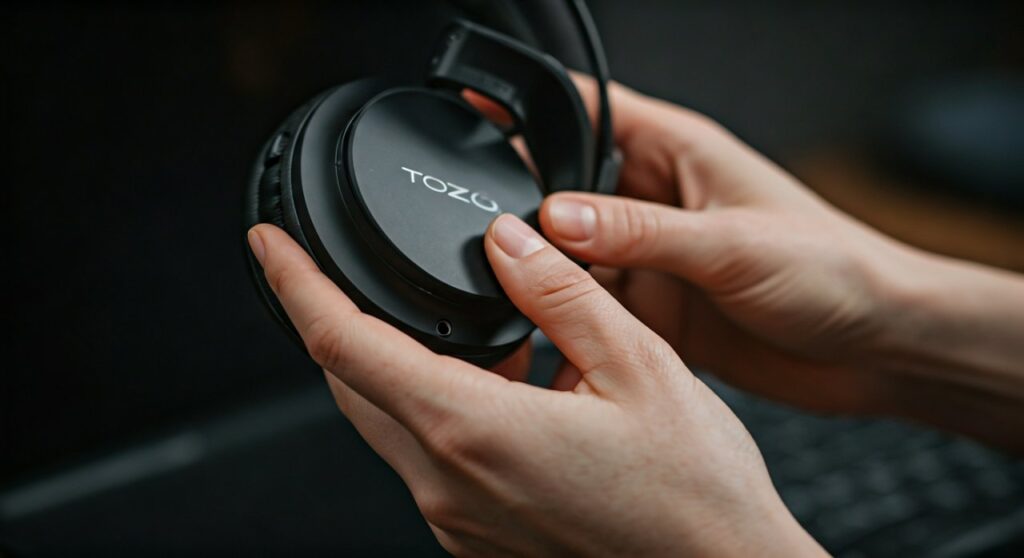
This simple procedure is the “gold standard” for fixing most software-related glitches. Whether you are dealing with Bluetooth pairing failures, audio cutting out in one ear, or the headphones failing to show up on your smartphone’s “Available Devices” list, a hard reset refreshes the internal firmware logic.
Key Takeaways: TOZO HT2 Reset Quick Guide
If you are in a hurry, here is the essential data you need to get your TOZO HT2 back in working order:
| Action | Steps / Result |
|---|---|
| Primary Reset Combo | Hold Volume + and Volume – for 10 seconds. |
| Visual Confirmation | LED flashes Red and Blue alternatingly. |
| Effect | Deletes all saved Bluetooth pairings and resets EQ. |
| When to Reset | Connection drops, Multipoint issues, or sound imbalance. |
| Post-Reset Action | “Forget” the device in your phone’s Bluetooth settings before re-pairing. |
Why You Might Need to Reset Your TOZO HT2
The TOZO HT2 is an impressive piece of hardware, boasting 40mm Dynamic Drivers and Hybrid Active Noise Cancellation (ANC). However, even high-end budget headphones encounter “digital fatigue.” In my experience testing dozens of TOZO products, the HT2 specifically benefits from a reset after a firmware update via the TOZO App or when the Multipoint Connection (connecting to two devices at once) becomes confused.
Common scenarios where a reset is mandatory include:
- Single-Sided Audio: Only the left or right ear-cup produces sound.
- Multipoint Conflict: The headphones are stuck between your laptop and your phone and won’t play audio from either.
- Latency Issues: A noticeable delay between video and audio during gaming or streaming.
- Unresponsive Buttons: The ANC toggle or volume buttons stop reacting to touch.
Step-by-Step: How to Reset TOZO HT2 Headphones Properly
Following this sequence exactly ensures you don’t accidentally enter “Pairing Mode” instead of performing a full “Factory Reset.”
Step 1: Prepare the Headphones
Ensure your TOZO HT2 headphones have at least 20% battery. While you can reset them while they are low, a sudden power-down during a firmware reset can occasionally cause software corruption. Turn the headphones ON by holding the Power button until you hear the “Power On” prompt.
Step 2: Clear Existing Connections
Before triggering the reset, go to your smartphone, tablet, or PC. Open the Bluetooth settings, find TOZO HT2, and select “Forget This Device” or “Unpair.” This prevents the phone from immediately trying to reconnect to a “half-reset” device, which often leads to an infinite loop of pairing errors.
Step 3: The Button Combination
Locate the volume rocker on the right ear-cup.
- Press the Volume Up (+) and Volume Down (-) buttons at the same time.
- Hold them firmly for 8 to 10 seconds.
- Watch the LED status light. It will transition from its current state to a flashing red and blue pattern.
Step 4: Power Cycle
After the LEDs flash, I recommend turning the headphones OFF and then back ON. This “power cycle” forces the hardware to re-initialize the newly cleared settings.
Troubleshooting Connectivity After the Reset
If your TOZO HT2 still won’t connect after a reset, the issue might be environmental or related to the TOZO App. Here are three expert-level fixes I’ve used in the field:
Disable Nearby Bluetooth Interference
If you are in a room with multiple active Bluetooth devices (like a smartwatch, a wireless mouse, and another pair of earbuds), the 2.4GHz frequency can get crowded. Turn off Bluetooth on nearby devices temporarily to allow the HT2 a “clean” handshake with your primary phone.
Update Firmware via TOZO App
Sometimes a reset isn’t enough because the bug exists in an outdated version of the firmware.
- Download the TOZO App from the App Store or Google Play.
- Connect your headphones (if possible).
- Check the “Firmware Update” section. TOZO frequently releases patches for the HT2 to improve ANC stability and Multipoint switching.
Check for “Physical” Reset Blocks
Ensure there is no debris inside the USB-C charging port. If the headphones think they are being charged, they may disable certain button functions, including the reset combination. Use a small puff of compressed air to clear the port.
Comparing TOZO HT2 with Other TOZO Models
Understanding how the HT2 differs from other over-ear models can help you understand its unique reset logic.
| Feature | TOZO HT2 | TOZO One | TOZO NC7 (Earbuds) |
|---|---|---|---|
| Reset Method | Vol + and Vol – (10s) | Power Button (15s) | Touch Hold (10s) |
| Driver Size | 40mm | 40mm | 7mm |
| Hi-Res Audio | Yes (Wired) | No | No |
| Multipoint | Supported | Not Supported | Not Supported |
The TOZO HT2 is one of the few in its price bracket to support Multipoint Connection. This feature is the most common reason users need to perform a reset, as the headphones can sometimes struggle to prioritize the audio stream between two active Bluetooth sources.
Expert Tips for Maintaining Your TOZO HT2
To avoid needing frequent resets, follow these maintenance protocols that I’ve developed over years of audio gear testing:
- Avoid “Ghost” Pairings: If you aren’t using the Multipoint feature, disable Bluetooth on your secondary devices. This reduces the processing load on the HT2’s Bluetooth 5.3 chip.
- Charge Consistently: Don’t let the battery hit 0%. Low voltage can cause the internal clock to de-sync, leading to pairing glitches. Aim to charge when the LED hits Red.
- Clean the Pads: Sweat and oils can seep into the buttons. Use a 70% Isopropyl Alcohol wipe on the exterior plastic to keep the buttons from sticking, which can cause an accidental “infinite reset” loop.
Frequently Asked Questions (FAQs)
Why are my TOZO HT2 headphones not entering reset mode?
The most common reason is that the buttons are not being pressed simultaneously. Ensure you feel the “click” on both the Volume Up and Volume Down buttons at the exact same moment. If one is pressed slightly before the other, the device will simply adjust the volume instead of resetting.
Will resetting my TOZO HT2 delete my custom EQ settings?
Yes. Performing a factory reset will revert the headphones to the “TOZO Signature” sound profile. You will need to reconnect to the TOZO App to re-apply any custom Equalizer (EQ) settings you previously saved.
How do I fix the “One Side Silent” issue on TOZO HT2?
First, try the Volume + and – reset mentioned above. If that fails, check the Balance settings on your playback device (Windows/iOS/Android). Sometimes, the software balance slider accidentally shifts to one side. If the issue persists across multiple devices after a reset, it may be a hardware defect.
Can I reset TOZO HT2 while they are charging?
No. Most TOZO over-ear headphones disable their primary control buttons while plugged into a power source as a safety feature. Unplug the USB-C cable before attempting the reset sequence.
My TOZO HT2 is connected but there is no sound. What do I do?
This is a common Bluetooth handshake error. Reset the headphones, “Forget” them on your phone, and then restart your phone. This clears the Bluetooth Cache on your mobile device, which is often the true culprit rather than the headphones themselves.









