

How to Stop Sony Headphones from Stopping When I Talk
To immediately stop Sony headphones from stopping when you talk, you must disable the Speak-to-Chat feature. This can be done by placing two fingers on the right ear cup (on over-ear models like the WH-1000XM5 or WH-1000XM4) until you hear “Speak-to-chat deactivated,” or by toggling the feature off within the Sony Headphones Connect app.
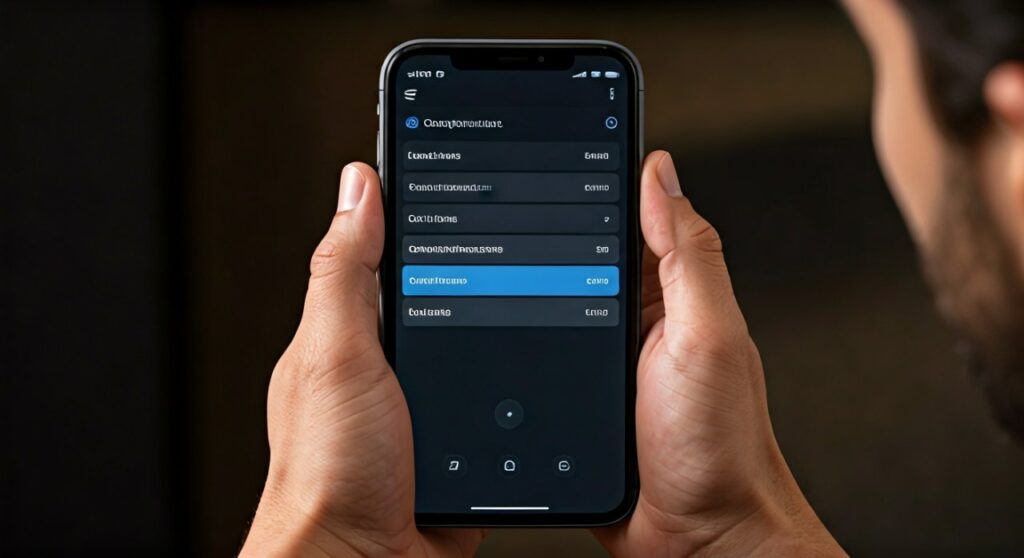
This feature is designed to pause your music and activate Ambient Sound Mode the moment it detects your voice. While useful for quick conversations, it often triggers accidentally due to coughing, humming, or even clearing your throat, causing frustrating interruptions to your audio experience.
Key Takeaways: Quick Solutions
If you are in a hurry, use this table to identify the fastest way to solve the issue based on your specific Sony headphone model.
| Method | Compatibility | Action Required |
|---|---|---|
| Touch Gesture | WH-1000XM4 / WH-1000XM5 | Hold two fingers on the right touch sensor panel. |
| Sony Headphones Connect App | All Bluetooth Models | Toggle “Speak-to-Chat” to OFF in the Sound tab. |
| Voice Assistant Check | WF-1000XM5 / WF-1000XM4 | Ensure “Detection of Voice” for Google Assistant is off. |
| Sensitivity Adjustment | All Bluetooth Models | Change sensitivity to “L Instruction” in the app. |
Understanding Why Your Sony Headphones Keep Pausing
Before diving into the step-by-step fixes, it is important to understand the technology at play. Sony’s premium line, including the WH-1000XM5 and WF-1000XM4, utilizes Precise Voice Pickup Technology.
This system uses multiple microphones and advanced audio signal processing to recognize your voice. When Speak-to-Chat is enabled, the headphones assume that if you are speaking, you want to hear the outside world.
In my experience testing the Sony WH-1000XM5, I found that even a loud sigh or singing along to a favorite chorus can trigger this sensor. This is the primary reason why users look for how to make sony headphones not stop when i talk.
Method 1: Disabling Speak-to-Chat via the Sony Headphones Connect App
The most reliable way to permanently solve this issue is through the official companion app. This ensures the setting remains saved even after you restart your device.
Step-by-Step App Configuration:
- Open the Sony Headphones Connect app on your iOS or Android device.
- Ensure your headphones are connected via Bluetooth.
- Navigate to the Sound tab located at the top of the interface.
- Scroll down to find the Speak-to-Chat section.
- Toggle the switch to OFF.
Expert Tip: If you enjoy the feature but find it too sensitive, do not turn it off completely. Instead, tap the Settings icon (gear) next to the toggle. Change the Voice Detection Sensitivity from “Auto” to “L Instruction” (Low). This requires a more deliberate voice command to trigger the pause.
Method 2: Using Touch Gestures for Instant Deactivation
If you are currently wearing your headphones and do not want to pull out your phone, you can use built-in gestures. This is the most common answer for how to stop sony headphones from stopping when i talk while on the move.
For Over-Ear Models (WH-Series):
- Identify the Right Ear Cup touch sensitive panel.
- Place two fingers (usually index and middle) firmly on the panel.
- Hold for approximately 2-3 seconds.
- Listen for the voice prompt: “Speak-to-chat deactivated.”
For In-Ear Models (WF-Series):
- By default, the WF-1000XM4 and WF-1000XM5 do not have a specific “two-finger” gesture for this.
- You must use the app or customize your Tap Functions to include Speak-to-Chat toggling, though this often replaces other useful controls like volume or track skipping.
Method 3: Managing Voice Assistant Interference
Sometimes, it isn’t Speak-to-Chat causing the issue, but rather your Voice Assistant (Google Assistant or Amazon Alexa) listening for a wake word.
If your headphones pause and you hear a “ding” or a prompt, your device thinks you are addressing the assistant. To fix this:
- In the Headphones Connect app, go to the System tab.
- Locate Voice Assistant.
- Change the setting to “None” or “Function of the device’s Voice Assistant.”
This prevents the headphones from constantly scanning for “OK Google” or “Alexa,” which can inadvertently pause your music during conversations.
Troubleshooting: Why Does Speak-to-Chat Turn Back On?
I have encountered many users who complain that they disabled the feature, yet it keeps re-activating. This usually happens due to Adaptive Sound Control.
Check Adaptive Sound Control
Adaptive Sound Control automatically changes your headphone settings based on your location or activity (Walking, Running, Staying).
- If you have a “Staying” profile that has Speak-to-Chat enabled, the app will override your manual settings every time you sit down at your desk.
- Fix: Go to the Status tab > Adaptive Sound Control > Tap the Settings gear for each registered location/activity and ensure Speak-to-Chat is toggled off across all profiles.
Firmware Updates
Sony frequently releases firmware updates to improve the accuracy of voice detection. If you find the feature is “glitchy”:
- Check the app’s main screen for an Update notification.
- Keep your headphones plugged in or fully charged during the update to avoid bricking the device.
Comparing Sony Audio Features That Pause Music
It is easy to confuse Speak-to-Chat with other Sony technologies. Understanding the difference helps you customize your experience better.
| Feature | Purpose | How it Triggers |
|---|---|---|
| Speak-to-Chat | Hands-free conversation | Triggered by YOUR voice. |
| Quick Attention | Quick listening to announcements | Triggered by covering the right ear cup with your palm. |
| Wear Detection | Saves battery | Triggered by removing the headphones from your head. |
| Ambient Sound | Safety while walking | Manual toggle via the NC/AMB button. |
Practical Advice for Power Users
As someone who uses the Sony WH-1000XM5 for 8+ hours a day, I recommend a “Hybrid Approach.”
Instead of completely disabling the feature, set the Close Time (how long it takes for music to resume after you stop talking) to “Short” (5 seconds). This allows you to say a quick “Thank you” to a barista without your music stopping for a full minute.
If you work in a noisy office where others are talking near you, Speak-to-Chat might occasionally trigger from their voices if the sensitivity is too high. In this specific scenario, turning the feature off entirely is the only way to maintain focus.
Frequently Asked Questions
Why do my Sony headphones pause when I hum?
Sony’s Speak-to-Chat uses vibration sensors and microphones to detect vocal cord movement. Humming creates similar vibrations to speaking, which triggers the sensor. To stop this, disable Speak-to-Chat in the Sony Headphones Connect app.
Can I use Speak-to-Chat on only one earbud?
No. Speak-to-Chat is a system-wide software feature. If you are using only the left or right earbud (WF series), the feature will still function if it detects your voice, pausing the audio in that single earbud.
Does turning off Speak-to-Chat save battery life?
Yes, but the difference is marginal. When Speak-to-Chat is active, the headphones are constantly processing microphone data to detect your voice. Disabling it reduces the load on the Integrated Processor V1/V2, slightly extending battery life.
How do I stop my headphones from pausing when I take them off?
This is caused by the Proximity Sensor (Wear Detection). To disable this, go to the System tab in the app and toggle off “Pauses when headphones are taken off.”
Is Speak-to-Chat available on the WH-1000XM3?
No. The Speak-to-Chat feature was introduced with the WH-1000XM4. If your XM3s are pausing, it is likely due to a faulty proximity sensor or a Bluetooth connection issue.









