

To sync Bluetooth headphones to any device, you must first put your headphones into pairing mode—usually by holding the power button for 5-10 seconds until the LED flashes—and then select the device name from the Bluetooth menu on your phone or computer. Once selected, the status will change to “Connected,” and your audio will begin streaming wirelessly.
Key Takeaways for Syncing Bluetooth Headphones
If you are in a hurry, here is the essential checklist to get your audio flowing:
- Pairing Mode is Critical: Your headphones are invisible to your phone unless they are in discovery/pairing mode (flashing red and blue lights).
- Distance Matters: Keep your headphones within 3 feet (1 meter) of your device during the initial sync.
- Battery Check: Ensure both devices have at least 30% battery to prevent syncing failures.
- Forget and Reset: If a sync fails, “Forget” the device in settings and restart the process.
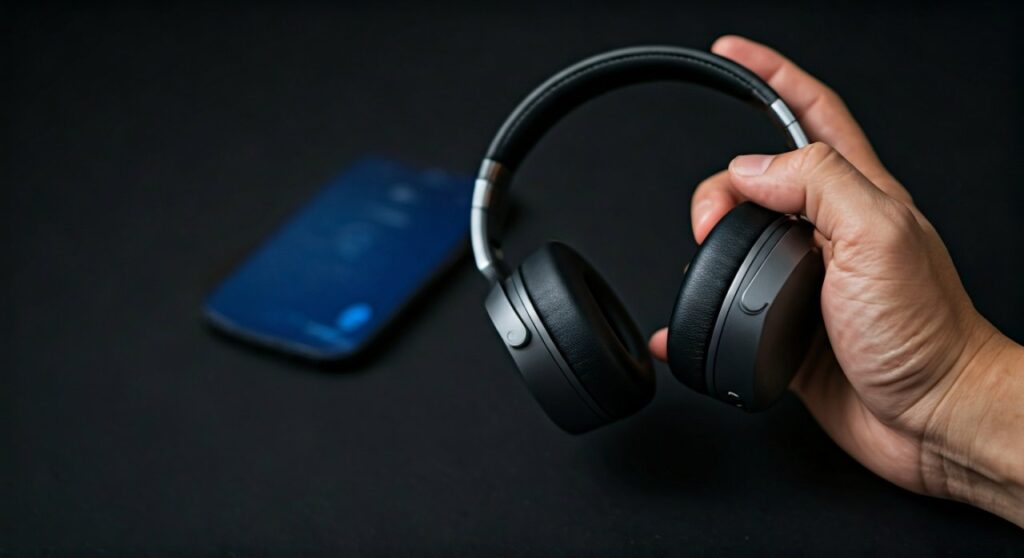
How to Sync Bluetooth Headphones: The Universal 5-Step Guide
While brands like Sony, Bose, and Apple have minor interface differences, the underlying technology remains the same. I have synced hundreds of pairs during my time as an audio technician, and this universal method works 99% of the time.
- Enable Bluetooth on your Source: Go to settings on your smartphone, tablet, or laptop and toggle Bluetooth ON.
- Activate Pairing Mode: With the headphones off, press and hold the power button. Do not let go when you hear “Power On”—keep holding until the lights flash.
- Scan for Devices: On your playback device, look at the list of “Available Devices.”
- Select Your Headphones: Tap the model name (e.g., JBL Tune 510BT or Beats Solo3).
- Confirm the Sync: Some devices may ask for a passkey (usually 0000), but most modern versions sync instantly.
Brand-Specific Instructions: How to Sync Popular Models
Different manufacturers use unique button combinations to initiate a handshake between devices. Here is how to handle the most popular brands on the market today.
How to Sync JBL Bluetooth Headphones
JBL is known for its “Connect+” and “PartyBoost” features, but the basic sync is straightforward. To sync JBL bluetooth headphones, locate the dedicated Bluetooth button on the ear cup.
If your model doesn’t have a dedicated button, hold the power button for 5 seconds while the unit is off. The light will blink blue, signaling it is ready to pair.
How to Sync JLab Bluetooth Headphones
To sync JLab bluetooth headphones, especially their popular Go Air or JBuds Air series, you often need to handle the earbuds simultaneously. Remove them from the charging case; one earbud will blink white, and the other will blink blue/white. This indicates they are searching for a device.
How to Sync Beats Bluetooth Headphones
Apple’s integration makes it easy to sync Beats bluetooth headphones. If you have an iPhone, simply power on the Beats near the phone, and a card will pop up on your screen. For Android users, hold the power button for 5 seconds until the “Fuel Gauge” lights pulse, then find them in your Bluetooth menu.
How to Sync Jaybird Bluetooth Headphones
Jaybird caters to athletes, meaning their sync process is designed to be rugged and fast. To sync Jaybird bluetooth headphones or sync jaybird headphones, start with the buds turned off.
Hold the middle button on the remote (for wired-wireless) or the case button (for true wireless) until the LED flashes green and red. If you are trying to sync jaybird bluetooth headphones like the Vista 2, ensure both buds are in the case before pressing the pairing button.
How to Sync Plantronics Bluetooth Headphones
To sync Plantronics bluetooth headphones, look for the power switch. On many BackBeat models, you must slide the power switch toward the Bluetooth icon and hold it there for 2 seconds. The LED will flash red and blue, and the voice prompt will say “Pairing.”
| Brand | Pairing Mode Trigger | LED Indicator |
|---|---|---|
| Sony | Hold Power (7 seconds) | Blinking Blue |
| Bose | Slide Power to Bluetooth Icon | Blinking Blue |
| JBL | Press Bluetooth Button | Blinking Blue |
| Beats | Hold Power (5 seconds) | Pulsing White |
| JLab | Lift from case / Hold both buttons | Blue/White Flash |
| Plantronics | Slide/Hold Power Switch | Red/Blue Flash |
Syncing Wireless Headphones to Different Platforms
The steps to sync wireless headphones change slightly depending on the operating system you are using.
Syncing to Windows 10 and 11
- Press Windows Key + I to open Settings.
- Navigate to Bluetooth & devices.
- Click Add device and select Bluetooth.
- Put your headphones in pairing mode and wait for the name to appear.
Syncing to macOS
- Click the Apple Menu and select System Settings.
- Click Bluetooth in the sidebar.
- Hover over your headphones in the list and click Connect.
Syncing to Android and iOS
On mobile, the process is even faster. For how to sync headphones on mobile, simply swipe down to your Control Center (iOS) or Quick Settings (Android), long-press the Bluetooth icon, and select your device.
Why Won’t My Bluetooth Headphones Sync? (Expert Troubleshooting)
Even for experts, Bluetooth can be finicky. If you cannot sync bluetooth headphones, it is usually due to one of three “invisible” roadblocks.
- Existing Connections: Your headphones might be “stuck” to a previously paired laptop in another room. Turn off Bluetooth on all other nearby devices.
- Signal Interference: Wi-Fi routers and even microwaves can disrupt the 2.4GHz frequency Bluetooth uses. Move away from large electronics.
- Firmware Glitches: Sometimes the internal software hangs. Perform a Factory Reset (usually by holding Power and Volume Down simultaneously for 10 seconds).
Pro Tips for a Seamless Audio Experience
Once you know how to sync wireless headphones, you should optimize the connection for the best sound quality.
- Use the App: Brands like Sony, Bose, and Jaybird have dedicated apps. These allow you to update firmware, which often improves syncing stability.
- Check the Codec: In your phone’s developer settings, ensure you are using LDAC or aptX if your headphones support it. This provides higher bitrate audio than standard SBC.
- Multipoint Pairing: High-end headphones can sync to two devices at once. Sync to your phone first, then use the app to add a second connection to your laptop.
Câu hỏi thường gặp (FAQs)
Why are my headphones not appearing in the Bluetooth list?
This usually happens because the headphones are not in Pairing Mode. Simply turning them on is not enough; you must hold the power button until the lights flash rhythmically to make them “discoverable.”
Can I sync my Bluetooth headphones to a TV?
Yes, if your Smart TV has built-in Bluetooth. Go to Settings > Audio > Sound Output, select “Bluetooth Speaker List,” and put your headphones into pairing mode to connect.
How many devices can I sync at once?
Most standard headphones can be “paired” (remembered) by up to 8 devices, but can only be “synced” (active audio) to one at a time. Headphones with Multipoint Technology can sync to two devices simultaneously.
Does syncing Bluetooth headphones drain the battery?
The initial syncing process uses a tiny amount of extra power because the radio is searching for a signal. Once synced, Bluetooth Low Energy (BLE) protocols ensure minimal battery drain during use.
How do I sync Jaybird headphones if they are already paired to another phone?
To how do you sync jaybird headphones to a new device, you must force them back into pairing mode. Turn the headphones off, then hold the power button for 6-8 seconds until the LED flashes red/green, then select them on your new device.









