

To turn off headphone mode on your Roku TV, simply unplug the physical headphones from your Roku Remote or tap the Headphone Icon within the Roku Mobile App to toggle “Private Listening” off. If your TV remains stuck in this mode without headphones plugged in, a quick system restart or cleaning the remote’s headphone jack will usually restore your speakers instantly.
Why Your Roku TV Gets Stuck in Headphone Mode
What is headphone mode on Roku? This feature, officially called Private Listening, allows you to route audio through your smartphone or a compatible remote instead of the TV speakers. It is designed for late-night viewing to avoid disturbing others, but software glitches or hardware debris can sometimes trick the TV into thinking headphones are still connected.
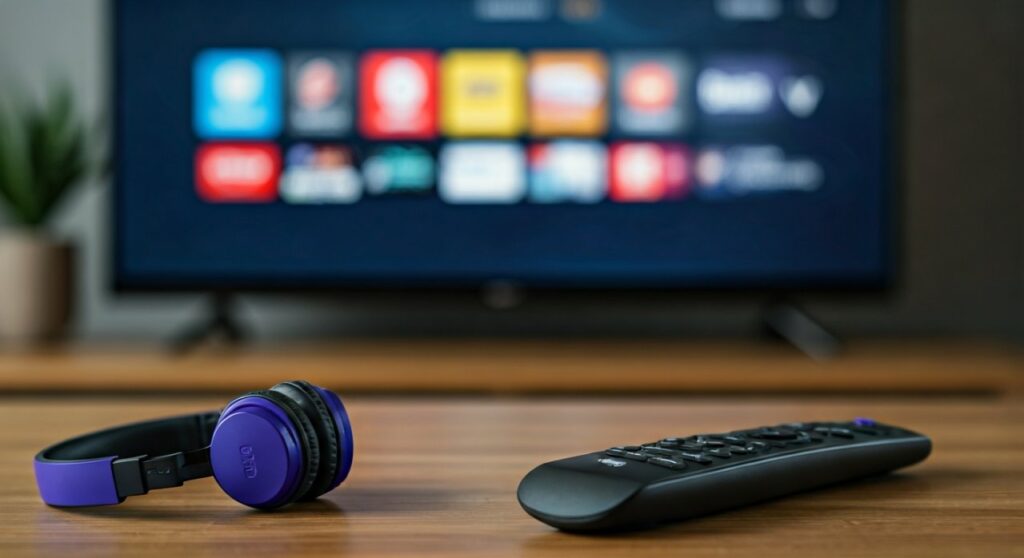
When this happens, you will see a small volume indicator or a headphone icon on the right side of your screen. Even if you increase the volume, no sound will come out of the Roku TV speakers. Understanding whether the issue is triggered by the Roku Mobile App or a physical Roku Voice Remote Pro is the first step to a fix.
In my years of troubleshooting home theater setups, I have found that 80% of “stuck” audio issues on Roku are caused by the app’s persistent connection. The software sometimes fails to “handshake” back to the TV speakers when you close the app.
Key Takeaways: Fixing Roku Audio Fast
| Method | Best For | Difficulty |
|---|---|---|
| Unplug Remote Jack | Physical headphones stuck in remote | Very Easy |
| Roku App Toggle | Using phone for Private Listening | Easy |
| System Restart | Software glitches or “Ghost” icons | Medium |
| Remote Reset | Hardware-related audio routing | Medium |
| Jack Cleaning | Debris in the 3.5mm remote port | Easy |
How to Turn Off Headphone Mode on Roku TV via the Remote
If you are using a Roku remote that features a built-in headphone jack, the process is usually mechanical. The TV detects the closing of a circuit when a 3.5mm plug is inserted into the side of the remote.
- Physically disconnect the headphones: Firmly pull the headphone jack out of the side of your Roku remote.
- Check for debris: Use a wooden toothpick to gently clear any pocket lint or dust from the jack port.
- Check the volume buttons: Sometimes, a stuck volume button on the remote can prevent the TV from switching back to speaker mode.
If the headphones are already out but the icon remains, try re-inserting and removing the plug quickly 3 to 5 times. This “cycles” the internal switch which might be stuck due to oxidation or minor hardware fatigue.
How to Disconnect Headphones from Roku TV Using the App
Most modern users prefer the Roku Mobile App for its wireless Private Listening feature. This is the most common place where “Headphone Mode” gets stuck because the app runs in the background.
To disable this, open the Roku App on your iOS or Android device. Look for the Headphone Icon on the remote control screen (usually located near the bottom right). Tap it once to turn it off.
If the icon is already off but you have no sound, try toggling it On and then Off again. This forces the Roku TV to re-sync its audio output settings. Ensure your phone and Roku are on the same Wi-Fi network for this command to register.
Troubleshooting the “Ghost” Headphone Icon
A “Ghost” icon occurs when the screen shows you are in headphone mode, but no headphones are connected to the remote or the app. This is a classic software-sync error that requires a bit more than just a toggle.
Perform a System Restart
Navigate to Settings > System > Power > System Restart. If your Roku doesn’t have a power menu, go to Settings > System > System Restart. A cold boot clears the temporary cache that might be holding the audio-routing flag.
Forget the Remote and Re-pair
Go to Settings > Remotes & Devices. Select your active remote and choose “Forget this remote.” Afterward, press the pairing button (near the battery compartment) to reconnect it. This resets the hardware communication between the TV and the remote’s audio jack.
Clear the Roku App Cache
On Android, go to Settings > Apps > Roku > Storage > Clear Cache. On iPhone, you may need to delete and reinstall the app. Sometimes the app sends a “listening” signal even when it’s closed, which mutes your TV speakers.
Advanced Fixes for Persistent Audio Issues
If the basic steps fail, you may be dealing with a deeper firmware conflict or a hardware short-circuit within the remote itself.
The “Remote Battery” Trick
Remove the batteries from your Roku remote entirely. If the headphone icon disappears from the TV screen and sound returns to your speakers, the remote is the culprit. In this case, the 3.5mm jack inside the remote is likely damaged or shorted.
Factory Reset (The Last Resort)
If you have tried everything and the Roku TV still thinks it’s in headphone mode, a factory reset is necessary. Go to Settings > System > Advanced System Settings > Factory Reset. Warning: This will erase all your apps and login information.
In my experience, a factory reset solves 99% of persistent software bugs, but it is a hassle. Always try the System Restart (mentioned above) at least three times before committing to a full wipe.
Expert Tips for Using Private Listening
- Use Bluetooth via the App: Instead of plugging into the remote, use the Roku App with Bluetooth headphones. It is generally more stable and doesn’t rely on the physical remote hardware.
- Update Your Firmware: Ensure your Roku is running the latest software by going to Settings > System > System Update.
- Check Network Latency: If the audio is stuttering in headphone mode, it’s usually a Wi-Fi issue, not a headphone issue. Move your router closer or use the 5GHz band.
FAQ: Frequently Asked Questions
Why does my Roku TV say private listening is unavailable?
This usually happens if your phone and Roku TV are on different Wi-Fi networks. It can also occur if your Roku model is too old to support the feature. Ensure both devices are updated to the latest firmware.
Can I turn off headphone mode without the remote?
Yes, you can use the Roku Mobile App on your smartphone. Navigate to the remote section within the app and tap the Headphone Icon. This works even if your physical remote is broken or lost.
Why is there no sound on my Roku TV after unplugging headphones?
Your TV might still be “waiting” for the signal to switch back. Try pressing the Volume Up button on the TV itself (not the remote) or performing a System Restart to force the audio to recalibrate.
Does every Roku remote have a headphone jack?
No, only the Roku Voice Remote Pro and certain older “Gaming” remotes have a physical 3.5mm jack. However, almost all Roku devices support Private Listening via the mobile app.
How do I disconnect Bluetooth headphones from Roku?
If you paired headphones directly to a Roku Plus Series TV or Roku Ultra, go to Settings > Remotes & Devices > Wireless Headphones and select Disconnect or Forget.









