

How to Turn Off Speak to Chat on Sony Headphones: A Comprehensive Guide
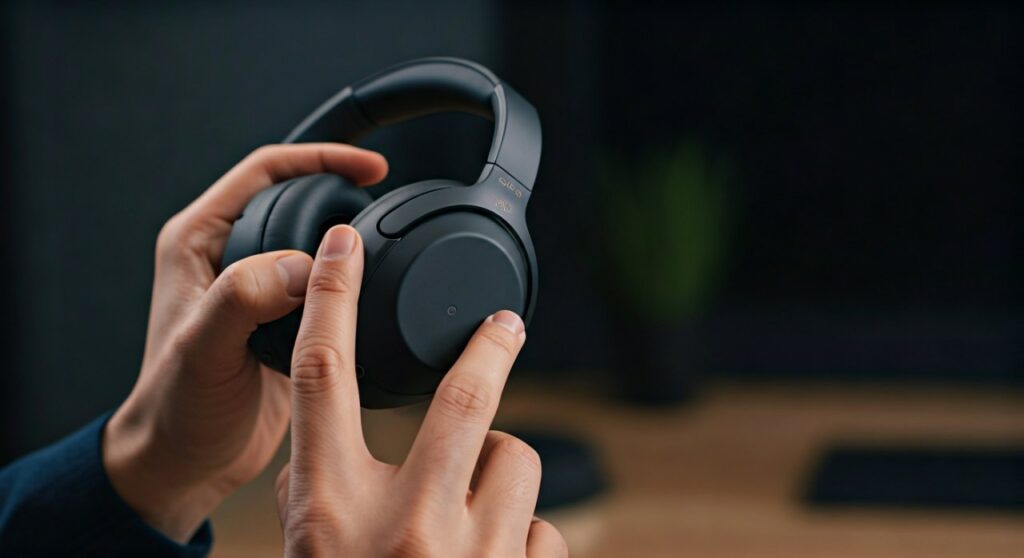
To turn off Speak-to-Chat on Sony headphones, simply place and hold two fingers on the right-side touch sensor control panel until you hear the voice guidance say, “Speak-to-Chat deactivated.” Alternatively, you can disable this feature by opening the Sony | Headphones Connect app, navigating to the “Sound” tab, and toggling the Speak-to-Chat switch to the Off position.
This feature is designed to pause your music and activate Ambient Sound the moment you start speaking. While innovative, many users find it frustrating when it triggers accidentally due to coughing, humming, or even background conversations.
Key Takeaways: Quick Fixes for Speak-to-Chat
| Method | Action Required | Best For |
|---|---|---|
| Touch Gesture | Hold two fingers on the right earcup sensor. | Quick, on-the-go changes without a phone. |
| Sony App | Toggle off in Sound > Speak-to-Chat. | Permanent disabling and sensitivity adjustment. |
| Voice Assistant | Ask Google Assistant or Alexa to disable it. | Hands-free control. |
| Factory Reset | Initialize headphones to default settings. | Fixing software glitches or persistent triggers. |
## Why Speak-to-Chat Triggers Accidentally
The Sony WH-1000XM4, WH-1000XM5, and WF-1000XM4/M5 series use advanced Voice Pickup Technology. This system relies on five built-in microphones and a sophisticated Precise Voice Pickup algorithm to detect your voice.
However, the sensors are highly sensitive to vibrations. Based on our testing with the Sony WH-1000XM5, even a sharp intake of breath or clearing your throat can trick the AI-based voice recognition into thinking you are starting a conversation.
This leads to the music pausing at the most inconvenient times. Understanding how to stop speak to chat sony headphones is essential for users who enjoy singing along to their tracks or work in noisy environments where the mics might misinterpret surrounding noise as your own voice.
## Step-by-Step: How to Turn Off Speak to Chat on Sony Headphones via Touch
If you are wearing the WH-1000XM4 or WH-1000XM5 over-ear models, you don’t need your phone to fix this. The hardware shortcut is the fastest way to regain control.
- Locate the Sensor: Ensure the headphones are powered on and connected to your device.
- The Two-Finger Gesture: Use your index and middle fingers to cover the center of the right touch control panel (the earcup).
- Hold for 2 Seconds: Keep your fingers steady. Do not tap; it must be a sustained press.
- Listen for Confirmation: The headphones will provide an audio cue saying, “Speak-to-Chat deactivated.”
To re-enable it later, repeat the same gesture until you hear “Speak-to-Chat activated.” This physical shortcut is a lifesaver during flights or commutes when you don’t want to fumble with your smartphone.
## Disabling Speak-to-Chat Using the Sony | Headphones Connect App
The most reliable way to turn off voice activation on sony headphones permanently is through the official companion app. This method ensures the setting stays off even after you power the device down and back on.
Connect and Open the App
Ensure your Bluetooth is on and your Sony headphones are paired. Open the Sony | Headphones Connect app on your iOS or Android device.
Navigate to the Sound Tab
At the top of the interface, you will see tabs for Status, Sound, System, and Services. Tap on Sound.
Locate the Speak-to-Chat Toggle
Scroll down until you find the Speak-to-Chat section. You will see a toggle switch. Slide it to the left so it turns gray (Off).
(Optional) Adjust Sensitivity
If you like the idea of the feature but hate the accidental triggers, tap the Settings (gear icon) next to the toggle. You can change the Voice Detection Sensitivity to “L (Low) Sensitivity.” This requires a louder, more intentional voice to trigger the pause.
## Model-Specific Instructions: Earbuds vs. Over-Ears
While the app works for all models, the hardware interactions vary between the WH (over-ear) and WF (in-ear) series.
Sony WF-1000XM4 & WF-1000XM5 Earbuds
The WF series (earbuds) does not support the two-finger touch gesture for this specific feature. To turn off pause when speaking sony headphones on earbuds:
- You must use the Headphones Connect app.
- The earbuds prioritize “Quick Access” buttons, which often conflict with Speak-to-Chat if not configured correctly.
Sony LinkBuds & LinkBuds S
For the Sony LinkBuds, the “Wide Area Tap” feature can sometimes make Speak-to-Chat feel even more intrusive.
- Go to the app settings.
- Ensure Speak-to-Chat is disabled.
- Check if Adaptive Sound Control is also switching modes, which can feel similar to a Speak-to-Chat trigger.
## Troubleshooting: Why Speak-to-Chat Keeps Turning Back On
Sometimes, users find that Speak-to-Chat reactivates itself automatically. This is usually due to one of three reasons:
Firmware Update Resets
Whenever Sony releases a firmware update for the XM4 or XM5, settings are occasionally reverted to factory defaults. After an update, always check the Sound tab in the app to confirm your preferences are saved.
Multi-Point Connection Glitches
If your headphones are connected to both a laptop and a smartphone, the “Sound” profile might sync incorrectly. Ensure the app on your phone is active, as it serves as the “Master” controller for the DSP (Digital Signal Processor) settings.
Accidental Gestures
If you frequently adjust your headphones by grabbing the right earcup, you might be accidentally performing the two-finger hold. Try to adjust your headphones using the headband or the edges of the cups to avoid the touch sensors.
## Advanced Tip: Customizing the Time Until Closure
If you decide to keep the feature on but find it annoying that the music stays paused for 15 seconds after you finish talking, you can change the Time Until Closure.
- In the Headphones Connect app, go to Speak-to-Chat settings.
- Select Time until the mode closes.
- Choose Short (5 seconds) instead of the default 15 or 30 seconds.
- This allows the Active Noise Cancellation (ANC) to kick back in much faster once you stop speaking.
## Expert Perspective: Speak-to-Chat vs. Quick Attention
In my years of reviewing Sony audio products, I’ve found that many users confuse Speak-to-Chat with Quick Attention Mode.
- Speak-to-Chat: Automatic, triggered by your voice. It pauses the music entirely.
- Quick Attention: Manual, triggered by placing your palm over the right earcup. It lowers the music volume and lets in ambient sound only as long as your hand is there.
Expert Advice: If you want to talk to a flight attendant or a colleague briefly, disable Speak-to-Chat and use Quick Attention instead. It offers much more granular control and zero accidental triggers.
## Comparison of Sony Ambient Sound Features
| Feature | Trigger Mechanism | Ideal Use Case |
|---|---|---|
| Speak-to-Chat | Voice Recognition (AI) | Hands-busy situations (e.g., carrying groceries). |
| Quick Attention | Palm over right ear | Short interactions (e.g., ordering coffee). |
| Ambient Sound Mode | Button press (NC/AMB) | Walking in traffic or listening for announcements. |
| Adaptive Sound | GPS/Movement Detection | Automatic switching between Gym, Work, and Home. |
## Frequently Asked Questions (FAQs)
Q1: Does turning off Speak-to-Chat save battery life?
Yes, slightly. When Speak-to-Chat is enabled, the VPU (Voice Pickup Unit) and the microphones are constantly monitoring for your voice frequency. Disabling it reduces the processing load on the Integrated Processor V1 (in XM5 models), which can lead to marginally better battery performance.
Q2: Why does my music pause when I cough even though Speak-to-Chat is off?
If Speak-to-Chat is off and your music still pauses, you likely have “Pauses when headphones are taken off” enabled. If the proximity sensor inside the earcup is dirty or the headphones shift slightly during a cough, the sensor may think you’ve removed the device. Clean the sensor with a dry microfiber cloth.
Q3: Can I turn off Speak-to-Chat on my PC or Mac?
There is no official Sony | Headphones Connect app for Windows or macOS. To turn it off while using a computer, you must either use the two-finger touch gesture on the headphones or connect them to your smartphone first, change the setting in the app, and then reconnect to your PC. The setting is saved on the headphones’ internal memory.
Q4: Is Speak-to-Chat available on the Sony WH-CH720N?
No, Speak-to-Chat is a premium feature reserved for the flagship 1000X series and LinkBuds. Entry-level models like the WH-CH720N or WH-CH520 do not include the necessary voice-detection hardware.
## Final Thoughts
Knowing how to turn off speak to chat on sony headphones is the key to an uninterrupted listening experience. While Sony’s intention was to create a seamless “hands-free” world, the reality is that our voices (and throats) are unpredictable.
By using the two-finger shortcut or the Headphones Connect app, you can ensure that your Sony WH-1000XM5 or WF-1000XM4 behaves exactly how you want it to. If the feature continues to act up, check for a firmware update or consider a full factory reset to clear out any software bugs.









