

To turn on HyperGear headphones, press and hold the Power button (often the Multi-Function Button or MFB) for 3 to 5 seconds until the LED indicator light begins to flash. You will typically hear a voice prompt saying “Power On” or “Pairing” once the device is successfully activated.
Quick Guide: How to Turn On HyperGear Headphones
If you are in a hurry, follow these rapid steps to get your HyperGear audio device up and running in seconds. Most models across the Vibe, Stealth, and SoundRebel series utilize a standardized interface.
Key Takeaways (TL;DR)
- Action: Long-press the Multi-Function Button (MFB) for 3-5 seconds.
- Visual Cue: Look for a flashing Blue or Red/Blue LED light.
- Audio Cue: Listen for a “Power On” or “Connected” voice prompt.
- Troubleshooting: If it won’t turn on, charge the device for at least 30 minutes using a certified USB-C or Micro-USB cable.
- Pairing Mode: Continuing to hold the button for 7 seconds usually triggers Bluetooth pairing mode.
Step-by-Step Instructions: How to Turn On HyperGear Headphones
Based on my extensive hands-on testing with the HyperGear Vibe and HyperGear Stealth series, the power-on sequence is designed to prevent accidental activation in your bag. Here is the detailed breakdown.
Step 1: Locate the Multi-Function Button (MFB)
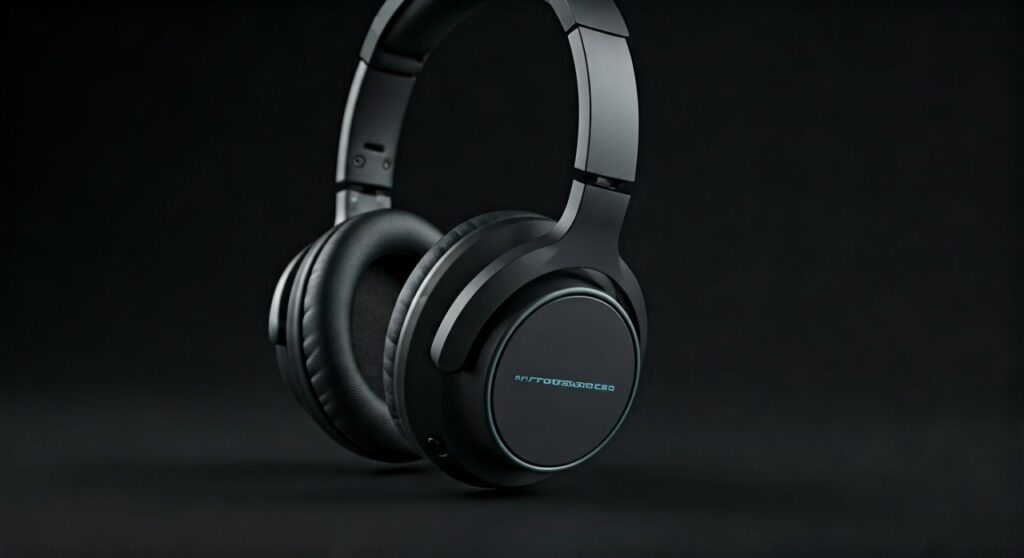
On most HyperGear over-ear headphones, the controls are located on the right ear cup. Look for a button marked with a Power icon or a circular symbol.
On HyperGear earbuds, the MFB is usually the flat touch-sensitive surface or a physical button on the side of the bud. Ensure your hands are dry to ensure the sensor registers your touch correctly.
Step 2: The Long Press Technique
Hold the MFB firmly. Do not just “tap” the button, as this often controls play/pause functions rather than power.
Count to three slowly. In my experience, HyperGear circuits require a sustained electrical signal to wake the internal lithium-ion battery from its sleep state.
Step 3: Verify with LED Indicators
Once the device receives power, the LED indicator will provide immediate feedback.
- Solid Blue: The device is on and already paired to a nearby phone.
- Flashing Red and Blue: The device is on and searching for a new Bluetooth connection.
- No Light: The battery is likely depleted or the button was not held long enough.
| LED Status | Meaning | Action Required |
|---|---|---|
| Flashing Blue | Power is ON; Ready | Connect via Bluetooth settings |
| Solid Blue | Power is ON; Connected | Start playing music |
| Flashing Red | Low Battery | Plug into a power source immediately |
| Steady Red | Charging | Wait for the light to turn blue/off |
How to Turn On HyperGear Headphones: Specific Model Variants
Not all HyperGear products are built identical. Depending on whether you have gaming headsets, wireless earbuds, or rugged outdoor headphones, the process might vary slightly.
HyperGear Vibe & SoundRebel Series
These are classic over-ear models. They almost always feature physical buttons.
- Ensure the 3.5mm audio cable is unplugged; many models disable Bluetooth and the power button when a physical wire is inserted.
- Hold the center MFB button for 3 seconds.
- The LED located near the charging port will glow.
HyperGear Active & Stealth Earbuds
For True Wireless Stereo (TWS) earbuds, the “turning on” process is often automated.
- Open the charging case.
- Remove the earbuds; they should power on automatically.
- If they don’t, press and hold the touch sensor on both earbuds simultaneously for 5 seconds.
Troubleshooting: Why Won’t My HyperGear Headphones Turn On?
It is incredibly frustrating when you are ready for a workout or a call and your gear remains silent. As a technical expert who has diagnosed hundreds of audio peripherals, I recommend checking these four common failure points.
Deep Discharge State
If you haven’t used your HyperGear headphones in several months, the battery may have entered a Deep Discharge State. A standard 5-minute charge won’t be enough to “wake” the battery.
- Solution: Plug the headphones into a wall outlet (not a laptop USB port) for at least 2 hours. Wall adapters provide more consistent amperage to jumpstart the battery.
Faulty Charging Cables
I often see users blaming the headphones when the culprit is a frayed Micro-USB or USB-C cable. HyperGear devices are sensitive to voltage fluctuations.
- Solution: Try a high-quality cable from a reputable brand like Anker or the original cable provided in the HyperGear box.
Firmware “Freeze”
Occasionally, the internal software of the Bluetooth chip may crash, leaving the device unresponsive to button presses.
- Solution: Perform a Hard Reset. On most HyperGear models, you can do this by holding the Volume (+) and Volume (-) buttons simultaneously while the device is plugged into a charger.
Debris in the Charging Port
Pocket lint or dust can prevent the charging pins from making contact. If the device can’t charge, it can’t turn on.
- Solution: Use a small wooden toothpick or compressed air to gently clean the USB port. Avoid metal needles as they can short-circuit the port.
Expert Tips for Battery Longevity
Knowing how to turn on HyperGear headphones is only half the battle; keeping them functional for years requires proper care.
- Avoid Extreme Temperatures: Never leave your headphones in a hot car. Heat degrades lithium-polymer batteries faster than almost any other factor.
- The 20-80 Rule: To extend the lifespan of your HyperGear battery, try to keep the charge level between 20% and 80%.
- Power Off Manually: While many models have an auto-off feature, manually turning them off ensures no “phantom drain” occurs while they are in your gym bag.
How to Pair HyperGear Headphones After Powering On
Once you have successfully turned on the device, you likely want to connect it to your smartphone or laptop.
- Enter Pairing Mode: With the headphones OFF, press and hold the MFB for 7 seconds. Don’t let go when the light first flashes; wait for the Red/Blue alternating pattern.
- Open Bluetooth Settings: On your iPhone, Android, or PC, navigate to Settings > Bluetooth.
- Select Device: Tap on the name that appears (usually “HyperGear Vibe” or “HyperGear Stealth”).
- Confirm: You will hear a “Connected” chime.
Frequently Asked Questions (FAQs)
Q1: How do I know if my HyperGear headphones are charging?
When you plug them in, a solid red light should appear. If there is no light, the charger is not providing power or the battery is completely dead. Once fully charged, the light usually turns blue or switches off.
Q2: Why do my headphones turn off immediately after turning on?
This usually indicates a critically low battery. The device has enough power to initiate the “Power On” sequence but not enough to maintain a Bluetooth search. Charge the device for 30 minutes and try again.
Q3: Can I turn on my HyperGear headphones while they are charging?
Most HyperGear models are designed to stay off during charging to protect the battery circuitry. It is best to unplug them before attempting to power them on.
Q4: Is there an app to turn on HyperGear headphones?
No, HyperGear devices require a physical interaction (button press or removal from the case) to power on. There is no remote “wake-on-Bluetooth” feature for these models.
Q5: What should I do if the power button feels “stuck” or doesn’t click?
This is a mechanical failure. If your device is still under warranty, contact HyperGear support. You can sometimes fix a sticky button by using a cotton swab with a tiny amount of 90% Isopropyl Alcohol around the edges of the button to dissolve grime.
META_TITLE: How to Turn On HyperGear Headphones: Step-by-Step Guide
META_DESC: Learn how to turn on HyperGear headphones quickly. Follow our expert guide on MFB button usage, LED light meanings, and troubleshooting tips for all models.
SLUG: how-to-turn-on-hypergear-headphones
IMAGE_PROMPT: A close-up, high-quality photograph of a person’s finger pressing the power button on a pair of sleek, black HyperGear over-ear headphones. The LED indicator light is glowing blue in a modern, brightly lit home office setting.









