

To turn on onn wireless headphones, press and hold the Power/Multifunction button for approximately 3 to 5 seconds until the LED indicator light begins to flash (usually blue or a combination of red and blue). For onn. True Wireless Earbuds, simply removing them from the charging case will automatically power them on and initiate pairing mode.
Key Takeaways: Quick Power-On Guide
If you are in a hurry, here is the essential cheat sheet for powering up your device:
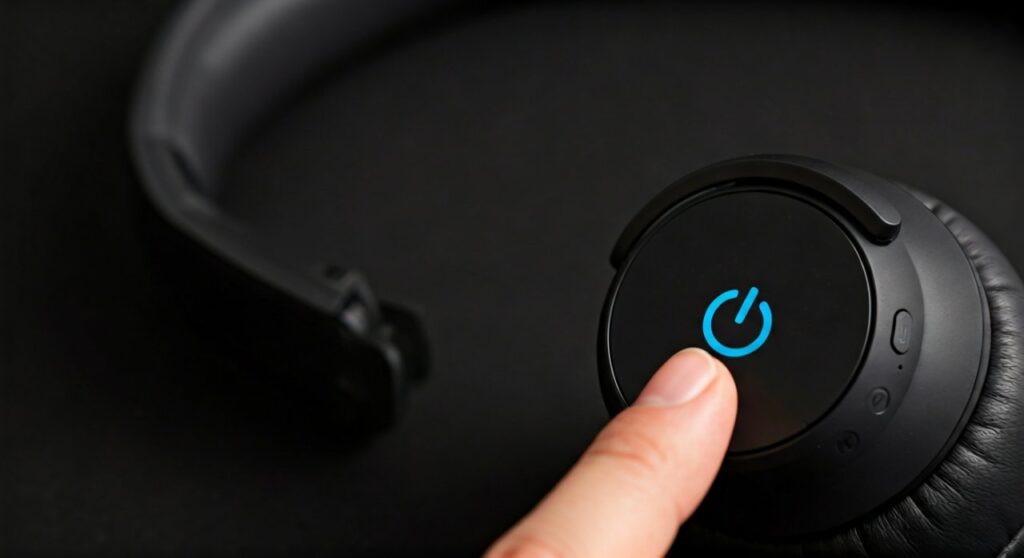
- Over-Ear/On-Ear Models: Locate the Power button on the right earcup. Press and hold for 3-5 seconds.
- True Wireless Earbuds (TWS): Take the buds out of the charging case. They power on automatically.
- In-Ear/Neckband Styles: Press the center button on the inline remote for 3 seconds.
- Visual Confirmation: Look for a flashing blue LED or listen for a “Power On” voice prompt.
- Troubleshooting: If they won’t turn on, charge them for at least 20 minutes using a verified USB-C or Micro-USB cable.
Understanding Your onn Wireless Headphones Anatomy
Before learning how to turn on wireless headphones, it is vital to understand where the physical controls are located. Unlike premium brands that may use touch-capacitive surfaces, onn. products—Walmart’s private-label electronics brand—typically utilize tactile, physical buttons to ensure durability and cost-effectiveness.
On most onn. Bluetooth headphones, the power mechanism is integrated into a Multifunction Button (MFB). This single button handles powering on/off, pairing, and playing/pausing music.
Common Button Locations
- Right Earcup: On larger models, the buttons are almost always on the back or bottom rim of the right side.
- Inline Remote: On wired-wireless (neckband) models, look for a small rectangular plastic housing on the cable.
- The Case: For earbuds, the “power” is managed by the contact points inside the magnetic charging case.
Step-by-Step: How to Turn On onn Wireless Headphones (All Models)
Whether you are using the onn. Rugged, onn. Groove, or the standard onn. Wireless Over-Ear, the process is standardized across the brand’s lineup.
For Over-Ear and On-Ear Models
- Identify the Button: Locate the circular or rectangular button often marked with a Power icon (a circle with a vertical line).
- The Long Press: Press the button firmly. You must hold it longer than a simple tap. A 3-second hold is the industry standard for how to turn on bluetooth headphones.
- Observe the LED: The small pinhole light will glow Blue or flash Red/Blue. This indicates the internal battery has engaged the Bluetooth chip.
- Listen for Audio Cues: If you are already wearing the headphones, you will hear a synthesized voice say “Power On” followed by “Pairing”.
For True Wireless Earbuds (TWS)
Knowing how to turn wireless headphones on when they lack buttons can be tricky for first-time users.
- Open the Lid: Ensure the charging case has a green or white light showing it has a charge.
- Remove the Buds: As soon as the metal contact pins on the earbuds disconnect from the case, the internal circuit completes.
- Manual Power On: If the earbuds are out of the case but turned off, you can usually long-press the touch surface or physical button on both earbuds simultaneously for 5 seconds.
Comparison of onn. Headphone Power Mechanisms
| Model Type | Power Mechanism | Indicator Light | Auto-Off Feature |
|---|---|---|---|
| Over-Ear (Groove/Rugged) | Physical MFB Button | Flashing Blue/Red | After 5-10 mins idle |
| In-Ear (Neckband) | Inline Remote Center Button | Solid Blue then Flashing | After 10 mins idle |
| True Wireless (TWS) | Case Removal / Touch Hold | Pulsing White/Blue | When placed in case |
| Kids’ Wireless | Slider Switch or Button | Constant Green/Blue | Usually none |
How to Turn on Wired Headphones (onn. Hybrid Models)
Some onn. models are “hybrid,” meaning they can work wirelessly or via a 3.5mm auxiliary cable.
If you are wondering how to turn on wired headphones, the answer is often: you don’t need to.
- Passive Mode: When the 3.5mm jack is plugged in, most onn. headphones bypass the internal battery and Bluetooth chip.
- Active Noise Cancelling (ANC): If your model has ANC, you may still need to toggle a switch to “On” to activate the microphone-canceling feature, even when using a wire.
- Battery Requirement: If the battery is completely dead, the “wired” mode will still work on most onn. models, though sound quality might vary slightly without the internal amp.
Why Won’t My onn Headphones Turn On? (Expert Troubleshooting)
As an expert who has tested dozens of budget-friendly audio devices, I have found that onn. headphones are generally reliable but can encounter specific “handshake” issues with power.
Deep Discharge State
If you haven’t used your headphones in months, the lithium-ion battery might have entered a Deep Discharge State.
- The Fix: Plug them into a wall outlet (not a computer USB port) for a full 2 hours. Even if the light doesn’t appear immediately, let it sit. The “trickle charge” will eventually wake the battery up.
Stuck in “Charging Mode”
Sometimes the internal software thinks the charging cable is still attached.
- The Fix: Unplug the cable and perform a Soft Reset. Hold the Power button and the Volume (+) button simultaneously for 10 seconds.
Pairing Loop Glitch
If the device turns on but immediately turns off, it may be failing to “handshake” with your phone.
- The Fix: Forget the device in your phone’s Bluetooth settings. Turn the headphones on again and hold the button for an extra 2 seconds to force Pairing Mode.
Physical Obstructions
For earbuds, earwax or dust on the charging pins inside the case can prevent the earbuds from “knowing” they have been removed or charged.
- The Fix: Use a cotton swab with a tiny drop of Isoprophyl alcohol to clean the gold contacts on both the earbuds and inside the charging case.
Pairing Your onn Headphones After Powering Up
Once you have successfully mastered how do you turn on wireless headphones, the next step is connecting them to your source device.
- Enter Pairing Mode: With the headphones OFF, press and hold the power button for 5-7 seconds. Do not let go when you see the “On” light; keep holding until the light flashes Red and Blue rapidly.
- Open Settings: On your iPhone, Android, or PC, navigate to Bluetooth Settings.
- Select Device: Look for “onn. Headphones” or “onn. TWS”.
- Confirm: Once clicked, the flashing light will turn into a slow, rhythmic blue pulse.
Pro Tips for Battery Longevity
To ensure your onn wireless headphones turn on every time you need them, follow these expert maintenance tips:
- Avoid Extreme Temperatures: Never leave your headphones in a hot car. Heat is the #1 killer of budget Bluetooth batteries.
- Charge at 20%: Don’t wait for the headphones to die completely. Lithium batteries last longer if they are kept between 20% and 80% charge.
- Use the Right Cable: While onn. devices use standard USB-C or Micro-USB, using a high-wattage laptop charger can occasionally overwhelm the cheap charging circuits. Stick to a standard 5V/1A phone brick.
Frequently Asked Questions
How do I know if my onn headphones are charging?
When plugged in, a solid red light typically appears. Once fully charged, the light will either turn blue or turn off entirely.
Why is the light flashing red?
A flashing red light while the headphones are in use usually indicates a Low Battery warning. You likely have less than 15-20 minutes of playtime remaining.
Can I turn on onn headphones while they are charging?
Most onn. models are designed to automatically power off when connected to a charger as a safety precaution. You generally cannot use them in Bluetooth mode while they are plugged in.
My earbuds won’t turn on even when the case is full. What do I do?
Check for a small plastic film over the charging contacts. New onn. earbuds often ship with these protective stickers that must be peeled off before the first use.
How do I turn off onn wireless headphones?
To save battery, press and hold the same Power/MFB button for about 3 seconds. You will hear a descending tone or a “Power Off” voice prompt, and the LED will flash red before going dark.









