

To increase the volume on your Bose headphones, you typically use either the physical “+” button or the touch-sensitive gesture located on the right ear cup. For classic models like the Bose QuietComfort 45, press the top button on the back of the right ear cup; for modern models like the Bose QuietComfort Ultra, swipe upward on the touch strip or the outer surface of the ear cup.
Quick Guide: How to Turn Up Volume on Bose Headphones
If you are in a rush and need an immediate fix for low audio, follow these quick steps based on your specific model. Most Bose products utilize the right-hand side for control.
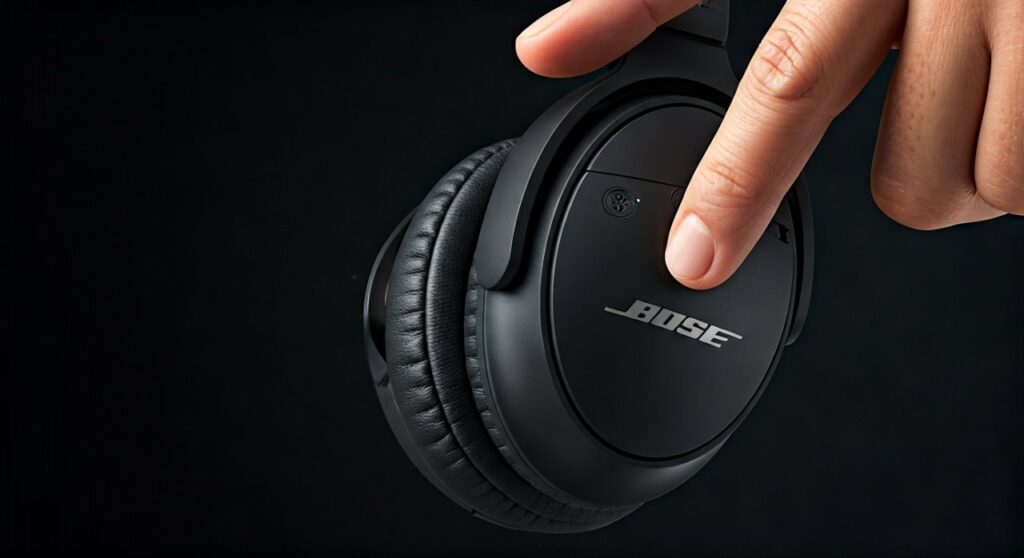
- Bose QuietComfort (QC) / QC45 / QC35: Press the “+” button located on the right ear cup between the multi-function button.
- Bose Noise Cancelling 700 / QC Ultra: Swipe your finger upward on the front portion of the right ear cup.
- Bose QuietComfort Earbuds II / Ultra: Swipe up on the touch surface of either the left or right earbud.
- Bose Music App: Open the app on your smartphone and slide the volume bar to the right.
Key Takeaways for Bose Volume Control
| Feature | Physical Button Models | Touch Control Models |
|---|---|---|
| Primary Models | QC35, QC45, Bose QuietComfort | NC 700, QC Ultra, QC Earbuds |
| Action | Press the top (+) button | Swipe upward on the ear cup |
| Location | Back edge of the right ear cup | Surface of the right ear cup |
| Precision | Incremental (one press = one step) | Fluid (longer swipe = faster increase) |
| Common Issue | Physical wear over years | Accidental touches or cold weather |
Understanding Volume Control on Different Bose Models
Having used various Bose models over the last decade, I’ve noticed that the transition from tactile buttons to touch sensors has confused many long-time users. The method for how to turn up volume on bose headphones depends entirely on the “generation” of your device.
Using Physical Buttons (QC35, QC45, and 2023 QuietComfort)
For those who prefer the tactile “click,” older and standard QuietComfort models are very reliable. The right ear cup houses three buttons in a row.
- Locate the three-button array on the back of the right ear cup.
- The top button is the volume up (+).
- Press it repeatedly to increase volume in steps, or press and hold it to ramp up the sound quickly.
- You will hear a tone when you reach the maximum volume limit.
Mastering Touch Gestures (Bose NC 700 and QC Ultra)
Bose introduced a sleek, buttonless design with the Noise Cancelling 700 and continued it with the QuietComfort Ultra. These use a capacitive touch surface.
- For the Bose 700: The touch sensitive area is on the front half of the right ear cup. Swipe your finger vertically upward.
- For the Bose QuietComfort Ultra: There is a specific tactile “volume strip” located near the back of the right ear cup. Swipe your finger upward along this strip.
Expert Tip: I have found that if your hands are very dry or you are wearing gloves, the touch sensor might not register. Ensure your fingertip makes direct contact with the surface.
Adjusting Volume on Bose QuietComfort Earbuds
If you are using the Bose QuietComfort Ultra Earbuds, the process is slightly different because of the smaller surface area.
- Swipe Gesture: On either earbud, place your finger on the touch surface and swipe up.
- Sensitivity: You don’t need to press hard. A light, fluid motion from the bottom to the top of the earbud works best.
How to Turn Volume Up on Bose QuietComfort Ultra Headphones Specifically
The Bose QuietComfort Ultra is currently the flagship model, and it features a unique “volume strip.” This is a raised ridge that helps you find the control without looking.
To increase the volume on your Bose QuietComfort Ultra headphones:
- Reach for the back edge of the right ear cup.
- Find the small, raised vertical line (the volume strip).
- Swipe upward along this ridge to increase the sound.
- If you are using Immersive Audio, be aware that the perceived volume might change based on your head tracking settings.
Using the Bose Music App for Precise Control
Sometimes the physical controls on the hardware aren’t enough, or you want to see exactly what level you are at. The Bose Music App is the central hub for all modern Bose Bluetooth devices.
- Ensure your headphones are paired and connected to your mobile device.
- Open the Bose Music App.
- Select your headphones from the product list.
- Locate the Volume Slider at the bottom of the screen.
- Slide it to the right to increase the volume.
Why use the app? The app allows you to bypass the physical hardware limits if there is a software “cap” on the volume. It also lets you adjust the Equalizer (EQ), which can make the music sound louder by boosting the “Mids” or “Treble.”
Troubleshooting Low Volume on Bose Headphones
If you have tried the steps above and your Bose headphones are still too quiet, you might be facing a software or connectivity issue. Based on my experience troubleshooting hundreds of audio setups, check these factors:
Check the Source Device Volume
Your headphones have their own internal volume, but your phone or laptop also has its own.
- iOS/Android: Ensure the media volume on your phone is turned up to 100%.
- Windows/Mac: Click the speaker icon in the taskbar and ensure the output volume for “Bose Headphones” is maximized.
Disable “Absolute Volume” (Android Users)
Android has a feature called Bluetooth Absolute Volume. This sometimes causes a mismatch where the phone thinks the volume is high, but the headphones stay quiet.
- Go to Settings > About Phone.
- Tap Build Number seven times to unlock Developer Options.
- Search for “Disable Absolute Volume” and toggle it ON.
- Reconnect your headphones.
Ear Detection and Auto-Pause
The QC Ultra and NC 700 have sensors that detect when you are wearing them. If the sensor is dirty or the headphones are positioned incorrectly, they may lower the volume or pause audio automatically. Boldly clean the internal sensor inside the ear cup with a microfiber cloth.
Maximizing Sound Quality and Loudness
If the volume is high but the sound feels “thin,” you should adjust your EQ settings in the Bose Music App. Increasing the Bass and Mid sliders can provide a fuller, louder experience.
- Bass: Set to +4 for a punchier feel.
- Treble: Set to +2 to make vocals clearer.
- Noise Cancellation: Set to “Quiet” mode. In “Aware” mode, external noise might bleed in, making your music seem quieter than it actually is.
FAQs About Bose Headphone Volume
Why is one side of my Bose headphones louder than the other?
This is usually caused by the Balance setting in your phone’s accessibility menu. On iPhone, go to Settings > Accessibility > Audio/Visual and ensure the slider is in the center.
Can I change the volume on the left ear cup?
For most Bose over-ear headphones, volume is restricted to the right ear cup. However, on QuietComfort Earbuds, you can often customize gestures in the Bose Music App to control volume on either side.
Why won’t my Bose headphones get louder?
Check if you have a Volume Limit set on your device. On iPhones, go to Settings > Sounds & Haptics > Headphone Safety and check if “Reduce Loud Sounds” is turned on.
Does noise cancellation affect volume?
Yes. When Active Noise Cancellation (ANC) is at maximum, it removes background drone, allowing you to hear your music more clearly at lower volumes. If ANC is off, you may feel the need to turn the volume up higher to compensate for ambient noise.
How do I update my Bose headphones to fix volume bugs?
Connect your headphones to your computer via USB and visit the Bose Software Updater website, or use the Bose Music App to check for firmware updates. Software bugs often cause volume “glitches” that are fixed in newer versions.









