

To share audio from a single device with two or more people, you need a headphone splitter. This small but essential tool plugs into your smartphone, laptop, or tablet’s audio port, converting one output into multiple female jacks. Simply insert the splitter into your source device, plug your headphones into the splitter’s ports, and you are ready to listen together instantly.
Key Takeaways: The Quick Guide to Headphone Splitters
If you are in a rush, here is the essential information you need to know about using a headphone splitter effectively:
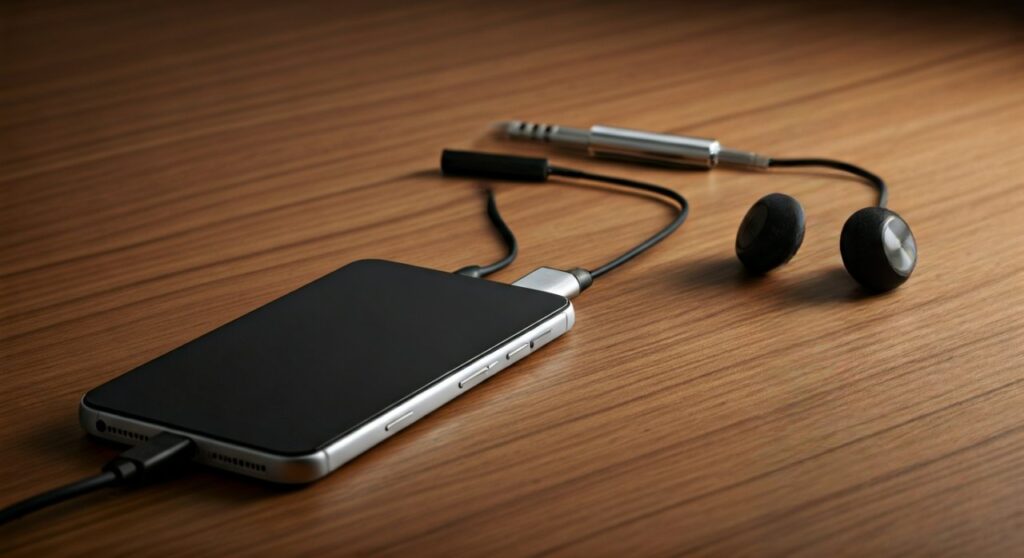
- Primary Function: It allows two or more people to hear the same audio from one source (phone, laptop, airplane seat).
- Types: Most use the standard 3.5mm jack, but newer versions are available for USB-C and Lightning ports.
- Audio Quality: Passive splitters may cause a slight drop in volume; active (powered) splitters maintain full signal strength.
- Mic Support: Ensure you buy a TRRS (4-pole) splitter if you need to use a microphone; standard TRS (3-pole) splitters only support audio playback.
- Best Use Case: Perfect for long flights, watching movies in bed, or basic podcast monitoring.
Understanding the Basics of a Headphone Splitter
A headphone splitter is an analog or digital adapter that divides an audio signal. In my years of testing audio peripherals, I’ve found that while they look simple, the internal wiring matters immensely for sound fidelity.
Most splitters come in a “Y” shape, featuring one male connector and two female ports. However, “hub” style splitters (like those from Belkin) can support up to five listeners simultaneously.
Why You Need One
- Travel: Sharing a single iPad screen on a plane without disturbing others.
- Education: Allowing two students to listen to a language lesson on one computer.
- Gaming: Connecting two headsets to a single controller (though mic functionality varies).
- Audio Production: A quick way for a producer and artist to monitor a track without a dedicated interface.
Step-by-Step Guide: How to Use a Headphone Splitter
Using a headphone splitter is generally a plug-and-play experience, but following these steps ensures you don’t damage your ports or lose sound quality.
Step 1: Identify Your Device Port
Before purchasing or connecting, check your source device.
- Old iPhones/Androids & Laptops: Use a standard 3.5mm TRS splitter.
- Modern Smartphones: You likely need a USB-C to Dual 3.5mm or Lightning to Dual 3.5mm adapter.
- Desktop PCs: Look for the green-colored audio out port.
Step 2: Plug the Splitter into the Source
Insert the male end of the splitter firmly into the device. You should feel a slight “click.” If you are using a protective case on your phone, ensure the splitter’s housing isn’t being blocked, as a loose connection causes “crackling” or mono sound.
Step 3: Connect Your Headphones
Plug your first pair of headphones into the first female jack. Then, plug the second pair into the other jack. I recommend plugging them in one by one while audio is playing to verify that both channels (Left and Right) are working.
Step 4: Adjust the Volume
When you use a headphone splitter, the electrical signal is divided. This often results in a 3dB to 6dB volume drop. You will likely need to turn your device volume higher than usual.
Pro Tip: If one person finds the audio too loud and the other too quiet, consider a splitter with independent volume controls. Brands like KabelDirekt offer models with inline sliders for this exact purpose.
Comparing Types of Headphone Splitters
Not all splitters are created equal. Depending on your hardware, you might need a specific “pole” configuration.
| Splitter Type | Best For | Pros | Cons |
|---|---|---|---|
| 3.5mm Y-Splitter (TRS) | Laptops, MP3 players, Airplanes | Cheap, widely available | No microphone support |
| 3.5mm Headset Splitter (TRRS) | Gaming, Zoom calls | Supports mic and audio | Requires specific hardware |
| USB-C Splitter | Modern Android, iPad Pro | Digital-to-Analog (DAC) quality | More expensive |
| Multi-port Hub | Group travel, Classrooms | Up to 5 listeners | Bulkier design |
| Active/Powered Splitter | Professional monitoring | No volume loss | Requires batteries or USB power |
Technical Deep Dive: TRS vs. TRRS
One of the biggest frustrations users face is why their microphone doesn’t work when using a headphone splitter. This comes down to the “rings” on the jack.
- TRS (Tip-Ring-Sleeve): Has two black/colored rings. This supports Stereo Audio only. If you use this for gaming, you will hear the game, but your teammates won’t hear you.
- TRRS (Tip-Ring-Ring-Sleeve): Has three rings. This carries Left Audio, Right Audio, and Microphone signals.
If you plan to use a headphone splitter for a PlayStation or Xbox controller to chat with a friend, you must ensure the splitter is rated for TRRS. In my experience, the Anker 3.5mm Female to Dual Male is a reliable choice for splitting mic and audio signals for PC gaming.
Advanced Troubleshooting for Audio Issues
Even with a simple tool like a headphone splitter, things can go wrong. Here is how to fix common problems:
Low Volume or “Thin” Sound
This is often caused by impedance mismatch. If you plug one high-end studio headphone (high impedance) and one cheap earbud (low impedance) into the same splitter, the audio will be uneven.
- Solution: Try to use two sets of headphones that are the same model or have similar power requirements.
One Side Not Working
This is usually a physical connection issue.
- Solution: Clean the jack with compressed air. Ensure the splitter is pushed all the way into the phone. If you are using a phone case, try removing it to see if the plug seats deeper.
Static or Crackling
Static is a sign of poor shielding or a worn-out internal wire.
- Solution: Avoid “ultra-cheap” unbranded splitters. Look for connectors with Gold-Plated tips, which resist corrosion and provide a cleaner signal path.
Expert Tips for Getting the Best Audio Quality
As someone who has managed audio for small events and long-haul travel, I’ve learned a few tricks to maximize the performance of a headphone splitter:
- Avoid Daisy-Chaining: Never plug a splitter into another splitter. This increases electrical resistance and will make the audio sound muffled and incredibly quiet.
- Check for DAC chips: If buying a USB-C splitter, ensure it has a Built-in DAC (Digital-to-Analog Converter). Cheap USB-C adapters without DACs won’t work with Samsung or Google Pixel phones.
- Cable Length matters: A shorter cable (or a solid “U” shaped adapter) usually has less interference than a long, 6-foot splitting cable.
- Use Active Splitters for 3+ People: If you are splitting to 3 or 5 people, the signal will be too weak for passive wires. Buy a powered hub like the Moochies Multi-Headphone Amp for consistent volume across all sets.
Frequently Asked Questions
Does a headphone splitter reduce sound quality?
In a strictly technical sense, yes. A passive headphone splitter divides the electrical current. This results in a lower volume and potentially a slight loss in bass response. However, for casual movie watching or music listening, the difference is usually negligible to the average ear.
Can I use a splitter to connect a mic and a speaker?
You need a specific type of splitter called a PC Headset Toggle or “Breakout Cable.” These have one port specifically for a microphone (usually pink) and one for audio (usually green). A standard Y-splitter will not work for this purpose.
Are headphone splitters compatible with iPhones?
Yes, but since iPhones no longer have 3.5mm jacks, you need a Lightning to Dual 3.5mm splitter or a “dongle” that connects to a standard splitter. Look for MFi Certified (Made for iPhone) accessories to ensure they don’t stop working after an iOS update.
Can I use two different brands of headphones?
Absolutely. You can mix and match Sony, Bose, or Apple headphones. Just be aware that if one pair is much more powerful than the other, the volume levels will not be equal between the two listeners.
Will a splitter work on an airplane?
Yes! Most modern planes use a single 3.5mm jack. Plugging a headphone splitter into the armrest allows you and a seatmate to watch the same in-flight movie using your own comfortable headphones instead of the low-quality ones provided by the airline.







